Unknown's avatar

About Michel de Rooij

Michel de Rooij, with over 25 years of mixed consulting and automation experience with Exchange and related technologies, is a consultant for Rapid Circle. He assists organizations in their journey to and using Microsoft 365, primarily focusing on Exchange and associated technologies and automating processes using PowerShell or Graph. Michel's authorship of several Exchange books and role in the Office 365 for IT Pros author team are a testament to his knowledge. Besides writing for Practical365.com, he maintains a blog on eightwone.com with supporting scripts on GitHub. Michel has been a Microsoft MVP since 2013.

The case of the not updating Outlook for Mac 2011


exchange2007logo2[1]I had contact with a Twitter user on an issue with Outlook for Mac 2011 talking against Exchange Server 2007 on Small Business Server 2008.

When configuring a new account, Outlook for Mac reported “Account cannot be added.  Note that Outlook 2011 requires Exchange Server 2007 SP1 Update Rollup 4 or later.”

image

However, that couldn’t be right because that user claimed to be running a higher version of Exchange 2007. After manually entering the server name, a connection could be established and an initial download of folders and contents took place. However, items weren’t updated and contacts and calendar remained empty.

After trying and checking some things, I asked to turn on Outlook for Mac’s logging hoping to find something in the Exchange Web Services log (Outlook for Mac 2011 is EWS based). You can enable logging by checking Window > Error Log > Errors > Settings > Turn on logging for troubleshooting. After a while I was sent the log file Microsoft Outlook_Troubleshooting_0.log which contained the following excerpt:

2013-01-24 08:55:34.392,0xFFFFFFFF,Outlook Exchange Web Services,Info,"EWS: Response data received on thread=0x7d27bdb4, XML data=
<?xml version=""1.0"" encoding=""utf-8""?><soap:Envelope xmlns:soap=""http://schemas.xmlsoap.org/soap/envelope/"" xmlns:xsi=""http://www.w3.org/2001/XMLSchema-instance"" xmlns:xsd=""http://www.w3.org/2001/XMLSchema""><soap:Header><t:ServerVersionInfo MajorVersion=""8"" MinorVersion=""3"" MajorBuildNumber=""297"" MinorBuildNumber=""0"" Version=""Exchange2007_SP1"" xmlns:t=""http://schemas.microsoft.com/exchange/services/2006/types"" /></soap:Header>

First, Exchange reports version 8.3.297.0 which corresponds with Exchange 2007 SP3 RU9 (EWS can report slightly different version than actual version), so something else was wrong while that’s well above Exchange 2007 SP1 RU4.

2013-01-24 08:55:39.355,0xFFFFFFFF,Outlook Exchange Web Services,Info,"EWS: Sending request on connection=0x7dc89be8, URL=/EWS/Exchange.asmx, SoapAction=""http://schemas.microsoft.com/exchange/services/2006/messages/SyncFolderItems"""
2013-01-24 08:55:39.358,0xFFFFFFFF,Outlook Exchange Web Services,Info,EWS: Received response on connection=0x7d31dae8; status=500
..
2013-01-24 08:55:49.861,0xFFFFFFFF,Outlook Exchange Web Services,Info,"EWS: Sending request on connection=0x7d71a648, URL=/EWS/Exchange.asmx, SoapAction=""http://schemas.microsoft.com/exchange/services/2006/messages/GetItem"""	
2013-01-24 08:55:49.863,0xFFFFFFFF,Outlook Exchange Web Services,Info,EWS: Received response on connection=0x7dc26638; status=500
..
2013-01-24 08:55:39.359,0xFFFFFFFF,Outlook Exchange Web Services,Info,"EWS: Sending request on connection=0x7d31dae8, URL=/EWS/Exchange.asmx, SoapAction=""http://schemas.microsoft.com/exchange/services/2006/messages/GetItem"""	
2013-01-24 08:55:39.477,0xFFFFFFFF,Outlook Exchange Web Services,Info,EWS: Received response on connection=0x7d7005c8; status=200

I then noticed various EWS requests returned http status code 200 (means OK) but also 500’s, which correspond to “Internal Server Error”. It happened after various requests (e.g. SyncFolderItems, GetFolder, GetItem) but not for all requests.

Now, code 500 isn’t very helpful (general terminal failure) and a quick restart of IIS with iisreset /restart /noforce didn’t solve things.

After some digging it turned out the seemingly unrelated KB2264110 pointed in the right direction. I say unrelated, because it’s on messages not being updated on Blackberry Internet Service (BIS) after installing Exchange Server 2007 SP2. Turned out the performance counters on the Exchange 2007 server were corrupt and rebuilding them solved the issue.

To rebuild the performance libraries, perform the following steps from an elevated command prompt:

  1. CD %SystemRoot%\System32
  2. Run lodctr /R (/R is case-sensitive) which will rebuild all known counters
  3. Run wmiadap /f which will update the WMI performance classes
  4. Restart the Exchange 2007 server

After these steps, Outlook for Mac 2011 could sync again with Exchange Server 2007 SP3.

Exchange 2013 Help Files Updated


Ex2013 LogoA quick post as the Exchange 2013 Help (.CHM) files on the Microsoft Download Center have been updated. The offline help files files are convenient if you’re on the road or in a location without internet connection.

You can download the updated files dated January 18th, 2013 for On-Premise and Hybrid deployments of Exchange 2013 here.

On another note, there’s a new Office Visio 2013 stencil for Exchange 2013, including on-premise and hybrid deployments. You can download it here.

Fixing Well-Known Folders Troubles (Update)


powershellLast update: Version 1.47, April 17th, 2017

Depending on your migration scenario, you could be exporting and importing PST files when migrating mailbox contents from one Exchange environment to another. Now folders in PST files are just folders, i.e. Inbox is a folder just like any other folder and well-known folders lose their identification. Because of this, you may end up with unexpected additional folders in your mailbox after importing PST files.

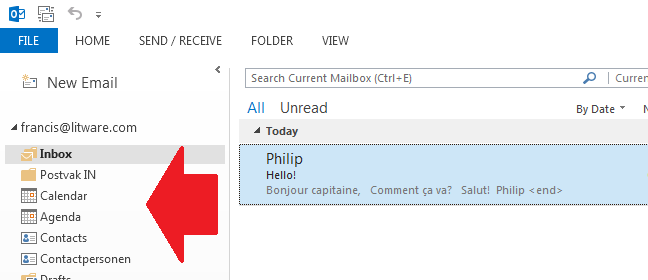
For example, when importing a non-US mailbox PST in a mailbox set to en-US you may end up with well-known folders and their regional counterparts, e.g. “Inbox” and “Postvak In” or “Calendar” and “Agenda”.

image

It can also happen that you import the PST file before setting the regional settings of the mailbox. In that case the folders with the local names are already present and Exchange will generate sequence number folders, e.g. Inbox1 or Calendar1.

image

Note that the above behavior goes for all well-known folders, such as Inbox, Calendar, Contacts and Sent Items. Users logging in early, i.e. logging on to their mailbox while they shouldn’t, can also create these situations.

One way to fix this situation is to manually move contents to the proper location using an e-mail client, which is tedious and something you don’t want to trouble end users or admins with. Another way is to set the mailbox’ regional configuration before importing the PST file.

A better way is of course to have an Exchange Management Shell script which talks to Exchange Web Services, essentially doing the same but in an automated kind of fashion. Here’s where the Fix-MailboxFolder.ps1 script comes into play. Using Fix-MailboxFolders.ps1 requires Exchange 2010 SP1 and Exchange Web Services 1.2 (or later), which you can download here. The script hasn’t been tested yet against Exchange 2013.

Since the script will process user mailboxes, it needs to be run by a user with full mailbox permissions or impersonation permissions. Granting full mailbox access can be done on several levels, e.g. mailbox or database. For example, to grant ExAdmin Full Access on a mailbox:

Add-MailboxPermission –Identity User –User ExAdmin –AccessRight FullAccess

However, a more elegant and preferred method is to utilize impersonation through Role-Based Access Control (RBAC). Information on configuring impersonation in your Exchange environment using RBAC is found here. As an example, to grant ExAdmin permissions to impersonate all(!) users in an organization, use the following cmdlets:

New-ManagementRoleAssignment –Name:impersonationAssignmentName –Role:ApplicationImpersonation –User:ExAdmin

After executing this cmdlet, the account ExAdmin can succesfully impersonate mail-enabled users. To limit impersonation to a certain subset of the user population, you could use a write scope; for more information on RBAC and write scopes, check out my past blog on this topic here.

Fix-MailboxFolders.ps1 uses the following syntax:

Fix-MailboxFolders.ps1 [-Identity]  [[-Language] ] [[-FromLanguage] ] [[-Server] ] [-ScanNumericals] [-Impersonation] []

A quick walk-through on the parameters and switches:

  • Mailbox is the name or e-mail address of the mailbox of which to fix the folder structure. If you specify a mailbox, the current Active Directory domain is consulted. When specifying an e-mail address, Autodiscover is used.
  • Language is the language to configure. If this isn’t specified, the script will use a default value of en-US;
  • FromLanguage is the language in which to scan for folders. When omitted, the script will use the currently configured mailbox language;
  • Server is the name of the Client Access Server to access for Exchange Web Services. When omitted, the script will attempt to use Autodiscover;
  • The switch ScanNumericals will tell the script to look for folders in the language specified by FromLanguage with sequence numbers, e.g. Inbox1 or Calendar1;
  • When the Impersonation switch is specified, impersonation will be used for mailbox access. When this switch isn’t used, the script will run in the context of the current user.
  • Credentials can be used to specify the credentials to access the mailbox or impersonator when Impersonation is specified as well.
  • Of the common parameters, only the Verbose switch is currently supported and will tell you exactly what the script is doing

So, for example assume you have a mailbox with en-US folders but also Dutch folders and the proper regional setting is en-US, use the following cmdlet:

.\Fix-MailboxFolders.ps1 –Identity Francis -Language nl-NL -FromLanguage us-EN –Impersonation

image

To fix the folders of an Office 365 mailbox, connect remotely to an Exchange Online session, and run the script using the e-mail address of the mailbox, specifying credentials optionally in combination with impersonation with sufficient permissions.

If you want to fix the folders of multiple mailboxes you can use a CSV file. The CSV needs to contain at least the Mailbox, but can optionally settings for Language and FromLanguage since the script will accept both through the pipe.

A sample of how the csv could look:

Mailbox,Language,FromLanguage
francis,en-US,nl-NL
philip,en-US,nl-NL

The cmdlet should then be something like:

Import-Csv .\Users.csv | .\Fix-MailboxFolders.ps1 -Language en-US -ScanNumericals -Impersonation –Verbose

Should you be running this in a resource-forest deployment, the script will by default try to retrieve the e-mail address of the specified mailbox – assuming you didn’t enter an alias instead of an e-mail address – in the current domain. You can override that by modifying the line which reads:

$ADSearch= New-Object DirectoryServices.DirectorySearcher( [ADSI]””)

to

$ADSearch= New-Object DirectoryServices.DirectorySearcher( [ADSI]”dc=user,dc=contoso,dc=com”)

where user.contoso.com is the distinguished name of your account forest.

Be advised that the script currently only contains en-US and nl-NL settings; you need to add additional language settings to the $LanguageInfo structure. The $LanguageInfo structure contains localized names for each of the well-known folders and has the following format.

"en-US"= @{ 
     "Inbox"="Inbox"; 
     "SentItems"="Sent Items"; 
     "Notes"="Notes"; 
     "Drafts"="Drafts"; 
     "DeletedItems"="Deleted Items"; 
     "Outbox"="Outbox"; 
     "Contacts"="Contacts"; 
     "Calendar"="Calendar"; 
     "Tasks"="Tasks"; 
     "JunkEmail"="Junk E-mail"; 
     "Journal"="Journal"; 
     "DateFormat"="M/d/yyyy"; 
     "TimeFormat"="h:mm tt" 
};

To increase readability I’ve created one setting per line in the script; everything could be stored on a single line of course. The values DateFormat and TimeFormat should be provided in a valid format for the related regional setting. Depending on feedback and demand, I can add additional languages to future versions of the script.

You can download the script from TechNet or GitHub.

Microsoft Certified Solutions Expert: Messaging on Exchange Server 2013


mcse-messagingAfter several weeks (I took the beta exam in November) and after results were already visible through Prometric yesterday, today I finally received confirmation through e-mail and on the MCP site that I passed both Exchange 2013 related beta exams:

I already took 70-417 Upgrading Your Skills to MCSA Windows Server 2012, which is an upgrade exam much like the previous 70-649 exam (2003->2008) and 70-292/296 (2000->2003). With officially passing 70-341 and 70-342 in conjunction with MCSA: Windows Server 2012, I’m now officially a (deep breath) Microsoft Certified Solutions Expert: Messaging on Exchange Server 2013.

Certification_Path

Note that by passing 70-417 you’ll effectively complete the following exams:

If you don’t qualify for the 70-417 exam (details), e.g. you’re new to Microsoft certification or you’re an MCITP: Enterprise Messaging Administrator 2007, you either pass the exams required to qualify (e.g. 70-662 and 70-663, which will expire in 2013 by the way) or you take and pass each of the mentioned Windows Server 2012 exams.

Useful resources when you want to archieve MCSE: Messaging yourself:

Note that when applying for Microsoft Certified Solutions Master (MCSM): Messaging before end of this year, you need the become an MCSA: Windows Server 2012; Starting January 1st, 2014 you need to become an MCSE: Messaging (which includes MCSA: Windows Server 2012) .

Forefront TMG 2010 SP2 Rollup 3


ForeFrontA short blog on the release of Rollup 3 for Microsoft Forefront Threat Management Gateway (TMG) 2010 Service Pack 2.

For Exchange, this Rollup fixes unexpected authentication prompts when using OWA published using Forefront Threat Management Gateway (TMG) 2010 in conjunction with RSA authentication and Forms-based Authentication (FBA). For a full list of changes, consult knowledgebase article kb2735208.

This again proves TMG isn’t “dead” since it received it’s End-of-Life status. So again, when you got TMG, don’t panic: For TMG, support will end on April 14th, 2015 and extended support will end on April 14th, 2020. You have some time to look into alternatives.

You can request Forefront TMG SP2 RU3 directly from support here.