Unknown's avatar

About Michel de Rooij

Michel de Rooij, with over 25 years of mixed consulting and automation experience with Exchange and related technologies, is a consultant for Rapid Circle. He assists organizations in their journey to and using Microsoft 365, primarily focusing on Exchange and associated technologies and automating processes using PowerShell or Graph. Michel's authorship of several Exchange books and role in the Office 365 for IT Pros author team are a testament to his knowledge. Besides writing for Practical365.com, he maintains a blog on eightwone.com with supporting scripts on GitHub. Michel has been a Microsoft MVP since 2013.

NGN Exchange Event, Tips & Tricks Presentation


On October 31st, the NGN – a Dutch society for IT professionals – held its 3rd Exchange themed event, this time at The Reehorst in Ede (NL). Because of the recently released Exchange 2013 and all the news and related questions, we planned for a whole day of sessions and it was nice to see the turn up was nearly 100 IT professionals.

Since all people would still be on pre-2013 versions of Exchange, I figured a presentation using real-world Exchange 2010 Tips and Tricks might be more appropriate. I was glad a quick poll amongst the attendees showed a significant increase in Exchange 2010 deployments (around 80%) when compared to last year’s event, but as expected there’s still some Exchange 2007 and few Exchange 2003 out there.

I decided to stick with two deep-dive topics, which were Message Trackings Logs and Cmdlet Extension Agents. On those topics I went from basics to more advanced examples, hoping it would ignite people with no experience and people with experience could still pick up a thing or two.I’m still waiting for evaluation results, the only way to get feedback from these sessions apart from the occasional e-mail or tweet.
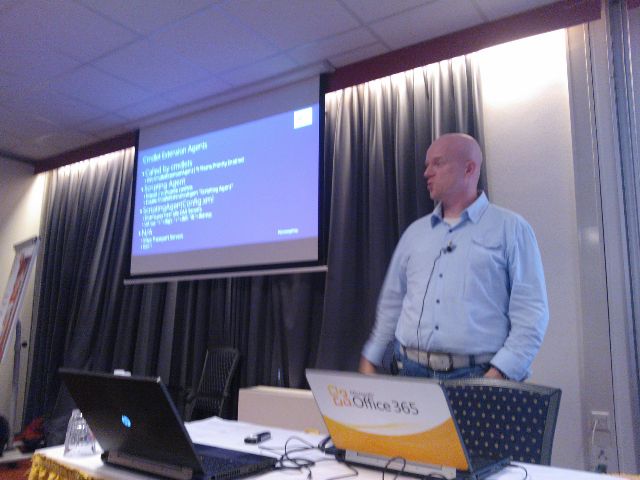
(picture by Dave Stork)

You can find my presentation here (partially Dutch) and the accompanying sample script on Message Tracking Logs here and the one on Cmdlet Extension Agents here (script); the ScriptingAgent.xml file can be downloaded here.

As always, these events are also a time to catch up with fellow Exchange people and discuss topics with attendees during the breaks. There were even Exchange fellows present who didn’t have a session, like Johan Veldhuis (MVP) and Maarten Piederiet (MCM); they did join in on the Q&A Panel.

The sessions and speakers were:

  • Introduction (Jaap Wesselius, MVP)
  • Building with Exchange 2013: Architecture (Dave Stork)
  • Exchange and Virtualisation (Jetze Mellema)
  • Exchange 2010 Tips & Tricks (Ashley Flentge, MCM & Michel de Rooij)
  • Exchange 2013 Coexistence and Migrations (Kay Sellenrode, MCM and MCA)
  • Exchange and Load Balancing (Jetze Mellema)
  • Q&A Panel

The NGN published all presentations in a single ZIP file which can be downloaded here. Unfortunately, NGN didn’t record the sessions so I can’t share those with you. They did record the Q&A Panel session; you can view it here (in Dutch):


PS: When you see references to “exchangedag”, like in the Twitter hashtag, you need to know “dag” means day in Dutch; it’s no form of professional deformation.

Exchange 2013 Schema Version


For planning and validation purposes, Exchange 2013 preparation of the forest and domain results in the following:

  • rangeUpper property of CN=ms-Exch-Schema-Version-Pt,cn=schema,cn=configuration,<Forest DN> is set to 15137;
  • objectVersion property of cn=<ExOrg>,cn=Microsoft Exchange,cn=Services,cn=Configuration,<Forest DN> is set to 15449;
  • objectVersion property in the Microsoft Exchange System Objects container of <Domain NC> is set to 13236.

The Exchange Schema Versions page has been updated with this information.

Adding Exchange Shell items to PowerShell ISE


I’ve become a fan of using the PowerShell Integrated Scripting Environment (PowerShell ISE) for creating, testing and debugging scripts, using breakpoints and step-by-step execution; features found in many development environments. Depending on the script I’m working on and for what customer or environment, I may need to add snap-ins or switch contexts, like connecting to Exchange Online.

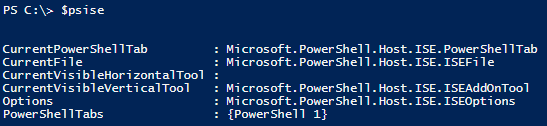
One of the powerful features of ISE is that it allows customizing through the ISE object model. For example, you can explore ISE through the $psise object:

image

To add custom menu options to ISE, we’re going to add items to the submenu of $psISE.CurrentPowerShellTab.AddOnsMenu, which is “Add-ons”. An item needs to consist of:

  • Display Name, which is used for displaying the menu item;
  • Action, which can be a PowerShell cmdlet, scriptblock or function;
  • Optionally, you can assign a keyboard shortcut to the menu option.

To automatically load the custom entries after starting up ISE, we’re going to define the entries in our default ISE profile file, Microsoft.PowerShellISE_profile.ps1, which location is stored in $profile. The file doesn’t exist by default, so when required you can simply create the file in the proper location using notepad $profile.

In our example, we’ll add three entries:

  • Implicit Remoting to connect to Exchange using a static FQDN;
  • Loading the Exchange 2010 Snap-in and connecting to Exchange using Autodiscover (unsupported, will bypass RBAC);
  • Connecting to Exchange Online.

Note that the example won’t be using stored credentials and will let ISE prompt the user for credentials when required, which is perfectly fine if you need to access different Office 365 tenants for example.

Now, in the Microsoft.PowerShellISE_profile.ps1 file, add the following contents:

$psISE.CurrentPowerShellTab.AddOnsMenu.SubMenus.Add(
    "Connect to Exchange @ Contoso", {
        $ExSession= New-PSSession -ConfigurationName Microsoft.Exchange -ConnectionUri http://exserver.contoso.com/PowerShell/ -Authentication Kerberos
        Import-PSSession $ExSession
    },
    "Control+Alt+1"
)
$psISE.CurrentPowerShellTab.AddOnsMenu.SubMenus.Add(
    "Connect to Exchange On-Premise", {
        Add-PSSnapin Microsoft.Exchange.Management.PowerShell.E2010
        . $env:ExchangeInstallPath\bin\RemoteExchange.ps1
        Connect-ExchangeServer –auto
            },
    "Control+Alt+2"
)
$psISE.CurrentPowerShellTab.AddOnsMenu.SubMenus.Add(
    "Connect to Exchange Online", {
        $o365Cred= Get-Credential
        $o365Session= New-PSSession -ConfigurationName Microsoft.Exchange -ConnectionUri https://ps.outlook.com/powershell/ -Credential $o365Cred -Authentication Basic -AllowRedirection
        Import-PSSession $o365Session
    },
    "Control+Alt+3"
)

After starting ISE you’ll see the Add-ons menu now contains three extra items:

image

When selecting “Connect to Exchange Online” (or pressing the configured keyboard shortcut), ISE will execute the associated code block; the progress is displayed in the output window. You will be prompted for credentials after which ISE will connect to Exchange Online and import the remote session.

image

After the session has been imported, you have the additional commands at your disposal in ISE and you can work on your scripts since they’ll be running in the context of the environment you’ve connected to.

Of course, this is just an example of what you can customize in ISE (pink background anyone?). For more information on customizing PowerShell ISE check here. If you’re new to PowerShell ISE, check here.

Exchange 2013 RTM available! (and Lync 2013, Office 2013, ..)


If you’ve got a TechNet or MSDN subscription, you can get the RTM bits of Exchange Server 2013, Lync Server 2013, Office 2013 Professional Plus and Sharepoint 2013 NOW!

With the RTM bits available, you can start testing the product itself as well as compatibility with 3rd party products or in-house developed solutions. Be advised that a schema update is required to support Exchange Server 2013.

Finally, the updates for Exchange Server 2007 and Exchange Server 2010 required for co-existence are still not available. Exchange 2010 SP3 is expected first half of 2013; no details have been disclosed on the update for Exchange Server 2007.

iOS6 issues with Exchange (updated)


Since the release of iOS6, several issues have been identified with this version when used in conjunction with Exchange:

  • Meeting Request where the device user becomes the meeting organizer, which can potentially enable attendees to cancel the meeting for everyone invited. This issue has been documented in KB2768774;
  • Autodiscover not working properly when the e-mail address doesn’t match the user’s UPN.

The Exchange Team published an article where they mentioned several suggestion to “mitigate” the issue; mitigate is quoted here, because some of the suggestions mentioned are in my opinion non-options in a corporate environment, like the suggestion to switch to IMAP/POP. Not only does that remove calendaring functionality, it’s also a lot of work and hassle for end users for the – I expect – short period before we see an iOS update from Apple, after which people can go back to using Exchange ActiveSync again.

How to deal with this issue in the – relatively short – period between now and the iOS 6 fix, depends on the risk your organization is willing to take. When you’re not willing to take any chances, you can block IOS 6 devices using Exchange’s Allow/Block/Quarantine (ABQ) feature or blocking them on the Reverse Proxy level, e.g. ISA or TMG; more information on how to accomplish the latter here. While being a rather draconic measure, it might prove a better temporary measure when compared to the suggestion to ask end users not to take action on calendars in iOS, which could be an accident waiting to happen.

As a more user friendly solution, I’ll gladly bring to your attention a script created by UC Architects fellow Steve Goodman, which can collect information on current iOS users in your environment. Then, with this information, you can selectively pick out iOS 6 devices and communicate the issues with their users until a fix is released. You can get the script here.

Note that there are reports of Apple currently testing IOS 6.0.1 and it is rumored the Meeting Request fix will be included.

Update, November 1st, 2012: Apple released IOS 6.0.1 which fixes the meeting request issue amongst other things (but not the Autodiscover issue). Update your IOS device Over The Air or using iTunes.