
Cluster Name Object Pre-staging


Ex2013 LogoWhen creating a Database Availability Group (DAG) in Exchange 2010 or Exchange 2013 you leverage Fail-over Clustering from the operating system, e.g. Windows Server 2008 R2.

Behind the scenes Kerberos authentication is used, for which a so called Cluster Name Object (CNO) has to be created in Active Directory. This CNO will be associated with the Cluster Name Resource.

Depending on the situation, like having the ability to create computer accounts in the domain, you may need to create – or pre-stage – the cluster name object as  computer account upfront. For Exchange 2013 on Windows Server 2012, pre-staging the CNO is a requirement. This manual task is described here.

However, there may be circumstances where having the ability to automate the process would be more appropriate, like when you want a fully automated setting up a DAG for example. For this purpose I have created a small script, Create-CNO.ps1. The syntax is as follows:

Create-CNO.ps1 [-Identity] <String> [[-Computers] <Array>] [[-OU] <String>

A small explanation of the available parameters:

  • The Identity is used to specify the name of the CNO;
  • The optional Computers parameter can be used to specify the computer account which should be granted permissions on the CNO. You can specify multiple accounts seperated by commas (when for example you’re not sure which your will be used to create the DAG). When the Computers parameter is omitted, the Exchange Trusted Subsystem will be granted permissions on the CNO;
  • OU is the name of the container to create the CNO in. When not specified, the default container for computer accounts will be used. This is done by querying for the Well-Known GUID for the computers container, aa312825768811d1aded00c04fd8d5cd (more on Well-Known GUIDs here). Note that when specifying the OU, you need to enclose it in quotes otherwise PowerShell will assume the parameter is an array;
  • The Verbose parameter is supported.

So, for example assume you want to create a DAG called DAG001 and the first Mailbox Server will be L14Ex1. The computer object for the cluster is to be stored in the OU ou=Temp,dc=litware,dc=com. In that case, you would call the script as follows:

Create-CNO.ps1 –Identity DAG001 –Computers L14EX1 –OU “ou=Temp,dc=litware,dc=com” –Verbose

If you want to grant Exchange Trusted Subsystem permissions as well and let the script look up the CNO name, you can use:

Create-CNO.ps1 –Identity DAG001 –Verbose
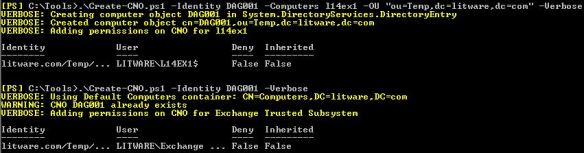
create-cno-1You can download the script from the TechNet Gallery here.

The UC Architects Podcast S01E13


iTunes-Podcast-logo[1]The 13th episode of The UC Architects is online. The UC Architects is a bi-weekly podcast on Unified Communications in the Microsoft domain, i.e. Exchange and Lync, or related subjects.

This episode is hosted by Pat Richard who’s joined by John Cook, Tom Arbuthnot, Justin Morris and Dave Stork. Special guest is Rick Kingslan (Senior Technical Writer for Lync at Microsoft).

Amongst the topics discussed in this episode are:

  • Who’s Rick Kingslan;
  • Greg Taylor’s article on Exchange 2013 and TMG;
  • Lync-Yahoo! Federation EOL;
  • System Center Advisor for Lync 2010;
  • Surface Pro;
  • UAG 2010 SP3;
  • Improved Exchange/Lync Connectivity Analyzer;
  • Withdrawal of Exchange 2010 SP2 Rollup 5;
  • Outlook Configuration Analyzer Tool (OCAT) 2.0;
  • Lync 2013 Basic Client;
  • Q&A with Rick Kingslan (call handling, supportability, technical writing a.o.);
  • Microsoft Lync Conference.

You can directly listen or download the episode here, or subscribe to the podcasts using iTunes, Zune or RSS.

Caution: KB2506146 and KB2506143 (Updated)


powershellA quick word of caution on the following recently released updates:

  • KB2506143 is the WMF 3.0 update for Windows Server 2008 R2 SP1 and Windows 7 SP1;
  • KB2506146 is the WMF 3.0 update for Windows Server 2008 SP2.

These updates will install Windows Management Framework 3.0 which includes PowerShell 3.0. However, Exchange 2007 nor Exchange 2010 currently works with PowerShell 3.0 and installing these updates will render your system unusable, including workstations from where you run the Exchange Management Tools.

The related updates have been published recently as optional updates through Windows Update. However, depending on your patch management methodology (e.g. WSUS), these updates might be installed automatically (e.g. accept all).

Therefor, it is advised to block these updates from being installed on your Exchange 2007 or Exchange 2010 systems when possible; Exchange 2013 requires WMF 3.0 therefor this doesn’t apply to systems running Exchange 2013.

Note that PowerShell 3.0 compatibility is announced for Exchange 2010 SP3, which is scheduled for Q1 2013; compatibility with Exchange 2007 isn’t announced nor expected.

Credits to Exchange fellow Michael B. Smith for discovering this.

Update, December 14th, 2012: Microsoft has acknowledged the problem here.

Update, December 19th, 2012: Microsoft pulled the updates from Microsoft Update / WSUS. Note that Exchange wasn’t the only product affected; WMF 3.0 also breaks Sharepoint 2010 for instance. Needless to say, WMF 3.0 should also not be installed on systems containing Small Business Server.

Exchange 2010 SP1 Rollup 8


Exchange-2010-Logo-733341[1]Besides the updated Rollup 5 for Exchange Server 2010 SP2, the Exchange team also released the following Rollups:

The rollups addresses vulnerabilities described in MS12-080. In addition, Rollup 9 for Exchange Server 2007 SP3 contains a fix for the EdgeTransport.exe process which could crash when processes a single occurrence of a recurring meeting (KB2748658).

The Exchange Versions, builds & dates page has been updated accordingly, including updated product version numbers.

Exchange 2010 SP2 Rollup 5 v2


Exchange-2010-Logo-733341[1]Today the Exchange Team released version 2 of Rollup 5 for Exchange Server 2010 Service Pack 2 (KB2785908). This is an updated version of Rollup 5, released on November 14th but pulled due to a DAG issue; this updated Rollup should fix that issue. This update raises Exchange 2010 version number to 14.2.328.10.

For a list of changes included in the original version of Rollup 5, consult the original EX2010SP2RU5 post here. In addition, this version of the Rollup addresses vulnerabilities described in MS12-080 and will fix the following error when running Get-DatabaseAvailabilityGroup after installing of the original version of the Rollup:

An unexpected error has occurred and a Watson dump is being generated: Could not load type ‘Microsoft.Exchange.Rpc.ActiveManager.AmDeferredRecoveryEntry’ from assembly ‘Microsoft.Exchange.Rpc, Version=14.0.0.0, Culture=neutral, PublicKeyToken=31bf3856ad364e35’.

Oddly, when comparing the lists of issues fixed, the following fix went MIA in Rollup 5 v2:

  • 2748870 Declined meeting request is added back to your calendar after a delegate opens the request by using Outlook 2010

I’ll update this article when I receive information on the missing KB2748870 fix.

As of Rollup 4, its no longer required to disable/re-enable ForeFront Protection for Exchange using the fscutility to be able to install the Rollup properly. However, if you want to remain in control, you can disable ForeFront before installing the Rollup using fscutility /disable and re-enable it afterwards using fscutility /enable.

If you want to speed up the update process for systems without internet access, you can follow the procedure described here to disable publisher’s certificate revocation checking.

If you got a DAG and want to properly update the DAG members, check the instructions here.

Note that Rollups are cumulative, i.e. they contain fixes released in earlier Rollups for the same product level (RTM, SPx). This means you don’t need to install previous Rollups during a fresh installation but can start with the latest Rollup.

As with any Hotfix, Rollup or Service Pack, I’d recommend to thoroughly test this rollup in a test and acceptance environment first, prior to implementing it in production.

You can download Exchange 2010 SP2 Rollup 5 v2 here.