Recently I got myself an Iomega IX2-200 StorCenter. It’s a nice little device which will do nicely for my lab. When playing aroung with the device I wanted to connect it to my ESXi 4 servers using ISCSI. Yes, I’m running VMWare ESXi, main reason for that being one of my BSD guests and Hyper-V doesn’t do BSD.
Below are the steps I used to utilize the StorCenter as an ESXi datastore. I’ll be using the ESXi iSCSI Software Adapter, use CHAP (could’nt get Mutual CHAP to work, anyone?) and assume networking has been properly configured. Also, in this example we’ll be using VMFS volumes for VMDK storage, not Raw Device Mappings.
Note that during taking the screenshots I discovered a 1Gb test iSCSI target was too small (ESXi complained in the Add Storage / Select Block Size dialog), so I upped it to 16 GB using the StorCenter dashboard.
First enable iSCSI on the StorCenter. In the dashboard, select the Settings tab, click iSCSI and check Enable iSCSI. Leave iSNS discovery unchecked as ESXi doesn’t support it. Leave the option Enable two-way authentication (Mutual CHAP) unchecked.

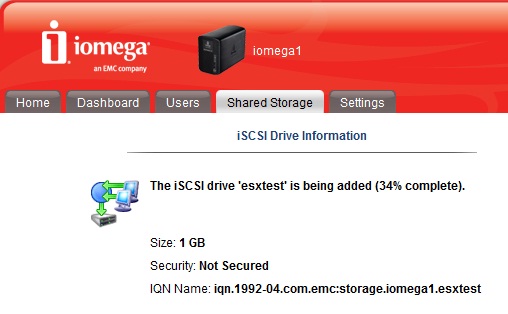
Next, I’m going to add an iSCSI target. Select the Shared Storage tab and click Add. Change Shared Storage Type to iSCSI Drive and give it a name, e.g. esxtest. Then specify the initial size, e.g. 16Gb (you can increase this size when required). Leave Enable security checked. Click Next. Leave all User Access set to None; I’ll do that in the next step. Click Apply
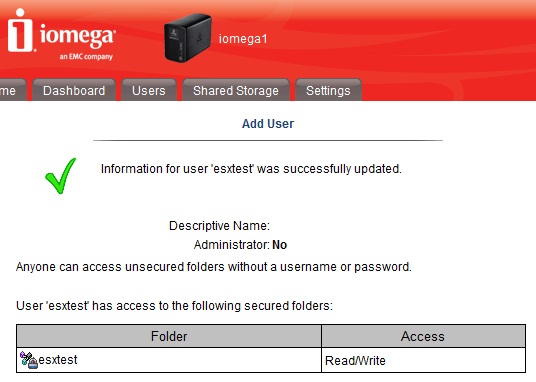
 Because I’m going to use CHAP I need to create an account on the StorCenter for the iSCSI initiator (i.e. ESXi) to authenticate itself. Select tab Users and click Add. Specify a Username and a password. This password MUST be between 12-16 characters. Uncheck Administrator and Add a secured folder for this user. Click Next; when asked about Group memberships click Next again. Now specify which users have access to which folders and iSCSI drives. Check the Read/Write option for the users created earlier and click Next.
In VI client, select the host’s Configuration tab and select Storage Adapters.
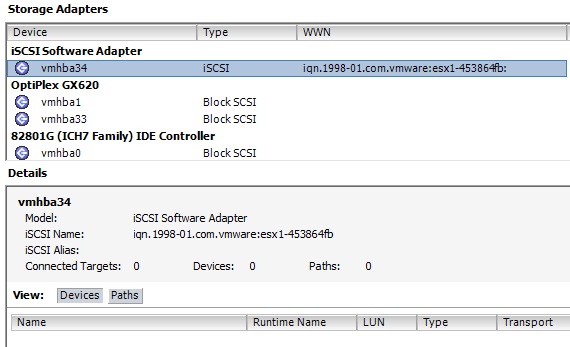
Select the iSCSI Software Adapter, e.g. vmhba34, and click Properties. Click Configure and make sure iSCSI is enabled (enabling may require restart). Click OK to close this dialog. Now, before connecting to the iSCSI target I’m going to specify the credentials first. I’ll use global settings so new connections will inherit these settings by default. To start configuring authentication, in the iSCSI Initiator Properties dialog on the General tab, click CHAP.
In the CHAP Credentials dialog, set CHAP to Use Chap and specify the Name and Secret (i.e. password) of the user created on the StorCenter. Since I’m not using Mutual CHAP, leave that setting to Do not use CHAP. Click OK.

Now I’m going to connect to the iSCSI target. Being lazy, select the Dynamic Discovery tab and click Add. Specify the address of the StorCenter. Click OK when done. The iSCSI server you just specified will now be added to the list of Send Targets. Click Close; when asked about rescanning the HBA select Yes.The iSCSI target will now be listed in the View section.
 In the VI client, select Storage and click Add Storage. Select the Disk/LUN Storage Type and click Next. Select the added iSCSI target. Next. Next. Specify the name of the Datastore. Next. Specify the block size and required capacity. Next.
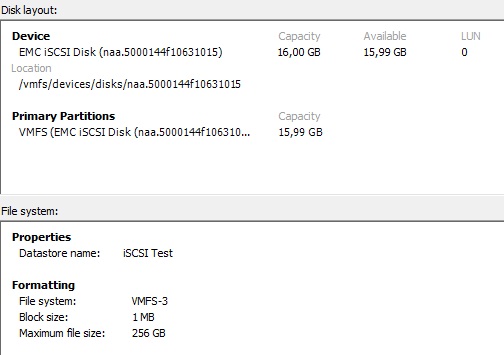
When done, click Finish. Presto! One iSCSI VMFS datastore at your disposal.

 Since most of us working with Exchange have – directly or indirectly – to do with virtualization technologies, we would like to inform you Microsoft published a Windows Server 2008 R2 Hyper-V architecture poster, much like they did for Exchange 2007 (no sign of Exchange 2010 versions yet).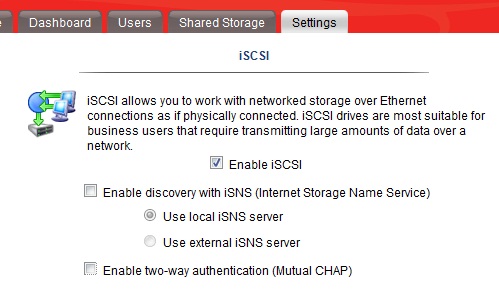


 EighTwOne (821)