Cluster Name Object Pre-staging


Ex2013 LogoWhen creating a Database Availability Group (DAG) in Exchange 2010 or Exchange 2013 you leverage Fail-over Clustering from the operating system, e.g. Windows Server 2008 R2.

Behind the scenes Kerberos authentication is used, for which a so called Cluster Name Object (CNO) has to be created in Active Directory. This CNO will be associated with the Cluster Name Resource.

Depending on the situation, like having the ability to create computer accounts in the domain, you may need to create – or pre-stage – the cluster name object as  computer account upfront. For Exchange 2013 on Windows Server 2012, pre-staging the CNO is a requirement. This manual task is described here.

However, there may be circumstances where having the ability to automate the process would be more appropriate, like when you want a fully automated setting up a DAG for example. For this purpose I have created a small script, Create-CNO.ps1. The syntax is as follows:

Create-CNO.ps1 [-Identity] <String> [[-Computers] <Array>] [[-OU] <String>

A small explanation of the available parameters:

  • The Identity is used to specify the name of the CNO;
  • The optional Computers parameter can be used to specify the computer account which should be granted permissions on the CNO. You can specify multiple accounts seperated by commas (when for example you’re not sure which your will be used to create the DAG). When the Computers parameter is omitted, the Exchange Trusted Subsystem will be granted permissions on the CNO;
  • OU is the name of the container to create the CNO in. When not specified, the default container for computer accounts will be used. This is done by querying for the Well-Known GUID for the computers container, aa312825768811d1aded00c04fd8d5cd (more on Well-Known GUIDs here). Note that when specifying the OU, you need to enclose it in quotes otherwise PowerShell will assume the parameter is an array;
  • The Verbose parameter is supported.

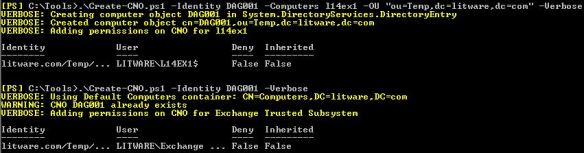
So, for example assume you want to create a DAG called DAG001 and the first Mailbox Server will be L14Ex1. The computer object for the cluster is to be stored in the OU ou=Temp,dc=litware,dc=com. In that case, you would call the script as follows:

Create-CNO.ps1 –Identity DAG001 –Computers L14EX1 –OU “ou=Temp,dc=litware,dc=com” –Verbose

If you want to grant Exchange Trusted Subsystem permissions as well and let the script look up the CNO name, you can use:

Create-CNO.ps1 –Identity DAG001 –Verbose
create-cno-1You can download the script from the TechNet Gallery here.

Copying Receive Connectors (update)


Once in a while you may have to execute a task so tedious and repetitive, you end up with an idea for a script to make your life easier. By tidying and publishing that script, I hope to make the life of others easier as well. This is one of those scripts.

When implementing Hub Transport servers on Exchange 2010, you may have to configure multiple receive connectors. Because receive connectors are defined on the Hub Transport server itself, contrary to send connectors, you may end up defining each receive connector on each Hub Transport server. This gets painful when you need to implement the ForeFront Online Protection for Exchange servers in the Remote IP ranges for example.

Yes, you can create a script which configures the connectors for you, but wouldn’t it be nice if you can create definitions on one server using the GUI and then just copy and paste those definitions to the other Hub Transport servers? This script also allows you to simply duplicate existing Receive Connector definitions after adding an additional Hub Transport server afterwards, not only after the initial configuration of the Exchange environment.

Here’s were my Copy-ReceiveConnector.ps1 script may come in handy.

The script is quite simple, and can help you with the following:

  • Copy Receive Connectors from one Exchange server to another (CopyFrom);
  • Export Receive Connector definitions to an XML file (ExportTo);
  • Import Receive Connector definitions from an XML file (ImportFrom).

In addition, you can specify whether you want to overwrite existing Receive Connector definitions (based on name) using the -Overwrite switch or clear all existing Receive Connectors before copying/importing using the -Clear switch.

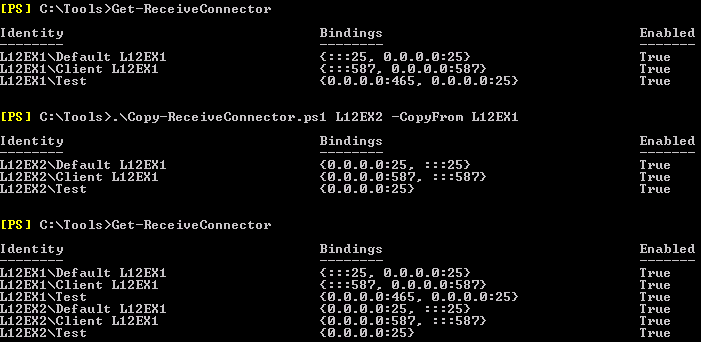
So, let’s say you have two Hub Transport servers, L12EX1 and L12EX2. You have configured L12EX1 and you need to create the same set of receive connectors on L12EX2.

image

You can see in the example above, you can use the script to copy definitions from an existing server, e.g.

Copy-ReceiveConnector.ps1 <TargetServer> –CopyFrom <SourceServer>

You can also export and import settings, which may come in handy when you need to troubleshoot (you can have the customer export the receive connectors to a file) or when you want to prepare receive connector definitions off-site, e.g.

Copy-ReceiveConnector.ps1 <TargetServer> –ExportTo .\conn.xml

Copy-ReceiveConnector.ps1 <TargetServer> –ImportFrom .\conn.xml –Clear

image

Note that when ExchangeServer is specified as AuthMechanism on a receive connector, the FQDN needs to be set to the server’s FQDN, NetBIOS name or $null; in such cases I set it to the FQDN of the target server. Also, it uses the existing name, meaning you may need to rename the Default and Client connectors, which contain the server name, afterwards.

Update 24th August, 2012 (v1.1): Added find/replace in Receive Connector name so that “Default L12EX1” on server L12EX1 will become or match with “Default L12EX2” on server L12EX2.

Click here to download the script from the Technet Gallery.