
 Note: This is part 1; part 2 can be found here.
Currently I’m working with Johan Veldhuis on a project where we’ll be moving mailboxes from Exchange 2003 to Exchange 2010. Accounts and mailboxes will be migrated from forest to forest and to make things more interesting, the account migration is isolated from the mailbox migration. In other words, we start with a single forest after which we’ll create a account/resource forest setup from where we’ll consolidate things again. The account/resource forest setup is not completely by the book as the accounts in the resource forest won’t be disabled. This is because ActiveSync devices will be migrated at a later stage; this means they can use their existing authentication information.
Note: In the remainder of this article the following variables are used:
- olddomain.nl is the source forest with Exchange 2003;
- newdomain.com is the new forest with Exchange 2010;
- Jan Test is our to be migrated test user with User ID jtest;
- source.nl is an e-mail domain for which Exchange 2003 is authoritative;
- target.com is an e-mail domain for which Exchange 2010 is authoritative.
The starting point of this blog is the situation where both forests olddomain.nl and newdomain.com are up and running. There is a trust between olddomain.nl and newdomain.com, ADMT and the Password Export Server are configured and running properly. This means we can successfully migrate user accounts from olddomain.nl to the new forest newdomain.com; the user’s mailbox will remain on Exchange 2003 in olddomain.nl.
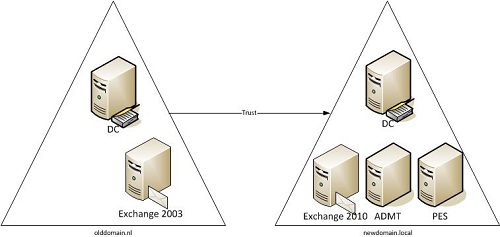
Here is where the first problem was encountered. The Active Directory schemas mismatch, so ADMT will only migrate a basic set of attributes. This means that although newdomain.com has Exchange attributes, these won’t be migrated. Also, to be able to use the mailbox properly from their newdomain.com account, we need to add mailbox permissions for the newdomain.com account. For this purpose we created a post-migration script which adds Full Mailbox Access and External Account permissions to the mailbox for the newdomain.com account. After that we have reached an intermediary state, with accounts in newdomain.com and resources (mailboxes) in olddomain.nl; Users will log on using an account from the newdomain.com account forest and access their mailbox in the olddomain.nl resource forest.
The next phase will be migrating Exchange 2003 mailboxes from olddomain.nl to Exchange 2010 mailboxes in newdomain.com. Microsoft provides a nice TechNet article (633491) on how to prepare mailboxes for cross-forest mailbox move requests. The article also links to a (sample) PowerShell script, part of ILM 2007 SP1, located here. The script, Prepare-MoveRequest.ps1, should prepare the target forest for mailbox move request. Unfortunately, we couldn’t get it working properly.
First, the script complained it couldn’t find the specified Identity in the target forest. This was odd; the account is present, it was created by ADMT. Diving into the code it looks for the identity in various attributes:
filterParm = “(& (objectClass=user)” +
” ( (| (mailnickname=$escapedIdentity)” +
” (cn=$escapedIdentity)” +
” (proxyAddresses=SMTP:$escapedIdentity)” +
” (proxyAddresses=smtp:$escapedIdentity)” +
” (proxyAddresses=X500:$escapedIdentity)” +
” (proxyAddresses=x500:$escapedIdentity)” +
” (objectGUID=$escapedIdentity)” +
” (displayname=$escapedIdentity))))”$srcObject = findADObject $srcdc $filterParm
No matter what we tried, no match. Odd. Also, the script contains code which creates objects when it determines it needs to and there’s no switch to turn this behaviour off. That switch would be nice, because the last thing we want is to end up with hundreds of mail-enabled user objects when there are already user account objects present. Since we had little time to debug and fix the script, we decided to prepare the target account in newdomain.com ourselves. I took a script from one of my earlier projects (VB), which I created for similar merger / split scenarios in the past, and checked it against the information in the TechNet article mentioned earlier. In the end we had a script which transforms users into mail-enabled users as follows:
- Copy the following atributes from the account in olddomain.nl to the account in newdomain.com: mail, mailNickname, msExchMailboxGuid, proxyAddresses;
- Adds the LegacyExchangeDN attribute from olddomain.nl account as an X500 address to the account in newdomain.com;
- Sets msExchRecipientDisplayType to -2147483642;
- Sets msExchRecipientTypeDetails to 128;
- Sets targetAddress in newdomain.com to the value of mail attribute in the olddomain.nl;
- Adds a constructed e-mail address (e-mail account olddomain.nl + @ + new e-mail domain, e.g. j.test@target.com) to the proxyAddresses in newdomain.com;
- Sets legacyExchangeDN on the new account in newdomain.com to “/o=<ORG>/ou=Exchange Administrative Group (FYDIBOHF23SPDLT)/cn=Recipients/cn=<CN>”, where <CN> is the cn of the account.
This is more or less the same as the Prepare-MoveRequest.ps1 should do, but this one worked like expected. Note that the last three actions are important for getting the move request to work. The targetAddress should be set properly, because new-moveRequest will set the target Address of the olddomain.nl account to the primary SMTP address of the newdomain.com account. LegacyExchangeDN and the proxyAddress should be added because new-moveRequest uses these for lookup and matching (I assume, because we will also will specify the identity itself). The proxyAddress e-mail address for which Exchange 2010 in newdomain.com is authoritative will be promoted to primary SMTP e-mail address.
Now, after preparing the newdomain.com account and transforming it into a mail-enabled user, we can use new-moveRequest to transfer the mailbox from Exchange 2003 to Exchange 2010:
$cred = get-credential
new-moverequest -identity <userid> -RemoteLegacy -TargetDatabase “<Mailbox Database Name>” -RemoteGlobalCatalog dc.olddomain.nl -RemoteCredential $cred -TargetDeliveryDomain <target.com>
An explanation:
- We need to specify RemoteLegacy because the source forest isn’t Exchange 2010;
- TargetDatabase identifies the target database;
- Using RemoteGlobalCatalog we specify a GC from the remote forest;
- With RemoteCredential, in combination with get-credential, is used to prompt for credentials and use them in the cmdlet;
- TargetDeliveryDomain specifies the external e-mail domain that is used to set the targetAddress in the source forest, so normally this should be an e-mail domain for which the source forest isn’t and the target forest is authoritative.
Presto! This is what the objects look like after performing the new-moverequest:
olddomain.nl
cn=Jan Test
mail=jtest@target.com
legacyExchangeDN=/o=<ORG>/ou=First Administrative Group/cn=Recipients/cn=jtest88083336
mailNickname=jtest
proxyAddresses=X500:/o=<ORG>/ou=Exchange Administrative Group (FYDIBOHF23SPDLT)/cn=Recipients/cn=Jan Test; smtp:J.Test@source.nl; SMTP:jtest@target.com; X400:c=NL;a= ;p=<org>;o=Exchange;s=Test;g=Jan;;
targetAddress=SMTP:jtest@target.com
newdomain.com
cn=Jan Test
mail=jtest@target.com
legacyExchangeDN=/o=<ORG>/ou=Exchange Administrative Group (FYDIBOHF23SPDLT)/cn=Recipients/cn=Jan Test;
mailNickname=jtest
proxyAddresses=smtp:jtest@newdomain.com ;SMTP:jtest@target.com;X400:C=NL;A= ;P=<org>;O=Exchange;S=Test;G=Jan ;smtp:J.Test@source.nl ;smtp:J.Test@target,com ;X500:/o=<ORG>/ou=First Administrative Group/cn=Recipients/cn=jtest88083336
targetAddress=SMTP:jtest@target.com
Notice that new-moveRequest adds a random number “88083336” to legacyExchangeDN in olddomain.nl and to X500 in newdomain.com. This is to promote the newdomain.com account for legacyExchangeDN usage and enables mailflow from the old olddomain.nl to newdomain.com when replying on old e-mail.
Update: Also worth noting is we an additional challenge because the source domain name equaled their e-mail namespace, which they want to keep using during and after the migration. Therefor we had to introduce a bogus local namespace for which the Exchange 2003 becomes authoritative and 2010 is not. We can use recipient policies to stamp this address to mail-enabled objects and by creating a connector from Exchange 2010 to Exchange 2003 using this namespace, we can route e-mail from migrated users to non-migrated users.
I hope this information is useful. For more information on new-moveRequest for cross-forest moves, check here. When you have questions, post them in the comments below or send me an e-mail.
 EighTwOne (821)