
Exchange 2013 CU1 ETA: April 2nd


Ex2013 LogoToday the Exchange Team announced postponing the release of Exchange 2013 Cumulative Update 1 for a few more days. Originally, CU1 was scheduled for Q1 2013, but the date has been set now at April 2nd, 2013.

While it may sound disappointing when you’re waiting for Exchange 2013 RTM CU1, it makes sense to postpone it a bit. As the team indicated,the time is used to add functionality required for coexistence scenarios with Exchange Server 2010 which otherwise had to be put in an update for Exchange 2010 Client Access servers. I expect people to be less happy as Exchange 2010 Service Pack 3 was heralded as the Exchange 2010 product level for coexistence support with Exchange 2013 (running CU1).

Also, looking at time frames involved with testing and accepting updates in production environments, I personally applaud this decision as putting that code in Exchange 2013 at the cost of a few days may in the end be faster than adding that code to Exchange Server 2010, requiring customers to initiate test an acceptance tracks for production updates.

So, until further notice we’ll have to wait just a few more additional days to see what Cumulative Update 1 will bring us.

Exchange 2010 SP3


Exchange 2010 LogoExchange Server 2010 Service Pack 3 (SP3) has been released, raising the Exchange version number to 14.3.123.4.

For those still unaware, the 550 MB file (1.45 GB uncompressed) contains the full set of binaries; you can use it to upgrade existing installations or deploy new Exchange 2010 SP3 installations.

Service Pack 3 introduces the following features:

  • Exchange 2013 Coexistence
    This Service Pack for Exchange 2010 adds coexistence with Exchange 2013. However, for coexistence Exchange Server 2013 Cumulative Update 1 (CU1) is required, which hasn’t been released yet.
  • Windows Server 2012 Support
    This Service Pack enables you to deploy Exchange Server 2010 on WIndows Server 2012 platform.
  • Internet Explorer 10
    You can now use Internet Explorer 10 to connect to Exchange 2010.
  • Sent Items Management
    You can now control behavior of Send-As or Send-on-Behalf messages regarding the folder used to store a copy of the sent message, analogue to the Delegated Send Items options available in Outlook.

In addition to fixes that were part of the Exchange 2010 SP2 Rollups 1 to version 6, SP3 adds the following fixes:

  • 2552121 You cannot synchronize a mailbox by using an Exchange ActiveSync device in an Exchange Server 2010 environment
  • 2729444 Mailboxes are quarantined after you install the Exchange Server 2010 SP2 version of the Exchange Server 2010 Management Pack
  • 2778100 Long delay in receiving email messages by using Outlook in an Exchange Server 2010 environment
  • 2779351 SCOM alert when the Test-PowerShellConnectivity cmdlet is executed in an Exchange Server 2010 organization
  • 2784569 Slow performance when you search a GAL by using an EAS device in an Exchange Server 2010 environment
  • 2796950 Microsoft.Exchange.Monitoring.exe process consumes excessive CPU resources when a SCOM server monitors Exchange Server 2010 Client Access servers
  • 2800133 W3wp.exe process consumes excessive CPU and memory resources on an Exchange Client Access server after you apply Update Rollup 5 version 2 for Exchange Server 2010 SP2
  • 2800346 Outlook freezes and high network load occurs when you apply retention policies to a mailbox in a mixed Exchange Server 2010 SP2 environment
  • 2810617 Can’t install Exchange Server 2010 SP3 when you define a Windows PowerShell script execution policy in Group Policy
  • 2787500 Declined meeting request is added back to your calendar after a delegate opens the request by using Outlook 2010
  • 2797529 Email message delivery is delayed on a Blackberry mobile device after you install Update Rollup 4 for Exchange Server 2010 SP2
  • 2800080 ErrorServerBusy response code when you synchronize an EWS-based application to a mailbox in an Exchange Server 2010 environment

Be advised that after installing SP3 on Mailbox servers, the databases are upgraded to the SP3 version database schema. An SP3 database can’t be mounted on pre-SP3 Mailbox servers. Keep this in mind when upgrading your DAG (you will temporarily have limited fail-over/fall-back or switch-over options) or for example when utilizing database portability. Note that upgrading databases can be time consuming, especially with RTM or low SP databases as the database will be upgrade using interim steps, i.e. RTM to SP1, SP1 to SP2 and finally SP2 to SP3.

Also, while Exchange Server 2010 SP3 is supported on Windows Server 2012, that doesn’t mean .NET 4.5 (WMF 3.0, PowerShell 3.0) is supported on Windows Server 2008 or Windows Server 2008 R2; on Windows Server 2012, PowerShell 2.0 will be used. Also, OS upgrades (e.g. WS2008 R2 to WS2012) with Exchange installed aren’t supported.

After preparing your forest for Exchange 2010 SP3, the schema version number will have changed. Check the Schema Versions page for information on the new values for Exchange 2010 SP3.

The proper method to upgrade mailbox servers that are a member of a Database Availability Group is described here.

You can download Exchange 2010 SP3 here.

The UM language packs for SP3 can be downloaded here. Note that you need to uninstall previous UM language packs before you can install the SP3 versions.

Cluster Name Object Pre-staging


Ex2013 LogoWhen creating a Database Availability Group (DAG) in Exchange 2010 or Exchange 2013 you leverage Fail-over Clustering from the operating system, e.g. Windows Server 2008 R2.

Behind the scenes Kerberos authentication is used, for which a so called Cluster Name Object (CNO) has to be created in Active Directory. This CNO will be associated with the Cluster Name Resource.

Depending on the situation, like having the ability to create computer accounts in the domain, you may need to create – or pre-stage – the cluster name object as  computer account upfront. For Exchange 2013 on Windows Server 2012, pre-staging the CNO is a requirement. This manual task is described here.

However, there may be circumstances where having the ability to automate the process would be more appropriate, like when you want a fully automated setting up a DAG for example. For this purpose I have created a small script, Create-CNO.ps1. The syntax is as follows:

Create-CNO.ps1 [-Identity] <String> [[-Computers] <Array>] [[-OU] <String>

A small explanation of the available parameters:

  • The Identity is used to specify the name of the CNO;
  • The optional Computers parameter can be used to specify the computer account which should be granted permissions on the CNO. You can specify multiple accounts seperated by commas (when for example you’re not sure which your will be used to create the DAG). When the Computers parameter is omitted, the Exchange Trusted Subsystem will be granted permissions on the CNO;
  • OU is the name of the container to create the CNO in. When not specified, the default container for computer accounts will be used. This is done by querying for the Well-Known GUID for the computers container, aa312825768811d1aded00c04fd8d5cd (more on Well-Known GUIDs here). Note that when specifying the OU, you need to enclose it in quotes otherwise PowerShell will assume the parameter is an array;
  • The Verbose parameter is supported.

So, for example assume you want to create a DAG called DAG001 and the first Mailbox Server will be L14Ex1. The computer object for the cluster is to be stored in the OU ou=Temp,dc=litware,dc=com. In that case, you would call the script as follows:

Create-CNO.ps1 –Identity DAG001 –Computers L14EX1 –OU “ou=Temp,dc=litware,dc=com” –Verbose

If you want to grant Exchange Trusted Subsystem permissions as well and let the script look up the CNO name, you can use:

Create-CNO.ps1 –Identity DAG001 –Verbose
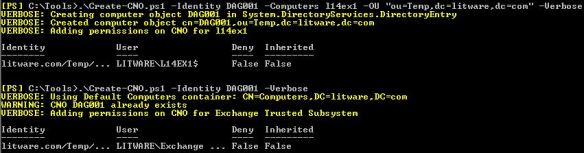
create-cno-1You can download the script from the TechNet Gallery here.

Caution: KB2506146 and KB2506143 (Updated)


powershellA quick word of caution on the following recently released updates:

  • KB2506143 is the WMF 3.0 update for Windows Server 2008 R2 SP1 and Windows 7 SP1;
  • KB2506146 is the WMF 3.0 update for Windows Server 2008 SP2.

These updates will install Windows Management Framework 3.0 which includes PowerShell 3.0. However, Exchange 2007 nor Exchange 2010 currently works with PowerShell 3.0 and installing these updates will render your system unusable, including workstations from where you run the Exchange Management Tools.

The related updates have been published recently as optional updates through Windows Update. However, depending on your patch management methodology (e.g. WSUS), these updates might be installed automatically (e.g. accept all).

Therefor, it is advised to block these updates from being installed on your Exchange 2007 or Exchange 2010 systems when possible; Exchange 2013 requires WMF 3.0 therefor this doesn’t apply to systems running Exchange 2013.

Note that PowerShell 3.0 compatibility is announced for Exchange 2010 SP3, which is scheduled for Q1 2013; compatibility with Exchange 2007 isn’t announced nor expected.

Credits to Exchange fellow Michael B. Smith for discovering this.

Update, December 14th, 2012: Microsoft has acknowledged the problem here.

Update, December 19th, 2012: Microsoft pulled the updates from Microsoft Update / WSUS. Note that Exchange wasn’t the only product affected; WMF 3.0 also breaks Sharepoint 2010 for instance. Needless to say, WMF 3.0 should also not be installed on systems containing Small Business Server.

Exchange 2010 SP1 Rollup 8


Exchange-2010-Logo-733341[1]Besides the updated Rollup 5 for Exchange Server 2010 SP2, the Exchange team also released the following Rollups:

The rollups addresses vulnerabilities described in MS12-080. In addition, Rollup 9 for Exchange Server 2007 SP3 contains a fix for the EdgeTransport.exe process which could crash when processes a single occurrence of a recurring meeting (KB2748658).

The Exchange Versions, builds & dates page has been updated accordingly, including updated product version numbers.