Exchange 2013 KB articles RSS feed

rss[1]Like most people I still use RSS feeds to keep track of news and updates from various sources. But not everyone is aware you can keep track of new or updated Microsoft’s knowledgebase articles using RSS feeds, sometimes categorized per product. I already blogged about the availability these feeds about 2,5 years ago.

Now with all the releases since then, it’s time to update this information with current products, especially with the feed for Exchange 2013 related articles becoming available recently:

For a complete list of the knowledgebase articles RSS feeds check here.

Exchange 2013 Cumulative Update 1 (Updated)

Ex2013 LogoToday the long-awaited Cumulative Update 1 for Exchange Server 2013 was released by the Exchange Team (KB2816900). This update raises Exchange 2013 version number to 15.0.620.29.

As mentioned in an earlier post, this is the Exchange 2013 product level required for co-existence with previous versions of Exchange, being Exchange Server 2010 SP3 or Exchange Server 2007 SP3 Rollup 10.

The Exchange Team provided a description of the major changes in CU1 in the CU1 announcement here; Here are some of the major changes in CU1:

  • Includes Address Book Policy Routing Agent (info);
  • Allows group memberships to be managed by groups (again, as it was possible in Exchange 2007 but not in Exchange 2010);
  • Access to Public Folders you have added as favorites via your favorites menu either in Outlook or Outlook Web App (still no regular Public Folder tree access though);
  • EAC has been enhanced and now includes Unified Messaging management and migration options;
  • Many probes, monitors, and responders have been updated and improved over the RTM release;
  • Get-HealthReport cmdlet has been streamlined and its performance has been optimized;
  • Supports the Exchange Server 2013 Management Pack for SCOM 2007 R2 and SCOM 2012 (due at a later date);
  • High Availability changes (reported on by Scott Schnoll here).

Note that CU1 includes schema changes. Like Service Packs for earlier versions of Exchange, the Cumulative Update is indeed cumulative (hence the size of 1.3 GB) and you can install it directly, i.e. no need to install RTM first. Also, once installed you can’t uninstall CU1 or any of the installed roles. The order of upgrading servers doesn’t matter, unlike with earlier Exchange versions.

You can download Exchange 2013 Cumulative Update 1 here.

Update 3rd April, 2013: Meanwhile, the TechNet documentation has been updated; relevant sections for upgrading are:

“Profiling the best Exchange Server Pros” award

logo_itke_sm[1]Somebody must be happy with my recent contributions to the Exchange community.

This week I received an e-mail from Matt Gervais of TechTarget who mentioned I was nominated for their “Profiling the best Exchange Server professionals” award and if I’d like to accept the honor as their February 2013 recipient.

For those who don’t know TechTarget, they provide information aimed at IT professionals. Exchange people might know them from their Exchange-related searchexchange.techtarget.com site. This site publishes articles from Exchange MVPs like The UC Architects’ Steve Goodman, Andry Grogan or J. Peter Bruzzese.

Recognition from the community is always nice and is a great motivator, so to whoever nominated me: a big thank you. As part of the related article, Matt also asked me some quick questions on how I became involved with Exchange and why I love doing my job. You can read the short interview here.

Microsoft Certified Solutions Expert: Messaging on Exchange Server 2013

http://www.globalknowledge.co.uk/content/files/images/189256/mcse-messaging.pngAfter several weeks (I took the beta exam in November) and after results were already visible through Prometric yesterday, today I finally received confirmation through e-mail and on the MCP site that I passed both Exchange 2013 related beta exams:

I already took 70-417 Upgrading Your Skills to MCSA Windows Server 2012, which is an upgrade exam much like the previous 70-649 exam (2003->2008) and 70-292/296 (2000->2003). With officially passing 70-341 and 70-342 in conjunction with MCSA: Windows Server 2012, I’m now officially a (deep breath) Microsoft Certified Solutions Expert: Messaging on Exchange Server 2013.

Certification_Path

Note that by passing 70-417 you’ll effectively complete the following exams:

If you don’t qualify for the 70-417 exam (details), e.g. you’re new to Microsoft certification or you’re an MCITP: Enterprise Messaging Administrator 2007, you either pass the exams required to qualify (e.g. 70-662 and 70-663, which will expire in 2013 by the way) or you take and pass each of the mentioned Windows Server 2012 exams.

Useful resources when you want to archieve MCSE: Messaging yourself:

Note that when applying for Microsoft Certified Solutions Master (MCSM): Messaging before end of this year, you need the become an MCSA: Windows Server 2012; Starting January 1st, 2014 you need to become an MCSE: Messaging (which includes MCSA: Windows Server 2012) .

A Short 2012 Retrospective

statistic-150x150[1]Happy new year to all my dear readers and followers. It’s been a busy and interesting year for various reasons:

  • The release of the Wave 15 products (e.g. Exchange 2013, Lync 2013);
  • The start of the UC Architects podcasts;
  • Return of the MEC (which unfortunately I was unable to attend);
  • Working with people like Jaap Wesselius on several interesting projects;
  • My employer ceasing their UC activities forcing me to change jobs sooner than expected.

The end of a year is also a time of lists. I’d like to share with you some of EighTwOne statistics of 2012, the blog’s 3rd year running:

  • Number of views in 2012: 284,198 (+30% compared to 2011, total 582,849)
  • Number of posts in 2012: 76 (total 319)
  • Busiest day of 2012 : July 18th (1,358 views)
  • Top post of 2012: Changes in Exchange 2013 Preview

Next to the Main, Versions, Builds and Dates, Schema Versions and Toolkit pages, these were the Top 5 posts of 2012:

Top 5 posts of all time:

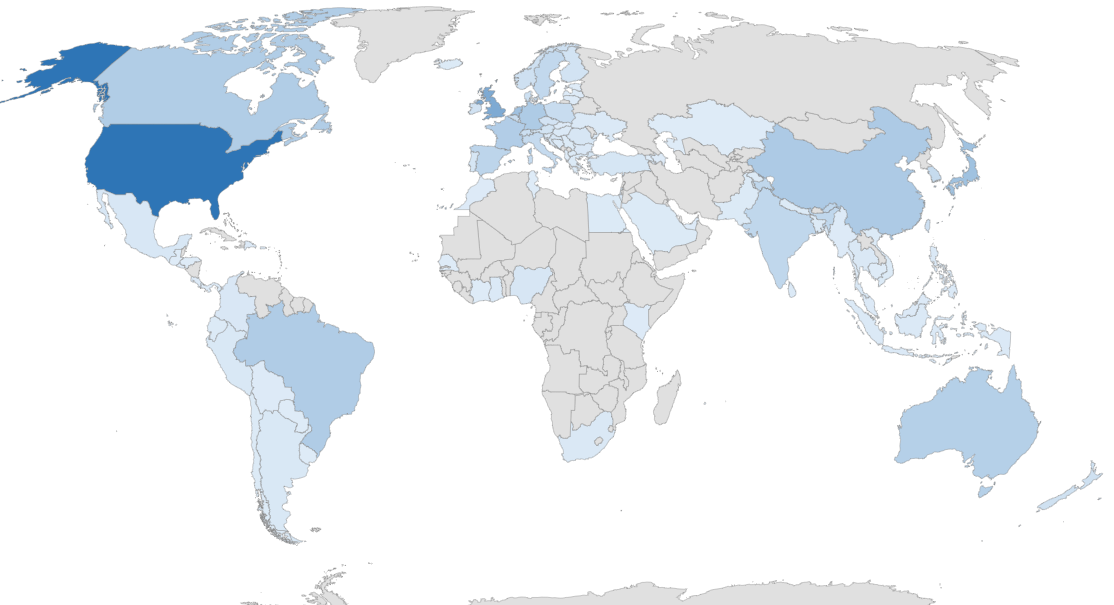
GeoStats2012Top 5 visitor countries of 2012:

  • United States of America (29,7%)
  • United Kingdom (8,7%)
  • Germany (7,1%)
  • The Netherlands (4,9%)
  • Australia (4,3%)

Top 5 referrers of 2012:

Top 5 search terms of 2012:

  • isinteg exchange 2010
  • limit exchange 2010 memory usage
  • msexcheseparamcachesizemax exchange 2010
  • exchange 2010
  • exchange 2007 version 8.3 build 83.6

Discontinued support of ActiveSync in GMail

TechTarget QuoteFew days ago, Stuart J. Johnston of TechTarget approached me and several other Exchange fellows to ask how we thought the discontinued support of ActiveSync in GMail, part of Google’s “Winter Cleaning” operation, would impact users. You can read Stuart’s article here.

For reference and because Stuart only used a single quote from my (I think) extensive response, I’ve included my take on the situation below. Interestingly, today it turns out Google lost an ActiveSync patent case against Microsoft in a British court. Exchange fellow Tony Redmond did a nice writeup on that case and his personal involvement in that case here.

PS: I’ve already asked Stuart to fix my last name in the quote.

Regarding the discontinued support of ActiveSync in GMail, I think impact on both the Exchange as well as the GMail population varies.

First of all, the measure is aimed at new, free GMail accounts. I don’t know exact numbers, but I can imagine the number of people still not having a free GMail account is relatively minimal. Also, EAS will remain available to paid accounts.

Second, EAS is a means – no end – to synchronize information like mail, contacts or agenda. Consumers will adapt and switch to alternative protocols (or plugins) to synchronize this information between their Google account and their device. I think the effect of the information exchange becoming less efficient and the lack of information push is negligible.

Thirdly, Android and iPhone – covering 85% over the smartphone market – provide apps specifically aimed at GMail or other Google services. For those not using Google’s apps, the end user experience may be affected and all the additional tools required to fully synchronize with desktops won’t help.

Worst off are Windows Phone users or Windows 8 users using the built-in Mail app (Surface RT). While the Windows Phone user base may be relatively small, the Windows 8 user base is growing and they are both forced to use IMAP, which only does mail and there are – AFAIK – no *DAV apps in the Store to synchronize calendar or contact information.

While I do understand Google’s case, which is probably more a cost reduction and (resource) focus shift measure rather than another act in the Google vs Microsoft war, I also believe there might be a fair chance of Google shooting itself in the foot by dropping EAS. Microsoft’s free outlook.com service keeps supporting EAS (not surprisingly) and Microsoft has already taken up on plugging outlook.com as the alternative for Google

Finally, I’m in favor of competition which drives innovation. The whole GMail versus Hotmail/Office365 is no exception. However, it gets annoying when vendors drop functionality end users are accustomed to, making them have to put energy into looking at solutions or alternatives, which may become tiresome at some point.

The UC Architects Podcast S01E11

The 11th episode of The UC Architects is online. The UC Architects is a bi-weekly podcast on Unified Communications in the Microsoft domain, i.e. Exchange and Lync, or related subjects.

This episode is hosted by Pat Richard, who’s joined by Ståle Hansen, Johan Veldhuis, Dave Stork and yours truly. Special guests are Lync MCM Kevin Peters and Lync MVP Matt Landis.

Amongst the topics discussed in this episode are:

  • Lync 2010 Cumulative Update 7 (CU7, October 2012);
  • Lync VDI, SBA, SBC;
  • Availability of Wave 15 products for MSDN/TechNet and Volume license customers;
  • Microsoft Surface RT;
  • Building your own Exchange lab;
  • Exchange 2013 and Lync 2013 exams.

You can directly listen or download the episode or subscribe to the podcasts using iTunes, Zune or RSS.

Exchange 2013 RTM Help File

A quick post for those interested, e.g. you’re planning for or about to implement Exchange 2013 or just want to look up something: the Exchange 2013 RTM help file has been made available for download (dated Oct2012).

Note that the help file is still incomplete, so I expect it gets updated in the upcoming period.

It comes in a Hybrid as well as an On Premise version; you can get them here.

Microsoft Exchange Conference 2012, a Summary

After being absent for over 10 years, this year the most anticipated conference for Exchange minded people took place in Orlando, Florida (US), the Microsoft Exchange Conference 2012 (MEC).

Despite not being able to attend MEC 2012, I’d like to summarize the news on Exchange 2013 from the event. Some of this information went public as part of the release of Exchange 2013 Preview, which was released in July (yes, almost 2 months ago – time flies). Some statements were new, like for example the expected release date of Exchange 2010 SP3, which is required for co-existence with Exchange 2013.

With all the social media nowadays, you can track most of the statements made at the event. Thanks to people like Jeff Guillet and Devin Ganger and people from our The UC Architects group, like  Dave Stork, Michael van Horenbeeck, Pat Richard, Serkan Varoglu and John A. Cook, who reported live from the sessions they were attending (hastag #iammec), the community was kept up to date with information as it unfolded. At each the end of the day, Tony Redmond gave a nice summary including comments on the event as a whole.

Picture shows some of people behind The UC Architects together
with Perry Clarke (GM Exchange), who you might recognize from
the Ask Perry videos. The picture is taken by Tony Redmond.

The information presented here is a summary of all the information provided through social media and is additional to the information presented at the release of Exchange 2013 Preview; you can read all about that in my Changes in Exchange 2013 Preview article. It is in no way meant to be conclusive or complete.

Ok, now on to the goodness.

Co-Existence
Exchange 2010 Service Pack 3 is expected to be released in the first half of 2013. Not only is it required for co-existence with Exchange 2013, it also supports Windows Server 2012 as Operating System platform. Note that SP3 will require a schema update.

No word on the expected release date of the update required for Exchange 2007 to support co-existence between Exchange 2013 and Exchange 2007. Since Exchange 2007 SP3 Rollup 8 was released in August, thus after the Exchange 2013 Preview became available, I assume we have to wait for Rollup 9 (or 10?).

Storage
Ross Smith from the Exchange Team confirmed the 99% IOPS reduction claim when comparing Exchange 2013 with Exchange 2003; when compared with Exchange 2010 it’s a 50% reduction. That’s down from 1 IOPS per mailbox in Exchange 2003 to .125 IOPS in Exchange 2010 to a 0,0625 IOPS per mailbox in Exchange 2013.

image

Also, passive copies have around 50% reduction in IOPS, mainly due to the increased checkpoint depth (100MB) and less aggressive pre-reading of data to keep in line with the checkpoint depth (I’ll devote a separate article on this at a later date). This means when mixing active and passive copies on a Mailbox server, the passive copies play more nicely from a storage perspective. Also, because of these changes database fail-over times are down from 20 seconds in Exchange 2010 to about 10 seconds in Exchange 2013.

To validate storage for Exchange 2013, JetStress for Exchange 2013 will become available 3 months after Exchange 2013 goes RTM. When required to validate storage in the mean time, it is recommended to utilize Exchange 2010’s version of JetStress since Exchange 2010 and Exchange 2013 will have the same IO pattern.

Databases
In Exchange 2013, multiple databases per storage volume allowed, which allows for active and passive copies on the same volume. Looking at the lower IOPS requirements of Exchange 2013 ESE’s engine and the 50% lower IOPS factor of passive copies, this allows for some serious consolidation on large volumes. The number of volume copies must match the number of databases per copy.

Note that putting databases on SMB3 shares (Windows Server 2012) is not supported; putting a virtualized Exchange server on SMB3 shares is.

Mailboxes
Besides the recommendation to embrace 7,200 RPM disks for Exchange storage, large mailbox implementations are expected to take off (100GB+, including mailbox, archive and recoverable items) in an ongoing battle to get rid of PSTs and 3rd party solutions.

Due to database accounting changes in Exchange 2013, mailboxes may see a 30% increase in size when moved from Exchange 2010 to Exchange 2013. Make sure you adjust mailbox quota settings accordingly.

Client Access
CAS 2013 will proxy client traffic to Exchange 2010 using the CAS 2010 server’s FQDN, i.e. it won’t determine or use internalURL or InternalNLBBypassUrl. You can’t configure CAS-to-CAS proxying per site; it’s an all or nothing setting. At RTM, Exchange 2013 Client Access servers won’t contain support for SSL offloading.

Health Checking
Exchange 2013 will not only check the server’s health looking at the Exchange services, but it will also check the protocols.

CAS 2013 will determine the health of legacy Exchange servers using a simple HTTP HEAD call.

Automatic Reseeding
Besides the ability to seed databases using multiple sources, which prevents the situation where multiple remote copies are seeded over WAN links from the active copy, Exchange 2013 contains a feature called Automatic Database Reseeding or just AutoReseed.

AutoReseed can be utilized to automatically reseed databases when required, e.g. after a storage failure. AutoReseed can even allocate and initialize spare disks to restore database redundancy. AutoReseed requires configuring three new properties, which are part of the DAG:

  • AutoDagVolumesRootFolderPath refers to the mount point containing all available volumes, including spare volumes;
  • AutoDagDatabasesRootFolderPath refers to the mount point containing the databases;
  • AutoDagDatabaseCopiesPerVolume sets the number of databases copies per volume.

So for example, when you’ve configured a mount point C:\Volumes (AutoDagVolumesRootFolderPath) containing mount points for databases, e.g. C:\Volumes\DB1, and mount point C:\Databases (AutoDagDatabasesRootFolderPath) with mount points to Exchange databases, e.g. C:\Databases\DB1 (where C:\Databases\DB1 maps to C:\Volumes\DB1), and DB1 contains folders for database and logfiles, AutoReseed can utilize mount points from C:\Volumes to automatically recreate and reseed databases when DB1 fails.

Site Resilience
Exchange 2013 will feature an automatic site (datacenter) fail-over using a witness server located in a 3rd well-connected site. This enables customers to automate the process of site switchovers, from primary to secondary site. This feature is optional.

This may confuse existing Exchange customers, who perhaps learned with Exchange 2007 a 3rd site for the cluster voter was not recommended, after which it shortly became an option with Exchange 2010. Then, after a while an adjusted recommendation was published not to use a 3rd site and now it’s option again,

Despite this, I think this certainly is a valuable feature. Normally, site outages and datacenter switchovers are stressful situations; if it’s preconfigured and automated, the less prone to error the switchover process is.

Exchange fellow and colleague Jaap Wesselius, who did
2 sessions on Load Balancing Exchange, was interviewed
by F5. Click the image to watch the interview.

Exchange Online
You can use Exchange 2003 with Exchange 2013 Online (when it becomes available) by utilizing an Exchange 2010 CAS server, just like today.

Safety Net
Safety Net is the new transport dumpster in Exchange 2013 and will provide similar functionality. It will also take over the functionality of Shadow Redundancy, which purpose in Exchange 2010 is to guarantee delivery of messages and accommodate for transport failure. Lagged Copy functionality is also enhanced by Safety Net, since you can activate lagged copies by activating the (lagging) copy after which Exchange 2013 will use Safety Net to make the database current. How long Safety Net will hold messages is a configurable setting.

Compliance
Exchange 2013 will support Litigation Hold, Time-based Hold (rolling data, e.g. items aged X days) and In-place Hold (formerly known as Legal Hold).

Unified Messaging
The Exchange 2013 UM role has a 100 concurrent calls limit. As you probably know, in Exchange 2013 Mailbox servers are used for UM as well. Because of that, this limit will have serious consequences when you’re designing an environment using several big servers; you might be forced to distribute the workload over more, lighter servers.

Exchange 2013 and ForeFront Treat Management Gateway
Exchange 2013 will work fine in conjunction with ForeFront TMG, except for maps feature when using TMG’s Forms-Based Authentication (FBA); the only thing you need to adjust is the logoff URL. Note that despite the ForeFront TMG 2010 End-of-Life statement from Microsoft last week, people like Greg Taylor (Program Manager Exchange) emphasized customers shouldn’t avoid using or opting for TMG while it is still available.

Public Folders
Migration of Public Folders from Exchange 2007 or Exchange 2010 is a cut-over scenario, so there will be no co-existence.

When using Exchange 2013 Public Folders next to Public Folders on Exchange 2007 or Exchange 2010, you need to manually map those to related folders in Exchange 2013 using CSV file.

Emphasis was put on being able to control Public Folders and put that data in the same store is worth losing the multi-master functionality.

Exhibitor ENow Consulting held a contest
for collecting the most autographs.

Message Hygiene
Exchange 2013 will include tools to block messages in a certain character set. This is useful in scenarios where you don’t expect messages in one of the Chinese languages and you want to block (potential) spam written in one of those languages.

In-Place Archiving
The new term for Personal Archive or Online Archive is In-place Archiving.

Message Routing
Exchange 2013 won’t use least-cost routing when routing messages, but it will use it to determine if Hub sites are defined. Exchange 2013 will honor Hub site definitions, but there are to be considered legacy.

A Delivery Group is a set of transport servers responsible for delivering messages to a certain routing destination. There are several types of Delivery Groups, depending on the destination, e.g. DAG or Site. Each transport server is used in a Round-Robin fashion when delivering messages.

An MBX server and CAS server listen for incoming messages on port 25 unless co-located; then the MBX server will listen on port 2525.

More background information on message routing in Exchange 2013 also in conjunction with Exchange 2010 is to be found here.

Licensing
It is no longer required to have an Enterprise license for eDiscovery; it is still required to have an Enterprise license when using Legal Hold.

Virtualization
Many statements were made to de-emphasize virtualizing Exchange and only use if for testing purposes. When virtualizing, the same rules apply as for Exchange 2010.

Like with earlier versions of Exchange, the ESE engine will claim memory at startup using the amount of physical ram. Configuring Dynamic Memory is therefor not only pointless but also not recommended, like I stated in an earlier post on Exchange and Dynamic Memory.

It is also emphasized that putting VMDK files on VMWare NFS disks is not a supported scenario, so I assume this is often seen in the field despite not being supported from Microsoft.

Mobile
ActiveSync in Exchange 2013 will cause 65% less RPC communications over Exchange 2010.

Outlook Web Access
When using OWA 2013 in offline mode, the locally generated cache file isn’t secure; use of BitLocker is recommended. Single Sign-On in combination with OWA on Exchange 2013 redirection will be fixed post-RTM. Also, be advised that at RTM, OWA in Exchange 2013 won’t have support for Public Folders.

IAMMEC Portal
A portal for the Exchange community was announced, iammec.com. Here, people involved with Exchange can get information from within Microsoft or other sources. How this will differ from the Exchange related topics on TechNet forum is to be seen.

It is unknown if there will be a MEC in 2013; Microsoft’s director of PM for Exchange, Michael Atalla, said there will a MEC when “theres’s something  to talk about”. It is rumored that recordings of the 1st day of the conference will be made available at a later date, except for the interactive sessions.

PS: The icon accompanying this article is the Exchange 2013 logo.

Load balancing Exchange 2010 using a KEMP Virtual LoadMaster

In an earlier blog, I mentioned the requirement for an external load balancer when co-locating Exchange server roles, because Failover-Clustering and Network Load Balancing (NLB) are mutually exclusive. However, there are also situations when a load balancer is a better solution over Windows built-in NLB, mainly because there are some things NLB can’t do or doesn’t do well, like:

  • Service awareness: NLB distributes clients over member nodes, even over nodes of which required services, like IIS or RPC Client Access Service, are not responding;
  • Experience: Clients need to reconnect after adding or removing nodes;
  • Scalability : it’s not recommended to scale NLB beyond 8 nodes;
  • Affinity (also known as persistence or sticky sessions): NLB can only do Source IP affinity, i.e. distribute clients based on their IP address, while load balancers can utilize cookies or SSL session IDs.

Note: Why affinity is important and why Source IP can be bad sometimes, you can read in one of my earlier blogs on load balancing Exchange ActiveSync here.

To show you setting up a load balancer doesn’t have to be rocket science, I’ll demonstrate how to implement a load balancer for Exchange 2010 using a KEMP Virtual Loadmaster (VLM); setting up other load balancers should be similar, hardware appliances included, but keep in mind implementations by vendors vary, so check the product documentation as well. However, the basics are same, you only need to understand what you’re trying to achieve.

Note: The KEMP’s VLM used for this article runs on Hyper-V, but there are virtual load balancers for different hypervisors as well.

The setup we’re going to work with is roughly as follows:

Kemp-HA-Setup-v1

In the sample environment, I’ve installed two Exchange 2010 servers, L12EX1 and L12EX2; both hold the Client Access, Hub Transport and Mailbox server roles. The domain name used is litware.com, and we have no site nor subnet definitions, so everything is located in the default Active Directory site, Default-First-Site-Name. Clients will access Exchange services (HTTPS, MAPI) using a single FQDN, outlook.litware.com.

The Exchange servers are located in a dedicated subnet, so we’ll use a so called two-armed setup (2 NICs); one NIC will connect the VLM to the subnet where the Exchange servers are located; the other one will be used for client access. In order to have the VLM work transparently, we configure the VLM as default gateway on the CAS servers. The result is that the CAS servers will see the original client IP addresses instead of the VLM’s address, which is not only helpful in log files, but is also needed for throttling or when limiting SMTP connections to Receive Connectors based on IP addresses for example.

Note: This article doesn’t describe implementing SSL offloading; for more information on SSL offloading and how to configure it, check this Technet article. Also, this article doesn’t go into any built-in ability of load balancers to mirror or create standby copies, meant to prevent the load balancer from becoming a Single Point Of Failure (SPOF) or improve Availability level.

We’ll start off by downloading the KEMP Virtual Loadmaster here. After downloading, extract the contents and import the VM in Hyper-V. After firing it up, it will use DHCP or 192.168.0.1 if DHCP is unavailable. You can check the console to see what IP address is used:

image

Now, before we can configure the VLM, we need to perform the initial setup:

  • Use the console to log in using the administrator account or connect with a browser to the VLM’s IP address;
  • If you haven’t got an activation key, you can apply for a trial key;
  • Complete licensing of the VLM;
  • Configure VLM network interfaces;
  • Import Configure certificate

Note: Make sure you set the MAC addresses of your NICs to static. When going through the licensing process, the access code is based on MAC address. If you don’t, the license will be invalidated if you migrate to a different host.

Note: We’re going to load balance services over port 443 and the administrative web interface uses that port as well, so configure the GUI on a different IP address or port.

Next, we need to create a Client Access Server Array. Note that creating a CAS Array before creating or moving mailboxes is best practice, as it prevents having to reconfigure Outlook MAPI profiles when clients have already connected (unless you want to perform mailbox move tricks to force MAPI reconfiguration). Basically, the steps to perform are:

  • Create a DNS record with FQDN which is going to be used for clients to connect. In our example, the FQDN used is outlook.litware.com using IP number 172.16.10.100;
  • Create a CAS Array object using New-ClientAccessArray, i.e.New-ClientAccessArray -Name outlook-default -Fqdn outlook.litware.com -Site Default-First-Site-Name

image

  • As per best practice, we’re fixing the RPC (59531) and Addressbook (59532) ports by setting the following registry keys on each CAS server and restarting the related MSExchangeRpc and MSExchangeAB services:

HKLM\System\CurrentControlSet\Services\MSExchangeRPC\ParametersSystem\TCP/IP Port = 0xe88b (59531)  REG_DWORD

HKLM\System\CurrentControlSet\Services\MSExchangeAB\Parameters\RpcTcpPort = ”59532” (REG_SZ)

You can verify Exchange is listening on these ports using netstat –an | find “5953”.

image

  • Finally, we need to configure the mailbox databases with the new RPC endpoint using Set-MailboxDatabase in conjunction with the RpcClientAccessServer parameter:Get-MailboxDatabase | Set-MailboxDatabase -RpcClientAccessServer outlook.litware.com

Note: More information on creating CAS Arrays, check here.

After creating the CAS array, fixing the ports on Exchange and reconfiguring the RPC endpoint configuration on mailbox databases, configure the Exchange URLs to match the new client endpoint FQDN, outlook.litware.com. To so so, use cmdlets like Set-OWAVirtualDirectory –InternalURL https://outlook.litware.com/owa or Set-WebServicesVirtualDirectory –InternalURL https://outlook.litware.com/EWS/Exchange.asmx. In addition to InternalURL, set the ExternalURL as well depending on your setup, i.e. HTTPS services may be load balanced at the reverse proxy.

Now we’re ready to configure the VLM. We start off by creating Virtual Services, which are a combination of IP address and ports. Each Virtual Service has it’s own characteristics, like persistence, scheduling (distribution), can have its own certificate, distribution mechanism and appointed set of real (backend) servers and related service monitors.

We decided to use a single IP address for the various Exchange services, so we only need to configure a single Virtual Service for each port, via Virtual Services > Add New:

image

In the next screen you need to configure the Virtual Service settings like persistence and scheduling, as well as configure the real servers, i.e. the backend servers actually providing the service. You can also configure how the service health on the real server is monitored, i.e. is the service up or down. If a service on a real server is considered down, the load balancer won’t send clients to that server for that particular Virtual Service.

Note: The overview below is taken from a non-SSL offloading (SSL acceleration) configuration; when enabled, it will show additional options on the certificate to use.

image

Note: When using “Least Connection” persistence as recommended in the KEMP documentation, be advised a client traffic storm can occur after the Real Server comes online. Reason is it starts without connections, so all new clients will be directed to this server. Other products have mechanisms in place to prevent this by throttling traffic, gradually increasing the connections; F5 calls this feature Slow Ramp Timeout in their F5 BIG-IP Local Traffic Manager products.

When configuring the Virtual Service, click Add New to add a Real Server to the Virtual Service.

image

A suggestion on how to configure the Virtual Services:

Virtual Address Port Service Name Persistence Scheduling
172.16.10.101 443 Exchange-HTTPS Super HTTP Round Robin
172.16.10.101 59531 Exchange-RPC Source IP Round Robin
172.16.10.101 59532 Exchange-AB Source IP Round Robin
172.16.10.101 135 Exchange-EPM Source IP Round Robin

Note: When required, you can also load balance inbound SMTP traffic using ports 25/587, IMAP4 (ports 143/993) and POP (110/995) using no persistence.

Note: Using Source IP can result in an unbalanced distribution of client load, when SNAT devices come into play. For an example scenario, see my earlier article on Load balancing, ActiveSync and Affinity.

And that’s basically it. When you want to channel specific HTTP services (Outlook WebApp, Exchange ActiveSync, Autodiscover etc.) you can appoint different FQDNs for each service and configure different FQDN/IP addresses per service in DNS, after which you can configure separate Virtual Services with more specific options. For example, you can not only configure specific persistence or scheduling settings for per Virtual Service, but also Real Servers checks (depending on the protocol). Instead of checking if a Real Server responds on port 443, you can check if the server responds on a different URL, e.g. https://<server>/owa.

image

Another bonus of using a load balancer, depending on functionality of the product used of course, is that you can (temporarily) disable a real server from the VLM. After doing this, clients won’t be directed to the corresponding Exchange server, which is very useful when you want to perform maintenance.

image

In this article we quickly went through setting up a KEMP VLM to load balance Exchange 2010 services. However, the article is based on certain decisions regarding the configuration, which can differ from organizational to organization. For more information on deploying KEMP VLM and its possibilities, check out the KEMP Virtual LoadMaster Deployment Guide here.

Most vendors, like KEMP, provide template functionality, which enables you to quickly set up the load balancer using preconfigured settings; make sure you inspect those settings afterwards (i.e. know what you’re doing). You can download KEMP templates here. Unfortunately, these files are in binary format so you can’t edit them nor can you export Virtual Services, otherwise I could have provided you with the template for the above settings.

Be advised that I am in no way connected to KEMP and this article hasn’t been sponsored  or commissioned by KEMP technologies, apart from providing an NFR license for writing and testing purposes.