Unknown's avatar

About Michel de Rooij

Michel de Rooij, with over 25 years of mixed consulting and automation experience with Exchange and related technologies, is a consultant for Rapid Circle. He assists organizations in their journey to and using Microsoft 365, primarily focusing on Exchange and associated technologies and automating processes using PowerShell or Graph. Michel's authorship of several Exchange books and role in the Office 365 for IT Pros author team are a testament to his knowledge. Besides writing for Practical365.com, he maintains a blog on eightwone.com with supporting scripts on GitHub. Michel has been a Microsoft MVP since 2013.

Exchange Server 2010 SP1 announced


It’s almost here: The Exchange Team announced Exchange Server 2010 SP1! A beta of SP1 is planned for June 2010. Here are some of the most interesting announced features and improvements:

  • Ability to host the personal archive on another mailbox database than the database where the mailbox itself resides;
  • Import e-mail from PST directly in Exchange 2010;
  • Delegation on personal archives;
  • Messaging Records Management UI;
  • Multi-Mailbox Search preview and deduplication;
  • Multi-Mailbox Search annotation of reviewed items;
  • Personal archive support for Outlook 2007;
  • OWA: pre-fetch
  • OWA: asynchronous operation of delete, mark-as-read and categorization;
  • OWA: Lengthy operations will not block OWA;
  • OWA: Web-Ready viewing of IRM items in Safari/Mac, FireFox and IE on Windows;
  • OWA: Themes
  • OWA: Configurable reading pane position;
  • Anonymous calendar sharing via web;
  • Mobility: Tether-free IRM support in EAS;
  • Mobility: Send-As support;
  • Mobility: Block/Quarantine notification;
  • Mobility: Conversation view (fully).

The Management UI has received quite a few enhancements for the EMC and ECP:

  • Create/configure Retention Tags + Retention Policies in EMC;
  • Configure Transport Rules in ECP;
  • Configure Journal Rules in ECP;
  • Configure MailTips in ECP;
  • Provision and configure the Personal Archive in ECP;
  • Configure Litigation Hold in ECP & EMC;
  • Configure Allow/Block/Quarantine mobile device policies in ECP;
  • RBAC role management in ECP;
  • Configure Database Availability Group (DAG) IP Addresses and Alternate Witness Server in EMC;
  • Recursive public folder settings management (including permissions) in EMC.

For more info and video, head over to Yes Virginia, There’s An Exchange 2010 SP 1 on the Exchange team blog.

Exchange 2010 Mailbox Role Calculator 6.3


Apparantly and somewhat unnoticed, the Microsoft Exchange Team introduced some fixes in the Exchange Mailbox Role Calculator with the release of version 6.3. This version includes the following fixes since 6.1:

  • Fixed Secondary datacenter Active and Passive megacycle calculations to take into account the number of activated databases based on the failure mode the secondary datacenter can support;
  • Fixed the number of Active Databases / Secondary Datacenter Server after a first primary datacenter server failure to not display #VALUE for 2-node site resilient DAG solutions;
  • Improved the number of Active Databases after double server failure in the primary datacenter site resilient calculation to deal with 3 servers in the primary datacenters, as well as, when there are 2 copies in the primary datacenter.

You can consult the Exchange Team’s changeblog here, download the calculator here. Instructions on usage can be found here.

Outlook 2003 & Exchange 2010


Problems connecting Outlook 2003 to Exchange 2010 could turn out to be an unpleasant surprise after migrating to Exchange Server 2010 over the weekend. The problem is caused by Outlook 2003 not using encrypted RPC connections to the Exchange Server by default, and Exchange 2010 requiring  encrypted RPC connections (contrary to earlier Exchange versions). The solution is simple but you have several options; The way you should proceed not only depends on your situation but you also need to check the company’s security policies regarding communications encryption which might restrict your options.

Change how Outlook connects

Enabling RPC encryption in Outlook can be performed per configuration (Outlook profile) or using a Group Policy Object.To manual change the way Outlook connects:

  1. Open Control Panel > Mail > Show Profile > <Select Profile>
  2. Select Properties > E-mail Accounts > View or Change existing e-mail accounts
  3. Select Next > Microsoft Exchange Server > Change > More Settings > Microsoft Exchange Server > Security
  4. There, check Encrypt data between Microsoft Office Outlook and Microsoft Exchange Server
  5. Close everything with OK > Next > Finish > Close > OK.

You can also control the RPC encryption setting centrally for Outlook clients using the following registry value as part of a GPO:

HKEY_CURRENT_USER\Software\Policies\Microsoft\Office\11.0\Outlook\RPC
DWORD: EnableRPCEncryption
Value: 1

For a more detaild guide on implementing the Outlook profile change or implementing the GPO using an administrative template, consult KB2006508.

Change how Exchange 2010 accepts
To change the way Exchange 2010 accepts RPC connections, i.e. disable the RPC encryption requirement, you need to disable the RPC encryption for Exchange Server 2010 CAS servers (remember, in Exchange 2010 RPC connections are handled by the CAS server role), use the following cmdlet:

Set-RpcClientAccess –Server <Server Name> –EncryptionRequired $False

Limiting Exchange 2010 Database Cache


Note (6apr2011): Setting the MsExchESEParamCacheSizeMax only doesn’t produce the required result as of Exchange 2010 SP1. For more information on how to limit the database cache size in Exchange 2010 SP1, see Limiting Exchange 2010 SP1 Database Cache.

I received a question from someone implementing Exchange 2010 who was surprised to see Exchange taking up all available memory. This is because in Exchange 2010 (2007 as well) memory allocation is dynamic, contrary to Exchange 2003 and earlier versions where, depending on the situation, you had to fiddle around with boot.ini switches like /3GB to make memory available to Exchange. Also, the maximum database cache size was limited in Exchange 2003 to around 1.2 GB due to virtual address space limitations (see MSKB 815372).

The main reason Exchange 2007/2010 claims memory for its database cache is performance. The more memory is assigned to the database cache, the less I/O’s are generated because things can be dealt with in-memory and the database cache becomes more effective. When a certain amount of transactions has been reached, changes will be physically written to databases (so far they’ve been stored in-memory and written to transaction logs). This limit is called the log checkpoint depth target.

Since Exchange 2003, the log checkpoint depth target is 20 MB databases. As of Exchange 2007, for configurations existing of 2+ database copies, the depth target is 100 MB for active copies and 5 MB for passive copies. This means, after 100 MB of transactions changes will be physically flushed to the database. The more changes are delayed (i.e. stored in-memory and in transaction logs), the chance of overlapping changes or combined writes increases lessening I/O’s required. Note that to lessen the time to fail-over, passive copies have a lower depth target making them commit changes more often, minimizing the log files to replay after a fail-over.

Back to the topic, Database Cache. Exchange uses by default certain mailbox database cache sizes for certain amounts of memory. The table below contains these values for systems holding the mailbox server role as well as servers holding multiple roles (source):

RAM Physical Memory Database Cache Size, Mailbox Role Database Cache Size, Multiple Roles
2 GB 512 MB Unsupported
4 GB 1 GB Unsupported
8 GB 3.6 GB 2 GB
16 GB 10.4 GB 8 GB
32 GB 24.4 GB 20 GB
64 GB 53.6 GB 44 GB
128 GB 111.2 GB 92 GB

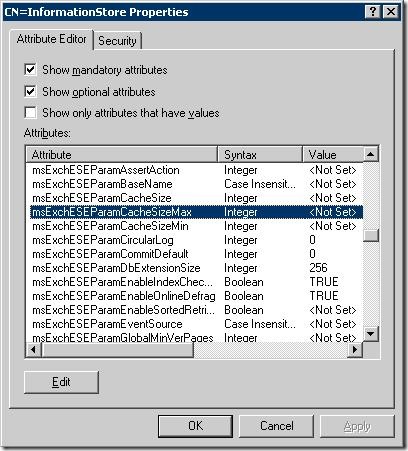
Now what if you have a real uncontrollable urge to limit Exchange in its attempt to optimize its database cache and you want to restrict its growth?  You can do this by changing the following Active Directory property (per store) using ADSIEDIT.msc (or using another tool or scripting language of your liking) as follows:

  1. Start ADSIEDIT.msc
  2. Navigate to Configuration > Services > Microsoft Exchange > <Organization Name> > Administrative Groups > <Administrative Group> > Servers > <Server Name> > InformationStore
  3. Right-click InformationStore, and edit msExchESEParamCacheSizeMax. Set it it to the number of pages to maximize the Database Cache to. Note that Exchange 2007 works with 8 KB pages and Exchange 2010 with 32 KB pages!
  4. Restart the Microsoft Exchange Information Store service for the change to become effective.

So, for instance, if you want to limit the Database Cache to 4 GB of an Exchange 2010 server, set msExchESEparamCacheSizeMax to 131072 (4 GB = 4.194.304 KB / 32 KB). If you want to limit the Database Cache to 2 GB of an Exchange 2007 server, set msExchESEparamCacheSizeMax to 262144 (2 GB = 2.097.152 KB / 8 KB).

Note that lowering these values may degrade performance, in terms of server performance as well as in terms of end-user experience. However, smaller organizations with a limited number of mailbox users may benefit because they don’t let Exchange claim significant amounts of memory which it will never use.

Kerberos Max Token Size


Ok, not directly Exchange related but an issue I’d like to share. In one of my earlier articles you can read I’m working on on a project where we’ll be performing a cross-forest migration of accounts and Exchange mailboxes. Migrating the Active Directory user accounts is done using ADMT v3.1 with SIDHistory. No problem so far, until we noticed some migrated users weren’t receiving Group Policy Objects and experienced authorization errors from time to time. After identifying several users experiencing similar issues, we noticed the following common eventlog entries:

System eventlog (the number 3888 varied):

Event ID : 6
Source : Kerberos
The kerberos SSPI package generated an output token of size 3888 bytes, which was too large to fit in the 2e00 buffer buffer provided by process id 0. If the condition persists, please contact your system administrator.

The Application eventlog contained the following event:

Event ID : 1053
Source : UserEnv
Windows cannot determine the user or computer name. (). Group Policy processing aborted.

Turns out, Kerberos is the culprit. GPO processing aborted because their Kerberos information exceeded the maximum Kerberos token size. This problem may occur when users belong to (too) many groups (.. don’t ask). In addition, memberships coming from SIDhistory are also added to the token, roughly doubling numbers.

As MS KB articles 263693 and 327825 suggest, we raised the MaxTokenSize limited to 65535 (0xFFFF) in the following registry location (if the value is not present, create it as REG_DWORD):

HKLM\SYSTEM\CurrentControlSet\Control\LSA\Kerberos\Parameters\MaxTokenSize

After a restart, all problems were gone. This isn’t a standard GPO setting; when required, you need to create an .adm GPO template yourself which is described in KB article 938118. Hope you’ll find this information useful to keep in mind when performing your ADMT scenarios at clients with excessive group usage.