 Last update: Version 1.47, April 17th, 2017
Depending on your migration scenario, you could be exporting and importing PST files when migrating mailbox contents from one Exchange environment to another. Now folders in PST files are just folders, i.e. Inbox is a folder just like any other folder and well-known folders lose their identification. Because of this, you may end up with unexpected additional folders in your mailbox after importing PST files.
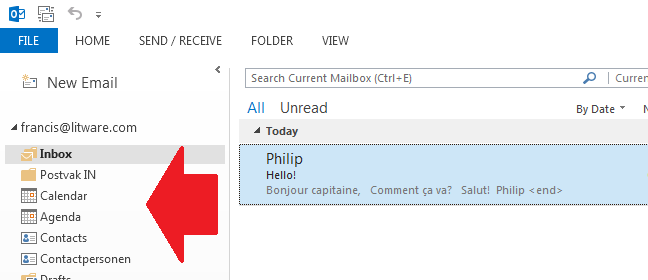
For example, when importing a non-US mailbox PST in a mailbox set to en-US you may end up with well-known folders and their regional counterparts, e.g. “Inbox” and “Postvak In” or “Calendar” and “Agenda”.

It can also happen that you import the PST file before setting the regional settings of the mailbox. In that case the folders with the local names are already present and Exchange will generate sequence number folders, e.g. Inbox1 or Calendar1.
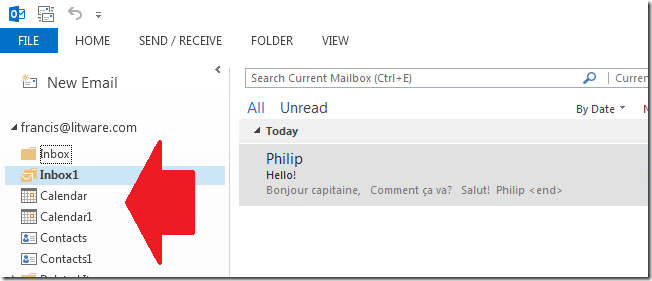
Note that the above behavior goes for all well-known folders, such as Inbox, Calendar, Contacts and Sent Items. Users logging in early, i.e. logging on to their mailbox while they shouldn’t, can also create these situations.
One way to fix this situation is to manually move contents to the proper location using an e-mail client, which is tedious and something you don’t want to trouble end users or admins with. Another way is to set the mailbox’ regional configuration before importing the PST file.
A better way is of course to have an Exchange Management Shell script which talks to Exchange Web Services, essentially doing the same but in an automated kind of fashion. Here’s where the Fix-MailboxFolder.ps1 script comes into play. Using Fix-MailboxFolders.ps1 requires Exchange 2010 SP1 and Exchange Web Services 1.2 (or later), which you can download here. The script hasn’t been tested yet against Exchange 2013.
Since the script will process user mailboxes, it needs to be run by a user with full mailbox permissions or impersonation permissions. Granting full mailbox access can be done on several levels, e.g. mailbox or database. For example, to grant ExAdmin Full Access on a mailbox:
Add-MailboxPermission –Identity User –User ExAdmin –AccessRight FullAccess
However, a more elegant and preferred method is to utilize impersonation through Role-Based Access Control (RBAC). Information on configuring impersonation in your Exchange environment using RBAC is found here. As an example, to grant ExAdmin permissions to impersonate all(!) users in an organization, use the following cmdlets:
New-ManagementRoleAssignment –Name:impersonationAssignmentName –Role:ApplicationImpersonation –User:ExAdmin
After executing this cmdlet, the account ExAdmin can succesfully impersonate mail-enabled users. To limit impersonation to a certain subset of the user population, you could use a write scope; for more information on RBAC and write scopes, check out my past blog on this topic here.
Fix-MailboxFolders.ps1 uses the following syntax:
Fix-MailboxFolders.ps1 [-Identity] [[-Language] ] [[-FromLanguage] ] [[-Server] ] [-ScanNumericals] [-Impersonation] []
A quick walk-through on the parameters and switches:
- Mailbox is the name or e-mail address of the mailbox of which to fix the folder structure. If you specify a mailbox, the current Active Directory domain is consulted. When specifying an e-mail address, Autodiscover is used.
- Language is the language to configure. If this isn’t specified, the script will use a default value of en-US;
- FromLanguage is the language in which to scan for folders. When omitted, the script will use the currently configured mailbox language;
- Server is the name of the Client Access Server to access for Exchange Web Services. When omitted, the script will attempt to use Autodiscover;
- The switch ScanNumericals will tell the script to look for folders in the language specified by FromLanguage with sequence numbers, e.g. Inbox1 or Calendar1;
- When the Impersonation switch is specified, impersonation will be used for mailbox access. When this switch isn’t used, the script will run in the context of the current user.
- Credentials can be used to specify the credentials to access the mailbox or impersonator when Impersonation is specified as well.
- Of the common parameters, only the Verbose switch is currently supported and will tell you exactly what the script is doing
So, for example assume you have a mailbox with en-US folders but also Dutch folders and the proper regional setting is en-US, use the following cmdlet:
.\Fix-MailboxFolders.ps1 –Identity Francis -Language nl-NL -FromLanguage us-EN –Impersonation

To fix the folders of an Office 365 mailbox, connect remotely to an Exchange Online session, and run the script using the e-mail address of the mailbox, specifying credentials optionally in combination with impersonation with sufficient permissions.
If you want to fix the folders of multiple mailboxes you can use a CSV file. The CSV needs to contain at least the Mailbox, but can optionally settings for Language and FromLanguage since the script will accept both through the pipe.
A sample of how the csv could look:
Mailbox,Language,FromLanguage
francis,en-US,nl-NL
philip,en-US,nl-NL
The cmdlet should then be something like:
Import-Csv .\Users.csv | .\Fix-MailboxFolders.ps1 -Language en-US -ScanNumericals -Impersonation –Verbose
Should you be running this in a resource-forest deployment, the script will by default try to retrieve the e-mail address of the specified mailbox – assuming you didn’t enter an alias instead of an e-mail address – in the current domain. You can override that by modifying the line which reads:
$ADSearch= New-Object DirectoryServices.DirectorySearcher( [ADSI]””)
to
$ADSearch= New-Object DirectoryServices.DirectorySearcher( [ADSI]”dc=user,dc=contoso,dc=com”)
where user.contoso.com is the distinguished name of your account forest.
Be advised that the script currently only contains en-US and nl-NL settings; you need to add additional language settings to the $LanguageInfo structure. The $LanguageInfo structure contains localized names for each of the well-known folders and has the following format.
"en-US"= @{
     "Inbox"="Inbox";
     "SentItems"="Sent Items";
     "Notes"="Notes";
     "Drafts"="Drafts";
     "DeletedItems"="Deleted Items";
     "Outbox"="Outbox";
     "Contacts"="Contacts";
     "Calendar"="Calendar";
     "Tasks"="Tasks";
     "JunkEmail"="Junk E-mail";
     "Journal"="Journal";
     "DateFormat"="M/d/yyyy";
     "TimeFormat"="h:mm tt"
};
To increase readability I’ve created one setting per line in the script; everything could be stored on a single line of course. The values DateFormat and TimeFormat should be provided in a valid format for the related regional setting. Depending on feedback and demand, I can add additional languages to future versions of the script.
You can download the script from TechNet or GitHub.


 A quick post as the Exchange 2013 Help (.CHM) files on the Microsoft Download Center have been updated. The offline help files files are convenient if you’re on the road or in a location without internet connection.




 EighTwOne (821)