Exchange Updates – March 2016


Ex2013 LogoToday, the Exchange Team released one big wave of Exchange updates for Exchange 2016 down to Exchange 2007.

Changes in contained in these updates:

  • Exchange 2016 CU1 is an uncompressed ISO file. If bandwidth is scarce where you will be deploying, be sure to download this 6GB file upfront.
  • Mailbox Anchoring, introduced with the previous CU for Exchange 2013 and Exchange 2016, is reverted.
  • Exchange 2010 supports stand-alone Exchange 2010 Hybrid wizard.
  • All updates will introduce updated OWA/Ootw S/MIME control.

For a list of fixes in these updates, see below.

Exchange 2016 Cumulative Update 1 15.1.396.30 KB3134844 Download UML
Exchange 2013 Cumulative Update 12 15.0.178.4 KB3108023 Download UML
Exchange 2010 Service Pack 3 Rollup 13 14.3.294.0 KB3141339 Download
Exchange 2007 Service Pack 3 Rollup 19 8.3.459.0 KB3141352 Download

Exchange 2016 CU1 fixes:

  • KB 3139730 Edge Transport service crashes when you view the properties of a poison message in Exchange Server 2016
  • KB 3135689 A custom SAP ODI URI is removed by ActiveSync from an email message in an Exchange Server environment
  • KB 3135688 Preserves the web.config file for Outlook Web App when you apply a cumulative update in Exchange Server 2016
  • KB 3135601 Cyrillic characters are displayed as question marks when you run the “Export-PublicFolderStatistics.ps1” script in an Exchange Server 2016 environment
  • KB 3124242 Mailbox quota is not validated during migration to Exchange Server 2013 or Exchange Server 2016

Exchange 2013 CU12 fixes:

  • KB 3143710 “Failed Search or Export” error occurs when an eDiscovery search in the Exchange Admin Center finishes
  • KB 3138644 Messages are stuck in the Submission queue until NDRs are returned or the server is restarted
  • KB 3137585 OAuth authentication fails in a proxy scenario between Exchange Server 2013 hybrid on-premises and Office 365
  • KB 3137581 An eDiscovery search of all mailboxes or some Distribution Groups fails when you use the Exchange Administration Center
  • KB 3137390 “DeviceId cannot contain hyphens” warning occurs when you use the Exchange Management Shell or the Exchange Administration Center to remove the associations in Exchange Server
  • KB 3137384 Error occurs when you remove an ActiveSync device in the Exchange Management Shell or from the Exchange Administration Center
  • KB 3137383 CafeLocalProbe fails if the Health Mailbox UPN doesn’t match its Active Directory domain name
  • KB 3137380 Both read receipts and Non-read receipts are generated when an email is read through IMAP or POP in Exchange Server 2013
  • KB 3137377 MSExchange FrontEnd Transport service crashes when email messages are processed that contain a null “X-OriginatorOrg” message header
  • KB 3136694 Calendar items are not synced correctly when you use Exchange ActiveSync on a mobile device
  • KB 3136404 Searching by Furigana in Outlook’s address book is unsuccessful in an Exchange Server 2013 environment
  • KB 3135689 A custom SAP ODI URI is removed by ActiveSync from an email message in an Exchange Server environment
  • KB 3135334 Cannot set Title in Exchange Admin Center (ECP) if it contains more than 64 characters
  • KB 3135269 Event ID 4999 with MSExchangerepl.exe and MSExchangeDagMgmt.exe crash in Exchange Server 2013 environment
  • KB 3135018 Cannot remove devices when the DeviceType property includes a forward slash
  • KB 3134952 EdgeTransport.exe crashes when you view details of messages in the poison message queue
  • KB 3134918 An IRM-protected message sent to an external contact isn’t returned in a search or discovery results when journaling is implemented in an Exchange Server 2013 environment
  • KB 3134894 The “Search-Mailbox” cmdlet together with the “Attachment” property keyword lists all items that contain the query string of “attachment”
  • KB 3128706 HttpProxy overloads a downlevel Client Access Server in an Exchange Server 2013 co-existence environment
  • KB 3124248 Managed Availability responders fail because of invalid WindowsService names in an Exchange Server 2013 environment
  • KB 3124242 Mailbox quota is not validated during migration to Exchange Server 2013 or Exchange Server 2016
  • KB 3124064 Event ID 1009 is logged and no Health Manager alerts on failed content indexes during migration in Exchange Server 2013
  • KB 3118902 Resource Booking Assistant doesn’t update the subject of a recurring meeting in Exchange Server 2013
  • KB 3109539 Exchange Management Shell doesn’t return the correct number of Exchange Server 2013 Enterprise CALs license
  • KB 3108415 Logon for POP3 client disconnects randomly in an Exchange Server 2013 environment
  • KB 3106236 The “Export-PublicFolderStatistics.ps1” cmdlet exports Russian (Cyrillic) characters as question marks
  • KB 3098561 “Error executing child request for /owa/auth/errorFE.aspx” when you browse to /ECP in Exchange Server 2013

Notes:

  • Exchange 2016 CU1 includes schema changes, and Exchange 2013 CU12 may introduce RBAC changes in your environment. When applicable, make sure you run PrepareSchema /PrepareAD before deploying. To verify this step has been performed, consult the Exchange schema overview.
  • If you have deployed KB3097966 on your Exchange server running on Windows Server 2012 R2, you may want to manually recompile the .NET assemblies before upgrading Exchange to significantly speed up the process. To accomplish this, run the following on every Exchange server on Windows Server 2012 R2:
    “%windir%\Microsoft.NET\Framework64\v4.0.30319\ngen.exe update”
    Don’t get upset by the messy output and any error messages; if the result of this command shown in the output is ‘0’ you’re good to go.
  • Be advised .NET Framework 4.6.1 is still not supported; make sure you don’t install this .NET update on your Exchange servers.
  • The Windows Management Framework (WMF)/ PowerShell version 5 is not supported. Don’t install this on your Exchange servers.
  • When using Exchange hybrid deployments or Exchange Online Archiving (EOA), you are required to stay current.
  • If you want to speed up the update process for systems without internet access, you can follow the procedure described here to disable publisher’s certificate revocation checking.
  • Cumulative Updates can be installed directly, i.e. no need to install RTM prior to installing Cumulative Updates.
  • Once installed, you can’t uninstall a Cumulative Update nor any of the installed Exchange server roles.
  • The order of upgrading servers with Cumulative Updates is irrelevant.
  • Rollups are cumulative per service pack level, meaning you can apply the latest Rollup for Service Pack X to a Service Pack X installation.

Finally, as always for any Hotfix, Rollup, Service Pack or Cumulative Update, I’d recommend to thoroughly test this in a test and acceptance environment first, prior to implementing it in production. When you lack such facilities, hold out a week or two and monitor the comments on the original article or TechNet forum for any issues.


The UC Architects Podcast Ep56


iTunes-Podcast-logo[1]Episode 56 of The UC Architects podcast is now available. This episode is hosted by Pat Richard, who is joined by John Cook and Tom Arbuthnot. Editing was done by Andrew Price.

Some of the topics discussed in this episode are:

  • Exchange Unified Messaging Voicemails not being received in mailbox
  • VMWare vSphere Exchange 2016 Best Practices Guide
  • Cloud PBX / E5 Dec Launch
  • Wildcard certs and Lync/SfB
  • Nexthop is back
  • RT100 dead
  • Developing for Skype for Business in 30 days
  • Group Call Pickup can be configured via PowerShell instead of SEFAUtil
  • Add Skype Consumer or Skype for Business Server Audio Test Service Bot to a Cloud PBX User
  • Exchange UM Toll Fraud Risk, Don’t Weaken Your PIN Settings
  • Understanding Skype for Business Server and Online PSTN Conference ID Configuration
  • HDX RealTime Optimization Pack 2.0 for Skype for Business on Citrix XenApp and
  • XenDesktop VDI
  • UCBug 10 Feb
  • Microsoft UC User Group London 3rd March Polycom EEC London
  • UCExpo London, 19th – 20th April
  • Cloud PBX
  • Unified Communications Day 2016 – October 24th

You can download the podcast here or you can subscribe to the podcasts using iTunes, Zune or use the RSS feed.

About
The UC Architects is a community podcast by people with a passion for Unified Communications; our main focus is on Exchange, Skype for Business or related subjects.

HTTP Proxy TargetBackEnd limits


powershellLast Update: February 4th, 2016

When deploying Exchange 2013 or Exchange 2016 in co-existence with a legacy version of Exchange, there comes a point where all traffic is routed through Exchange 2013/2016. Traffic for mailboxes hosted on legacy Exchange versions will be proxied by Exchange 2013/2016 to the back end.

This proxy process has some built-in limits for certain protocols, which you could encounter. Symptoms of these limits are Event 2022’s being logged in the Application log by the MSExchange Front End HTTP Proxy service:

image

Per Exchange 2013 CU7, this message should be considered a notice, despite the confusing event description. No connections are being blocked. However, the events create noise in your logs, which can be prevented by raising these limits. To accomplish this, you need to dive in to the web.config of the applicable HTTP Proxy protocols:

  • $ExInstall\FrontEnd\HttpProxy\sync\web.config (for ActiveSync, EAS)
  • $ExInstall\FrontEnd\HttpProxy\rpc\web.config (for OA, RPC/http)

In those files, create or adjust the entry in the <appsettings> configuration node, where <value> is the limit you want to configure (default is 150):

<add key=”HttpProxy.ConcurrencyGuards.TargetBackendLimit” value=”<value>” />

After adjusting these values, recycle the relevant application pools, e.g. MSExchangeSyncAppPool and MSExchangeRPCProxyAppPool.

The above steps need to be performed on all Exchange 2013/2016 Client Access Servers.

To automate this process of tedious editing in web.config files, I have created a small script which lets you alter these values for EAS and RPC against the local server or remotely. The script, Configure-HTTPProxyTargetBackEnd.ps1, has the following parameters:

  • Server to specify server to configure. When omitted, will configure local server.
  • AllServers to process all discoverable Exchange Client Access servers
  • TargetBackEnd specifies Target Backend limit (default 150).
  • NoRecycle to prevent recycling the MSExchangeSyncAppPool and MSExchangeRPCProxyAppPool

For example, to configure the local server with a limit of 2000 for Exchange Active-Sync and RPC access, use:

.\Configure-HTTPProxyTargetBackEnd.ps1 -TargetBackEnd 2000

image

Note that the script will create a backup copy of the web.config files before editing, using the current timestamp.

Download
You can download the script from the TechNet Gallery here.

Feedback
Feedback is welcomed through the comments. If you got scripting suggestions or questions, do not hesitate using the contact form.

Revision
See TechNet Gallery page.

Outlook for iOS adds Contacts support


imageA short notice on an update received today for Outlook for iOS 2.09. This update adds the much requested feature of integrating Outlook for iOS with the (native) Contacts in iOS:

“Your Office 365 and Exchange Contacts can now be saved to the iOS Contacts app. This will allow you to easily see the name of a contact when you receive a call or text message from them. Head to your Advanced Settings to turn on this feature.”

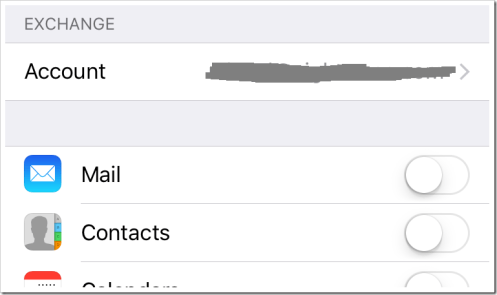
This does away with the requirement of resorting to setups like having the iOS Mail app sync with your Office 365 or Exchange On-Premises account, just to sync those contacts with your device. To disable syncing contacts through the Mail app, go to Settings > Mail, Contacts, Calendars and click the account you wish to disable syncing contacts for. Then, disable syncing its Contacts by toggling its switch:

image_thumb.png

You will get a warning contacts synced through this contact will be removed from Contacts, but since we are going to use Outlook for this, you can proceed.

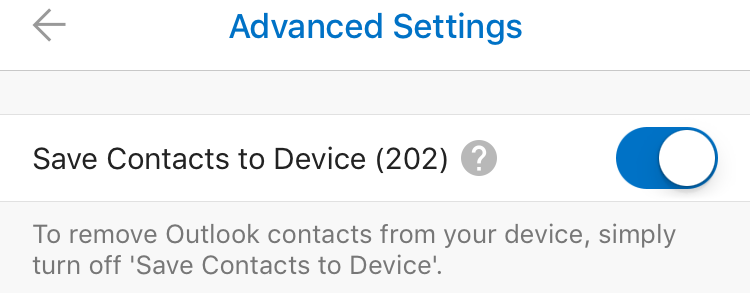
Next, open up the updated new Outlook app, and go to Settings. Click the account from which you want to sync contacts to your device, and select Advanced Settings. In there, you will find a new switch, Save Contacts to Device. Behind it is the number of contacts available on this account:

image

Toggle the switch to start syncing contacts directly from your Office 365 or Exchange On-Premises account to Contacts, giving the Outlook app permissions to access your Contacts when requested. After this, you’re ready to go.

Note that all synced contacts will contain a line in the Notes field, stating:

Exported from Microsoft Outlook (Do not delete) [outlook:..:..]

This is to indicate this is a synced contact, and you must not edit or remove it using the device, rather remove it from the originating source as it might get recreated or overwritten during synchronization.

Finally, the sync is one-way, so although you can edit properties on your phone through the Contacts app, they won’t be synced back to the originating source. Also, when editing properties through Contacts, those edits are not propagated to the People view in the Outlook app, as those are the contacts from your Office 365 / Exchange On-Premises accounts. This can be confusing, but having to set up an e-mail account just once with a one-way sync seems more efficient and less confusing to me than having to configure the Mail app only to get your contacts on your phone.

Exchange 2013 Cumulative Update 11


Ex2013 LogoThe Exchange Team released Cumulative Update 11 for Exchange Server 2013 (KB3099522). This update raises Exchange 2013 version number to 15.0.1156.6.

  • KB 3120594 Appointment on the Outlook calendar isn’t updated to a meeting when attendees are added
  • KB 3108345 “The app couldn’t be downloaded” error occurs when you try to install an application from the Intranet in Exchange Server 2013
  • KB 3108011 Error message occurs in Outlook after you change a single instance of a recurring meeting by using an iOS device
  • KB 3107781 Exchange ActiveSync device doesn’t keep messages for 30 days as configured
  • KB 3107379 Noderunner.exe consumes excessive CPU resources by parsing an attached document in Exchange Server 2013
  • KB 3107337 Mailbox migration from Exchange Server 2007 to Exchange Server 2013 is very slow
  • KB 3107291 Exception occurs when you run the Invoke-MonitoringProbe cmdlets to set probes for IMAP and POP3 in Exchange Server 2013
  • KB 3107205 “Custom error module does not recognize this error” error when OWA web parts fail to load
  • KB 3107174 Pages that use the People pop-up URL don’t load in Chrome when you access OWA or the Exchange Server Administration Center
  • KB 3106613 Outlook Web App shows partial contacts in an Exchange Server 2013 environment
  • KB 3106475 POP3 and IMAP4 are not supported to use TLS protocol 1.1 or 1.2 in Exchange Server 2013
  • KB 3106421 Very long URLs in an email message do not open in OWA in Internet Explorer
  • KB 3105760 Exchange Server 2016 mailbox server can be added to an Exchange Server 2013 DAG
  • KB 3105690 Outlook clients that use MAPI over HTTP to connect to Microsoft Exchange Server 2013 mailboxes are intermittently disconnected
  • KB 3105685 The lsass.exe process leaks an amount of handles in Exchange Server 2013
  • KB 3105654 Cannot edit Inbox rules in Outlook Web App by using Chrome
  • KB 3105625 ActiveSync device downloads emails while it’s in quarantine in an Exchange Server 2013 environment
  • KB 3105389 WSMan-InvalidShellID error when you create remote PowerShell sessions in an Exchange Server 2013 environment
  • KB 3100519 No responses are sent from a room mailbox when a booked meeting extends beyond the date you set in Exchange Server 2013
  • KB 3093866 The number of search results can’t be more than 250 when you search email messages in Exchange Server 2013
  • KB 3088911 Inline attachments are sent as traditional when you smart forward an HTML email in an iOS device in Exchange Server 2013
  • KB 3088487 IOPS Write increase causes email delivery delays in an Exchange Server 2013 environment
  • KB 3076376 IMAP clients that use Kerberos authentication protocol are continually prompted for credentials in Exchange Server 2013
  • KB 3068470 “Something went wrong” error in Outlook Web App and ECP in Exchange Server 2013
  • KB 3048372 Exchange Calendar items are shifted incorrectly when some Windows DST updates are applied
  • KB 2968265 OWA cannot be accessed after you upgrade Exchange Server 2013


Notes:

  • This CU introduces an important change in the mechanism how Exchange Management Shell sessions will be initiated as of Exchange 2013 CU11 (and to be introduced in Exchange 2016, as well), called Mailbox Anchoring. More on this later in this article.
  • When using Exchange hybrid deployments or Exchange Online Archiving (EOA), you are required to stay current (version N) or be one version behind (N-1).
  • Cumulative Update may include schema or Active Directory changes (e.g. Role-Based Access Control). Make sure you run PrepareSchema /PrepareAD.  If you want to speed up the Cumulative Update installation process, you can temporarily disable certificate revocation checking as described here.

Note that Cumulative Updates can be installed directly, i.e. no need to install RTM prior to installing Cumulative Updates. Note that once installed, you can’t uninstall a Cumulative Update nor any of the installed Exchange server roles. The order of upgrading servers is irrelevant, unlike with previous generations of Exchange.

Finally, and I can’t emphasize this enough: For any Hotfix, Rollup, Service Pack or Cumulative Update, I’d recommend to thoroughly test this in a test and acceptance environment first, prior to implementing it in production. When you lack such facilities, hold out a week or two and monitor the comments on the release article or TechNet forum for any issues.

You can download Exchange 2013 Cumulative Update 11 here; UM Language Packs can be found here.

MAILBOX ANCHORING
This CU introduces an important change in the administrative model. In short, you need to home your administrative mailbox on the Exchange platform level you want to administer Exchange from (mailbox anchoring), as you will connect (or be proxied) to an Exchange Management Shell (EMS) session on that host. In other words, use an administrative account with a mailbox on Exchange 2013 to administer Exchange 2013, use an admin mailbox on Exchange 2016 for Exchange 2016. The logic behind this is to work around mixed-version environment issues, as newer Exchange versions may introduce changes, like new or enhanced cmdlets but also deprecated functionality. New general recommendation is to keep arbitration mailboxes as well as administrative mailboxes on the most current version.

If the admin has no mailbox, or if it’s unavailable, arbitration mailboxes – primarily SystemMailbox{bb558c35-97f1-4cb9-8ff7-d53741dc928c} – are considered for hosting your EMS session. Also, that ‘Connected to <Server>’ message when you open up an EMS session will no longer always mean your EMS session is hosted on that server; it could mean your EMS session is being proxied through there, which can create challenges when you’re running multiple sites with low bandwidth links – you may need to move your admin mailbox around or create one for local administration to enjoy better response times. You can only discover which host your session runs on by inspecting the local environment, using elements like the env:COMPUTERNAME variable or [System.Net.Dns]::GetHostName().

Also, it might be wise to spread administrative mailboxes over different servers or databases, in case your arbitration mailboxes become unavailable together with that one administrative mailbox, as you need to recover one of those just so you can set up an EMS session. The last resort for running an EMS cmdlets – against all best practices and recommendations, as it bypasses Role-Based Access Control for example – is  to load the Exchange module using Add-PSSnapIn. But be advised, you may not have all required permissions, for example your admin account may not have direct Active Directory permissions (and which is one of the reasons you shouldn’t just load the snap-in under normal circumstances).

The Exchange Team put up a separate blog to explain this change in behavior here.