Last Update: August 16th, 2016.
 Note: The procedure has changed for Exchange 2016, which can use overrides to make this setting persistent. For these instructions, consult this article.
Anyone who has configured Exchange 2013 IM integration with Lync Server at some point has to modify the web.config file on the Mailbox servers to configure OWA with the proper certificate for enabling IM. Another thing (read: nuisance) is that when you have configured IM integration and you apply a Cumulative Update to Exchange 2013, the web.config will be overwritten, in which case you need to reapply those changes to the web.config file.
This is where the script Configure-IMIntegration.ps1 might come in handy.
Requirements
Using the script requires Exchange 2013 and Lync Server. You need to provide the Lync pool and the Mailbox server you want to configure needs to have a valid certificate assigned to IIS (or UM) service. The script will modify the web.config remotely using the system share (e.g. C$), using the location of the Exchange installation, and uses WMI to recycle the OWA Application Pool in IIS. It will create a backup of the web.config before modifying it.
Note that the script does not perform the following steps:
- It does not perform the Lync Server parts to configure IM integration, e.g. configure Exchange as a trusted application.
- It does not configure Lync Server as an partner application for Exchange (Configure-EnterprisePartnerApplication.ps1).
Usage
The script Configure-IMIntegration.ps1 uses the following syntax:
.\Configure-IMIntegration.ps1 [-Server <String>[]] -PoolFQDN <String> [-AllCAS] [-AllMailbox] [-UM] [-Thumbprint <String>]
A quick walk-through on the parameters and switches:
- Server specifies the server(s) to configure. When omitted, it will configure the local server. This parameter is mutually exclusive with AllMailbox.
- AllMailbox switch specifies to configure all Mailbox servers. This switch is mutually exclusive with Server.
- AllCAS switch specifies to enable IM integration on all Client Access servers.
- PoolFQDN specifies the FQDN of the Lync Pool to use. This parameter is required.
- UM specifies that the script should look for a certificate assigned to UM services instead of IIS (default).
- Thumbprint to manually specify the thumbprint of the certificate to use.
So, suppose you want to quickly reconfigure IM integration on a Mailbox server after applying a Cumulative Update, you can use:
.\Configure-IMIntegration.ps1 -PoolFQDN lync.contoso.com –Server exchange01.contoso.com

Or, you can quickly configure Mailbox servers and CAS servers for IM integration after performing the required steps to configure the trusted application settings and installing and assigning the certificate for UM:
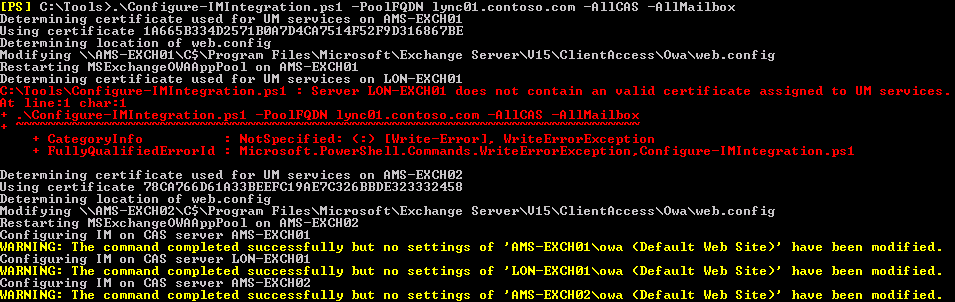
.\ Configure-IMIntegration.ps1 -PoolFQDN lync.contoso.com -AllMailbox –AllCAS

Also, in the example above, the CAS servers had already been enabled for IM.
Download
You can download the script from the TechNet Gallery here.
Feedback
Feedback is welcomed through the comments. If you got scripting suggestions or questions, do not hesitate using the contact form.
Revision History
See TechNet Gallery page.

 A short heads-up as the session catalog for Microsoft Ignite has been published. So, if you are still undecided or already want to pick ‘must see’ sessions for your schedule, you can check the session catalog here.



![Office-2010-Outlook-Icon[1]](https://eightwone.com/wp-content/uploads/2010/10/office-2010-outlook-icon1.png)
 EighTwOne (821)