TechEd NA 2013 UC Sessions


TechEd NA 2013Yesterday was the last day of the TechEd North America 2013. It was my first visit to TechEd North America and it was a great; I not only got to meet lots of interesting people in real life, the sessions were also excellent. The hosting city of New Orleans contributed a lot to the total experience with friendly people, nice music and the Cajun kitchen.

Now, for your convenience I put down a list of all UC related sessions; note that you can find an overview of all TechEd NA 2013 sessions here.

Exchange

Lync

Office 365

Adding Exchange Shell items to PowerShell ISE


I’ve become a fan of using the PowerShell Integrated Scripting Environment (PowerShell ISE) for creating, testing and debugging scripts, using breakpoints and step-by-step execution; features found in many development environments. Depending on the script I’m working on and for what customer or environment, I may need to add snap-ins or switch contexts, like connecting to Exchange Online.

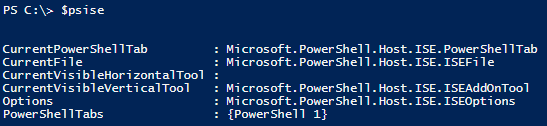
One of the powerful features of ISE is that it allows customizing through the ISE object model. For example, you can explore ISE through the $psise object:

image

To add custom menu options to ISE, we’re going to add items to the submenu of $psISE.CurrentPowerShellTab.AddOnsMenu, which is “Add-ons”. An item needs to consist of:

  • Display Name, which is used for displaying the menu item;
  • Action, which can be a PowerShell cmdlet, scriptblock or function;
  • Optionally, you can assign a keyboard shortcut to the menu option.

To automatically load the custom entries after starting up ISE, we’re going to define the entries in our default ISE profile file, Microsoft.PowerShellISE_profile.ps1, which location is stored in $profile. The file doesn’t exist by default, so when required you can simply create the file in the proper location using notepad $profile.

In our example, we’ll add three entries:

  • Implicit Remoting to connect to Exchange using a static FQDN;
  • Loading the Exchange 2010 Snap-in and connecting to Exchange using Autodiscover (unsupported, will bypass RBAC);
  • Connecting to Exchange Online.

Note that the example won’t be using stored credentials and will let ISE prompt the user for credentials when required, which is perfectly fine if you need to access different Office 365 tenants for example.

Now, in the Microsoft.PowerShellISE_profile.ps1 file, add the following contents:

$psISE.CurrentPowerShellTab.AddOnsMenu.SubMenus.Add(
    "Connect to Exchange @ Contoso", {
        $ExSession= New-PSSession -ConfigurationName Microsoft.Exchange -ConnectionUri http://exserver.contoso.com/PowerShell/ -Authentication Kerberos
        Import-PSSession $ExSession
    },
    "Control+Alt+1"
)
$psISE.CurrentPowerShellTab.AddOnsMenu.SubMenus.Add(
    "Connect to Exchange On-Premise", {
        Add-PSSnapin Microsoft.Exchange.Management.PowerShell.E2010
        . $env:ExchangeInstallPath\bin\RemoteExchange.ps1
        Connect-ExchangeServer –auto
            },
    "Control+Alt+2"
)
$psISE.CurrentPowerShellTab.AddOnsMenu.SubMenus.Add(
    "Connect to Exchange Online", {
        $o365Cred= Get-Credential
        $o365Session= New-PSSession -ConfigurationName Microsoft.Exchange -ConnectionUri https://ps.outlook.com/powershell/ -Credential $o365Cred -Authentication Basic -AllowRedirection
        Import-PSSession $o365Session
    },
    "Control+Alt+3"
)

After starting ISE you’ll see the Add-ons menu now contains three extra items:

image

When selecting “Connect to Exchange Online” (or pressing the configured keyboard shortcut), ISE will execute the associated code block; the progress is displayed in the output window. You will be prompted for credentials after which ISE will connect to Exchange Online and import the remote session.

image

After the session has been imported, you have the additional commands at your disposal in ISE and you can work on your scripts since they’ll be running in the context of the environment you’ve connected to.

Of course, this is just an example of what you can customize in ISE (pink background anyone?). For more information on customizing PowerShell ISE check here. If you’re new to PowerShell ISE, check here.

TargetAddress, ExternalEmailAddress and Set As External


In co-existence scenarios, the targetAddress attribute is leveraged to accomplish routing to different Exchange organizations by specifying the “final destination” e-mail address. The e-mail domain part of this address can be a non-accepted domain (i.e. other organization). This will enable organizations, when used in conjunction with mail-enabled users or contacts, to provision the (global) address list of their Exchange organization with mail-enabled objects of other organizations, also in a migration co-existence phase. Simply said:

  1. It can allow users in the local organization to select the object from the (global) address list and that object exists in other organizations;
  2. Exchange can route the message to its final destination using the specified targetAddress.

Reason for this blog is that I still see people putting e-mail address in the targetAddress property or the object by scripting against Active Directory (e.g. ADSI), even while they’re scripting using the Exchange Management Shell.

In the Exchange Management Shell, you can set the targetAddress by using the Set-MailContact or Set-MailUser in conjunction with the ExternalEmailAddress parameter, e.g.:

Set-MailContact  michel -ExternalEmailAddress michel@contoso.com

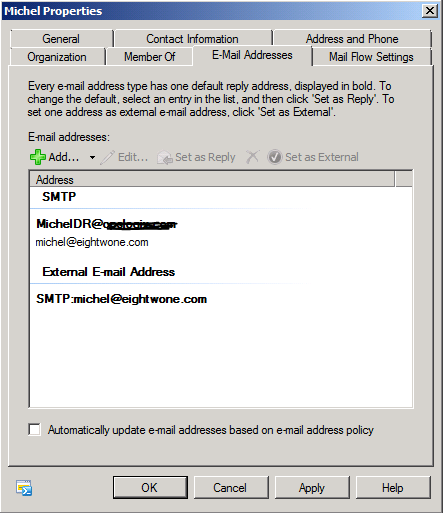
Setting this address is also possible using the Exchange Management Console, which may be more appropriate for testing purposes or a small number of changes (though I’d prefer the less-prone-to-error script any day):

image

When utilized in scripts, you can use PowerShell Piping Power (is that abbreviation already taken?) to process (CSV) files or use filtering to select the objects of which you want to configure the targetAddress, e.g.:

Get-MailContact -OrganizationalUnit “contoso.local/Division” -Filter {EmailAddresses -like *@contoso.local} -ResultSize unlimited | ForEach { Set-MailContact –ExternalEmailAddress “$($_.Alias)@newcompany.local” }

Get-Content “users.txt” | Get-MailContact | ForEach{ Set-MailContact $_.Identity -ExternalEmailAddress “$($_.Alias)@newcompany.local”  }

This will configure all mail-enabled contacts in the Division OU with an @contoso.local e-mail address with a target address which consists of the current alias followed by @newcompany.local. The other example uses a text file with names to process contacts and set the targetAddress to the current value of “alias” followed by the external e-mail domain.

Needless to say, the connectors between contoso and newcompany  as well as the accepted domains should be properly configured to route those contoso.local and newcompany.local domains between those organizations. Of course, this also depends on whether you’re using internal or external domain names and if you want those messages to go through the public network or not.

Note that this is also how you can set configure the targetAddress of a local (DirSync’ed) mail-enabled contact with an Office 365 mailbox in a Hybrid setup, for example after moving the mailbox to Office 365. In such case you set the targetAddress to the service domain in a Hybrid Office 365 setup, e.g. mydomain.mail.onmicrosoft.com.

Office 365 and “There are no items to show in this folder”


Be advised that when accessing shared mailboxes on Office 365 using Outlook in online mode, you may experience an issue with Outlook not properly updating the mailbox view.

Instead, Outlook will return a “There are no items to show in this view” message. The folder in the folder navigation pane displayed the proper number of (unread) items in the folder.

This could be the symptom of an issue which was already solved in Exchange 2010 Service Pack 1 Rollup 5. It seems the Office 365 data centers are not running a current version of Exchange, as today I received the message the Office 365 environment is currently being upgraded with Exchange 2010 Service Pack 2. The message also mentions the upgrade is to be completed at the end of the month.

More information on the issue in knowledge base articles kb2500648, announcing the fix is included in Exchange 2010 SP1 RU5.

Until then, the suggested workaround is to click one of the columns twice after which Outlook will update the view properly. Of course, you could also enable cached mode, if your setup and company policy permits (e.g. not running Outlook on terminal server).

Exchange Hybrid deployment and SMTP inspection


When setting up secure SMTP connections, also known as SMTPS or SMTP over TLS (Transport Layer Security), you encounter issues with SMTP obfuscating appliances, like Cisco ASA or PIX.

These appliances contain a feature called fixup protocol smtp, SMTP fixup, (E)SMTP inspect(ion) or Mailguard (Cisco), which – when enabled – limit the number of allowed SMTP verbs or obfuscate parts of SMTP dialogs. This tampering will cause problems when you try to configure SMTPS connections between e-mail servers and will prevent you from configuring a working Exchange Hybrid deployment, where TLS secured communications between the on-premise environment and Office 365 is enforced.

Note: By enforced, I mean it requires TLS which is more strict than opportunistic TLS,  which will attempt to set up TLS before continuing with regular SMTP communications.

You’ll end up with Office 365 specific Receive and Send connectors after setting up your Hybrid configuration using the Hybrid Configuration Wizard (or manually). Then, when sending e-mail between on-premise and Office 365, you notice e-mail doesn’t arrive and will remain queued.

After verifying your ISA or TMG isn’t blocking things (ports are open, SMTP filter not blocking STARTTLS etc), you start troubleshooting the issue by enabling Verbose logging for the Office 365 send connector (of course, this can also be achieved using the Exchange Management Console):

Set-SendConnector “Outbound to Office 365” –ProtocolLoggingLevel Verbose

The logs will by default be generated in the $exinstall \V14\TransportRoles\Logs\ProtocolLog\SmtpSend ($exinstall will contain the Exchange installation path).

If you look at the current log file, you’ll see the following pattern for each possible destination – in the example below the TX2EHSMHS017.bigfish.com – as the local Exchange 2010 hybrid server will try to get the message(s) delivered:

Outbound to Office 365,08CEBBEB07152FBC,0,,65.55.88.22:25,*,,attempting to connect 
Outbound to Office 365,08CEBBEB07152FBC,1,192.168.1.11:51841,65.55.88.22:25,+,, 
Outbound to Office 365,08CEBBEB07152FBC,2,192.168.1.11:51841,65.55.88.22:25,<,220 **********************************************************************************************, 
Outbound to Office 365,08CEBBEB07152FBC,3,192.168.1.11:51841,65.55.88.22:25,>,EHLO mail.contoso.com, 
Outbound to Office 365,08CEBBEB07152FBC,4,192.168.1.11:51841,65.55.88.22:25,<,250-TX2EHSMHS017.bigfish.com Hello [92.70.102.115], 
Outbound to Office 365,08CEBBEB07152FBC,5,192.168.1.11:51841,65.55.88.22:25,<,250-SIZE 157286400, 
Outbound to Office 365,08CEBBEB07152FBC,6,192.168.1.11:51841,65.55.88.22:25,<,250-PIPELINING, 
Outbound to Office 365,08CEBBEB07152FBC,7,192.168.1.11:51841,65.55.88.22:25,<,250-ENHANCEDSTATUSCODES, 
Outbound to Office 365,08CEBBEB07152FBC,8,192.168.1.11:51841,65.55.88.22:25,<,250-XXXXXXXA, 
Outbound to Office 365,08CEBBEB07152FBC,9,192.168.1.11:51841,65.55.88.22:25,<,250-AUTH, 
Outbound to Office 365,08CEBBEB07152FBC,10,192.168.1.11:51841,65.55.88.22:25,<,250-8BITMIME, 
Outbound to Office 365,08CEBBEB07152FBC,11,192.168.1.11:51841,65.55.88.22:25,<,250-BINARYMIME, 
Outbound to Office 365,08CEBBEB07152FBC,12,192.168.1.11:51841,65.55.88.22:25,<,250 XXXXXXXB, 
Outbound to Office 365,08CEBBEB07152FBC,13,192.168.1.11:51841,65.55.88.22:25,*,,Connector is configured to send mail only over TLS connections and remote doesn't support TLS 
Outbound to Office 365,08CEBBEB07152FBC,14,192.168.1.11:51841,65.55.88.22:25,>,QUIT,

As you can notice in this example, the SMTP banner has been turned into stars and AUTH and STARTTLS have been changed by the appliance into XXXXXXXA and XXXXXXXB. This behavior is typical of Cisco’s Mailguard feature; other smtp obfuscating appliances might result in different output. Key indicator is, expected elements are missing or garbled.

In such cases, you need to make sure SMTP traffic between on-premise and Office 365 goes through unfiltered. Depending on the capabilities of the device, you could allow the FOPE addresses to go through unfiltered. If that’s not an option, or you don’t like managing that address set, you need to disable the feature completely.

Note that Cisco is not the only vendor offering SMTP obfuscating products; companies like Checkpoint, Barracuda, Sonicwall or Symantec offer products with the feature mentioned above.