

Update (3sep2022) Updated reflect Azure AD app roles.
Early June, Microsoft released a new PowerShell module
for managing Exchange Online. This module got announced at Ignite 2019 already, but it took few months between going into preview end of last year before it finally reached Generally Available status. Usage of this module offers substantial improvements over the existing methods to connect to Exchange Online using Powershell, such as:
- Leveraging the PowerShell module ecosystem to install and update the module. This as opposed to the click-to-run Microsoft Exchange Online Powershell Module or connecting through PowerShell remoting.
- Support for Multi-Factor Authentication. This is something which the click-to-run module also offers but is not available when using PowerShell remoting.
- Robustness. Existing sessions could easily timeout when you took a short break from the console. Or worse, your script could terminate in the middle of execution. This required you to reconnect or forced you to add resilience to your scripts by handling with these disconnects from the back end. The cmdlets of the EXOv2 module should be more robust and resilient.
- Introduction of the Graph API support, which should show improvements in terms of speed. Microsoft indicated an 4-8 times improvement should be achievable, but your mileage may vary depending on the operation.
- Support for PowerShell 6/7, core, and non-Windows operating systems is coming.
Exchange Online Management v2 module
The module has been baptized EXOv2 to indicate a major change compared to the click-to-run module (hereafter referred to as EXOv1), and also because it uses Graph API, just like the AzureAD v2 module. The module is available in the PowerShell Gallery, and installation is straightforward. Open a PowerShell 5.1 or later session in elevated mode and run:
Install-Module ExchangeOnlineManagement
The EXOv2 cmdlets which are REST-based and and leverage Graph API have their nouns prefixed with ‘EXO’, e.g. Get-EXOMailbox. Currently, there are 9 EXO cmdlets in the GA module, as well as few additional ones (more on those later). The regular commands such get Get-Mailbox are available as well after connecting to Exchange Online. This is similar behavior to the EXOV1 module, e.g.
Connect-ExchangeOnline [-UserPrincipalName <UPN>]

When required, satisfy the Multi-Factor Authentication logon process, and you
are done. Be advised that the EXOv2 module also supports Delegated Access
Permissions (DAP), allowing partners to connect to customer tenants by
specifying -DelegatedOrganization <mycustomer.onmicrosoft.com> when connecting.
Also note that apart from the EXO cmdlets, the current module also offers few other interesting commands and helper functions apart from the ones for housekeeping:
- Connect-IPPSSession to connect to Security & Compliance center or Exchange Online Protection, depending on licensing. This command was also available in EXOv1.
- Get-UserBriefingConfig & Set-UserBriefingConfig. These are a bit out of context, as these commands allow you to enable or disable the Cortana Briefing for users.
- IsCloudShellEnvironment indicates if you are running from PowerShell or Azure Cloud Shell, which might be useful in scripts to determine the current context.
The EXOv2 cmdlets and their regular equivalents are shown in the table below:
| EXO v1 or Remote PowerShell | EXO v2 |
| Get-Mailbox | Get-EXOMailbox |
| Get-MailboxFolderPermission | Get-EXOMailboxFolderPermission |
| Get-CASMailbox | Get-EXOCASMailbox |
| Get-MailboxFolderStatistics | Get-EXOMailboxFolderStatistics |
| Get-MailboxPermission | Get-EXOMailboxPermission |
| Get-MobileDeviceStatistics | Get-EXOMobileDeviceStatistics |
| Get-Recipient | Get-EXORecipient |
| Get-RecipientPermission | Get-EXORecipientPermission |
What you might notice is the absence of any Set-EXO* cmdlets. This is true, and there is no word yet on if and when Set cmdlets will be introduced. That said, the biggest speed gain is often in bulk retrieval of data, not so much in altering one or more attributes. Until then, do not
despair though, as you can pipe output of the EXO cmdlets to their regular cmdlet,
e.g.
Get-EXOMailbox michel | Set-Mailbox -EmailAddresses @{Add='michel@myexchangelabs.com'}
This construction will also provide the additional benefit of parallel processing of objects as they pass through the pipeline, but more on that later.
Now comes another thing you should be aware of, and that is that these EXOv2 cmdlets might not use the same parameter sets as their v1 equivalent. Simply said, you cannot perform a simple Find and Replace operation in your script replacing Get-Mailbox with Get-EXOMailbox to start enjoying benefits of the new module.
When running a cmdlet like Get-EXOmailbox, you might notice that it returns only a subset of the attributes you might expect. Similar to what Properties does for Active Directory module, the EXOv2 module requires you to specify the individual Properties to return. Alternatively, you can use PropertySets to select a predefined set of attributes. For example, Get-EXOMailbox supports PropertySets such as All, Minimum (default), Policy, Quota and Retention to name a few. When needed, you can combine PropertySets, so something like the following is possible:
Get-EXOMailbox -Identity michel -PropertySets Quota,Policy
A small note on the PropertySet All: Just like Get-ADUser .. -Properties
* is considered bad practice as you can impact resource usage and usually return more than what you need, using -PropertySets All for every call is also a bad idea. All is convenient, but make sure you only return the data you need. Be a good person.
To see which EXOv2 cmdlets support PropertySets, use:
(Get-Command -Noun EXO* -Module ExchangeOnlineManagement).Where{$_.Parameters.propertySets}

Performance
Now, I suppose we want to get an indication of the performance enhancements by comparing EXOv2 and equivalent operation using v1 cmdlets. In this simple example we are returning quota information for some 50.000 mailboxes:

In this case, it is not the 4-8x improvement, but more than twice as fast is significant nonetheless. Especially if you are running interactively. To see the impact of parallel processing in the pipeline, we run the following:

As shown, there is a substantial increase in performance, but of course your mileage may vary depending on things like the number of objects, the attributes you require, and any filtering
applied. Note that the PropertySet StatisticsSeed used in the example is a very minimal set of attributes which you can use if you only wish the refer to the objects, such as userPrincipalName, primarySmtpAddress and externalDirectoryObjectID.
Speaking of filtering, one would expect that server-side filtering (-Filter) would show an improvement in terms of speed over client-side filtering (Where), as filtering at the source is far more efficient in terms of result set and data to send over. However, it seems that due to the nature of a shared environment, sending superfluous data over the wire is less of a penalty than local filtering. Of course, your mileage may also vary here, so experiment what works best for your situation. Also, not every attribute is supported for filtering with these EXO cmdlets, which lies in how Graph exposes data. More information on that here.
When your session times out or disconnects, you will see that the module tries to reconnect your session; something which you would have to programmatically solve for the v1 module or regular remote PowerShell:

Certificate-based Authentication
Exchange administrators often have a requirement to run unattended scripts against Exchange Online, for example scheduled reports or as part of another process. In the past, this lead to setups where service accounts and stored credentials were used. Later this was improved by the ability to apply Conditional Access to limit these logons to on-premises infrastructure.
The problem with Multi-Factor Authentication is that it requires interaction with end-user to approve the sign-on. Of course, while your token is still valid, you can easily (re)connect to Exchange Online just by providing the Username Principal Name, which will reuse the token if it didn’t expire. But all in all, these solutions are high maintenance, and far from ideal from a security perspective.
Here comes certificate-based authentication, which is supported in version 2.0.3 and up of the EXOv2 module. In short, certificate-based authentication allows you to log on to Exchange Online using:
- PowerShell
- EXOv2 module
- A (self-signed) certificate containing private key
- Enterprise App registration in Azure Active Directory which contains the public key of this certificate, and proper assigned Azure AD role(s).
Note: Enterprise app registration may require Azure AD P1/P2 license.
To install the EXOv2 2.0.3 version of the module (preview at time of writing), use:
Install-Module ExchangeOnlineManagement -AllowPrerelease
Note that it might complain if you have the GA version of the module installed, in which case you need to uninstall the GA module first, or you can install them side-by-side by specifying -Force.
Next, we need to create a self-signed certificate. To accomplish this, we can use the script published here. To create the certificate, simply use:
.\Create-SelfSignedCertificate.ps1 -CommonName 'EXOv2' -StartDate 7/30/2020 -EndDate 7/30/2021
Note that you need to provide a password to protect the PFX file containing the private key. Also do not forget to import the PFX in your local certificate store. When importing, you can mark the certificate as non-exportable, which prevents admins to transfer the certificate to other systems.
Import-PfxCertificate -CertStoreLocation Cert:\CurrentUser\My -FilePath .\EXOv2.pfx -Password (Read-Host -AsSecureString)
After importing, you can check for the certificate’s presence using:
Get-ChildItem Cert:\CurrentUser\My | Where {$_.Subject -eq 'CN=EXOv2'}

The Subject should be the CommonName you used when generating the certificate. The thumbprint of our certificate is 49A4A73B4696718676770834BCD534DE35030D2C. We are going to use this later on to connect.
Now we need to set things up in Azure Active Directory:
- Open up the Azure Active Directory Portal, and navigate to Active Directory.
- Select App registrations, and click New registration.
- Give the App a meaningful Name, and select Accounts in this organizational directory only. Set Redirect URI to Web and leave the URL blank. Then, click Register.
![clip_image013[4]](https://eightwone.com/wp-content/uploads/2020/08/clip_image0134_thumb.jpg "clip_image013[4]")
Note that our App has been assigned an Application (Client) ID. Make note of this value, as we will need it to connect later on. - Next, we need to configure the App permissions. Select API permissions. User.Read should show up as default. Click Add a permission, and locate Office 365 Exchange Online from the APIs my organization uses tab. Select Application permissions, and in the next screen expand Exchange and check Exchange.ManageAsApp. We are done here, so click Add permissions.
- Only thing left now is to Grant admin consent, which can be done by clicking Grant admin consent for <tenant>. When done, the Status column for Exchange.ManageAsApp permission should have changed to Granted for <tenant>.

- Now we need to associate this App with out certificate. Select Certificates & Secrets, and click Upload certificate. Pick the certificate file which we generated earlier, and select Add.
![clip_image017[4]](https://eightwone.com/wp-content/uploads/2020/08/clip_image0174_thumb.jpg "clip_image017[4]")
- Last step is to assign the App one of the built-in Azure AD roles. Go to the Azure Active Directory blade, and select Roles and administrators. To manage Exchange Online using PowerShell, you need to assign the Exchange Administrator role; for Security & Compliance, you can assign the Compliance Administrator role.
Select the desired role(s), and click Add assignments in the assignments overview screen. Note that when picking security principals, the App might not show up initially, and typing its first few letters might help. Click Add to assign the role.![clip_image019[4]](https://eightwone.com/wp-content/uploads/2020/08/clip_image0194_thumb.jpg "clip_image019[4]")
Note that the UserName mentioned in the overview is the Application ID.Now we are done configuring the back end, we can look again at connecting. This should now be as simple as running:
Connect-ExchangeOnline -CertificateThumbprint '49A4A73B4696718676770834BCD534DE35030D2C' -AppId '0d3f8f4c-34fb-4a22-8466-80fd7379593b' -Organization '<tenant>.onmicrosoft.com'
Where:
- CertificateThumbprint is the thumbprint of the self-signed certificate you created earlier.
- AppID is the Application (Client) ID of the registered App.
- <tenant>.onmicrosoft.com the initial domain name of your tenant.

Note that you can also connect specifying the CertificateFile instead of Thumbprint, but then you need to provide the password as well via CertificatePassword. Having the certificate in the certificate store of the administrator account or account running the task and just specifying the thumbprint is more convenient and requires zero interaction.
If all steps above were followed correctly, you should now be connected to Exchange Online, without any MFA interaction.
A final note is that Connect-IPPSSession mentioned earlier does not support certificate-base authentication.
What about other Workloads
You can use the same certificate-based authentication to connect to several other workloads as well. That is, provided you have installed the required PowerShell module and the Azure AD role you assigned to the Application has adequate permissions. You can use the commands below to connect to these workloads. A small note that the commands to connect may use a different parameter names for AppId or Organization, e.g. AppId, ApplicationId or ClientId and Organization and TenantId are same things in the examples below.
AzureAD (2.x or Preview)
Connect-AzureAD -CertificateThumbprint '49A4A73B4696718676770834BCD534DE35030D2C' -ApplicationId '0d3f8f4c-34fb-4a22-8466-80fd7379593b' -TenantId '<tenant>.onmicrosoft.com'
MicrosoftTeams (GA or Test)
Connect-Microsoftteams -CertificateThumbprint '49A4A73B4696718676770834BCD534DE35030D2C' -ApplicationId '0d3f8f4c-34fb-4a22-8466-80fd7379593b' -TenantId '<tenant>.onmicrosoft.com'Microsoft Graph
Connect-Graph -CertificateThumbprint '49A4A73B4696718676770834BCD534DE35030D2C' -ClientId '0d3f8f4c-34fb-4a22-8466-80fd7379593b' -TenantId '<tenant>.onmicrosoft.com'
AuditThe logons which are performed in the context of the Application are viewable in the Azure Sign-Ins at https://aka.ms/iam/rtsp

Note that this view is currently in preview, and there might be a slight delay before logon shows up.
Final Notes
It would be nice if there would be a way to incorporate Exchange granular Role-Based Access Control model into the permissions model. Granting Apps only the built-in Azure AD roles is somewhat limiting, and it would be nice to restrict accounts in only being able to run the cmdlets and parameters they need to use.
When running Exchange cmdlets, you will find these in the audit log but with the <tenant>\AppID as UserName. Therefore, best thing to do is to use a single App registration for each individual administrator or process, instead of using a single App registration and multiple certificates.
And finally, it would be nice if the various teams would align their cmdlet and parameter naming schemes for consistency.
Exchange admins & PowerShell
 Many people I encounter in the field of Office 365 or Exchange have an infrastructure background. That is, they know a lot about their product(s), how to make it work (or don’t), how to manage, deploy or troubleshoot, etcetera.
Then there is, the let us call it, the reality check of the cloud era, with a roller coaster of cloud-originating developments. This requires a different management focus for these products, resulting in products architected for scale, and introducing configuration and management instruments primarily designed to be ready for automation and operate on scale as well. PowerShell support in Microsoft products is such an instrument.
The introduction of PowerShell required folks with an infrastructure background to develop a new skill: instead of clicking buttons in an interface, they should also become a PowerShell practitioner. Not necessarily wizard level, but at least they need to know their way around when managing their environment using PowerShell, reading and interpreting scripts provided by Microsoft or other vendors prior to usage, or even make changes to make those scripts fit for their own environment.
Writing scripts is another matter. This requires a tad different mindset, where you make repeatable tasks repeatable (time-saving), less prone to error (job-saving), and reusable by your coworkers or even the community who may need to perform the same task. Of course, everybody also expects your scripts to be generic (no hard-coded elements), robust and resilient, adding 90% more code (a bit exaggerated, but you get the idea).
What most of administrators struggle with, is making the connection between managing the product using PowerShell, and how to start using PowerShell to develop their own set of scripts or tools to automate tasks their environment. Administrators wanting to learn such skills will usually find is great books about the product, and great books on learning (generic) PowerShell. Of course, existing scripts found using their favorite search engine can also be a great starting point, provided somebody already developed it for the task you are trying to accomplish.
With the Exchange Server 2016 administrator in mind, Exchange fellows Dave Stork and Damian Scoles tried to bridge that gap with their book, Practical PowerShell: Exchange Server 2016. It uses some practical Exchange-themed examples, how to approach the problem, and how to go from running a few cmdlets in sequence to developing small scripts which operate against one or multiple servers. Also, while this book aims at the on-premises Exchange administrators, the skills learned are not lost when the organization moves to Exchange Online as these scripting skills are compatible.
Knowing how difficult it can be to transfer knowledge to paper from my own experience, I think Dave & Damian did a respectable job. The timing of the book release is also interesting, as the product which introduced PowerShell to so many of us, Exchange Server 2007, is going End of Life soon, on April 2011, 2017 to be exact. Realizing PowerShell has been around now for so many years, there is no excuse to get your PowerShell skills going, unless you want to share the faith of dinosaurs.
More information on the book, including a sample chapter, is available at https://www.practicalpowershell.com. You can also order the book from Amazon here.
IT/DEV Connections 2015 Wrap-Up
 Note: For those that attended Jaap and my workshop on Monday, Managing Exchange On-Premises and Exchange Online using PowerShell, the slidedeck is available here and the sample code is available here.
Last weekend, I returned from one of the largest, independent conferences on Microsoft technologies, IT/DEV Connections. The conference, which took place in the city of Las Vegas, is spread over a 3-day period on popular topics, like Exchange, Windows, SQL or SharePoint, and has a track for Infrastructure as well as Development (hence the ‘IT/DEV’). Apart from the many speakers, most of them experienced Microsoft Valuable Professionals, Microsoft celebrities like Tim McMichael were also presenting sessions.
Like many conferences nowadays, IT/DEV Connections took off with several pre-conference workshops on Monday. One of these workshops was done by fellow Exchange MVP and countryman Jaap Wesselius and myself. We talked a whole day about ‘Managing Exchange On-Premises and Exchange Online using PowerShell’. The turn-up was above expectation, which is always nice, and we had good interaction with, and feedback from the audience. This made our session, from a presenter’s viewpoint, very worthwhile.
 Since I had no sessions after the workshop, I was free to attend sessions by fellow presenters. Tony Redmond kicked off with a keynote, analyzing the current landscape for Exchange and Office 365, and making references to sessions later that week, should people be interested in those topics. It’s also where you learn who is running what, and as it turned out most attendees are running Exchange 2010 or Exchange 2013 On-Premises, but with an increasing interest in Office 365.
During the week, apart from the excellent contents presented, I was very humbled to learn lots of presenters made references to several of my scripts, e.g.
- Install-Exchange15.ps1, the Exchange 2013/2016 Unattended Installation script.
- Connect-Office365Services.ps1, the script for profile inclusion, providing Office 365/Exchange Connect Functions.
- Configure-IMIntegration.ps1, to configure IM integration.
- Reference to my NTFS vs ReFS article.
This conference is also the place where Exchange MVP fellows Tony Redmond, Michael van Horenbeeck, Paul Cunningham and Jeff Guillet presented their 2nd edition of their book, ‘Office 365 for Exchange Professionals’. Congratulations to them reaching this milestone, looking at the non-stop amount of changes happening in the Office 365 environment. You can get your own copy of the updated book here.
It’s becoming a tradition that the last Exchange session of the conference is a ‘Ask the Experts’ panel session, where the audience can ask a panel of presenters questions, or where the current landscape for Exchange or Office 365 can be discussed. It’s a great way to close the conference, before everyone gets back to their corners of the world, back from the crazy city that is Las Vegas to reality.
 If you didn’t consider IT/DEV Connections before, you should. The conference is a must-visit, especially with Microsoft having consolidated MEC, MMS etc. in a single, huge event which is Ignite now. Connections is not small, but the more intimate setting allows you to catch up with peers more easily, have discussions over a pint, great catering, and without the need to max out your step counter. The Aria resort is very nice place to host this event, great for business with a pleasant conference area without too much of the distractions like the other hotels. If you plan on visiting next year, save the date: September 19-22, 2016!
I also want to thank ENow for again hosting an epic Scheduled Maintenance party. Location this time was the Ghostbar at the 55th floor in Palms Resort, which gave an amazing view over the city of Las Vegas and the Strip. I wore my ENow-branded NFL jersey to the party, a gift from ENow last year. This lead to funny moments, as this is ENow’s event gear, and many people mistook me for an employee, thanking me when leaving the party.
Finally, here are some of the other Exchange Connections wrap-ups:
IT/Dev Connections 2015
![imspeakingatdevconnections[1]](https://eightwone.com/wp-content/uploads/2015/09/imspeakingatdevconnections1-e1442186039661.jpg?w=150) I am in Las Vegas at the moment for the IT/DEV Connections conference which will take place in Las Vegas this week. Looking at the schedule and list of speakers, the conference is bound to be a success. If you’re not in Las Vegas, you can follow the conference on Twitter. The designated hashtag is #ITDEVCON.
I am in Las Vegas at the moment for the IT/DEV Connections conference which will take place in Las Vegas this week. Looking at the schedule and list of speakers, the conference is bound to be a success. If you’re not in Las Vegas, you can follow the conference on Twitter. The designated hashtag is #ITDEVCON.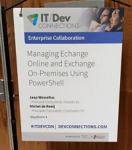 Many thanks to Penton Media for giving me the opportunity to co-host the “Managing Exchange On-Premises and Exchange Online with PowerShell” workshop in the Enterprise Collaboration with Jaap Wesselius, on September 14th in Bluethorn 4. I will be present at the conference the whole week, so if you have questions or just want to say hi, look me up or ping me on Twitter or e-mail.
Client Message Size Limits

Last Update: Version 1.4, July 19th, 2019
Exchange Server 2013 and Exchange Server 2016 enforces certain message size limits when it comes to client messages. These limits are in-place so clients can’t generate excessive load on your Exchange environment. These limits are determined for various access methods in multiple web.config files on Exchange Client Access Servers as well as Mailbox Servers.
Sometimes you may have good reasons to increase those limits. For example, when migrating to Office 365 using a product like MigrationWiz, you may want to increase the limit for Exchange Web Service (EWS) requests to allow for migration of larger items. Another example is when you want to allow for bigger attachments in Outlook WebApp (OWA). On TechNet, there’s an article on how to reconfigure these limits. However, the process consists of editing multiple web.config files, replacing multiple values in the same file, and following this process on each Exchange 2013/2016 server in your environment. This is not only labor intensive and prone to error, but becomes tedious when you consider that each Cumulative Update will overwrite your web.config files.
But do not despair. To execute these changes for OWA and EWS, I have created a PowerShell script which will perform these tasks for you.
Requirements
Using the script requires Exchange 2013. You need to provide the server name (default is local server) or AllServers to apply to all Exchange 2013/2016 servers in your environment. The script will modify the web.config remotely using the system share (e.g. C$), using the location of the Exchange installation, and uses IISRESET tool to restart IIS. It will create a backup of the web.config before modifying it.Notes:
- The script checks for running in elevated administrator mode when running against the local machine.
- Current version of the script requires Exchange Management Shell, to run Exchange cmdlets for checking installed roles a.o., as the web.config files which require editing depend on the installed roles.
- For OWA, add ~33% to the value you want to specify to compensate for encoding overhead.
- When connected to an Exchange server, the script processes the server hosting the EMS session last to prevent abortion caused by IIS reset.
- Script currently runs against Exchange 2013 or Exchange 2016.
Usage
The script Configure-ClientSizeLimits.ps1 uses the following syntax:.\Configure-ClientSizeLimits.ps1 [-Server |-AllServers] [-OWA <size>] [-EWS <size>] [-EAS <size>] [-Reset] [-NoBackup]
A quick walk-through on the parameters and switches:
- Server specifies the server to configure. When omitted, it will configure the local server. This parameter is mutually exclusive with AllServers.
- AllServers switch specifies to configure all Exchange 2013 servers. This switch is mutually exclusive with Server.
- OWA configures the message size limit for Outlook Web Access. Value is in bytes.
- EWS configures the message size limit for Exchange Web Services. Value is in bytes.
- EAS configures the message size limit for Exchange ActiveSync. Value is in bytes.
- NoBackup tells the script not to make backup copies of modified web.config files.
- Reset switch specifies to perform an IISRESET against servers after reconfiguration of client-specific message size limits.
So, suppose you want to configure OWA, EWS and EAS client message size limits on the local Exchange server, you can use:
.\Configure-ClientSizeLimits.ps1 -OWA 15MB -EWS 15MB EAS 15MB

If you want to configure EWS limits for all servers, resetting IIS, you could use:
.\Configure-ClientSizeLimits.ps1 -AllServers -EWS 10240 -Reset
Download
You can download the script from the TechNet Gallery here or GitHub.Feedback
Feedback is welcomed through the comments. If you got scripting suggestions or questions, do not hesitate using the contact form.Revision
See TechNet Gallery page.




 EighTwOne (821)