A small post on something that I only noticed today, which is that one of the recent updates for the Teams app on iOS introduced the much welcome support for Calendar View in Teams on CarPlay. This was published since January as Roadmap ID 114306 and is also published in the Message Center as MC516905. I am currently running Teams for iOS version 5.5.0, so that build definitely contains this functionality.
No longer you need to tell Siri you want to join your ‘next meeting’, as you now will be presented with current and upcoming events. You can join any meetings early simply by tapping on them, and joinable meetings will display a phone icon, which you can also tap to join. Of course, you can only join Teams meetings, if you tap a regular appointment you will get a notice that this is not a Teams meeting.
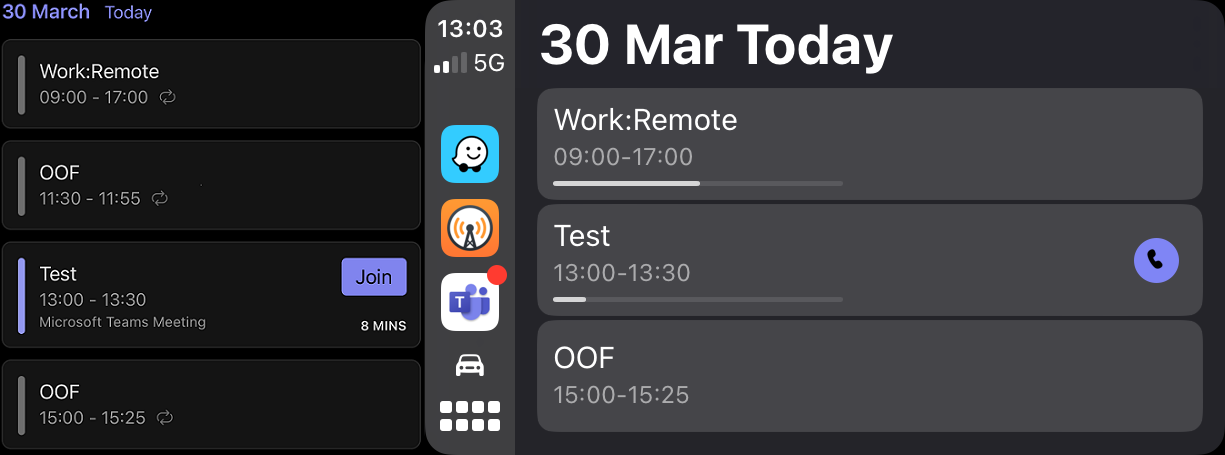
The picture below shows the Calendar View both on Teams Mobile (left) and the corresponding view as displayed on Teams for iOS with CarPlay (right). It shows our Test meeting which is currently in progress, as indicated by a progress bar as well.
Note that the calendar view is showing today’s items, and only from the currently active account in Teams Mobile on your connected mobile device. If you have multiple accounts configured, switching accounts on Teams Mobile is required to show their respective calendars. Doing so will update the Calendar View immediately and allows you to join those meetings using the display. A holistic view would be nice, but compared to where Teams on CarPlay is coming from, this is already a big step in usability.
A small request to the Teams development group: Please use meaningful descriptions to the version history, as this added functionality is nowhere to be found between the “Bug fixes and performance improvements” and occasional mention of functionality changes.
In tenants with lots of Guests, the massive display of user initials – the default profile picture – isn’t very pleasing to the eye. Now while regular user can change their profile picture, Guest users cannot. Therefor, a long standing and popular request on UserVoice has been the ability to change profile pictures for Guest users. End of 2020, this request was updated, indicating a change was planned to incorporate the ability to change this profile picture. No signs on the roadmap yet, so what options – if any – does one currently have?
Last week, Teams MVP Yannick Reekmans posted a blog containing instructions on how to change your profile picture for tenants in which you are a Guest. It requires quite some steps and fiddling to accomplish this. One might also wonder, isn’t this possible “the programmatic way”? Well, yes, and here are the steps:
First, open up PowerShell, install the AzureAD PowerShell module it is not yet installed using Install-Module AzureAD, and connect to Azure Active Directory, specifying the tenant where you are a guest:
When the authentication challenge pops up, specify the credentials of the Guest account and approve the Multi-Factor Authentication challenge when required.
Next, use Set-AzureADUserThumbnailPhoto to set the profile picture for your Guest account, specifying your User Principal Name as ObjectId, as well as the picture you want to use, e.g.
Regarding the User Principal Name, you can use Yannick’s method of determining your Guest’s ID. You can also try to guesstimate it by taking the e-mail address of your original account, replacing ‘@’ with ‘_’, adding a trailing #EXT# followed by ‘@’ and the default domain of the hosting tenant. The picture can be JPEG or PNG format, size 100kb at most, and square dimensions work best.
To verify the image has been set successfully, use Get-AzureADUserThumbnailPhoto -ObjectId <ID>. Then, have some patience for the change to propagate throughout the directories and caching mechanisms. To verify your update was successful and your picture looks properly, you can close the Teams client, clear the locally cached Teams data by removing everything under %AppData%\Microsoft\Teams (Windows), and start Teams again.
To easily spot tenants where you are a guest user and not a regular user, you might want to alter your standard issue profile picture a bit. For example, I have added a text label ‘Guest’ to mine. It doesn’t look as good as the high resolution photos that you can store in Exchange Online, but it certainly looks less boring than a set of intilials.
Note that all of the above is not an officially supported way to manage this picture. So, until there is one, these steps might help you out.
Update: Per request, added SharePoint and OneDrive, and did some manual corrections.
A really short post on a Ugly Sweater background with Exchange, Teams and Outlook theme to use during those conference calls end of December. Enjoy!
Like it or not, leave feedback in the comments. Also, suggestions are welcomed. In case you are not aware, I keep a set of custom background for you to enjoy here.
After updating your PowerShell modules which support managing parts of the Microsoft 365, some of us are curious about what changes are introduced with the updated module. In the world of continuous change, it is hard to keep track of these changes. New cmdlets or parameters get added to support new features, and some get removed as they become obsolete. So, how to discover what those changes are after updating to the latest module?
Time to blog on a small script I created for this purpose a long time ago, Compare-Cmdlets.ps1. This script has two operating modes:
Export currently available cmdlets and parameters for supported modules.
Compare two exports of cmdlets & parameters and report the differences.
Currently, the following command sets are supported:
Module
Test Cmdlet
Export File
AzureAD
Get-AzureADUser
AzureAD-<version>.xml
ExchangeOnline
Get-Mailbox
ExchangeOnline-<version>.xml
ExchangeOnlineManagement
Get-ExoMailbox
ExchangeOnlineManagent-<version>.xml
MicrosoftOnline
Get-MsolUser
MSOnline-<version>.xml
Teams
Get-Team
MicrosoftTeams-<version>.xml
Command sets are exported per module, where a module is assumed to be present by a simple check for cmdlet availability (specified in column Test Cmdlet). That is, if Get-Mailbox is available, the ExchangeOnline module is assumed to be available. It does not distinguish between the Exchange PowerShell module or ‘classic’ Remote PowerShell session, nor will it take into account the repository origin of the module, nor if the Get-AzureADUser is coming from the AzureAD or AzureADPreview module.
That said, here’s how this is works. Load up PowerShell and have your modules installed and ready. Some modules like ExchangeOnlineManagement require connecting to the service first to import the cmdlet functions, so for ExchangeOnlineManagement run Connect-ExchangeOnline first. Same applies to the newer Teams modules, where the Skype Connector functions are only available after running New-CsOnlineSession.
Then run Compare-Cmdlets to export the cmdlets and parameters for those modules. The commands will by default be exported to an XML in a subfolder named ‘data’. The name of the file is mentioned in the table above. If you want to use a different folder to store the XML files, use DataFolder parameter.
Note that with Exchange, the cmdlets available to you depend on which role you have been assigned in Exchange’s Role-Based Access Control model. For example, if you haven’t explicitly assigned Mailbox-ImportRequest to your account, you will not see it in the exports. Therefor, when exporting module changes, it is required using an account with the same roles assigned to have proper exports. But when needed, you can also use it to report on command set differences between two Exchange Online accounts.
After updating some of the modules, or downloading one of the command set reference XMLs I stored with the script on GitHub, you can use Compare-Cmdlets to compare different versions of module exports. For example, to compare the cmdlets of Microsoft Teams module 1.1.4 with those after updating to 1.1.5, use
The cmdlet Get-TeamChannel has a new GroupId parameter.
The cmdlet New-CsGroupPolicyAssignment parameter PolicyType has been removed.
The cmdlet Add-TeamChannelUser is new.
Note that common parameters (e.g. Verbose and ErrorAction) and optional common parameters (e.g. WhatIf) are left out of the equation. Also, parameters are not compared in depth and only presence is checked. If for example a parameter changes type (e.g. string to multivalue), Compare-Cmdlets does not pick that up.
As-is, the script is made to run on demand from an interactive PowerShell session. Ideally, this would run scheduled and serverless from within the service, reporting changes by e-mail.
The script Compare-Cmdlets.ps1 can be downloaded from GitHub here. If you find this useful, would like to comment or have suggestions, use the comments below or leave them on GitHub.
With the emergency to facilitate working from home due to the Corona pandemic, many organizations were faced with a dilemma. When running Exchange 2013 or some even Exchange 2010 on-premises, and a desire to start using Microsoft Teams, organizations were confronted with the following requirements for integrating Microsoft Teams with Exchange on-premises (source):
Users with mailboxes hosted on-premises must be synchronized to Azure Active Directory.
Running Exchange 2016 Cumulative Update 3 or later on-premises.
OAuth needs to be configured (via Hybrid Configuration Wizard, or manual as MVP fellow Jaap blogged about here).
Recently, an additional requirement was added to explain that for delegates to schedule calendar meetings on behalf of another person, some additional steps are required (steps 2-3 mentioned here).
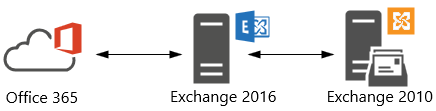
Now as you might know, Exchange 2010 does not support OAuth authentication. But, by putting Exchange 2016 in front of Exchange 2010, Exchange 2016 can be used for dealing with OAuth authentication, as well as dealing with client traffic as it can down-level proxy to Exchange 2010 for mailboxes hosted on those servers. Looking at these requirements, organizations might conclude that putting Exchange 2016 CU3 in front of their Exchange environment, and configuring OAuth would suffice the requirement to integrate Teams with their Exchange on-premises environment.
Alas, the additional requirement for full Teams integration is that the mailbox server hosting the mailbox should support REST API. Teams leverages Graph REST API calls to interact with mailboxes. In an Hybrid Exchange setup, on-premises mailboxes are identified, and related REST API calls will be directed at the on-premises REST endpoint, landing on your Exchange environment. The requirement for REST API support is something which is not explicitly stated in the Teams integration article, despite my earlier pull request.
It is however stated implicitly in an article on REST support in Hybrid Exchange or the original publication on REST API support in Exchange 2016 CU3 by the Exchange PG, two articles which you might easily have missed or forgotten about. Either way, it states that “All on-premises mailboxes that will use the REST APIs must be located on databases located on Exchange 2016 CU3 servers”.
Thus, with REST API support only being available per Exchange 2016 CU3, Teams will not fully integrate with mailboxes hosted on earlier versions of Exchange. Exchange 2016 can be used to offload OAuth when your mailbox is still on Exchange 2010 (which works fine for Exchange Web Services for Free/Busy, for example), but Exchange 2010 does not support REST API, and thus will never understand those ‘weird’ (proxied) requests landing on /api virtual directory, typical of REST API calls. Consequently, you will see AutodiscoverV2 and REST API calls greeted with a 404:
Typically, first thing users usually will notice missing is the Calendar integration:
Knowing this, the assumption could be that this combination doesn’t work at all, but as often the truth lies somewhere in the middle. You can use Teams when mailboxes are still hosted on pre-Exchange 2016 CU3, if you can live with the limitations. Below I have included a short overview of these, or other noteworthy items. The information is complementary to the How Exchange and Teams interact article. I hope it may help in discussions on what works and what doesn’t.
Disclaimer: Validated with mailbox hosted on Exchange 2010 with Exchange 2016 in front, OAuth and SkypeOnline AppId configured, and using Outlook 2016 C2R. Information may be subject to change. The list may not be conclusive; if you have any additional observations, please leave them in the comments.
Actions
Works
Comment
Create & View Meetings in Teams
No
No Calendar integration as this requires Outlook Calendar REST API. Visual clue is absence of the Calendar button.
Modify User Photo in Teams (client)
No
Doesn’t work when mailbox is hosted in Exchange on-premises.
Call History
Yes
History propagates to mailboxes hosted in Exchange on-premises in ‘Teams Calls’ folder.
Access Outlook Contacts
No
Works only with Exchange Online mailboxes.
Voicemail
Yes
May use & receive voice-mail, but can’t play from Teams.
Free/Busy status
Yes
Uses EWS.
Create & View/Update Teams Meetings from Outlook
Yes
Using default Teams Meeting add-in.
Create Teams Meetings from Outlook as Delegate
No
Teams Scheduler uses AutodiscoverV2 to discover delegate EWS endpoint, and fails. Outlook will display “Sorry, but we can’t connect to the server right now. Please try again later.”
View/Update Teams Meetings from Outlook as Delegate
Yes
EWS is used to fetch and update the calendar item.
MailTips in Teams
No
MailTips like Out of Office are not shown in Teams. MailTips work for Exchange 2016 CU3+.
Create & View Channel Meetings in Teams
No
Doesn’t work when mailbox is hosted in Exchange on-premises.
Share to Teams
No
Doesn’t work when mailbox is hosted in Exchange on-premises.
Of course, the better experience is to be had when your mailbox is hosted on Exchange 2016 CU3 or later (including Exchange 2019), or best when you simply host them in Exchange Online. However, given the circumstances and pressure from the organization to use Teams, that route might not be an option for everyone. Organizations may look at substantial investments in time and resources. In those cases, it might be good to know of alternative less preferable scenarios, and more important, any possible limitations you might encounter when taking a shortcut.





 EighTwOne (821)