Hotfix Updates Exchange 2016-2019 (Apr2025)


The Exchange product group released the April 2025 Hotfix Updates for Exchange Server 2019 and Exchange Server 2016. Hotfix updates do not contain security fixes. Instead, this hotfix introduces support for the updated Exchange Hybrid Application model.

ExchangeDownloadBuildKBSupersedes
Exchange 2019 CU15Download15.2.1748.24KB5050672
Exchange 2019 CU14Download15.2.1544.25KB5050673
Exchange 2016 CU23Download15.1.2507.55KB5050674

Dedicated Exchange Hybrid Application

Instead of relying on the default Office 365 Exchange Online application in Entra ID, the new model leverages a dedicated application in Entra ID to support Exchange Hybrid. By creating a new dedicated, unique application ID per tenant, instead of relying on the well-known application identifier 00000002-0000-0ff1-ce00-000000000000, allows organizations to decide when to move from EWS to Graph permissions.

To implement the dedicated Exchange Hybrid Application and configure all related aspects, the product group published a script, ConfigureExchangeHybridApplication.ps1 (part of the hotfix or available here). This script can take care of parts or all of the configuration. An extensive article explaining the steps and script usage is published here, so there is no need to repeat that information.

In addition, as part of the move to Graph from Exchange Web Services, the new Exchange Hybrid application will eventually leverage Graph instead of Exchange Web Services. Since Exchange still lacks functionality in the Graph area, the new app still requires blanket EWS permission full_access_as_app. But consider this a first step in the transition process, and expect permissions to change to Graph API permissions in the future.

Moving away from the common application, which has been around for a while, may impact existing scripts and procedures with hard references to its identifier. You need to anticipate this change by making the reference independent and dynamic. To determine this identifier, check for an Entra application named ExchangeServerApp-<Organization Guid>, provided you used the ConfigureExchangeHybridApplication script to create it.

Co-Existence

Organizations running Exchange Hybrid requiring rich co-existence must implement this April 2025 HU before October 2025 for continued functionality. This includes upcoming changes in Graph permissions (ETA October 2026). This may create an additional task when running Exchange Hybrid as part of a long-term hybrid deployment or when migrating to Exchange Online. Failure to do so may result in unpleasant surprises, such as broken Free/Busy sharing functionality.

Exchange SE

The change in the Exchange Hybrid Application model will propagate to Exchange SE. Exchange SE is the successor to Exchange 2019 and is expected to become available later this year, replacing the soon-to-be-out-of-support Exchange Server 2019 and Exchange Server 2016 versions.


The Last Exchange Server


In the announcement of the most recent set of Cumulative Updates for Exchange Server 2019 and 2016, Microsoft introduced some changes – features if you will – as well, which were received with enthusiasm. An overview of these Cumulative Updates and the features introduced was given in an earlier article. In this article however, I would like to zoom in on one of those features, which also happens to be a popular topic among customers running Exchange Hybrid deployments, “The Last Exchange Server”.

Up to Exchange 2019 CU12 (2022 H1), customers that migrated to Exchange Online were still required to leave Exchange-related components running on-premises. Even today, with all the information published around this topic, I am surprised this still surprised customers. This Exchange server running on-premises is to be used for managing recipients which have their source of authority in Active Directory, leveraging Active Directory Connect to propagate objects to Azure Active Directory and thus Exchange Online. Also, when there is a need to relay messages from applications or multi-functional devices, customers often need to have an Exchange server on-premises to accept these messages, as Exchange is the only supported mail relay product for hybrid deployments.

Click here to read the full article on ENow Solutions blog.

MS Teams & pre-Exchange 2016CU3


Updated May 9th: Added Share to Teams. to table

With the emergency to facilitate working from home due to the Corona pandemic, many organizations were faced with a dilemma. When running Exchange 2013 or some even Exchange 2010 on-premises, and a desire to start using Microsoft Teams, organizations were confronted with the following requirements for integrating Microsoft Teams with Exchange on-premises (source):

  • Users with mailboxes hosted on-premises must be synchronized to Azure Active Directory.
  • Running Exchange 2016 Cumulative Update 3 or later on-premises.
  • OAuth needs to be configured (via Hybrid Configuration Wizard, or manual as MVP fellow Jaap blogged about here).
  • Recently, an additional requirement was added to explain that for delegates to schedule calendar meetings on behalf of another person, some additional steps are required (steps 2-3 mentioned here).

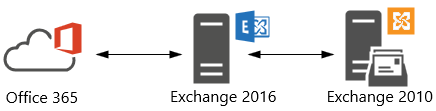
Now as you might know, Exchange 2010 does not support OAuth authentication. But, by putting Exchange 2016 in front of Exchange 2010, Exchange 2016 can be used for dealing with OAuth authentication, as well as dealing with client traffic as it can down-level proxy to Exchange 2010 for mailboxes hosted on those servers. Looking at these requirements, organizations might conclude that putting Exchange 2016 CU3 in front of their Exchange environment, and configuring OAuth would suffice the requirement to integrate Teams with their Exchange on-premises environment.

image

Alas, the additional requirement for full Teams integration is that the mailbox server hosting the mailbox should support REST API. Teams leverages Graph REST API calls to interact with mailboxes. In an Hybrid Exchange setup, on-premises mailboxes are identified, and related REST API calls will be directed at the on-premises REST endpoint, landing on your Exchange environment. The requirement for REST API support is something which is not explicitly stated in the Teams integration article, despite my earlier pull request.

It is however stated implicitly in an article on REST support in Hybrid Exchange or the original publication on REST API support in Exchange 2016 CU3 by the Exchange PG, two articles which you might easily have missed or forgotten about. Either way, it states that “All on-premises mailboxes that will use the REST APIs must be located on databases located on Exchange 2016 CU3 servers”.

Thus, with REST API support only being available per Exchange 2016 CU3, Teams will not fully integrate with mailboxes hosted on earlier versions of Exchange. Exchange 2016 can be used to offload OAuth when your mailbox is still on Exchange 2010 (which works fine for Exchange Web Services for Free/Busy, for example), but Exchange 2010 does not support REST API, and thus will never understand those ‘weird’ (proxied) requests landing on /api virtual directory, typical of REST API calls. Consequently, you will see AutodiscoverV2 and REST API calls greeted with a 404:

2020-04-29 20:22:52 fd86:b628:2775:1:9502:cdcc:d4b1:5950 GET /autodiscover/autodiscover.json Email=chefke%40contoso.com&Protocol=REST&RedirectCount=1 443 CONTOSO\EX2$ fd86:b628:2775:1:9f8:2d9:c8a1:3c4a SkypeSpaces/1.0a$*+ 404 0 2 31

Typically, first thing users usually will notice missing is the Calendar integration:

image

Knowing this, the assumption could be that this combination doesn’t work at all, but as often the truth lies somewhere in the middle. You can use Teams when mailboxes are still hosted on pre-Exchange 2016 CU3, if you can live with the limitations. Below I have included a short overview of these, or other noteworthy items. The information is complementary to the How Exchange and Teams interact article. I hope it may help in discussions on what works and what doesn’t.

Disclaimer: Validated with mailbox hosted on Exchange 2010 with Exchange 2016 in front, OAuth and SkypeOnline AppId configured, and using Outlook 2016 C2R. Information may be subject to change. The list may not be conclusive; if you have any additional observations, please leave them in the comments.

ActionsWorksComment
Create & View Meetings in TeamsNoNo Calendar integration as this requires Outlook Calendar REST API. Visual clue is absence of the Calendar button.
Modify User Photo in Teams (client)NoDoesn’t work when mailbox is hosted in Exchange on-premises.
Call HistoryYesHistory propagates to mailboxes hosted in Exchange on-premises in ‘Teams Calls’ folder.
Access Outlook ContactsNoWorks only with Exchange Online mailboxes.
VoicemailYesMay use & receive voice-mail, but can’t play from Teams.
Free/Busy statusYesUses EWS.
Create & View/Update Teams Meetings from OutlookYesUsing default Teams Meeting add-in.
Create Teams Meetings from Outlook as DelegateNoTeams Scheduler uses AutodiscoverV2 to discover delegate EWS endpoint, and fails. Outlook will display “Sorry, but we can’t connect to the server right now. Please try again later.”
View/Update Teams Meetings from Outlook as DelegateYesEWS is used to fetch and update the calendar item.
MailTips in TeamsNoMailTips like Out of Office are not shown in Teams. MailTips work for Exchange 2016 CU3+.
Create & View Channel Meetings in TeamsNoDoesn’t work when mailbox is hosted in Exchange on-premises.
Share to TeamsNoDoesn’t work when mailbox is hosted in Exchange on-premises.

Of course, the better experience is to be had when your mailbox is hosted on Exchange 2016 CU3 or later (including Exchange 2019), or best when you simply host them in Exchange Online. However, given the circumstances and pressure from the organization to use Teams, that route might not be an option for everyone. Organizations may look at substantial investments in time and resources. In those cases, it might be good to know of alternative less preferable scenarios, and more important, any possible limitations you might encounter when taking a shortcut.

Exchange Hybrid Agent GA


Ex2013 LogoIn February, Microsoft released the initial public preview version of the Hybrid Agent. The purpose of the Hybrid Agent, also branded as the “Exchange Modern Hybrid Topology”, is to simplify the process of setting up and deploying Microsoft Exchange Hybrid for Exchange 2010 and later deployments, where full “classic” Exchange Hybrid is not an option.
It can also address scenarios where deploying the Hybrid Agent would satisfy organizational migration requirements. For example, moving mailboxes between Exchange Online and Exchange on-premises while providing rich-coexistence features, but without requiring (re)configuration of the publishing of Exchange services. Other functionality the Hybrid Agent doesn’t offer is mail transport. Future builds of the Hybrid Agent might introduce cross-premises functionality, such as Send As delegations as demonstrated at Microsoft Ignite last year.

This week, the Hybrid Agent Public reached General Availability status. In the following article for ENow, I discuss the major changes in the agent since the initial Preview release.

Read the full article on the ENow Software blog.

Hybrid Configuration Wizard & F12


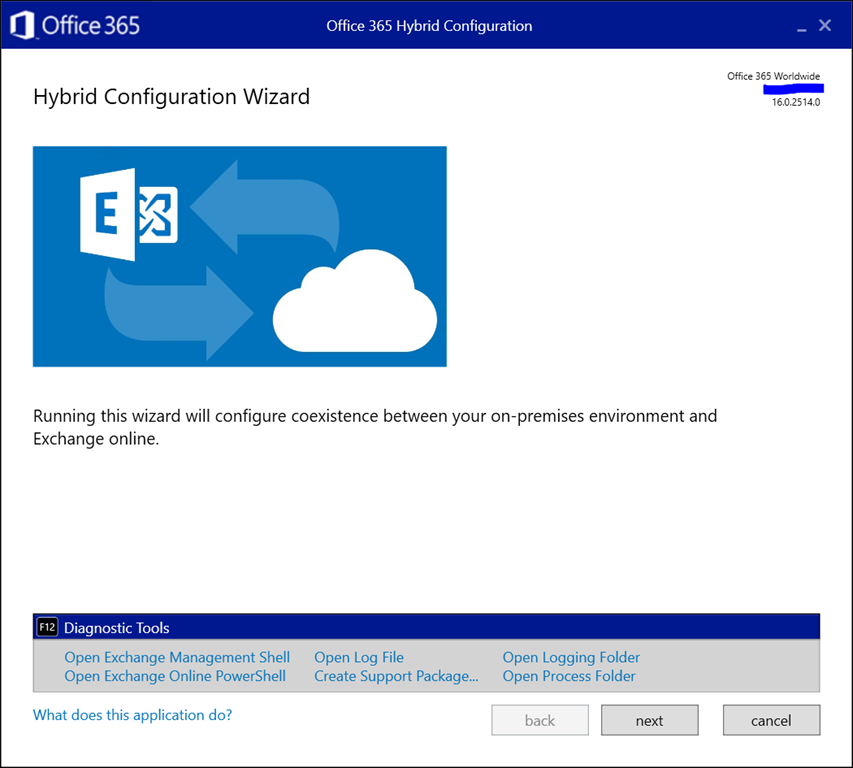
A small tip for those running the Exchange Hybrid Configuration Wizard. As announced at Ignite yesterday, a convenient feature was added to the HCW and is available now. Pressing F12 in the HCW will now open up a panel with shortcuts to the following tools and locations:

  • Exchange Management Shell
  • Exchange Online PowerShell
  • (current) Hybrid Configuration Wizard Log File
  • Create Support Package (to zip HCW logs for support)
  • Open Logging folder (of HCW)
  • Open Process Folder (of the HCW app)

Here is how it looks:

image

This might save you an occasional click or two.