
 Disclaimers are a controversial subject when added to e-mail messages; some lawyers think they should be mandatory for business communications, some think they’re just jibber-jabber. Fact of the matter is that your e-mail message may end up anywhere and in some countries you can’t legally bind recipients after receiving something he or she may not even wished to receive in the first place. If you’re interested, Exchange fellow Tony Redmond blogged shortly on some legal aspects of disclaimers in June here.
Despite the disputed legal status of these disclaimers, I am however consulted on how to configure them once in a while, so here’s how to implement them properly in Exchange 2010 SP1.
Disclaimers are set up using transport rules. You can inspect the current set of transport rules in the Exchange Management Console (EMC) under Organization Configuration > Hub Transport > Transport Rules or by using the Get-TransportRule cmdlet using the Exchange Management Shell (EMS). By default there will be no transport rules defined.
Before we begin you need to be aware of the following:
- Transport rules will be processed in the order of priority. If a message meets the conditions configured in a transport rule, the actions defined in that rule will be processed. When done, the Exchange will continue evaluating transport rules with a higher priority number (so rule with priority will be evaluated first);
- Adding disclaimers will invalidate signed and may corrupt encrypted messages.
This introduces the following complications:
- When using multiple disclaimers, you need to mark the message after processing to prevent processing by one of the other transport rules. If you don’t, disclaimers will pile up at the end of your message.
- Strangely enough, you can only make an exception for signed or encrypted messages, not both. This means that when you create a rule it is either for unsigned or unencrypted messages; what we want here is rules for unsigned, unencrypted messages.
To work around these limitations, we’ll use message classification for tagging encrypted or signed messages, so we can use that tag in the exception clause. In additional we’ll use custom message headers for flagging processed messages. Note that we could use custom headers for signed, encrypted messages as well but we don’t want to add yet another unnecessary named property.
We’ll start off by create the rules which are going to tag encrypted or signed e-mail messages. We choose to use message classifications for this purpose, so we need to add a new message classification first. This can only be performed using the EMS using the New-MessageClassification cmdlet:
New-MessageClassification “SignedOrEncrypted” –DisplayName “Signed or Encrypted Message” –SenderDescription “Signed or Encrypted Message” –PermissionMenuVisible:$false

The DisplayName and SenderDescription parameters are mandatory and their purpose is to state the purpose of the classification when displaying the message in Outlook. By setting PermissionMenuVisible to $false, users won’t be able to assign this classification to messages Outlook themselves.
Next, we’ll set up the transport rules to tag messages using this classification. Since these will be the first transport rules we’re going to create we don’t need to worry about the priority numbers yet. Since there isn’t much editing required with these rules, we can use EMS to define these rules:
New-TransportRule “Tag Encrypted Messages” –Enabled $true –MessageTypeMatches “Encrypted” –ApplyClassification “SignedOrEncrypted”
New-TransportRule “Tag Signed Messages” –Enabled $true –MessageTypeMatches “Signed” –ApplyClassification “SignedOrEncrypted”

Now we can start setting up the default (English) disclaimer using transport rules. This default disclaimer will be the default disclaimer attached to all outgoing e-mail messages. Using EMC, open up the Transport Rules tab and select New Transport Rule. Fill in a proper description and click Next.
Now we can select the conditions to meet in order for the rule to be processed. In this example, select From users that are inside or outside the organization and Sent to users that are inside or outside the organization or partners. In the bottom pane you can now fine tune these conditions by clicking on the underlined elements. Click Inside the organization, part of sent to users condition. Set this parameter to Outside the organization. When finished, click Next.

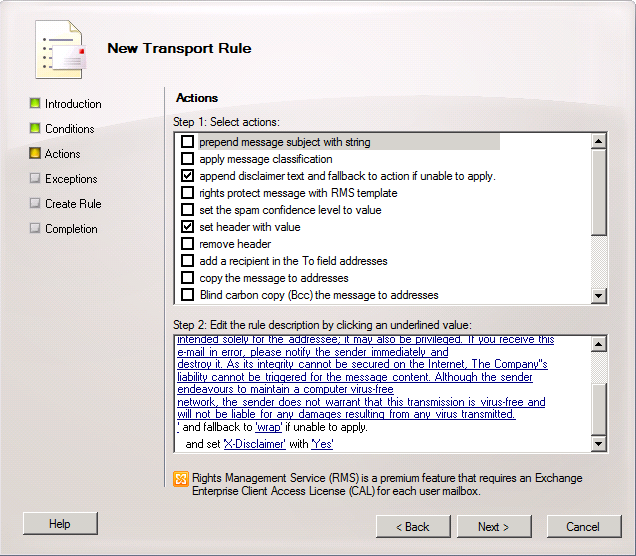
Next we’ll define the actions for this rule. First, select Append disclaimer text and fallback to action if unable to apply. In the bottom pane, leave append unchanged so the disclaimer will be added to the bottom of the message. Note that Exchange can’t insert the disclaimer below replies, only at the end of the complete message. Click disclaimer text and insert your disclaimer text in the editing window. Note that you can use HTML here as well as certain Active Directory attributes to make the disclaimer dynamic. For information on which Active Directory attributes are available, consult this TechNet article. When make use of HTML options, I suggest editing it in an HTML editor or something similar, so you can preview the result. Also, when using styles include those as well. Finally, leave wrap unchanged so Exchange will create a new message using the disclaimer text attach the original message attached if the disclaimer can’t be inserted in the original message.
Second, check Set header with value. Set header to X-Disclaimer and value to Yes. Note that this value is case-sensitive when we’re matching it later on. When finished, click Next.
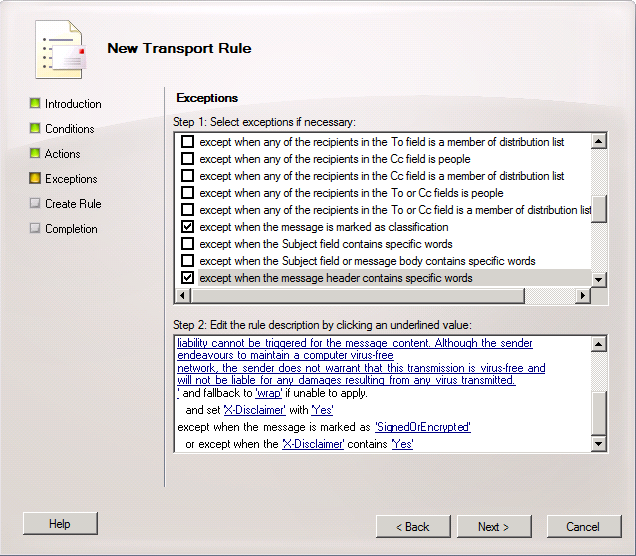
Now we can enter exceptions for this rule. Select Except when the message is marked as classification and set classification to Signed or Encrypted Message. This will make sure that signed or encrypted messages tagged earlier will be skipped. Also check Except when the message header contains specific words; set Message header to X-Disclaimer and specific words to Yes. This will make sure the message is skipped when we’ve already added a disclaimer. When done, click Next.
Check the generated cmdlet on the configuration summary screen and click New to create the transport rule. Click Finish when done. Note that this rule will be added with Priority 0, so you need to alter the order setting Priority of this rule to the highest value possible, e.g. 2. As stated before, rules will be evaluated in ascending priority order.
Now we’re set up for a default disclaimer in English, but suppose you want to add a different disclaimer in a different language for users working in a different country. In order to establish this repeat the above steps for creating a disclaimer using transport rule, but at the conditions page add an additional condition by selecting When the sender’s properties contain specific words, setting the Property CountryOrRegion to the country code required, e.g. NL. To see which country code you need to use, consult the ISO 3166 table or check the C attribute in Active Directory (CountryOrRegion in OPATH maps to the C attribute in LDAP). Needless to say, this filtering requires that the sender’s Country has been configured properly in Active Directory.

Then on the actions page, configure the alternative disclaimer text. After saving, don’t forget to put this rule before the default disclaimer rule by changing it’s Priority to n-1 , i.e. when the default disclaimer has priority 3 set the priority for this country specific disclaimer to 2.

The way this works is as follows:
- The first two rules will set the classification to SignedOrEncrypted for signed or encrypted messages;
- The Disclaimer NL rule checks the sender’s CountryOrRegion attribute; when it’s NL and the message isn’t classified as SignedOrEncrypted and the message doesn’t contain an “X-Disclaimer” header field with a value of “Yes”, it will add the configured disclaimer and set the header field “X-Disclaimer” to “Yes”;
- The Disclaimer (Default) rule checks if the message isn’t classified as SignedOrEncrypted and the message doesn’t contain an “X-Disclaimer” header field with a value of “Yes”. When both are not true, it will add the configured disclaimer and set the header field “X-Disclaimer” to “Yes”. This rule will be skipped for messages by sender with CountryOrRegion NL because the Disclaimer NL rule will be processed earlier and will add X-Disclaimer=Yes to the header.



 EighTwOne (821)
