Outlook 2003 & Exchange 2010


Problems connecting Outlook 2003 to Exchange 2010 could turn out to be an unpleasant surprise after migrating to Exchange Server 2010 over the weekend. The problem is caused by Outlook 2003 not using encrypted RPC connections to the Exchange Server by default, and Exchange 2010 requiring  encrypted RPC connections (contrary to earlier Exchange versions). The solution is simple but you have several options; The way you should proceed not only depends on your situation but you also need to check the company’s security policies regarding communications encryption which might restrict your options.

Change how Outlook connects

Enabling RPC encryption in Outlook can be performed per configuration (Outlook profile) or using a Group Policy Object.To manual change the way Outlook connects:

  1. Open Control Panel > Mail > Show Profile > <Select Profile>
  2. Select Properties > E-mail Accounts > View or Change existing e-mail accounts
  3. Select Next > Microsoft Exchange Server > Change > More Settings > Microsoft Exchange Server > Security
  4. There, check Encrypt data between Microsoft Office Outlook and Microsoft Exchange Server
  5. Close everything with OK > Next > Finish > Close > OK.

You can also control the RPC encryption setting centrally for Outlook clients using the following registry value as part of a GPO:

HKEY_CURRENT_USER\Software\Policies\Microsoft\Office\11.0\Outlook\RPC
DWORD: EnableRPCEncryption
Value: 1

For a more detaild guide on implementing the Outlook profile change or implementing the GPO using an administrative template, consult KB2006508.

Change how Exchange 2010 accepts
To change the way Exchange 2010 accepts RPC connections, i.e. disable the RPC encryption requirement, you need to disable the RPC encryption for Exchange Server 2010 CAS servers (remember, in Exchange 2010 RPC connections are handled by the CAS server role), use the following cmdlet:

Set-RpcClientAccess –Server <Server Name> –EncryptionRequired $False

Limiting Exchange 2010 Database Cache


Note (6apr2011): Setting the MsExchESEParamCacheSizeMax only doesn’t produce the required result as of Exchange 2010 SP1. For more information on how to limit the database cache size in Exchange 2010 SP1, see Limiting Exchange 2010 SP1 Database Cache.

I received a question from someone implementing Exchange 2010 who was surprised to see Exchange taking up all available memory. This is because in Exchange 2010 (2007 as well) memory allocation is dynamic, contrary to Exchange 2003 and earlier versions where, depending on the situation, you had to fiddle around with boot.ini switches like /3GB to make memory available to Exchange. Also, the maximum database cache size was limited in Exchange 2003 to around 1.2 GB due to virtual address space limitations (see MSKB 815372).

The main reason Exchange 2007/2010 claims memory for its database cache is performance. The more memory is assigned to the database cache, the less I/O’s are generated because things can be dealt with in-memory and the database cache becomes more effective. When a certain amount of transactions has been reached, changes will be physically written to databases (so far they’ve been stored in-memory and written to transaction logs). This limit is called the log checkpoint depth target.

Since Exchange 2003, the log checkpoint depth target is 20 MB databases. As of Exchange 2007, for configurations existing of 2+ database copies, the depth target is 100 MB for active copies and 5 MB for passive copies. This means, after 100 MB of transactions changes will be physically flushed to the database. The more changes are delayed (i.e. stored in-memory and in transaction logs), the chance of overlapping changes or combined writes increases lessening I/O’s required. Note that to lessen the time to fail-over, passive copies have a lower depth target making them commit changes more often, minimizing the log files to replay after a fail-over.

Back to the topic, Database Cache. Exchange uses by default certain mailbox database cache sizes for certain amounts of memory. The table below contains these values for systems holding the mailbox server role as well as servers holding multiple roles (source):

RAM Physical Memory Database Cache Size, Mailbox Role Database Cache Size, Multiple Roles
2 GB 512 MB Unsupported
4 GB 1 GB Unsupported
8 GB 3.6 GB 2 GB
16 GB 10.4 GB 8 GB
32 GB 24.4 GB 20 GB
64 GB 53.6 GB 44 GB
128 GB 111.2 GB 92 GB

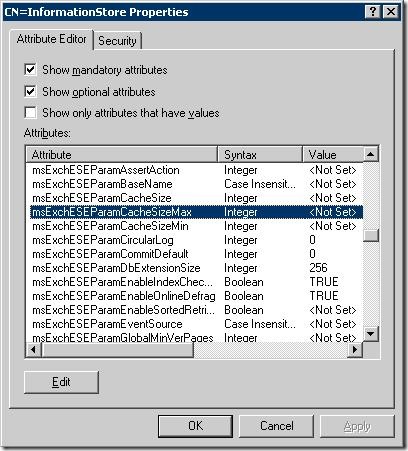
Now what if you have a real uncontrollable urge to limit Exchange in its attempt to optimize its database cache and you want to restrict its growth?  You can do this by changing the following Active Directory property (per store) using ADSIEDIT.msc (or using another tool or scripting language of your liking) as follows:

  1. Start ADSIEDIT.msc
  2. Navigate to Configuration > Services > Microsoft Exchange > <Organization Name> > Administrative Groups > <Administrative Group> > Servers > <Server Name> > InformationStore
  3. Right-click InformationStore, and edit msExchESEParamCacheSizeMax. Set it it to the number of pages to maximize the Database Cache to. Note that Exchange 2007 works with 8 KB pages and Exchange 2010 with 32 KB pages!
  4. Restart the Microsoft Exchange Information Store service for the change to become effective.

So, for instance, if you want to limit the Database Cache to 4 GB of an Exchange 2010 server, set msExchESEparamCacheSizeMax to 131072 (4 GB = 4.194.304 KB / 32 KB). If you want to limit the Database Cache to 2 GB of an Exchange 2007 server, set msExchESEparamCacheSizeMax to 262144 (2 GB = 2.097.152 KB / 8 KB).

Note that lowering these values may degrade performance, in terms of server performance as well as in terms of end-user experience. However, smaller organizations with a limited number of mailbox users may benefit because they don’t let Exchange claim significant amounts of memory which it will never use.

Exchange 2010 Mailbox Role Calculator 6.1


Again the Microsoft Exchange Team worked hard to improve the Exchange Mailbox Role Calculator even more with the release of version 6.1,  1 month after the 4.5 update. This version includes the following enhancements since 4.5:

  • Option to select requested storage design, also to prevent logic issues with the calculator suggesting 0 (zero) disks. You have the option to select the storage design As Calculated, Entirely on RAID or Entirely on JBOD;
  • Simplified messaging profiles (e.g. “100 messages” instead of “20 sent/80 received”) as it doesn’t influence the IO and capacity calculations;
  • Some improvements and additions in layout and information displayed (e.g. Environment Configuration, Role Requirements Results).

For an extensive overview of the changes and fixes (e.g. zero disk issue), consult the Exchange Team’s changeblog here.

You can download the calculator here. Instructions on usage can be found here.

JBOD versus RAID


After the arrival of Exchange 2010 and its DAG feature many people suggested – Microsoft included – the option to run Exchange on low-cost SATA disks in JBOD (Just Bunch Of Disks) configuration, provided you have at least 3 database copies. As you probably know, DAGs enable you to have multiple copies of mailbox databases running on multiple servers with a configurable lag per copy.

This suggestion to use JBOD, as well as the discussion of going backupless or not, isn’t without controversy. For many years people have learned to put their (critical) data on redundant storage. With Exchange 2010 this dogma is said to have changed, because contrary to its predecessors, Exchange 2010 can happily run fully supported on low-cost SATA storage in JBOD configuration. The argument used is that because you have at least 3 copies on 3 different physical servers you can survive a single failed mailbox server (likely) but also two failed mailbox servers (unlikely?).

The first problem is underestimating the limits of relying on 3+ copies. Nobody expects the Spanish inquisition 3 failures, right? But what if your hardware (e.g. disks) are from a faulty batch or contain buggy firmware, and you equipped all three of your physical servers with those parts (something burn-in tests should bring to light, but who does that these days?). I know of several occassions where drives died in pairs within hours from each other; you better make haste recovering your mailbox then. Is this perhaps a reason to look at different vendors, different parts? After all, this is more or less the same reason many businesses require multi-vendor products when reliability & security is concerned, e.g. anti-virus products from different vendors. The idea is to spread the risk.

Also, being able to use JBOD (and go backupless) looks interesting on paper, but don’t forget that – as suggested – you need to get yourself at least 3 physical servers (and no, don’t run them virtually on the same host). So, in the end this may lead to less servers (with RAID) being the most cost-effective alternative when looking at the total picture, e.g. hardware, licenses (OS, Exchange, AS/AV agents, management software, etc.) and operational costs. Why run (and maintain) many servers when the additional costs don’t outweigh the benefits?

A third element of the JBOD versus RAID discussion is the time to recover the original situation. When one of the servers fails, you should rebuild the server (hope you have some spare parts lying around or a decent replacement service contract). And after rebuilding (or restoring) the server, you need to reseed the database copies. This step may take a long time, depending on the size of the databases. Replacing a harddisk and rebuilding RAID sets is much quicker and much easier (and less prone to error).

In the end – as always – the choice should be based on business requirements. Perhaps your business can do a few hours without e-mail while IT is recovering services (can’t imagine, but you never know). In that case it’s nice to have a supported low-cost JBOD/SATA option. In my opinion, the benefits of having proper RAID setup outweighs the trouble you have to go through when repairing your JBOD based solution. Depending on these requirements, and how deep your pockets are, I’d go for a combination of RAID and DAG, where RAID is used for availability and DAG for availability (same data center) or resilience (multi data center, i.e. disaster recovery).

Oh and one other thing: when you must, use proper “Enterprise class” SATA disks; they’re made to run 24×7.

Exchange 2010 Update Rollup 2


Today Microsoft released Update Rollup 2 for Microsoft Exchange Server 2010. RU2 comes 3 months after the release of RU1. The list of included fixes is not as long as with RU1, but RU2 does contain some important additional fixes over RU1:

  • 977633 Certain third-party IMAP4 clients cannot connect to Exchange Server 2003 mailboxes through an Exchange Server 2010 CAS server
  • 979431 The POP3 service crashes when a user connects to a mailbox through the POP3 protocol and the user is migrated from an Exchange Server 2003 server to an Exchange Server 2010 server
  • 979480 Users cannot receive new messages if they access mailboxes that are moved to another Exchange Server 2010 RU1 server by using IMAP4 clients
  • 979563 Exchange Server 2010 Push Notifications does not work
  • 979566 A 0x85010014 error is generated when linked mailbox users try to synchronize their mailboxes with mobile devices in a CAS-CAS proxying scenario in Exchange Server 2010
  • 980261 This fix introduces the supports for Exchange Server 2010 page patching when a “-1022” disk I/O error is generated
  • 980262 Event ID 2156 is logged on a computer that is running Exchange Server 2010

The related knowledgebase article (KB979611) can be found here. You can download Exchange 2010 Rollup 2 directly from here.