In the announcement of the most recent set of Cumulative Updates for Exchange Server 2019 and 2016, Microsoft introduced some changes – features if you will – as well, which were received with enthusiasm. An overview of these Cumulative Updates and the features introduced was given in an earlier article. In this article however, I would like to zoom in on one of those features, which also happens to be a popular topic among customers running Exchange Hybrid deployments, “The Last Exchange Server”.
Up to Exchange 2019 CU12 (2022 H1), customers that migrated to Exchange Online were still required to leave Exchange-related components running on-premises. Even today, with all the information published around this topic, I am surprised this still surprised customers. This Exchange server running on-premises is to be used for managing recipients which have their source of authority in Active Directory, leveraging Active Directory Connect to propagate objects to Azure Active Directory and thus Exchange Online. Also, when there is a need to relay messages from applications or multi-functional devices, customers often need to have an Exchange server on-premises to accept these messages, as Exchange is the only supported mail relay product for hybrid deployments.
With the emergency to facilitate working from home due to the Corona pandemic, many organizations were faced with a dilemma. When running Exchange 2013 or some even Exchange 2010 on-premises, and a desire to start using Microsoft Teams, organizations were confronted with the following requirements for integrating Microsoft Teams with Exchange on-premises (source):
Users with mailboxes hosted on-premises must be synchronized to Azure Active Directory.
Running Exchange 2016 Cumulative Update 3 or later on-premises.
OAuth needs to be configured (via Hybrid Configuration Wizard, or manual as MVP fellow Jaap blogged about here).
Recently, an additional requirement was added to explain that for delegates to schedule calendar meetings on behalf of another person, some additional steps are required (steps 2-3 mentioned here).
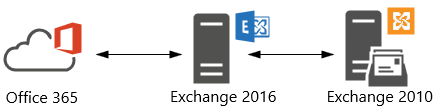
Now as you might know, Exchange 2010 does not support OAuth authentication. But, by putting Exchange 2016 in front of Exchange 2010, Exchange 2016 can be used for dealing with OAuth authentication, as well as dealing with client traffic as it can down-level proxy to Exchange 2010 for mailboxes hosted on those servers. Looking at these requirements, organizations might conclude that putting Exchange 2016 CU3 in front of their Exchange environment, and configuring OAuth would suffice the requirement to integrate Teams with their Exchange on-premises environment.
Alas, the additional requirement for full Teams integration is that the mailbox server hosting the mailbox should support REST API. Teams leverages Graph REST API calls to interact with mailboxes. In an Hybrid Exchange setup, on-premises mailboxes are identified, and related REST API calls will be directed at the on-premises REST endpoint, landing on your Exchange environment. The requirement for REST API support is something which is not explicitly stated in the Teams integration article, despite my earlier pull request.
It is however stated implicitly in an article on REST support in Hybrid Exchange or the original publication on REST API support in Exchange 2016 CU3 by the Exchange PG, two articles which you might easily have missed or forgotten about. Either way, it states that “All on-premises mailboxes that will use the REST APIs must be located on databases located on Exchange 2016 CU3 servers”.
Thus, with REST API support only being available per Exchange 2016 CU3, Teams will not fully integrate with mailboxes hosted on earlier versions of Exchange. Exchange 2016 can be used to offload OAuth when your mailbox is still on Exchange 2010 (which works fine for Exchange Web Services for Free/Busy, for example), but Exchange 2010 does not support REST API, and thus will never understand those ‘weird’ (proxied) requests landing on /api virtual directory, typical of REST API calls. Consequently, you will see AutodiscoverV2 and REST API calls greeted with a 404:
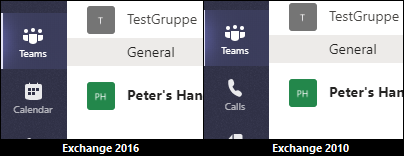
Typically, first thing users usually will notice missing is the Calendar integration:
Knowing this, the assumption could be that this combination doesn’t work at all, but as often the truth lies somewhere in the middle. You can use Teams when mailboxes are still hosted on pre-Exchange 2016 CU3, if you can live with the limitations. Below I have included a short overview of these, or other noteworthy items. The information is complementary to the How Exchange and Teams interact article. I hope it may help in discussions on what works and what doesn’t.
Disclaimer: Validated with mailbox hosted on Exchange 2010 with Exchange 2016 in front, OAuth and SkypeOnline AppId configured, and using Outlook 2016 C2R. Information may be subject to change. The list may not be conclusive; if you have any additional observations, please leave them in the comments.
Actions
Works
Comment
Create & View Meetings in Teams
No
No Calendar integration as this requires Outlook Calendar REST API. Visual clue is absence of the Calendar button.
Modify User Photo in Teams (client)
No
Doesn’t work when mailbox is hosted in Exchange on-premises.
Call History
Yes
History propagates to mailboxes hosted in Exchange on-premises in ‘Teams Calls’ folder.
Access Outlook Contacts
No
Works only with Exchange Online mailboxes.
Voicemail
Yes
May use & receive voice-mail, but can’t play from Teams.
Free/Busy status
Yes
Uses EWS.
Create & View/Update Teams Meetings from Outlook
Yes
Using default Teams Meeting add-in.
Create Teams Meetings from Outlook as Delegate
No
Teams Scheduler uses AutodiscoverV2 to discover delegate EWS endpoint, and fails. Outlook will display “Sorry, but we can’t connect to the server right now. Please try again later.”
View/Update Teams Meetings from Outlook as Delegate
Yes
EWS is used to fetch and update the calendar item.
MailTips in Teams
No
MailTips like Out of Office are not shown in Teams. MailTips work for Exchange 2016 CU3+.
Create & View Channel Meetings in Teams
No
Doesn’t work when mailbox is hosted in Exchange on-premises.
Share to Teams
No
Doesn’t work when mailbox is hosted in Exchange on-premises.
Of course, the better experience is to be had when your mailbox is hosted on Exchange 2016 CU3 or later (including Exchange 2019), or best when you simply host them in Exchange Online. However, given the circumstances and pressure from the organization to use Teams, that route might not be an option for everyone. Organizations may look at substantial investments in time and resources. In those cases, it might be good to know of alternative less preferable scenarios, and more important, any possible limitations you might encounter when taking a shortcut.
In February, Microsoft released the initial public preview version of the Hybrid Agent. The purpose of the Hybrid Agent, also branded as the “Exchange Modern Hybrid Topology”, is to simplify the process of setting up and deploying Microsoft Exchange Hybrid for Exchange 2010 and later deployments, where full “classic” Exchange Hybrid is not an option.
It can also address scenarios where deploying the Hybrid Agent would satisfy organizational migration requirements. For example, moving mailboxes between Exchange Online and Exchange on-premises while providing rich-coexistence features, but without requiring (re)configuration of the publishing of Exchange services. Other functionality the Hybrid Agent doesn’t offer is mail transport. Future builds of the Hybrid Agent might introduce cross-premises functionality, such as Send As delegations as demonstrated at Microsoft Ignite last year.
This week, the Hybrid Agent Public reached General Availability status. In the following article for ENow, I discuss the major changes in the agent since the initial Preview release.
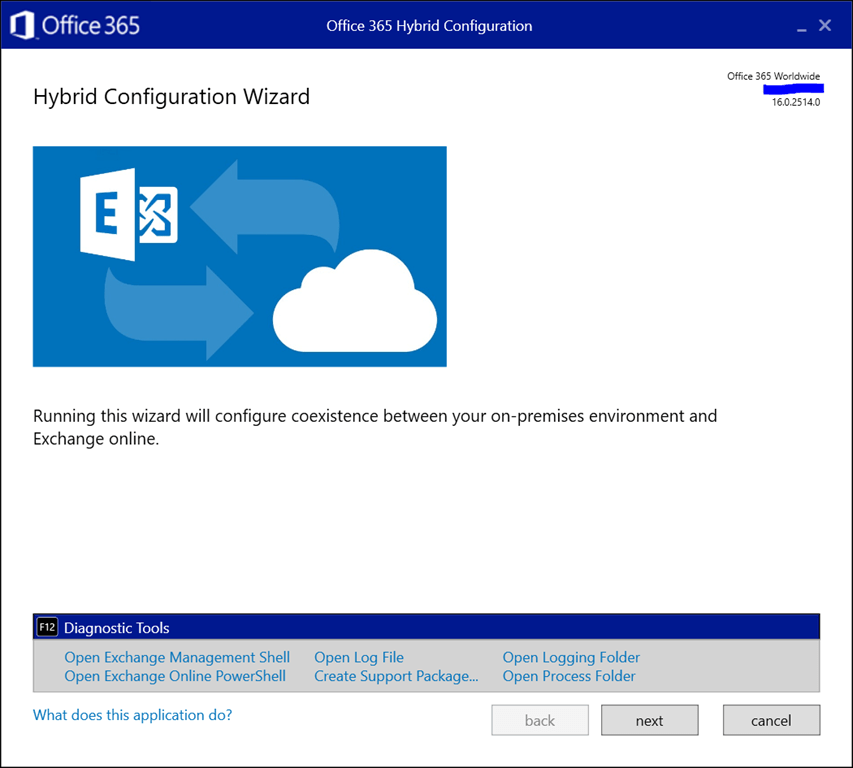
A small tip for those running the Exchange Hybrid Configuration Wizard. As announced at Ignite yesterday, a convenient feature was added to the HCW and is available now. Pressing F12 in the HCW will now open up a panel with shortcuts to the following tools and locations:
Exchange Management Shell
Exchange Online PowerShell
(current) Hybrid Configuration Wizard Log File
Create Support Package (to zip HCW logs for support)
For my lab, I often have to recreate the Exchange Hybrid configuration for a fresh setup of Exchange On-Premises using formerly used namespaces. Normally you would just run the Exchange Hybrid Configuration Wizard (HCW) after configuring certificates and endpoint URLs. If you don’t clean up the previous configuration information from your tenant upfront, you may then run in the following error message when running the HCW:
Updating hybrid configuration failed with error ’Subtask Configure execution failed: Configure IntraOrganization Connector Execution of the Get-IntraOrganizationConfiguration cmdlet has thrown an exception. This may indicate invalid parameters in your hybrid configuration settings. Multiple OnPremises configuration objects were found. Please use the OrganizationGuid parameter to select a specific OnPremises configuration object.
Multiple OnPremises configuration objects indicates there are multiple intra-organization objects defined in your tenant. You can clean up previous intra-organization configuration objects from your tenant as follows:
First, in your Exchange On-Premises environment, run the Get-OrganizationConfig cmdlet from the Exchange Management Shell:
Copy the Guid value, in the example 1a95d446-ff56-4399-a95e-8ab46c30912b.
Check the existing On-Premises definitions in your tenant by running Get-OnPremisesOrganization. There should be more than 1 entry.
To remove the orphaned objects, remove all the objects that don’t match the Organization Guid you retrieved from your On-Premises environment earlier, e.g.:Get-OnPremisesOrganization | Where { $_.OrganizationGuid –ne ‘1a95d446-ff56-4399-a95e-8ab46c30912b’ } | Remove-OnPremisesOrganization
Now you could try re-running the HCW immediately, but chances are you will run in another error caused by orphaned intra-organization connectors (IOC). In those cases, when the HCW tries to run New-IntraOrganizationConnector, it will fail as the namespace defined by TargetAddressDomains is already in use by an existing connector, and ‘The domain <domain> already exists in another intra-organization connector’ is reported. Those connectors, named ‘HybridIOC – ’, where GUID is the Guid of previously used organizations, exist in your tenant. In your Exchange Online session, run the following cmdlet to remove orphaned connector definitions:Get-IntraOrganizationConnector | Where { $_.Identity –ne ‘HybridIOC – 1a95d446-ff56-4399-a95e-8ab46c30912b’ } | Remove-IntraOrganizationConnector
While you’re at it, you also might want to remove previously created connectors. Again, in your Exchange Online session, run the following cmdlets to remove orphaned inbound and outbound connectors (again, using the previously noted Organization GUID): Get-OutboundConnector | Where { $_.Identity –ne ‘Outbound to 1a95d446-ff56-4399-a95e-8ab46c30912b’ } | Remove-OutboundConnector Get-InboundConnector | Where { $_.Identity –ne ‘Inbound from 1a95d446-ff56-4399-a95e-8ab46c30912b’ } | Remove-InboundConnector
After removing these orphaned objects, you should be able to run the HCW succesfully.



 In February, Microsoft released the initial public preview version of the Hybrid Agent. The purpose of the Hybrid Agent, also branded as the “Exchange Modern Hybrid Topology”, is to simplify the process of setting up and deploying Microsoft Exchange Hybrid for Exchange 2010 and later deployments, where full “classic” Exchange Hybrid is not an option.