Teams Calendar View in Apple CarPlay


A small post on something that I only noticed today, which is that one of the recent updates for the Teams app on iOS introduced the much welcome support for Calendar View in Teams on CarPlay. This was published since January as Roadmap ID 114306 and is also published in the Message Center as MC516905. I am currently running Teams for iOS version 5.5.0, so that build definitely contains this functionality.

No longer you need to tell Siri you want to join your ‘next meeting’, as you now will be presented with current and upcoming events. You can join any meetings early simply by tapping on them, and joinable meetings will display a phone icon, which you can also tap to join. Of course, you can only join Teams meetings, if you tap a regular appointment you will get a notice that this is not a Teams meeting.

The picture below shows the Calendar View both on Teams Mobile (left) and the corresponding view as displayed on Teams for iOS with CarPlay (right). It shows our Test meeting which is currently in progress, as indicated by a progress bar as well.
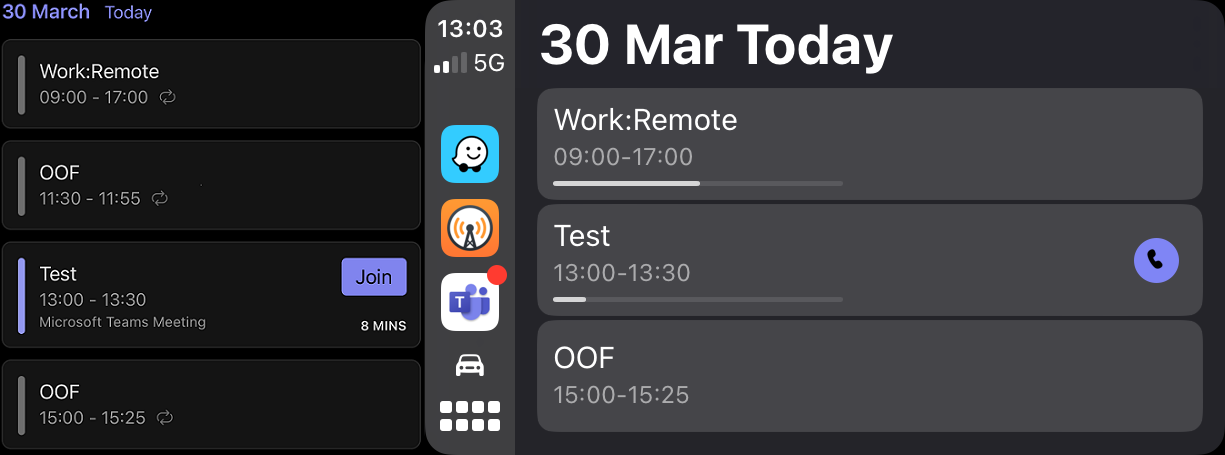
Note that the calendar view is showing today’s items, and only from the currently active account in Teams Mobile on your connected mobile device. If you have multiple accounts configured, switching accounts on Teams Mobile is required to show their respective calendars. Doing so will update the Calendar View immediately and allows you to join those meetings using the display. A holistic view would be nice, but compared to where Teams on CarPlay is coming from, this is already a big step in usability.

A small request to the Teams development group: Please use meaningful descriptions to the version history, as this added functionality is nowhere to be found between the “Bug fixes and performance improvements” and occasional mention of functionality changes.

iOS 9.3 fixes Multiple Response issue


iPhone 6 iOSUpdate 5/31/16: The glitch has been addressed in iOS 9.3.1.

Note: Be advised that iOS 9.3 contains a glitch which might prevent users from opening links from applications like Safari or other browsers, Mail or Outlook. The glitch causes the link not to work or the app to hang. Apple is aware of the issue and a fix is in the works. It is reported that, as a temporary workaround, disabling Javascript support in Settings > Safari > Advanced makes links work again in Safari.

Apple released iOS 9.3 today, which contains lots of enhancements and fixes. One of these fixes solves an issue with the Calendar app (for those still not using the Outlook app), where it would send multiple responses for an invite.

The release notes of iOS 9.3 mention:

Resolves an issue for some Exchange users that caused Calendar to send multiple responses to the same invitation

The fix supposedly solves issue 1.15 from the “Current issues with Exchange ActiveSync and 3rd-party device” overview (KB2563324), “Meeting organizer receives multiple responses from attendee. The related KB article, KB3108212, also contains instructions on how to identify users experiencing this problem. Note that the problem has also been addressed server-side in Cumulative Update 1 for Exchange 2016.

It’s almost a law that, for every bug that is fixed, new ones are introduced. So, some organizations may therefor want to test and accept this iOS update before giving it the green light for their Exchange environment. To block a specific version of iOS from Exchange, consult the instructions here.

Outlook for iOS adds Contacts support


imageA short notice on an update received today for Outlook for iOS 2.09. This update adds the much requested feature of integrating Outlook for iOS with the (native) Contacts in iOS:

“Your Office 365 and Exchange Contacts can now be saved to the iOS Contacts app. This will allow you to easily see the name of a contact when you receive a call or text message from them. Head to your Advanced Settings to turn on this feature.”

This does away with the requirement of resorting to setups like having the iOS Mail app sync with your Office 365 or Exchange On-Premises account, just to sync those contacts with your device. To disable syncing contacts through the Mail app, go to Settings > Mail, Contacts, Calendars and click the account you wish to disable syncing contacts for. Then, disable syncing its Contacts by toggling its switch:

image_thumb.png

You will get a warning contacts synced through this contact will be removed from Contacts, but since we are going to use Outlook for this, you can proceed.

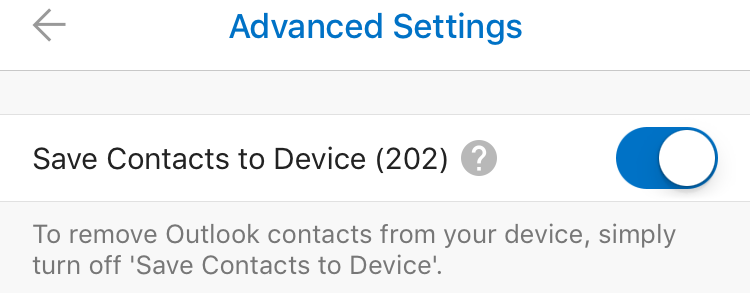
Next, open up the updated new Outlook app, and go to Settings. Click the account from which you want to sync contacts to your device, and select Advanced Settings. In there, you will find a new switch, Save Contacts to Device. Behind it is the number of contacts available on this account:

image

Toggle the switch to start syncing contacts directly from your Office 365 or Exchange On-Premises account to Contacts, giving the Outlook app permissions to access your Contacts when requested. After this, you’re ready to go.

Note that all synced contacts will contain a line in the Notes field, stating:

Exported from Microsoft Outlook (Do not delete) [outlook:..:..]

This is to indicate this is a synced contact, and you must not edit or remove it using the device, rather remove it from the originating source as it might get recreated or overwritten during synchronization.

Finally, the sync is one-way, so although you can edit properties on your phone through the Contacts app, they won’t be synced back to the originating source. Also, when editing properties through Contacts, those edits are not propagated to the People view in the Outlook app, as those are the contacts from your Office 365 / Exchange On-Premises accounts. This can be confusing, but having to set up an e-mail account just once with a one-way sync seems more efficient and less confusing to me than having to configure the Mail app only to get your contacts on your phone.

iOS 9 Outlook App & Lync 2013 App Issues


iphone6After Apple released iOS 9 to the public yesterday. From an Exchange or Office 365 perspective, iOS 9 supports the enhanced calendar features of Office 365 and Exchange 2016 when that is released. Unfortunately, incidents have been reported with the Outlook app and the Lync 2013 App.

Regarding the Outlook App, iOS9 users might not be able to start the Outlook App or the Outlook app will just crash. The far from ideal workaround offered by the Outlook team, is to reinstall the Outlook app.

outlookappcrash

Of course, this also requires users to reconfigure accounts and Outlook App settings, so organizations can expect some calls to the service desk by users who upgraded. Organizations can report on the currently registered iOS8 devices that syned in the last 30 days, using:

Get-MobileDevice | Where-Object {$_.DeviceOS -like 'iOS 8*' -and $_.whenChanged -gt (Get-Date).AddDays(-30)} | Select UserDisplayName, FriendlyName, DeviceModel, DeviceOS, whenChanged

This will product a list of users, the name of their device, the device model and OS and when it last synced with Exchange. This information can be useful when you want to proactively approach users with iOS8 devices.

For Lync 2013 users, there are sign-in issues when they have configured different region and language settings on their iOS device. Those users will be presented the following:

Lync2013SignInIssue1

The issue has officially been confirmed through publication of KB3096704, which states:

“This problem is fixed in the Microsoft Skype for Business for iOS app that will replace Lync for iPhone and Lync for iPad when it’s released. No fix for this issue is scheduled for the current releases of Lync for iPhone and Lync for iPad”.

Since the Skype for Business app is not available yet, this is not good news. Mitigation is possible by matching the region with the language setting (or the other way around), after which you need to reinstall the Lync 2013 app from the store.

With all this in mind, should organizations wish to first test the new iOS against their Exchange environment for potential other issues, you can block iOS 9 from accessing your Exchange 2013 environment, or Office 365 tenant if you must, using the Access/Block/Quarantine feature. First you need to retrieve the reported DeviceOS string for iOS 9 for a device:

Get-MobileDevice | Where-Object {$_.DeviceOS -like “iOS 9*”} | Select DeviceModel, DeviceOSLanguage, DeviceOS

The reported DeviceOS strings then is used to create an ActiveSync device rule. For example, my iPhone 6 reports DeviceOS as “iOS 9.0 13A344”. To block these devices with iOS 9.0 and put them in quarantine, run the following:

New-ActiveSyncDeviceAccessRule -QueryString "iOS 9.0 13A344" -Characteristic DeviceOS -AccessLevel Quarantine

If you would like to know more about the Access/Block/Quarantine option, check out this article.

iOS 8.3 Exchange-related fixes


iPhone 6 iOSToday, Apple released an update for iOS which supposedly fixes, amongst other things, some Exchange-related issues. The release notes of iOS 8.3 mentions the following Exchange-related fixes:

  • Exchange out-of-office message can now be edited separately for external replies.
  • Improves recovery of Exchange accounts from temporary connection problems.
  • Fixes an issue that caused Exchange meetings with long notes to be truncated.

As for any update, I’d recommend to thoroughly test this in a test and acceptance environment first, prior to allowing access to your production environment. Apart from potentially blocking the new iOS, monitor the support forums from Apple and Microsoft for related issues. To block a specific version of iOS, consult this page.

More information on known issues with Exchange ActiveSync and 3rd party devices can be found in KB2563324.