Retrieving DCs functional capabilities


While constructing a page for the forest and domain functional levels, and the maximum functional level for domain controllers, I wanted to show an example of how to retrieve this Active Directory attribute for all domain controllers. You could for example incorporate this in your automated procedures to check for any Windows 2003 servers and take further actions when needed.

The script is below. It outputs object so you use the pipe for further processing. For information on the possible values for msDS-Behavior-Version check out the new AD Functional Levels page here.

#--------------------------------------------------------------------------------
# Name         : Get-DCMSDSBehaviorVersion.ps1
# Created By   : Michel de Rooij
# E-mail       : michel@eightwone.com
# Date         : 20120307
# Source       : http://eightwone.com
# Version      : 1.0
#
# THIS CODE IS MADE AVAILABLE AS IS, WITHOUT WARRANTY OF ANY KIND. THE ENTIRE RISK
# OF THE USE OR THE RESULTS FROM THE USE OF THIS CODE REMAINS WITH THE USER.
#--------------------------------------------------------------------------------

$RootDSE= [ADSI]'LDAP://RootDSE'
$objSearchRoot= New-Object DirectoryServices.DirectoryEntry( "LDAP://"+ $RootDSE.configurationNamingContext)
$objSearch= New-Object DirectoryServices.DirectorySearcher
$objSearch.SearchRoot= $objSearchRoot
$objSearch.Filter= "(objectClass=nTDSDSA)"
$objSearch.SearchScope = "SubTree"
$Results= @()
$objSearch.FindAll() | ForEach {
    $objItem = $_.getDirectoryEntry()
    $obj= New-Object PSObject -Property @{
        Servername= $objParent = $objItem.psbase.parent.DNSHostName.ToString()
        MSDSBehaviorVersion= $objItem.Get("MSDS-Behavior-Version")
    }
    $Results+= $obj
}
$Results

Note that if you have over 1000 domain controllers, you need to set the $objSearch.Pagesize, e.g. 1000. It may also encounter problems in forests with multiple roots.

The case of the missing Free/Busy public folder pt.2


In an earlier blog, I described the situation where a customer had improperly decommissioned Exchange 2003 Administrative Groups and ended up with invalid, orphaned legacyExchangeDN values causing all sorts of issues, most Public Folder / Free Busy related. Read more on this story here.

In the blog, I had two options on how to proceed:

  1. Edit the legacyExchangeDN attribute of the users affected;
  2. Recreate the Free/Busy public folder.

In the first blog, I described how to fix the situation using the 2nd option. Here’s how to solve this if you have no Exchange 2003 server left and want to go with the other option.

To fix this situation by changing the legacyExchangeDN values, you need to perform the following steps:

  1. Identify all mailboxes containing improper legacyExchangeDN values;
  2. For all those mailboxes, add the current legacyExchangeDN value as an x500 address;
  3. Fix the current legacyExchangeDN.

Note that by adding the invalid legacyExchangeDN value as an X500 address, we make sure (responding to) old e-mail messages or nickname entries can resolve properly.

You could use tools like ADModify to bulk edit those values. However, you also achieve the same result using a little PowerShell (surprise!), as shown in the following script:

Note: Use the script at your own risk. I cannot accept any responsibility for consequences when using this in your production environment. Before using it, prepare it in a lab environment first: test, test, test! Also, this script fixes invalid legacyExchangeDN values; it does not fix any related invalid settings, like delegates; that might be something for a next version when there’s demand for it.

$oldDN="/o=ADATUM/ou=First Administrative Group"
$newDN="/o=CONTOSO/ou=Exchange Administrative Group (FYDIBOHF23SPDLT)/cn=Recipients"
$mbx= get-mailbox -Filter "LegacyExchangeDN -like '$($oldDN)/*'"
$mbx | ForEach {
    $x5= "x500:"+ $_.legacyExchangeDN
    Set-Mailbox $_.Identity -EmailAddresses @{Add=$x5}
    $User = [ADSI]("LDAP://"+$_.distinguishedName)
    $newDN= $newDN+ “/cn=”+ $_.Name
    $User.Put("legacyExchangeDN", $newDN)
    $User.SetInfo()
}

To use the script, replace the $oldDN value with your old, invalid legacyExchangeDN value (as reported in the Event Log entries with Event ID 14031). Set $newDN to your new legacyExchangeDN value; the default value of would be in the format “/o=<Organisation Name>/ou=<Administrative Group, i.e. Exchange Administrative Group (FYDIBOHF23SPDLT)>/cn=Recipients/cn=<Name>”.

If you have any questions, drop them in the comments below.

For all the PowerShell purists: Sometimes I prefer readability over trying to fit everything one 1 line. After all, this isn’t an Obfuscated Code Contest 🙂

Exchange PST Capture Tool released


It took a while, but today the Exchange Team released the long awaited Microsoft Exchange PST Capture Tool (initial version 14.3.16.4). The tool can be used to discover and inject PST files in an Exchange 2010 Exchange Online mailbox or archive.

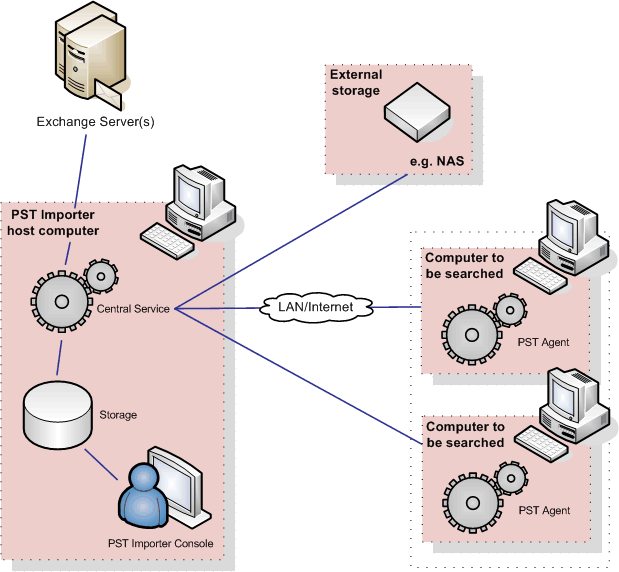
The tool was originally from Red Gate and known as PST Importer. It’s architecture consists of three components: the central service, (optional) agents for PST discovery, registration and collecting PST files and an administrative console (image by Red Gate):

The online documentation can be found here.

Note that although it’s only supported for Exchange 2010 and Exchange Online, you can use it with Exchange 2007; it’s only untested (and probably unsupported) with that product.

You can read the official announcement here; you can download the tool and the agents here.

The case of the missing Free/Busy public folder


A customer who recently migrated to Exchange 2010 and was still in the co-existence setup with Exchange 2003, reported lots of users experiencing issues with regards to Free/Busy information. Symptoms were inaccurate or missing Free/Busy information, which especially gets annoying when scheduling appointments.

It turned out these users were using Outlook 2003; users on Outlook 2007 or later experienced no issues. As you probably know, Outlook 2003 still utilizes public folders to publish users’ Free/Busy information. This information is consulted by Outlook 2003 when scheduling appointments; Outlook 2007 or later uses Exchange Web Services for this purpose.

A quick look in the Eventlog revealed lots of 14031 errors were generated by the FreeBusy Assistant:

Err14031

This told us Exchange was unable to store Free/Busy information in a public folder, in this case /o=EUROPE/ou=First Administrative Group. A quick look at the Public Folder Management Console in Exchange 2010 showed that the folder didn’t exist. Since the Free/Busy public folder to be used by an Outlook 2003 user is determined by the legacyExchangeDN attribute, this was the cause of the issue.

The reason for the folder’s absence was unknown so one can only speculate. My best guess is improper decommissioning of the organization and administrative group originally hosting those users, identified by that “orphaned” legacyExchangeDN.

With the Free/Busy public folder missing and the original Exchange infrastructure gone, there are two alternatives to resolving this issue, apart from upgrading clients to a recent version of Outlook of course:

  1. Edit the legacyExchangeDN attribute of the users affected;
  2. Recreate the Free/Busy public folder.

The 1st option has consequences for the users, like being able to reply to earlier e-mail by co-workers. This can be resolved by adding the current legacyExchangeDN as an X500 address to the current set of e-mail addresses, but that also makes things a bit messy.

The 2nd option is to recreate the Free/Busy public folder; Here’s how to proceed:

  1. First, using the Exchange System Manager (luckily, Exchange 2003 was still present), create an Administrative Group, e.g. First Administrative Group
  2. Then, using ADSIedit.msc, navigate to CN=<Administrative Group>,CN=Administrative Groups,CN=<Organization>,CN=Microsoft Exchange,CN=Services,CN=Configuration,DC=<domain>
  3. Right-click the Administrative Group, e.g. First Administrative Group, and click Properties. There, edit the legacyExhangeDN attribute. Set it to match the missing Free/Busy public folder, e.g. /o=EUROPE/ou=First Administrative Group
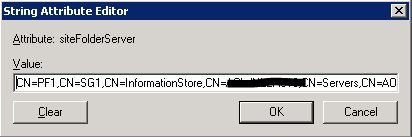
  4. Next, edit the siteFolderServer attribute. Set it to match the distinguishedName of a a public folder database. Note that you can pick the Exchange 2003 as well as Exchange 2010 Public Folder database here. In this example, I picked the Exhange 2003 public folder database, hence the storage group (SG1):

siteFolderServer

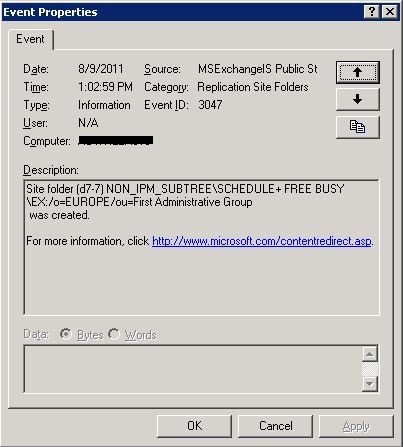
Now we need to wait for the store to recreate the Free/Busy public folder during its maintenance cycle, which may take up to 24h. If you’re in a hurry, and the situation allows you because of the service interruption, you can also restart the Information Store. When the Information Store has created the Free/Busy public folder, event 3047 is logged by the MSExchangeIS Public Store:

Recreate_FB_PF

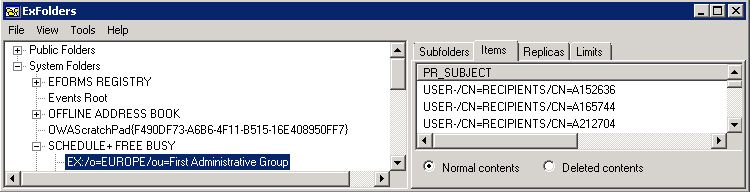
To verify this, startup the Public Folder Management Console or any other Public Folder management tool, and you’ll see the newly created folder:

PFMC_Appear

After a while you’ll notice Outlook 2003 users are now storing their Free/Busy information in this public folder and Free/Busy will work again for these users. You can verify clients are storing Free/Busy information using EMS, ExFolders or MFCMAPI, e.g.:


Finally, don’t forget to create replicas of this new Free/Busy public folder when appropriate.

Creating Batches of Legacy Mailbox Move Requests


When migrating users from Exchange 2003 to Exchange 2010, you get to a point where you actually want to move all those Exchange 2003 mailboxes. When you have a decent environment and a lot of mailboxes are involved, you perhaps may want to move those mailboxes in a more phased, batch-oriented fashion.

If so, perhaps the following one-liner may come in handy, which is to be executed from the Exchange Management Shell:

Get-Mailbox -RecipientTypeDetails LegacyMailbox -ResultSize Unlimited | Where { ($_.MailboxMoveStatus -eq ‘None’) -and ( $_.WhenChanged -lt (Get-Date).AddDays(-1)) } | Select -First 100 | New-MoveRequest

I’ll talk you through the one-liner:

  • We’ll start off by selecting all mailboxes using Get-Mailbox using an unlimited result size (defaults to 1,000). By selecting only “LegacyMailbox” using the RecipientTypeDetails parameter, we’ll only select the Exchange 2003 mailboxes;
  • Next, we filter the those mailboxes on the following properties:
    • MailboxMoveStatus. By selecting “None”, we get mailboxes not in the process of being moved;
    • WhenChanged. We select mailboxes unaltered in the last 24 hours to accomodate for users currently accessing their mailbox (since it’s an offline move). For this purpose, we take the current timestamp (Get-Date) and subtract 1 day (by adding -1 day which is the same).
  • Then  we select only the first N (the sample uses 100) mailboxes of the result (or lower if there are less mailboxes elegible so far);
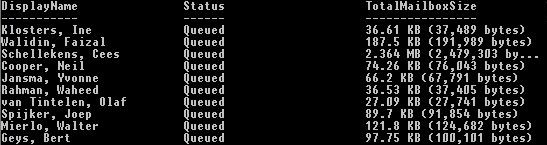
  • Finally we pipe that to New-MoveRequest. We don’t mention any Remote parameters so it’s a local move. Also, by omitting the target database, we let Exchange select an Exchange 2010 database.  This is done in a round-robin fashion (as you can see below) and does all the work for us like checking availability of the database as well the auto provisioning status of those databases or servers.

Now you can start or schedule this and check back in the morning on the results. When situation requires, you can start off using smaller batches increasing things depending on the results, ultimately leaving out the Select and date condition altogether.

And don’t forget to clean up those move requests afterwards.