Important Hotfix for Outlook 2013 Preview


Microsoft released a quick fix for a nasty bug in Outlook 2013 Preview, part of the Office Professional Plus 2013 Preview. The related knowledgebase article is kb2737132.

Note: Despite the warning that goes with pre-release software about not using it in production environments, I assume Microsoft knows people will and decided to produce a hotfix so quickly, which is quite unusual for preview software, also looking at the potential consequences.

The bug causes everything, i.e. e-mail, contacts, appointments and tasks, to be deleted permanently from an Exchange server when using the Cleanup Tools from Outlook. Nothing is recoverable through the Recover Deleted Items option.

To install the hotfix, follow one of the links below, depending on your architecture:

Storing Replies with Received Items


Not directly Exchange related but mail-related, I’d like to mention a function in Outlook which could make organizing e-mail a lot easier, depending on if and how you organize them of course.

Normally, when replying to an e-mail in Outlook, it will store a copy of that message in the Sent Items folder of that account. That is, assuming you have 1 Exchange account set up or multiple in conjunction with the DelegateSentItemsStyle setting as described here.

Now after a while, your Sent Items folder will be full of messages sent over the past period. For received messages you may have created folders and perhaps rules to automatically organize incoming e-mail in projects or customers folders. Wouldn’t it be nice if you can keep those messages with their replies automatically, instead of having to organize your Sent Items by manually distributing its contents over the projects and customers folders?

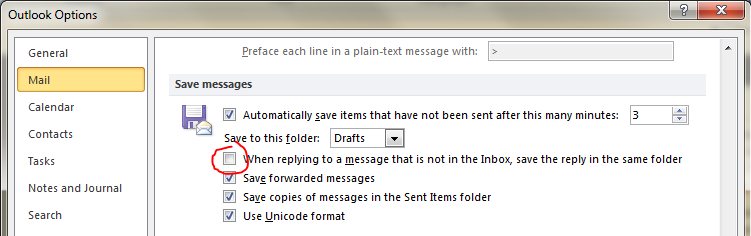
Well, you can actually, and it’s a setting in Outlook. Open up the File > Options and select the Mail settings. In the right pane, check the When replying to a message that is not in the Inbox, save the reply in the same folder setting:

image

Note that this setting in pre-Outlook 2010 versions is called In Folders Other Than The Inbox, Save Replies With Original Message.

Now when you reply to a message, it will save the reply in the same folder unless the message was in the Inbox.

Note that this setting will apply to all accounts and personal folders.

Office 365 and “There are no items to show in this folder”


Be advised that when accessing shared mailboxes on Office 365 using Outlook in online mode, you may experience an issue with Outlook not properly updating the mailbox view.

Instead, Outlook will return a “There are no items to show in this view” message. The folder in the folder navigation pane displayed the proper number of (unread) items in the folder.

This could be the symptom of an issue which was already solved in Exchange 2010 Service Pack 1 Rollup 5. It seems the Office 365 data centers are not running a current version of Exchange, as today I received the message the Office 365 environment is currently being upgraded with Exchange 2010 Service Pack 2. The message also mentions the upgrade is to be completed at the end of the month.

More information on the issue in knowledge base articles kb2500648, announcing the fix is included in Exchange 2010 SP1 RU5.

Until then, the suggested workaround is to click one of the columns twice after which Outlook will update the view properly. Of course, you could also enable cached mode, if your setup and company policy permits (e.g. not running Outlook on terminal server).

Delegated Sent and Deleted Items behavior


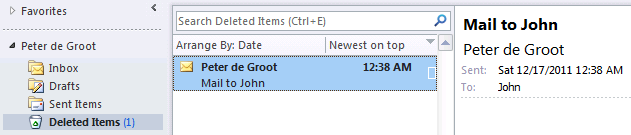
Many people using Outlook access multiple mailboxes, either because the mailbox is shared or they are a delegate (e.g. they have send-as permissions). What many users find confusing is that by default, Outlook will put the copies of all sent messages in the Sent Items folder of the default account. For example, when Peter sends a message as John, users expect Outlook to put the message in the Sent Items of John. Also, when Peter deletes a message from John’s mailbox, it will end up in Peter’s Deleted Items folder.

image

Luckily, this behavior can be altered for Outlook 2003, Outlook 2007 and Outlook 2010 using two registry settings. In order for these setting to work, Outlook needs to have a certain hotfix; which hotfix depends on the Outlook version used. Note that a later service pack or hotfix may already contain this setting:

To enable the different Sent Items behavior, you need to create or edit the a value named DelegateSentItemsStyle, type REG_DWORD and set it to 1 (default is 0 or not present). The location of the registry value is HKCU\Software\Microsoft\Office\<version>\Outlook\Preferences, where <version> depends on the Outlook version used; use 11 for Outlook 2003, 12 for Outlook 2007 or 14 for Outlook 2010.

To alter the Deleted Items behavior, create or edit a value named DelegateWasteBasketStyle, type REG_DWORD and set it to 4 (default is 8 or not present). The location of the registry value is HKCU\Software\Microsoft\Office\<version>\Outlook\Options\General; for version number use one of the values mentioned before.

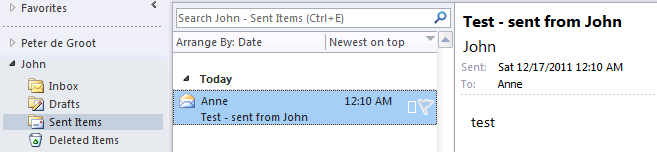
After implementing these registry values, either manually or by publishing them in group policies, sent items and deleted items will be stored with the mailbox:

image

Note: these registry keys only work when using Outlook in Cached Mode; more information in kb2703723.


Disabling Distribution Group Expansion in Outlook


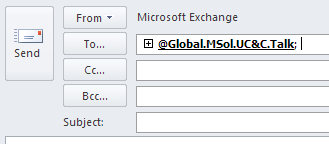
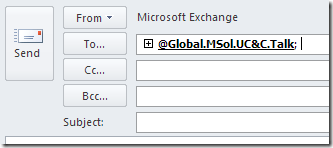
A customer was using moderated distribution groups and asked if it was possible to disable the expansion of distribution groups in Outlook. As you probably know, after entering a distribution group in the address bar, Outlook will show a “+” sign next to it which will let you replace the distribution group with all its members as recipients. Especially with moderated distribution groups this might be found an issue, because customers might want to hide membership information from senders.
image

Unfortunately, hiding isn’t  a real option because distribution groups are universal distribution groups and its members are readable. Fiddling around with the ACL sounds like a viable option (remove permissions to read members) but sounds like a potential cause for other issues so I wouldn’t recommend that.

What you could do is remove the option to expand the distribution group by setting one of the following a registry keys, depending on your Outlook client version:

Outlook 2013
HKCU\Software\Microsoft\Office\15.0\Outlook\Options\Mail\DisableDLExpansion=1 (REG_DWORD)

Outlook 2010
HKCU\Software\Microsoft\Office\14.0\Outlook\Options\Mail\DisableDLExpansion=1 (REG_DWORD)

Outlook 2007
HKCU\Software\Policies\Microsoft\Office\12.0\Outlook\Options\Mail\DisableDLExpansion=1 (REG_DWORD)

Outlook 2003 or earlier
Outlook 2003 or earlier versions don’t have this option.

After you set this key and restart Outlook, you’ll see the “+” sign is gone:

image

If you want to roll out this change throughout your organization, use this key in a custom GPO template or utilize the GPO templates that ship with Office (OutlkNN.adm, where NN is determined by the Outlook version), and configure the GPO accordingly.

Be advised that setting this registry key disables expansion for all distribution groups. Specifically disabling it for moderated groups is impossible, since Outlook has – and should have – no knowledge of the type of distribution group.

Note that the distribution group expansion option is something typical of the Windows version of Outlook, since Outlook for Mac nor Outlook WebApp (OWA) have this option.