Exchange v15 Unattended Setup


Ex2013 Logo

Latest version: 3.9, February 15th, 2024

I’m pleased to announce the availability of Install-Exchange15.ps1, a PowerShell script to perform a fully automated unattended setup of Exchange Server 2013, Exchange Server 2016, or Exchange Server 2019 (Desktop and Core) is supported).

The script takes care of:

  • Installing requires Windows Server features
  • Install Exchange Server prerequisites, e.g., .NET Framework 4.5.2/4.6.1/4.6.2/4.7.1/4.7.2/4.8/4.8.1 and Visual C++ Runtime 2012 or 2013, depending on roles, OS, and Exchange version to install.
  • Install additional prerequisites and prepare Active Directory.
  • Optionally install Exchange Server 2013 / 2016 / 2019.
  • Optionally, install required fixes and perform post configuration, like setting your Power Plan to High Performance, reconfiguring the pagefile to best practices (memory + 10MB with a maximum of 32GB+10MB) if it is system managed, and performing .NET framework optimizations. Custom post-configuration is possible by modifying the script.
  • On Windows Server 2016 and later, it will configure Windows Defender exclusions when present.
  • For Exchange 2016 CU22 and Exchange 2019 CU11 and later, will install the required URL Rewrite 2 module.
  • Finally, the script will clean things up, like removing the state file and setting the startup of Transport Service back to Automatic.

Usage
This script version requires a domain-joined Windows Server, an account to perform the installation (and optionally prepare Active Directory), and the location where the Exchange Server 2013/2016/2019 installation files are stored (e.g., a UNC path).

The syntax is as follows:

Install-Exchange15.ps1 -[InstallMultiRole|InstallMailbox|InstallEdge|InstallCAS|NoSetup|Recover] [-Organization <string>] [-MDBName <string>] [-MDBDBPath <string>] [-MDBLogPath <string>] [-InstallPath <string>] [-SourcePath <string>] [-TargetPath <string>] [-Credentials <pscredential>] [-IncludeFixes] [-NoNet461] [-NoNet471] [-NoNet472] [-NoNet48] [-NoNet481] [-DoNotEnableEP] [-DoNotEnableEP_FEEWS] [-UseWMF3] [-DisableSSL3] [-DisableRC4] [-DiagnosticData] [-SCP <string>] [-EdgeDNSSuffix <string>] [-Lock] [-SkipRolesCheck] [-AutoPilot] [<CommonParameters>]
Install-Exchange15.ps1 -InstallMultiRole -SourcePath <string> [-Organization <string>] [-InstallPath <string>] [-TargetPath <string>] [-AutoPilot] [-Credentials <pscredential>] [-IncludeFixes] [-NoNet461] [-NoNet471] [-NoNet472] [-NoNet48] [-NoNet481] [-DoNotEnableEP] [-DoNotEnableEP_FEEWS] [-UseWMF3] [-DisableSSL3] [-DisableRC4] [-DiagnosticData] [-Lock] [-SkipRolesCheck] [-Phase <int>] [<CommonParameters>]

A short description of the parameters:

  • Organization (optional): Specifies the name of the Exchange organization to create. When omitted, the step to prepare Active Directory (PrepareAD) will be skipped.
  • InstallMailbox: Specifies you want to install the Mailbox server role. This applies to Exchange 2013 as well as Exchange 2016.
  • InstallCAS: Specifies you want to install the CAS role. This applies to Exchange 2013 only, ignored when installing Exchange 2016.
  • InstallMultiRole: Specifies you want to install both Mailbox server and CAS roles. Applies to Exchange 2013 only.
  • InstallEdge: Specifies to install the Edge Transport rule (Exchange 2013/2016).
  • MDBName (optional): Specifies the name of the initially created database.
  • MDBDBPath (optional): Specifies the database path of the initially created database (requires MDBName).
  • MDBLogPath (optional): Specifies the log path of the initially created database (requires MDBName).
  • InstallPath (optional): Specifies (temporary) location of where to locate – and when downloaded store – prerequisite files, the state file, and log files. The default location is C:\Install. You can also use a UNC path to use a central location, given the credentials have sufficient permissions to write at this location. This is ideal when you want the script to use previously downloaded hotfix files, for example, as some required hotfixes are quite large (e.g. KB3206632 for WS2016 ~ 1GB, KB2919355 for WS2012R2 ~ 700MB).
  • NoSetup (optional): Specifies you only want to install prerequisites (and optionally prepare the Exchange organization), Exchange setup and post-configuration steps are not performed. You still need to specify SourcePath because the Exchange version will determine the prerequisites to install.
  • Recover: Specifies you want to install this server in Recovery mode. The script will check if an Exchange server object is already defined.
  • SourcePath: Specifies the location of the Exchange 2013 installation files. This can point to the location of setup.exe, or you can specify the Exchange ISO file.
  • TargetPath: Specifies the location where to install the Exchange 2013.
  • AutoPilot (switch): Specifies you want to automatically restart, log on using the credentials specified, and continue the installation. When not specified, you will need to restart, log on, and start the script manually each time (without parameters).
  • Credentials (optional): Specifies credentials to use for automatic logon. Use DOMAIN\User or user@domain. When not specified, you will be prompted to enter credentials.
  • IncludeFixes (optional): Depending on the operating system and detected Exchange version to install, will download and install recommended hotfixes.
  • DiagnosticData (optional): This switch determines the initial Data Collection mode for deploying Exchange 2019 CU11, Exchange 2016 CU22, or later builds.
  • DoNotEnableEP Do not enable Extended Protection on Exchange 2019 CU14+
  • DoNotEnableEP_FEEWS Do not enable Extended Protection on the Front-End EWS virtual directory on Exchange 2019 CU14+
  • SCP (optional) allows you to reconfigure the Service Connection Point record for Autodiscover after the Exchange setup has finished. Specify the full URI, e.g. https://autodiscover.contoso.com/autodiscover/autodiscover.xml. Use ‘-‘ to clear the SCP entries of the server.
  • Lock (optional) locks the system when running script.
  • NoNet481 (optional) prevents installing .NET Framework 4.8.1 and uses 4.8 when deploying Exchange 2019 CU14+
  • NoNet48 (optional) to use .NET Framework 4.7.2, even when installing an Exchange version that is supported with .NET Framework 4.8.
  • NoNET471 (optional) to use .NET Framework 4.6.2, even when installing an Exchange version which is supported with .NET Framework 4.7.1.
  • NoNET472 (optional) to use .NET Framework 4.7.1, even when installing an Exchange version which is supported with .NET Framework 4.7.2.
  • NoNET461 (optional) to use .NET Framework 4.5.2, even when installing an Exchange version which is supported with .NET Framework 4.6.1 or higher.
  • DisableSSL3 (optional) to disable SSL3 protocol as per KB187498.
  • DisableRC4 (optional) to disable RC4 cipher as per KB2868725.
  • SkipRolesCheck (optional) to bypass membership checks for Schema Admin and Enterprise Admin roles.
  • EdgeDNSSuffix specifies the DNS suffix to configure on the primary NIC.

Note that the script uses an XML file to store the (original) parameters used to start the script but also to keep track of the the process. Of course, if required, you can use predefined XML files to run the script without parameters.

Note that when not present, the script will try to download the prerequisites from the internet. When that isn’t possible or to save bandwidth, you can put them in the location defined by InstallPath and the script will detect and use them.

The post-configuration is currently adding IFilters for OneNote and Publisher (Mailbox) only. There are comments in the script where to add your own additional post-configuration steps.

For example, assume we want to start a fully unattended install of an Exchange Server 2013 Client Access server, using a network location for the Exchange Server 2013 source files. After setting the Execution Policy to Unrestricted and storing the script locally, we start the script using:

 .\Install-Exchange15.ps1 –InstallCAS –SourcePath
'\\server\share\isos\Microsoft\Exchange2013\mu_exchange_server_2013_x64_dvd_1112105'
–AutoPilot –Verbose

The script will perform some checks and since AutoPilot was specified without using the Credentials parameter, the script will ask for credentials.

Capture1

After entering the credentials, the required features will be installed. Since OrganizationName wasn’t specified, Active Directory preparation will be skipped.

Capture2

After rebooting, the system will automatically log on using the credentials specified earlier and start the script (RunOnce registry key is utilized for this purpose). It will read the last known state from the XML file and will continue with the next phase, which is downloading (when not present) and installing the Exchange prerequisites.

Capture3

Next, after rebooting and the automatic logon, Exchange will be installed from the source location.

Capture4

When done, the system will perform post-configuration and finalization steps.

When running in AutoPilot mode, the system will automatically perform reboots and logons between the steps. Note that it may seem like a lot of reboots, but rebooting after installing Windows features and Exchange prerequisites is required anyway, so I also put reboots after the other milestones.

Customization
If you want to perform post-setup configuration of Exchange running Exchange cmdlets from the script, you need to tailor it to your needs. Locate the line which reads:

#Load-ExchangeModule

Uncomment this line so a proper Exchange Management Shell session will be set up to the local Exchange server. You can insert Exchange-related cmdlets after the Load-ExchangeModule line to configure your server. Be advised that you need to port modifications to new versions of the installation script.

Recovery
The script also supports recovery mode (/mode:RecoverServer). After checking the Exchange server object is present in Active Directory, installation will proceed as normal, with the exception of running setup in recovery mode. For example:

.\Install-Exchange15.ps1 -Recover -Autopilot -SourcePath \server1\sources\ex2019cu13.iso

Update
The script also supports update mode (/mode:Update). After checking the Exchange server object is present in Active Directory, and checking for presence of Exchange installation, installation will proceed as normal, with the exception of running setup in Update mode.

Feedback
Feedback is welcomed through the comments. If you have scripting suggestions or questions, do not hesitate to use the contact form.

Download
You can download Install-Exchange15.ps1 from TechNet or GitHub.

Revision History
See Technet Gallery page.

Fixing Well-Known Folders Troubles (Update)


powershellLast update: Version 1.47, April 17th, 2017

Depending on your migration scenario, you could be exporting and importing PST files when migrating mailbox contents from one Exchange environment to another. Now folders in PST files are just folders, i.e. Inbox is a folder just like any other folder and well-known folders lose their identification. Because of this, you may end up with unexpected additional folders in your mailbox after importing PST files.

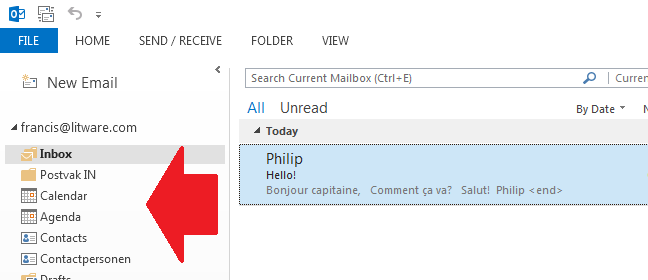
For example, when importing a non-US mailbox PST in a mailbox set to en-US you may end up with well-known folders and their regional counterparts, e.g. “Inbox” and “Postvak In” or “Calendar” and “Agenda”.

image

It can also happen that you import the PST file before setting the regional settings of the mailbox. In that case the folders with the local names are already present and Exchange will generate sequence number folders, e.g. Inbox1 or Calendar1.

image

Note that the above behavior goes for all well-known folders, such as Inbox, Calendar, Contacts and Sent Items. Users logging in early, i.e. logging on to their mailbox while they shouldn’t, can also create these situations.

One way to fix this situation is to manually move contents to the proper location using an e-mail client, which is tedious and something you don’t want to trouble end users or admins with. Another way is to set the mailbox’ regional configuration before importing the PST file.

A better way is of course to have an Exchange Management Shell script which talks to Exchange Web Services, essentially doing the same but in an automated kind of fashion. Here’s where the Fix-MailboxFolder.ps1 script comes into play. Using Fix-MailboxFolders.ps1 requires Exchange 2010 SP1 and Exchange Web Services 1.2 (or later), which you can download here. The script hasn’t been tested yet against Exchange 2013.

Since the script will process user mailboxes, it needs to be run by a user with full mailbox permissions or impersonation permissions. Granting full mailbox access can be done on several levels, e.g. mailbox or database. For example, to grant ExAdmin Full Access on a mailbox:

Add-MailboxPermission –Identity User –User ExAdmin –AccessRight FullAccess

However, a more elegant and preferred method is to utilize impersonation through Role-Based Access Control (RBAC). Information on configuring impersonation in your Exchange environment using RBAC is found here. As an example, to grant ExAdmin permissions to impersonate all(!) users in an organization, use the following cmdlets:

New-ManagementRoleAssignment –Name:impersonationAssignmentName –Role:ApplicationImpersonation –User:ExAdmin

After executing this cmdlet, the account ExAdmin can succesfully impersonate mail-enabled users. To limit impersonation to a certain subset of the user population, you could use a write scope; for more information on RBAC and write scopes, check out my past blog on this topic here.

Fix-MailboxFolders.ps1 uses the following syntax:

Fix-MailboxFolders.ps1 [-Identity]  [[-Language] ] [[-FromLanguage] ] [[-Server] ] [-ScanNumericals] [-Impersonation] []

A quick walk-through on the parameters and switches:

  • Mailbox is the name or e-mail address of the mailbox of which to fix the folder structure. If you specify a mailbox, the current Active Directory domain is consulted. When specifying an e-mail address, Autodiscover is used.
  • Language is the language to configure. If this isn’t specified, the script will use a default value of en-US;
  • FromLanguage is the language in which to scan for folders. When omitted, the script will use the currently configured mailbox language;
  • Server is the name of the Client Access Server to access for Exchange Web Services. When omitted, the script will attempt to use Autodiscover;
  • The switch ScanNumericals will tell the script to look for folders in the language specified by FromLanguage with sequence numbers, e.g. Inbox1 or Calendar1;
  • When the Impersonation switch is specified, impersonation will be used for mailbox access. When this switch isn’t used, the script will run in the context of the current user.
  • Credentials can be used to specify the credentials to access the mailbox or impersonator when Impersonation is specified as well.
  • Of the common parameters, only the Verbose switch is currently supported and will tell you exactly what the script is doing

So, for example assume you have a mailbox with en-US folders but also Dutch folders and the proper regional setting is en-US, use the following cmdlet:

.\Fix-MailboxFolders.ps1 –Identity Francis -Language nl-NL -FromLanguage us-EN –Impersonation

image

To fix the folders of an Office 365 mailbox, connect remotely to an Exchange Online session, and run the script using the e-mail address of the mailbox, specifying credentials optionally in combination with impersonation with sufficient permissions.

If you want to fix the folders of multiple mailboxes you can use a CSV file. The CSV needs to contain at least the Mailbox, but can optionally settings for Language and FromLanguage since the script will accept both through the pipe.

A sample of how the csv could look:

Mailbox,Language,FromLanguage
francis,en-US,nl-NL
philip,en-US,nl-NL

The cmdlet should then be something like:

Import-Csv .\Users.csv | .\Fix-MailboxFolders.ps1 -Language en-US -ScanNumericals -Impersonation –Verbose

Should you be running this in a resource-forest deployment, the script will by default try to retrieve the e-mail address of the specified mailbox – assuming you didn’t enter an alias instead of an e-mail address – in the current domain. You can override that by modifying the line which reads:

$ADSearch= New-Object DirectoryServices.DirectorySearcher( [ADSI]””)

to

$ADSearch= New-Object DirectoryServices.DirectorySearcher( [ADSI]”dc=user,dc=contoso,dc=com”)

where user.contoso.com is the distinguished name of your account forest.

Be advised that the script currently only contains en-US and nl-NL settings; you need to add additional language settings to the $LanguageInfo structure. The $LanguageInfo structure contains localized names for each of the well-known folders and has the following format.

"en-US"= @{ 
     "Inbox"="Inbox"; 
     "SentItems"="Sent Items"; 
     "Notes"="Notes"; 
     "Drafts"="Drafts"; 
     "DeletedItems"="Deleted Items"; 
     "Outbox"="Outbox"; 
     "Contacts"="Contacts"; 
     "Calendar"="Calendar"; 
     "Tasks"="Tasks"; 
     "JunkEmail"="Junk E-mail"; 
     "Journal"="Journal"; 
     "DateFormat"="M/d/yyyy"; 
     "TimeFormat"="h:mm tt" 
};

To increase readability I’ve created one setting per line in the script; everything could be stored on a single line of course. The values DateFormat and TimeFormat should be provided in a valid format for the related regional setting. Depending on feedback and demand, I can add additional languages to future versions of the script.

You can download the script from TechNet or GitHub.

Cluster Name Object Pre-staging


Ex2013 LogoWhen creating a Database Availability Group (DAG) in Exchange 2010 or Exchange 2013 you leverage Fail-over Clustering from the operating system, e.g. Windows Server 2008 R2.

Behind the scenes Kerberos authentication is used, for which a so called Cluster Name Object (CNO) has to be created in Active Directory. This CNO will be associated with the Cluster Name Resource.

Depending on the situation, like having the ability to create computer accounts in the domain, you may need to create – or pre-stage – the cluster name object as  computer account upfront. For Exchange 2013 on Windows Server 2012, pre-staging the CNO is a requirement. This manual task is described here.

However, there may be circumstances where having the ability to automate the process would be more appropriate, like when you want a fully automated setting up a DAG for example. For this purpose I have created a small script, Create-CNO.ps1. The syntax is as follows:

Create-CNO.ps1 [-Identity] <String> [[-Computers] <Array>] [[-OU] <String>

A small explanation of the available parameters:

  • The Identity is used to specify the name of the CNO;
  • The optional Computers parameter can be used to specify the computer account which should be granted permissions on the CNO. You can specify multiple accounts seperated by commas (when for example you’re not sure which your will be used to create the DAG). When the Computers parameter is omitted, the Exchange Trusted Subsystem will be granted permissions on the CNO;
  • OU is the name of the container to create the CNO in. When not specified, the default container for computer accounts will be used. This is done by querying for the Well-Known GUID for the computers container, aa312825768811d1aded00c04fd8d5cd (more on Well-Known GUIDs here). Note that when specifying the OU, you need to enclose it in quotes otherwise PowerShell will assume the parameter is an array;
  • The Verbose parameter is supported.

So, for example assume you want to create a DAG called DAG001 and the first Mailbox Server will be L14Ex1. The computer object for the cluster is to be stored in the OU ou=Temp,dc=litware,dc=com. In that case, you would call the script as follows:

Create-CNO.ps1 –Identity DAG001 –Computers L14EX1 –OU “ou=Temp,dc=litware,dc=com” –Verbose

If you want to grant Exchange Trusted Subsystem permissions as well and let the script look up the CNO name, you can use:

Create-CNO.ps1 –Identity DAG001 –Verbose

create-cno-1You can download the script from the TechNet Gallery here.

Copying Receive Connectors (update)


Once in a while you may have to execute a task so tedious and repetitive, you end up with an idea for a script to make your life easier. By tidying and publishing that script, I hope to make the life of others easier as well. This is one of those scripts.

When implementing Hub Transport servers on Exchange 2010, you may have to configure multiple receive connectors. Because receive connectors are defined on the Hub Transport server itself, contrary to send connectors, you may end up defining each receive connector on each Hub Transport server. This gets painful when you need to implement the ForeFront Online Protection for Exchange servers in the Remote IP ranges for example.

Yes, you can create a script which configures the connectors for you, but wouldn’t it be nice if you can create definitions on one server using the GUI and then just copy and paste those definitions to the other Hub Transport servers? This script also allows you to simply duplicate existing Receive Connector definitions after adding an additional Hub Transport server afterwards, not only after the initial configuration of the Exchange environment.

Here’s were my Copy-ReceiveConnector.ps1 script may come in handy.

The script is quite simple, and can help you with the following:

  • Copy Receive Connectors from one Exchange server to another (CopyFrom);
  • Export Receive Connector definitions to an XML file (ExportTo);
  • Import Receive Connector definitions from an XML file (ImportFrom).

In addition, you can specify whether you want to overwrite existing Receive Connector definitions (based on name) using the -Overwrite switch or clear all existing Receive Connectors before copying/importing using the -Clear switch.

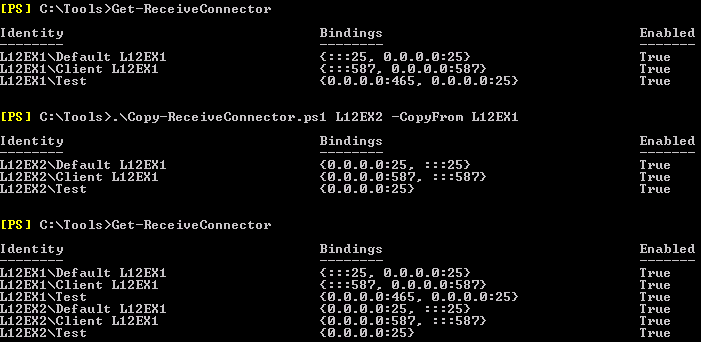
So, let’s say you have two Hub Transport servers, L12EX1 and L12EX2. You have configured L12EX1 and you need to create the same set of receive connectors on L12EX2.

image

You can see in the example above, you can use the script to copy definitions from an existing server, e.g.

Copy-ReceiveConnector.ps1 <TargetServer> –CopyFrom <SourceServer>

You can also export and import settings, which may come in handy when you need to troubleshoot (you can have the customer export the receive connectors to a file) or when you want to prepare receive connector definitions off-site, e.g.

Copy-ReceiveConnector.ps1 <TargetServer> –ExportTo .\conn.xml

Copy-ReceiveConnector.ps1 <TargetServer> –ImportFrom .\conn.xml –Clear

image

Note that when ExchangeServer is specified as AuthMechanism on a receive connector, the FQDN needs to be set to the server’s FQDN, NetBIOS name or $null; in such cases I set it to the FQDN of the target server. Also, it uses the existing name, meaning you may need to rename the Default and Client connectors, which contain the server name, afterwards.

Update 24th August, 2012 (v1.1): Added find/replace in Receive Connector name so that “Default L12EX1” on server L12EX1 will become or match with “Default L12EX2” on server L12EX2.

Click here to download the script from the Technet Gallery.

The case of the missing Free/Busy public folder pt.2


In an earlier blog, I described the situation where a customer had improperly decommissioned Exchange 2003 Administrative Groups and ended up with invalid, orphaned legacyExchangeDN values causing all sorts of issues, most Public Folder / Free Busy related. Read more on this story here.

In the blog, I had two options on how to proceed:

  1. Edit the legacyExchangeDN attribute of the users affected;
  2. Recreate the Free/Busy public folder.

In the first blog, I described how to fix the situation using the 2nd option. Here’s how to solve this if you have no Exchange 2003 server left and want to go with the other option.

To fix this situation by changing the legacyExchangeDN values, you need to perform the following steps:

  1. Identify all mailboxes containing improper legacyExchangeDN values;
  2. For all those mailboxes, add the current legacyExchangeDN value as an x500 address;
  3. Fix the current legacyExchangeDN.

Note that by adding the invalid legacyExchangeDN value as an X500 address, we make sure (responding to) old e-mail messages or nickname entries can resolve properly.

You could use tools like ADModify to bulk edit those values. However, you also achieve the same result using a little PowerShell (surprise!), as shown in the following script:

Note: Use the script at your own risk. I cannot accept any responsibility for consequences when using this in your production environment. Before using it, prepare it in a lab environment first: test, test, test! Also, this script fixes invalid legacyExchangeDN values; it does not fix any related invalid settings, like delegates; that might be something for a next version when there’s demand for it.

$oldDN="/o=ADATUM/ou=First Administrative Group"
$newDN="/o=CONTOSO/ou=Exchange Administrative Group (FYDIBOHF23SPDLT)/cn=Recipients"
$mbx= get-mailbox -Filter "LegacyExchangeDN -like '$($oldDN)/*'"
$mbx | ForEach {
    $x5= "x500:"+ $_.legacyExchangeDN
    Set-Mailbox $_.Identity -EmailAddresses @{Add=$x5}
    $User = [ADSI]("LDAP://"+$_.distinguishedName)
    $newDN= $newDN+ “/cn=”+ $_.Name
    $User.Put("legacyExchangeDN", $newDN)
    $User.SetInfo()
}

To use the script, replace the $oldDN value with your old, invalid legacyExchangeDN value (as reported in the Event Log entries with Event ID 14031). Set $newDN to your new legacyExchangeDN value; the default value of would be in the format “/o=<Organisation Name>/ou=<Administrative Group, i.e. Exchange Administrative Group (FYDIBOHF23SPDLT)>/cn=Recipients/cn=<Name>”.

If you have any questions, drop them in the comments below.

For all the PowerShell purists: Sometimes I prefer readability over trying to fit everything one 1 line. After all, this isn’t an Obfuscated Code Contest 🙂