Those who are about to switch to Exchange 2010 from Exchange 2007 will encounter major changes (and challenges) in the Exchange permissions model. For those still on Exchange 2003 (or earlier ..), changes are more or less the same.
Exchange 2007
Before we dive into Exchange 2010 we’ll have a quick look at how permissions and delegations are managed in Exchange 2007. In Exchange 2007 we get the following security groups out of the box:
- Exchange Organization Administrators;
- Exchange Recipient Administrators;
- Exchange Server Administrators;
- Exchange View Only Administrators;
- Exchange Public Folder Administrators.
That seems limited and very task oriented. Memberships are managed using the Exchange Management Console or through the cmdlets Add-ExchangeAdministrator, Get-ExchangeAdministrator en Remove-ExchangeAdministrator. Also, by default, Recipient Administrators get permissions on all recipients within the Exchange organization. Domain or OU delegations are possible, but require a little additional configuration (see http://technet.microsoft.com/en-us/library/bb232100.aspx).
 Exchange 2010
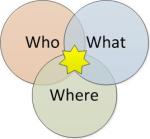
Here comes Exchange 2010. New in Exchange is management of delegation and permissions through the so called Role Based Access Control model, shortened to RBAC. RBAC is partially configurable through the RBAC User Editor (Exchange Management Console > Toolbox) or fully using cmdlets. The RBAC model is based on three pillars, Who, What and Where.
Who
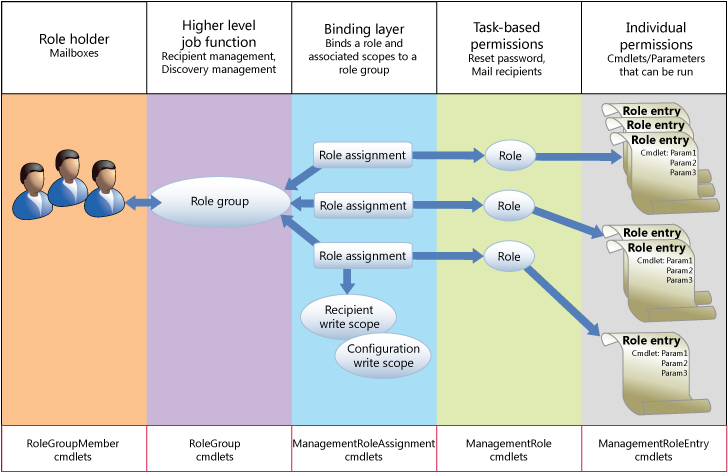
The Who (not the band) determines which user (in RBAC users are represented by mailboxes) or group (Universal Security Group) receives permissions. This information is stored in Role Groups, which can be managed through the RoleGroup and RoleGroupMember cmdlets.
To create a new Role Group we use the New-RoleGroup, like:
New-RoleGroup “UM Pincode Resetter” –Roles “Reset UM Pin”
Users or groups can be added directly to the Role Group at creation time, or can be added by using the Add-RoleGroupMember, like:
Add-RoleGroupMember “UM Pincode Resetter” –Member Angelique
To manage a Role Group, one has to be a member of the Organization Management Role Group or be the manager of the Role Group as determined by the ManagedBy attribute. Pay attention, members of the Organization Management Role Group manage the Organization Management Role Group. You could create a situation where nobody is able to manage anything.
Take note that a Role Group is nothing else but a Universal Security Group with a special flag indicating the USG is a Role Group. In Active Directory, Role Groups are located in the Microsoft Exchange Security Groups OU.
What
The What decides what permissions are assigned by creating sets of cmdlets and parameters. This information is stored in RBAC’s Management Roles which can be managed through the ManagementRole and ManagementRoleEntry cmdlets.
Of itself, Exchange 2010 knows about 65 Management Roles, which can be queries using:
Get-ManagementRole
The permissions of a Management Role can be retrieved through the Get-ManagementRole (Roles attribute) or through the Get-ManagementRoleEntry cmdlet:
Get-ManagementRoleEntry “UM Mailboxes\*”
What we see are all cmdlets and parameters available to the Management Role “UM Mailboxes”.
When creating our own Management Role, we need to specify an existing Management Role, the so called parent:
New-ManagementRole –Name “Reset UM Pin” –Parent “UM Mailboxes”
Be advised only custom Management Roles can be removed and all permissions of a Management Role should be removed before the Management Role itself can be removed. By specifying the recurse parameter in the Remove-ManagementRole cmdlet you can perform cascaded deletes of custom Management Roles with a parent-child relationship.
After creating the custom Management Role with initial settings taken from the parent, we can start adding or removing permissions. Be advised that Management Roles require at least one Management Role Entry. Also, in order for Set cmdlets to work, you should allow the Get counterparts, so we will start by removing all ManagementRoleEntry items but one:
Get-ManagementRoleEntry “Reset UM Pin\*” | where { $_.name –ne “Get-UMMailboxPIN”} | Remove-ManagementRoleEntry
Next, we can add custom permissions using Add-ManagementRoleEntry:
Add-ManagementRoleEntry “Reset UM Pin\Set-UMMailboxPIN” –Parameters “Identity,Pin,PinExpired,LockedOut”
What might be helpful is that Get-ManagementRoleEntry can be used to retrieve all Management Roles which are allowed to execute certain cmdlets with what parameters, e.g.:
Get-ManagementRoleEntry “*\*” | where { $_.Name –eq “Set-User” }
Where
Where determines the scope, which can be anything from a certain group of users, a server or an Active Directory site to an Organizational Unit or complete organization. RBAC has two types of scopes. First are Implicit scopes, which are scopes defined by the default Management Roles, e.g. Organization, MyGAL, Self, MyDistributionGroups, OrganizationConfig and None. Second type are Explicit scopes, which are predefined or custom scopes.
To view the scopes of a Management Role use the Get-ManagementRole, e.g.:
Get-ManagementRole “UM Mailboxes” | fl *scope*
As we can see, a Management Role has four scopes:
- Recipient Read Scope: Which AD recipient objects one can read from;
- Recipient Write Scope: Which AD recipient objects one can write to;
- Configuration Read Scope: Which AD configuration objects one can read from;
- Configuration Write Scope: Which AD configuration objects one can write to.
As said earlier, new Management Role entries must be based on an existing Management Role. At creation time the new Management Role will inherit (i.e. copy settings) the original scopes from the parent, after which they can be changed. Also, remember that the Write scope must be equal or smaller than the Read scope; you need to be able to Get things before you can Set things.
To create a custom scope use the New-ManagementScope cmdlet with one of the following, mutually exclusive, filters:
- RecipientRestrictionFilter to filter Recipients. You can optionally specify the root using the RecipientRoot, otherwise it will apply to the whole organization;
- ServerRestrictionFilter to filter Server objects;
- ServerList to filter server names.
Examples:
New-ManagementScope –Name “NL Site” –ServerRestrictionFilter {ServerSite –eq “NL”}
New-ManagementScope –Name “Staff Secretaresses” –RecipientRoot “domain.local/Staff” –RecipientRestrictionFilter { memberofgroup -eq “cn=Secretaries,ou=Users,dc=domain,dc=local” }
Regarding the possibilities of filtering Exchange 2010 refers to Exchange 2007 documentation, see http://technet.microsoft.com/en-us/library/bb738155.aspx. For more background information on scopes, see http://technet.microsoft.com/en-us/library/dd335146%28EXCHG.140%29.aspx.

1+1+1=3
After defining the Who, What and Where we can start combining these elements by using Role Assignments. A Role Assignment is the link between a Role Group and a Management Role, with additional attributes like Recipient and Configuration Scopes.
Existing Role Assignments of a Role Group can be retrieved using Get-RoleGroup, e.g.:
Get-RoleGroup “UM management” | fl
The attribute RoleAssignment contains the current Role Assignments. All Role Assignments can be queried using Get-ManagementRoleAssignment, e.g.:
Get-ManagementRoleAssignment “UM Mailboxes-UM Management” | fl
As we can see, Microsoft used a combination of the ManagementRole and RoleGroup names to label Role Assignments. This is good practice and makes it easier to understand – and remember – which Role Assignment affects which Management Role and Role Group.
Using New-ManagementRoleAssignment we can assign a ManagementRole to a Role Group or other USG, a policy (more on this perhaps in another article) or user (mailbox), e.g.
New-ManagementRoleAssignment –Name “Reset UM Pin-UM Pincode Resetter” –Role “Reset UM Pin” -SecurityGroup “UM Pincode Resetter” –CustomRecipientWriteScope “Staff Secretaresses”
Conclusion
The Exchange 2010 and RBAC model create new opportunities for customers. Large companies, who probably already have complex delegation models in-place, will like the more fine grained controls to support business requirements. Their challenge lies in converting their existing model to the new designed RBAC model. For smaller customers the default set of roles, groups, scopes and assignments might appear overwhelming at first, but eventually be found an asset as it supports least privilege security model and get rid of the (Exchange) Adminsistrators surplus.






 EighTwOne (821)