Michel de Rooij, with over 25 years of mixed consulting and automation experience with Exchange and related technologies, is a consultant for Rapid Circle. He assists organizations in their journey to and using Microsoft 365, primarily focusing on Exchange and associated technologies and automating processes using PowerShell or Graph. Michel's authorship of several Exchange books and role in the Office 365 for IT Pros author team are a testament to his knowledge. Besides writing for Practical365.com, he maintains a blog on eightwone.com with supporting scripts on GitHub. Michel has been a Microsoft MVP since 2013.
A quick note that an update was released for current Exchange versions as well as Exchange 2010 related to the following advisory:
ADV190018 Microsoft Exchange Server Defense in Depth Update
Unfortunately – or perhaps understandably – the advisory doesn’t present any more details than, ‘”Microsoft has released an update for Microsoft Exchange Server that provides enhanced security as a defense in depth measure.”.
Be advised that the Security Updates for Exchange 2013-2019 are Cumulative Update level specific. Unfortunately, the security update carries the same name for different CU’s, and you cannot apply the update for Exchange 2016 CU12 to Exchange 2016 CU11. I would suggest tagging the Cumulative Update in the file name when you store it, e.g. Exchange2016-KB4503027-x64-en_CU11.msp.
As with any patch or update, I’d recommend to apply this in a acceptance environment first, prior to implementing it in production.
Yesterday, an article was published on ZDNet, where the author claims “Russian Cyberspies” are exploiting a backdoor in Exchange. The article is based on a report of Slovakian-based ESET Research, which is no stranger on the anti-virus/malware market. The report, titled “Turla LightNeuron, One email away from remote code execution”, claims the group – Turla – leverages LightNeuron to exploit Exchange Server for malicious usage, using instructions hidden in image attachments delivered through e-mail to control the backdoor. The news was quickly picked up by other media, and it didn’t take long for customers to start asking questions on the topic. Time for some fact checking.
Exchange Backdoor The article claims the group using ‘one of the most complex backdoors’ ever spotted on an email server. While complexity is relative, it could very well be that this backdoor was indeed discovered on some improperly managed Exchange Servers in the wild.
However, the exploit leverages an installed malicious MTA (Message Transfer Agent, or Transport Agents in Exchange). An MTA is software handling incoming and outgoing e-mail messages using the Simple Mail Transfer Protocol (SMTP). A lot of legitimate 3rd party MTAs exist for Exchange Server, for example to add disclaimers to messages or for message hygiene purposes.
This LightNeuron is the actual backdoor, so there is no backdoor in Exchange. A totally different conclusion than one could read from the article’s title, and a totally different attack vector:
How did this Transport Agent get installed on Exchange server in the first place?
How was it possible to store the DLLs required by the Transport Agents, and which are likely to get caught by AV products, on Exchange Server?
How was it possible to perform these tasks using administrative access, which is required to install such components in the first place?
The ESET report mentions this requirement; the ZDNET article and all other media simply omit this. Note that developing your own Transport Agent isn’t rocket science; Microsoft provides instructions on how to write your own custom Transport Agent for Exchange Server on-premises.
Hidden Instructions Sending instructions hidden in images isn’t new. Steganography became famous to public in the last decade, where Osama Bin Laden was claimed to be embedding instructions for his followers in images posted on the internet. Little messages can also easily be embedded in the structure of an image file format, with places to store custom data or instructions.
Remote Control As the installed malicious MTA runs under administrative permissions, it is no surprise that whoever (remotely) controls the MTA, in principle controls the Exchange Server as it runs in the context of the Exchange Trusted Subsystem.
Remote Controlled malicious code is not new; it is what drives zombie computers, and it is what made some prank tools popular in the mid-90’s, when you could prank your coworkers by opening their CD trays (anyone remember those?).
Impact ESET claims that Turla has been leveraging LightNeuron for nearly 5 years, “which shows the tool’s advanced capabilities, being able to avoid detection for so many years”. In my opinion, this shows how many organizations have more bigger issues, such as an improperly managed mail environment.
SendMail The report also mentions LightNeuron being ported to *NIX as well, e.g. SendMail. This shows perfectly that any communications system, when compromised, can be used for man-in-the-middle attacks. However, mentioning leaks in SendMail might not drive traffic as much as mentioning ‘Backdoor in Exchange’ for media, which is a driver when you depend on advertisements.
Detection The article claims the hidden messages make LightNeuron hard to detect. Of course, this depends. The backdoor requires installation and presence of two malicious DLL files. Any respectable AV product should catch those. Windows Server 2016+ comes with Windows Defender, which according to its encyclopaedia should be able to detect Turla variants.
Removal Finally, the article claims that, “removing this backdoor is quite problematic”. This is utter nonsense, as any weathered Exchange administrator should be able to install or uninstall Transport Agents as part of their skill set.
Conclusion In summary and concluding:
This is not a backdoor in Exchange Server.
The backdoor is a malicious Transport Agent which needs to be installed on the Exchange Server
Installing this backdoor requires administrative permissions.
Well-managed Exchange environments should be OK.
Removal is simple, and a task any Exchange admin should be able to perform.
Windows Defender detects Turla variants.
And last but not least:
Media should do proper fact-checking as opposed to blindly copying articles.
Media should use titles which reflect the contents, and refrain from click-bait titles.
ESET is a vendor selling e-mail hygiene and security-related products, which always is a potential red flag when these kinds of reports are published.
A little notice on a potential helpful feature which was introduced to Outlook at some point, but I wasn’t aware of before (or it’s just new). At least the option is available in Outlook v1905 build 11629.20008 C2R; it might also be available in standalone.
Many people are familiar with the Outlook Connection Status window, which you can summon by right-clicking the Outlook icon in the system tray while holding CTRL. This will show a dialog containing the connections Outlook is managing for every configured account, together with valuable information like endpoint, response times, etc.
One of the columns, Req/Fail, is showing the number of Requests and Failed requests. To check the headers of the last failing response for a particular connection, double-click the Req/Fail number. This will open up a popup window similar to this one:
Apart from essentials like the http result code, it will show which front-end and back-end servers processed the request. This might help to quickly determine if clients are connecting to unfavorable public endpoints, or when failed requests are coming from specific in case of Exchange on-premises. Of course, this information can also be retrieved using additional tools like Fiddler, but with this shortcut you don’t need to install additional software, as well as that you can ask end users to open up this window and send you the information.
Again, another little gem which might come in handy when troubleshooting.
Exchange 2010 is currently in Extended Support. Extended support for Exchange 2010 ends January 14, 2020.
Don’t forget to put the Exchange server in maintenance mode prior to updating.
If you want to speed up the update process for systems without internet access, you can follow the procedure described here to disable publisher’s certificate revocation checking.
The order of installation shouldn’t matter with the “every server is an island” concept, yet recommended is to upgrade internet-facing first, followed by non-internet-facing servers, and finally Edge Transports.
Notice on KB4487563:
Apart from the known issues mentioned in KB4487563, there are reports the fix terminates while stopping services, and the following error is being logged: [Error] System.Management.Automation.CommandNotFoundException: The term ‘Stop-SetupService’ is not recognized as the name of a cmdlet, function, script file, or operable program.
This Stop-SetupService isn’t a regular cmdlet, and I assume is an alias created by the update. However, there are reports this operation fails. In those circumstances, next to retrying installation of the update, a workaround might be opening up a PowerShell session and adding the alias yourself using New-Alias Stop-SetupService Stop-Service, followed by running the update. The alias isn’t persistent, so will be gone after you close your session.
Caution: As for any update, I recommend to thoroughly test updates in a test environment prior to implementing them in production. When you lack such facilities, hold out a few days and monitor the comments on the original publication or forums for any issues.
Update 5May2021: Relocated information regarding External Tagging feature to new blog.
In the ongoing battle against spam and phishing, technical measures have much effect as they are able to triage spam or phishing messages based on configuration or programmed rules. By now, many of these measures have been widely adopted to limit messages of those categories to reach the inbox of the end user. Measures like SPF (Sender Policy Framework), DKIM (DomainKeys Identified Mail) and DMARC (Domain-based Message Authentication, Reporting and Conformance) can be used to validate origination or contents of the message, or authenticate senders.
This post isn’t about those measures or how to implement them. I suggest reading this excellent DMARC implementation guide by MSFT’s Martijn van Geffen for more information on how to implement SPF and DMARC successfully. Note that his website also contains lots of tools and scripts to troubleshoot and report on SPF/DMARC. If you’re unfamiliair with his site, I suggest you have a look.
One of the “weaker links” in the whole chain of messaging remains the end end user. One can still devise technical measures up to a point, there are still end users out there who blindly click links or follow instructions in that message from ‘Microsoft’ requesting them to change their Office 365 password. One can not always blame the end user; phishers became very crafty in making their deceptions look genuine; even IT professionals often need to look twice to determine legitimacy of a message. For those interested, few months ago Google put a phishing quiz online where you can assess your phishing detection skills.
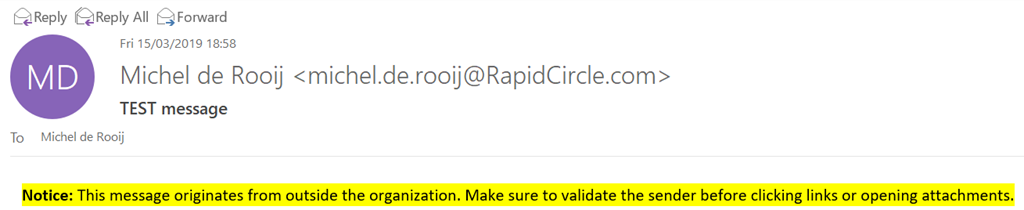
To assist end users processing inbound messages, many companies have resorted to providing visual clues so end users can more quickly determine the origin of a message or the message being potentially non-legit. One measure often is marking messages originating from outside the organization, by inserting a notice before the contents, or prefixing the subject with something like “[External]”.
Recently, MVP fellow Tony Redmond wrote an article on how to accomplish marking external messages using transport rules in Exchange. For example, to create a transport rule you can use the following cmdlet:
New-TransportRule -Name 'Tag External Mail' -SetHeaderName 'X-ExternalMail-Tagged' -SetHeaderValue 'True' -ApplyHtmlDisclaimerLocation Prepend -ApplyHtmlDisclaimerText '<span style="background-color:yellow;color:black;"><b>Notice</b>: This message originates from outside the organization. Make sure to validate the sender before clicking links or opening attachments.</span>' -ExceptIfHeaderContainsMessageHeader 'X-ExternalMail-Tagged' -ExceptIfHeaderContainsWords 'True' -ExceptIfSenderInRecipientList Allow -FromScope NotInOrganization
The above will create a transport rule that prepends the message with a colored (HTML) notice, inserting a message header to prevent insertion of multiple notices and allowing end users to add senders to their Safe Sender Allow List to bypass tagging messages.
However, the problem with these notices is that over time it might make end users insensitive, as messages from external sources are usually large in numbers and become part of the other visual noise like disclaimers and marketing messages. Therefor a better option might be to mark messages which fail DMARC or SPF checks, provided you are not rejecting those messages at some level.
For example, to mark messages failing DMARC or SPF checks, you could create the following transport rule:
New-TransportRule -Name 'Tag DMARCSPFFail Mail' -SetHeaderName 'X-DMARCSPFFail-Tagged' -SetHeaderValue 'True' -ApplyHtmlDisclaimerLocation Prepend -ApplyHtmlDisclaimerText '<span style="background-color:white;color:red;"><b>Warning:</b> The sender of this message could not be validated, and may not be the actual sender.</span>' -ExceptIfHeaderContain sMessageHeader 'X-DMARCSPFFail-Tagged' -ExceptIfHeaderContainsWords 'True' -ExceptIfSenderInRecipientList Allow -FromScope NotInOrganization -HeaderMatchesMessageHeader 'Authentication-Results' -HeaderMatchesPattern 'dkim=fail','spf=TempError','spf=PermError', 'spf=SoftFail', 'spf=Fail', 'spf=None'
Of course, you could also prepend the subject with a tag to help identifying messages in this category.
More recently, Microsoft added the MailTip feature to Outlook Mobile which also helps in making end users more aware of their outbound communications. After enabling the MailTips for external recipients using:
end users will receive a notification when replying to or sending messages outside their organization from Outlook Mobile; Outlook Desktop already had this feature.
Outlook Desktop:
Outlook Mobile:
MailTips are in my opinion the preferred visual clue when compared to inserting content, as it not only can notify users upfront, it also doesn’t clutter message bodies with notifications and warnings. In the end, these notifications are however a small price to pay, compared to the cost of phishing or end users clicking malicious links. It would be nice if Microsoft could already show the MailTip when displaying the message, so it would prevent accidental clicking of malicious links or attachments.
May 5th 2021: A new feature has been introduced to Exchange Online (MC243047), which allows organizations to tag external inbound messages. Information on this new feature has been published in a new blog: Tagging External Messages.
On a final note, Advanced Threat Protection (ATP) could also help companies with the protection against malicious links and attachments, however not every company has ATP licenses. In both cases, these notices might complement the overall set of measures.


 Updated Jun13: Corrected Ex2010SP3RU28 link
 Yesterday, an article was published on ZDNet, where the author claims “Russian Cyberspies” are exploiting a backdoor in Exchange. The article is based on a report of Slovakian-based ESET Research, which is no stranger on the anti-virus/malware market. The report, titled “Turla LightNeuron, One email away from remote code execution”, claims the group – Turla – leverages LightNeuron to exploit Exchange Server for malicious usage, using instructions hidden in image attachments delivered through e-mail to control the backdoor. The news was quickly picked up by other media, and it didn’t take long for customers to start asking questions on the topic. Time for some fact checking.
 A little notice on a potential helpful feature which was introduced to Outlook at some point, but I wasn’t aware of before (or it’s just new). At least the option is available in Outlook v1905 build 11629.20008 C2R; it might also be available in standalone.



 EighTwOne (821)