

Unknown's avatar

About Michel de Rooij

Michel de Rooij, with over 25 years of mixed consulting and automation experience with Exchange and related technologies, is a consultant for Rapid Circle. He assists organizations in their journey to and using Microsoft 365, primarily focusing on Exchange and associated technologies and automating processes using PowerShell or Graph. Michel's authorship of several Exchange books and role in the Office 365 for IT Pros author team are a testament to his knowledge. Besides writing for Practical365.com, he maintains a blog on eightwone.com with supporting scripts on GitHub. Michel has been a Microsoft MVP since 2013.

Internal Message Classifications visible in Outlook


Ex2013 LogoMessage classifications were introduced with Exchange 2007 which seems like ages ago now. They are a piece of metadata which you can assign to messages, for example the intended audience or sensitivity of messages. These message can then be treated accordingly by the recipient or you can leverage transport rules functionality and Rights Management Services to act on or protect these messages.

Let’s assume you have created a custom message classification using the following cmdlet:

New-MessageClassification –Name ‘InternalUseOnly’ –DisplayName ‘Internal Use Only’ –SenderDescription ‘This message is for internal use only.’

When you retrieve the list of message classifications using Get-MessageClassifications you will notice three additional classifications:

image

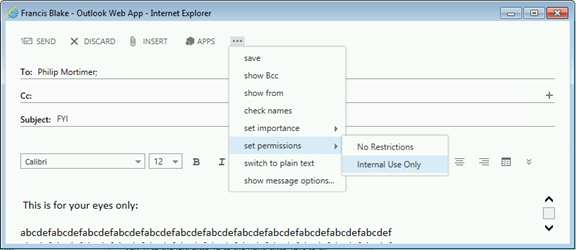
Exchange comes with these message classifications which are used by Exchange internally: ExAttachmentRemoved, ExOrarMail and ExPartnerMail. These should not be used by users, let alone be visible. To make them hidden, the PermissionMenuVisible attribute is set to $false for these classifications. This will make them not show up in Outlook WebApp:image
Now, using classifications in Outlook is less admin-friendly and requires exporting of classification information and configuring Outlook to read these classifications from a file. In short, the process described on TechNet TechNet to use message classifications from Outlook is as follows:

From the Exchange Management Shell, run the Export-OutlookClassification.ps1 script from Exchange scripts folder, e.g.

& ‘C:\Program Files\Microsoft\Exchange Server\v15\Scripts\Export-OutlookClassification.ps1’ | Set-Content ‘C:\OutlookClass.xml’

Next, copy the XML file to a location on the client or networked location which is readable by Users. On the client, make the following registry changes:

[HKEY_CURRENT_USER\Software\Microsoft\Office\15.0\Common\Policy]
"AdminClassificationPath"="c:\\Classifications.xml"
"EnableClassifications"=dword:00000001
"TrustClassifications"=dword:00000001

Note: For the purpose of this example the XML is stored as C:\Temp\OutlookClass.xml . Note that “15.0” is for configuring Outlook 2013, replace with 14.0 for Outlook 2010 and 12.0 for Outlook 2007.

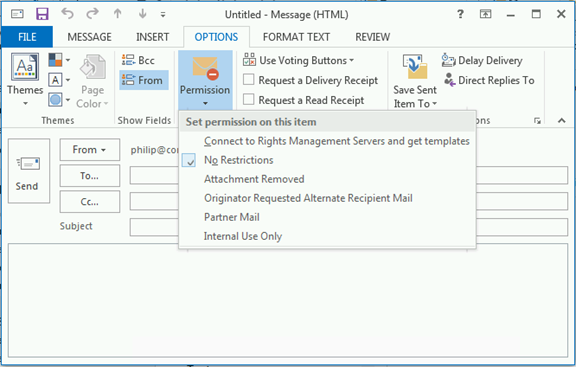
Restart Outlook so it will use these settings. When composing a message you will now see the message classification options appear under Options > Permission:
image

Apart from the message classification “Internal Use Only” we created, you will also see that Outlook shows the internal classifications by their display name. That should not be happening.

When you open up the Outlook classifications export file, you will spot that it contains all classifications, including the internal ones:image
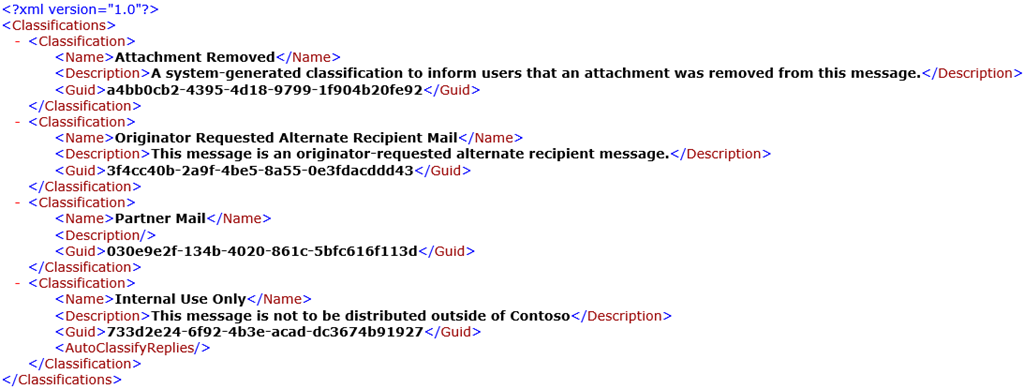
So, what you can do now and what the documentation seems to fail to mention, is that after exporting message classifications you may want to remove the internal classifications “Attachment Removed” (ExAttachmentRemoved), “Originator Requested Alternate Recipient Mail” (ExOrarMail) and “Partner Mail” (ExPartnerMail) from the XML export file. Downside is that message with these internal classifications will not display the related description in Outlook, but that should not be an issue and a better option than users being able to select them.

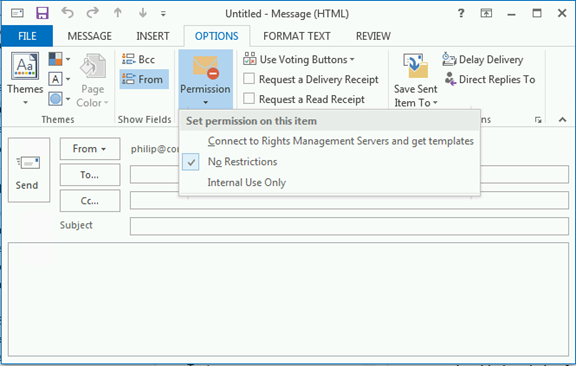
When you have removed the three entries from the XML file and restarted Outlook, the built-in options will no longer be on the permission menu:
image

Exchange 2013 SP1 Transport Agent Fix (updated)


Ex2013 LogoAfter installing Exchange 2013 Service Pack 1, people reported issues with Transport Agents. Symptoms are that the Transport service doesn’t start or stops shortly after starting the service or you can’t install the 3rd party product.

Products experiencing the issue are TrendMicro ScanMail, McAfee Email Security (GroupShield), Symantec Mail Security for Exchange, AVG for Servers, ESET Mail Security for Exchange and CodeTwo Exchange Rules. Products from other vendors may be affected as well.

Microsoft is aware of this issue and has published KB2938053 which has a small Exchange2013-KB2938053-FixIt.zip script to fix the issue.

The cause of the issue lies in XML files containing invalid XML markup in the form of “comments” which prevents .NET from loading the XML files, e.g.

<!-- 15.0.847.30 -------------------------------->

The two files containing the invalid XML markup are:

$Env:Windir\Microsoft.NET\assembly\GAC_MSIL\policy.8.0.Microsoft.Exchange.Data.Common\v4.0_15.0.847.30__31bf3856ad364e35\Microsoft.Exchange.Data.Common.VersionPolicy.cfg
$Env:Windir\Microsoft.NET\assembly\GAC_MSIL\policy.8.0.Microsoft.Exchange.Data.Transport\v4.0_15.0.847.30__31bf3856ad364e35\Microsoft.Exchange.Data.Transport.VersionPolicy.cfg

Be advised that the script supplied in the KB article tries to locate and fix various alternate versions of those files. Something you might want to consider as well when fixing it manually, should you be unable to locate the specific files mentioned above.

After running the script you should be able to start the Transport service or install 3rd party containing transport agents..

Update (3/5): Updated blog after official KB article got published. The issue was also blogged on by fellows Jason Sherry, Paul Cunningham while Tony Redmond has additionanal background details here.

Inbound e-mail not accepted after applying Exchange 2013 SP1


Ex2013 LogoAfter installing Exchange 2013 Service Pack 1 you may notice that inbound e-mail is not accepted and attempts to connect to port 25 will result in a timeout.

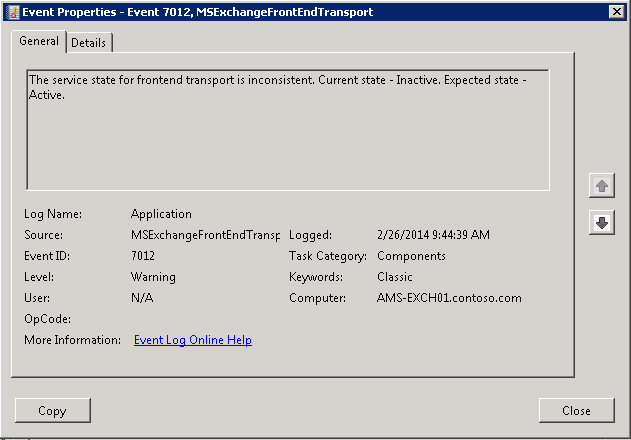
The application event log will contain event log entries ID 7012, generated by the MSExchangeFrontEndTransport, mentioning that “The service state for frontend transport is inconsistent. Current state – Inactive. Expected state – Active”:

image

When inspecting the component state from the Exchange Management Shell using:

Get-ServerComponentState <ServerID> -Component FrontendTransport

you will notice that it really is inconsistent, as Exchange will report that the component is active:

image

The quick workaround for this issue at the moment is to restart the Frontend Transport service:

Restart-Service MSExchangeFrontendTransport

After a restart of the service, or system restart if you must, the component state is working fine again and connections are accepted. In addition, the MSExchangeFrontendTransport will generate an event log entry ID 7009, “Retrieved the service state. Host service – FrontendTransport, Service state data – Active.”

Exchange and The UC Architects fellow Paul Cunningham discovered the same issue and blogged about it here.

Exchange 2013 Service Pack 1


Ex2013 LogoThe long awaited Service Pack 1 for Exchange Server 2013 was released today by the Exchange Team (KB2926248). This update raises Exchange 2013 version number to 15.0.847.32.

Service Pack 1 introduces the following changes or enhancements:

  • Support for running Exchange Server 2013 SP1 on Windows Server 2012 R2.
  • Support for Windows Server 2012 R2 Domain Controllers and Windows Server 2012 R2 Forest and Domain Functional Level.
  • MAPI over HTTP.  More information on MAPI over HTTP here. Note that MAPI over HTTP requires Outlook 2013 SP1; you can download Office 2013 SP1 32-bit version here and the 64-bit version here.
  • DLP policy tips for OWA.
  • Add custom document types to DLP using fingerprinting technologies.
  • Cmdlet logging in Exchange Administrative Console.
  • Support for IP-less DAGs (on Windows Server 2012 R2).
  • S/MIME support.
  • Rich-Text editor for OWA.
  • Edge Transport server role.
  • Support for SSL Offloading.

Service Pack 1 includes the following fixes:

  • 2860242 HTML format is lost after saving as an MSG file in Exchange 2013
  • 2900076 Mailbox quota warning message uses an incorrect language in Exchange Server 2013
  • 2910199 “Reply all by IM” chat window displays seven recipients in Outlook Web App
  • 2913999 Meeting request body and instructions are lost in delegate’s auto-forwarded meeting request
  • 2918655 Microsoft.Exchange.Servicehost.exe crashes after you enable FIPS
  • 2918951 Users cannot access public folders after you upgrade to Exchange Server 2013 Cumulative Update 3
  • 2925281 Outlook connectivity issue if SSLOffloading is “True” in Exchange 2013
  • 2925544 Empty ExternalURL value for ActiveSync virtual directory after build-to-build upgrade of Exchange Server 2013
  • 2927708 Resource mailboxes that are created by EAC will not be updated by policies in Exchange Server 2013
  • 2928748 Default from delegate’s address in shared mailboxes in Exchange Server 2013
  • 2928803 Long server connection for Outlook after a database failover in Exchange Server 2013
  • 2930346 POP3 access does not work if the name of the resource mailbox differs from the user’s name
  • 2930348 Manual redirection occurs in Outlook Web App if External URLs in each site are the same
  • 2930352 Outlook Web App cross-site silent redirection does not work in Exchange Server 2013

Cumulative Updates and Service Packs includes schema and AD changes, so make sure you run PrepareSchema /PrepareAD. After updating, the schema version will be 15292.

Note that Service Packs and Cumulative Updates can be installed directly, i.e. no need to install RTM prior to Cumulative Updates or Service Packs. Note that once applied, you can’t uninstall a Cumulative Update or Service Pack nor any of the installed Exchange server roles. The order of upgrading servers is irrelevant, unlike with previous Exchange generations.

Finally, and I can’t emphasize this enough: For any Hotfix, Rollup, Service Pack or Cumulative Update, I’d recommend to thoroughly test this in a test and acceptance environment first, prior to implementing it in production. When you lack such facilities, hold out a week or two and monitor the comments on the release article or TechNet forum for any issues.

Also check with any 3rd party products you may use – there are reports of compatibility issues with 3rd party transport agents by Exclaimer, Trendmicro (other AV solutions possibly as well) and CodeTwo. The cause of the Transport service failing to start or problems with installing 3rd party transport agents has been identified. A workaround can be found here.

You can download Exchange 2013 Service Pack 1 here. The Exchange 2013 SP1 UM Language Packs can be found here. More details about these changes, preparing Active Directory or installing this Cumulative Update can be found in the original announcement here.

Exchange 2010 SP3 Rollup 5


Exchange 2010 LogoToday the Exchange Team also released Rollup 5 for Exchange Server 2010 Service Pack 3 (KB2917508). This update raises Exchange 2010 version number to 14.3.181.6.

This Rollup also adds support for using Windows Server 2012 R12 domain controllers in your Exchange 2010 SP3 RU5 environment as well as support for running Windows Server 2012 R2 forest and domain functional levels.

This Rollup includes the following fixes:

  • 2887459 Public folder expiry time is set incorrectly in Exchange Server 2010 SP3
  • 2892257 Email items are lost when you move items between shared folders by using EWS delegate access
  • 2897935 “Cannot save the object ‘\FolderName'” error message when you try to replicate Exchange Server 2010 public folders
  • 2898908 EdgeTransport.exe crashes if the From field is empty in an email message
  • 2903831 Only a single character is allowed in the disclaimer content in ECP
  • 2904459 RPC Client Access service crashes if you add “Signed By” or “Send From” column in Outlook online mode
  • 2913413 RPC Client Access service crashes with an exception in Exchange Server 2010
  • 2913999 Meeting request body and instructions are lost in delegate’s auto-forwarded meeting request
  • 2916836 EdgeTransport.exe crashes when a transport rule sends a rejection message to an empty address
  • 2919513 Memory leak or memory corruption occurs in Exchange Server 2010
  • 2924971 RPC Client Access service stops when you select an inactive search folder in Outlook 2007 in an Exchange Server 2010 SP3 environment
  • 2926057 EdgeTransport.exe crashes if seek operation failed in Exchange Server 2010
  • 2927856 Incorrect recurring meeting if disclaimer transport rule is enabled in Exchange Server 2010

Notes:

  • As of Service Pack 2 Rollup 4, its no longer required to disable/re-enable ForeFront Protection for Exchange using the fscutility to be able to install the Rollup properly. However, if you want to remain in control, you can disable ForeFront before installing the Rollup using fscutility /disable and re-enable it afterwards using fscutility /enable.
  • If you want to speed up the update process for systems without internet access, you can follow the procedure described here to disable publisher’s certificate revocation checking.
  • If you got a DAG and want to properly update the DAG members, check the instructions here.
  • Rollups are cumulative, i.e. they contain fixes released in earlier update Rollups for the same product level (RTM, SP). This means you don’t need to install previous Rollups during a fresh installation but can start with the latest Rollup package.

As with any Hotfix, Rollup or Service Pack, I’d recommend to thoroughly test this rollup in a test and acceptance environment first, prior to implementing it in production.

You can download Exchange 2010 SP3 Rollup 5 here.
