 When processing strings, you may sometimes need to split those strings into several parts based on criteria. For example, you may need to split the ActiveSync DeviceUserAgent string, which can be used to identify the model and version of a device, for example:
- Apple-iPhone4C1/1002.142
- Apple-iPad2C1/1002.141
- Apple-iPhone4C1/1001.523
Now let’s assume you want to take this string apart in the device model and the version, using the slash as a marker. When asking 10 people, a majority will come up with something along the following kind of structure:
$pos= ($Device.DeviceUserAgent).IndexOf("/")+1
$Device= ($Device.DeviceUserAgent).Substring(0, $pos)
$Version= ($Device.DeviceUserAgent).Substring($pos+1)
Of course, this works but you need to understand what’s going on and additional code is required the handle situations when there’s no “/” present. Perhaps a more elegant and readable way, especially if you want to split the string in more than 2 parts, is using regular expressions to perform pattern matching. When used in combination with named groups, you will get easily referable parts using a name.
For the purpose of demonstrating it’s power, we’ll start by assigning some user agent strings to a variable. Note that you could use the DeviceUserAgent property of a collection of ActiveSync devices as well.
$UserAgents=@("Apple-iPhone4C1/1001.523", "Apple-iPhone3C1/801.293")

The pattern to look for in each user agent string is it starts with some characters, followed by a slash, followed by a number, followed by a dot and ending in a number. Translated to regular expression, the pattern would be:
^(.*)/(\d+)\.(\d+)$
where:
- ^ marks the start of the subject;
- (.*) marks a sub pattern of any character, the * indicates it’s present zero, one or more times;
- The slash is marked by (surprise!) a /;
- (\d+) marks a sub pattern of decimal digit, the + indicates it’s used one or more times;
- \. will match the dot (escaping it with “\” makes sure next character is used literally as ‘dot’ normally means any character);
- $ marks the end of the subject.
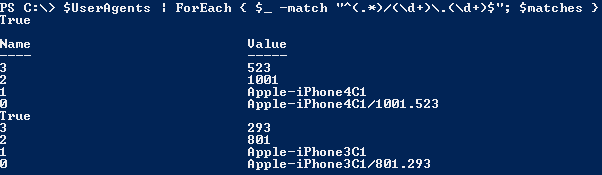
When matching a pattern against a string you can use –match, e.g. “string” –match “pattern”. When this results in True, a match is found; when the result is False, the format of the string is invalid (of course requires properly defined pattern). After performing a match, the predefined variable $matches will contain an array containing the results, where element [0] contains the complete matching string and [1] .. [n] each matching (sub) pattern.
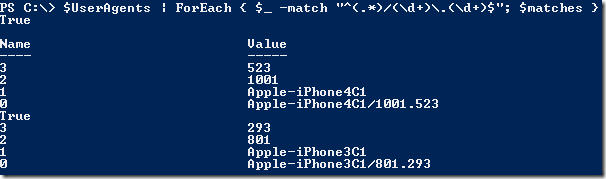
You see that each match returns True (match found) and $matches[1] for example contains the first sub pattern for each match, i.e. the device. This is nice and perhaps neater than splitting strings as mentioned in the start of this article, but wouldn’t it be even cooler if you can refer to those parts using names, e.g. device?
Here’s where named groups come into play and you can compare it to PowerShell’s calculated properties (select @{Name=”KB”; Expression={$_.Size/1kb}}) or column aliases in SQL (SELECT ColA as Name). To use named groups, put “?<name>” at the start of the (sub) pattern. For example, to use the name “device” for the first sub pattern “(.*)”, the expression would become “(?<device>.*)”. The complete pattern using named groups would then become something like:
^(?<device>.*)/(?<major>\d+)\.(?<minor>\d+)$
The cmdlet for this example would then become:
$UserAgents | ForEach { [void]($_ -match "^(?<device>.*)/(?<major>\d+)\.(?<minor>\d+)$"); $matches }
Which will give the following results:

Note that I’ve added casting (i.e. converting a variable to a different type) the output of “-match” to [void] so the match results (True or False) won’t be part of the output.
Having named groups now allows us to use easily match individual parts, filter or group information, e.g.:
$UserAgents | ForEach {
    [void]($_ -match "^(?<device>.*)/(?<major>\d+)\.(?<minor>\d+)$")
    If( $matches.major –gt 800) {
        echo $matches[0]
    }
}
Of course it’s a matter of taste, but having this information available as $matches.device instead of $matches[1] makes introducing changes more easy (no need to renumber when inserting/removing a sub pattern) and results in more readable code.


 In the list of expected products to accompany Exchange 2013, Microsoft today released JetStress 2013, version 15.0.651.0.
![iTunes-Podcast-logo[1]](https://eightwone.com/wp-content/uploads/2012/07/itunes-podcast-logo1-e1341277366970.png)



![logo_itke_sm[1]](https://eightwone.com/wp-content/uploads/2013/03/logo_itke_sm1.gif)
![savethedate[1]](https://eightwone.com/wp-content/uploads/2013/02/savethedate1.jpg)
 EighTwOne (821)