
Unknown's avatar

About Michel de Rooij

Michel de Rooij, with over 25 years of mixed consulting and automation experience with Exchange and related technologies, is a consultant for Rapid Circle. He assists organizations in their journey to and using Microsoft 365, primarily focusing on Exchange and associated technologies and automating processes using PowerShell or Graph. Michel's authorship of several Exchange books and role in the Office 365 for IT Pros author team are a testament to his knowledge. Besides writing for Practical365.com, he maintains a blog on eightwone.com with supporting scripts on GitHub. Michel has been a Microsoft MVP since 2013.

Loadbalancing, ActiveSync and Affinity


Recently, a client was experiencing load issues on the Exchange 2010 Client Access Servers. The client also had installed a hardware load balancer to balance client traffic.

While investigating the PAL results, the ActiveSync connections chart showed a significantly unbalanced number of ActiveSync connections between the CAS servers.

It turned out the client had load balanced all client traffic using Source IP affinity for all protocols. This means each client gets assigned the same CAS server, based on the client’s IP address. While this may sound reasonable, for ActiveSync this may not be optimal. Reason is that most mobile telephony providers use some form of NAT translation for their clients, resulting in these devices to appear having the same IP address.

When organizations standardize on a NAT utilizing mobile telephony provider, the problem might emerge sooner as all of their mobile clients will be assigned to the same Client Access Server.
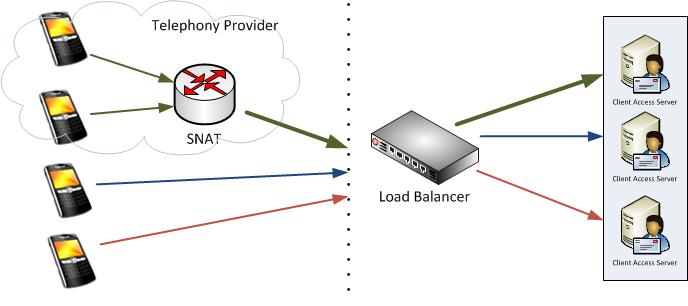
In the picture above you’ll see the top two mobile devices are being NAT’ed. When the top device connects to the Exchange environment, it gets assigned the 1st CAS server based on its IP address. When the 2nd mobile device connects, the load balancer sees the same IP address after which it will direct that traffic to 1st CAS server as well.

While affinity is not required for ActiveSync, it is recommended since for each newly appointed CAS server, the notification subscription to the mailbox to be informed of updates would have to be recreated. Of course, this would result in a performance penalty and increased latency. Another option would be Session ID, but some EAS clients unnecessarily create a new SSL session ID.

After switching affinity from Client IP to Authorization HTTP Header the ActiveSync clients spread out more evenly. When using Authorization HTTP Header affinity, the load balancer uses the base64 encoded credentials as part of the http client request, e.g.

POST http://mail.eightwone.com/Microsoft-Server-ActiveSync/default.eas?Cmd=Sync&..
..
Authorization: Basic YW55IGNhcm5hbCBwbGVhc3VyZS4=

After switching affinity for ECP as well (should be Cookie or Session ID), the load issues were gone.

Where in the past mobile clients were insignificant to Outlook clients when compared in numbers, the ongoing consumerization of IT movement results in an increasing mobile client population. The number of ActiveSync users may easily outweigh the number of Outlook clients, as many users use a phone or tablet (or both) in addition to Outlook, if they use Outlook at all.

Forefront Threat Management Gateway SP2


Microsoft released Service Pack 2 for Forefront Threat Management Gateway 2010, updating TMG to version 7.0.9193.500.

Here’s several highlights included in this service pack:

Kerberos Authentication
• You can now use Kerberos authentication when you deploy an array using network load balancing (NLB).

SSL
• Changes to SSL memory pool to increase Outlook performance when using Exchange online.

New Reports
• The new Site Activity report displays a report showing the data transfer between users and specific websites for any user.

Error Pages
• A new look and feel has been created for error pages.
• Error pages can be more easily customized and can include embedded objects.

You can download Forefront TMG 2010 SP2 here. Full release notes will be made available here.

Exchange 2007 SP3 Update Rollup 5


Today the Exchange Team released Rollup 5 for Exchange Server 2007 Service Pack 3 (KB2602324). This update raises Exchange 2007 version number to 8.3.213.1.

Here’s the list of changes included in this rollup:

  • 981820  New X-headers of a message item do not appear when the message item is retrieved by IMAP4 or by POP3 in an Exchange Server 2007 SP2 environment
  • 2292150  A deleted hyperlink remains in the HTML source of an email message if you create the email message by using OWA in an Exchange Server 2007 environment
  • 2411423  The Msftefd.exe process constantly consumes up to 100 percent of CPU resources when your mailbox language is set to German on an Exchange Server 2007 server
  • 2450078  The sent time in an email message body is incorrect when you reply or forward the email message by using an EWS application in an Exchange Server 2007 environment
  • 2451415  “There was a problem logging onto your mail server” error message when you use a POP3 client to access a mailbox in an Exchange Server 2007 SP3 environment
  • 2536652  EdgeTransport.exe randomly stops responding on a Hub Transport server after you configure public folder replication in Exchange Server 2007
  • 2536695  “Some items cannot be deleted” error message when you try to delete or modify an email message in a public folder in an Exchange Server 2007 environment
  • 2536697  DBCS characters in a rule name are converted to question marks after you move a mailbox from Exchange Server 2003 to Exchange Server 2007
  • 2537783  The EdgeTransport.exe process crashes occasionally after you install Update Rollup 2 for Exchange Server 2007 SP3
  • 2538958  Extended Protection Warning Displayed in Exchange Management Console and Exchange Management Shell After Installing RU2 for Exchange 2007 SP3
  • 2554575  Items accumulate in the MRM submission folder when managed folder assistant journal items in an Exchange Server 2007 environment
  • 2556751  The EdgeTransport.exe process crashes when processing certain email messages on an Exchange Server 2007 Hub Transport server
  • 2557304  The Store.exe process may consume excessive CPU resources and memory resources intermittently when a user opens a calendar item by using OWA in an Exchange Server 2007 SP3 environment

When running ForeFront Protection for Exchange, make sure you disable ForeFront before installing the rollup and re-enable it afterwards, otherwise the Information Store and Transport services may not start. You can disable ForeFront using fscutility /disable and enable it using the fscutility /enable command.

Note that update rollups are cumulative, i.e. they contain fixes released in earlier update rollups for the same product level (RTM, SPx). This means you don’t need to install previous update rollups during a fresh installation but can start with the latest rollup available right away.

You can download Exchange 2007 SP3 Rollup 5 here.

Exchange 2010 RTM EOL’s on October 11th


After returning from holiday, between all the Build Windows (Windows 8 ) news, a quick heads-up for those with lagging upgrade schemes or any other valid reason to be still running Exchange 2010 RTM. On October 11th, 2011, support for Exchange 2010 RTM will end.

This should be of no surprise when you practice proper lifecycle management or track Microsoft’s KB bulletins as this information was published on the lifecycle page as well as knowledge base article KB2615653.

For those doing fresh installs and still wondering if this affects their process of installing SP1 versions starting by using the RTM files; since Exchange 2007, Service Packs for Exchange contain all binaries enabling you to perform a fresh installation as well as an upgrade using the same set of files.

You can download Exchange 2010 Service Pack 1 here.

Exchange ActiveSync and Inheritable Permissions issue


The issue and solution described here is by design, but not known by every customer so here’s my short write-up on this subject.

Recently, I was at a customer reporting issues with several users not being able to synchronize their mobile devices using ActiveSync. The customer was running Exchange 2010 SP1 and used various mobile devices, e.g. iPhones as well as Android phones and tablets. A quick look in the IIS logs revealed that devices were connecting properly, but they received HTTP return code 403 (forbidden):

2011-08-30 10:09:31 172.16.10.12 OPTIONS /Microsoft-Server-ActiveSync/default.eas User=XXXXX&DeviceId=d849cec9be024c828b9af73da93bb59b&DeviceType=htcbravo&Log=LdapC2_Error:UserPrincipalCouldNotBeFound_Dc:dc.domain.com_Budget:(D)Conn%3a1%2cHangingConn%3a0%2cAD%3a%24null%2f%24null%2f0%25%2cCAS%3a%24null%2f%24null%2f0%25%2cAB%3a%24null%2f%24null%2f0%25%2cRPC%3a%24null%2f%24null%2f0%25%2cFC%3a1000%2f0%2cPolicy%3aDefaultThrottlingPolicy%5Fe205201e-d418-409a-a15b-4b51baef9bf4%2cNorm%5bResources%3a(DC)dc.domain.com(Health%3a-1%25%2cHistLoad%3a0)%2c%5d_ 443 domain\XXXXX 62.140.137.149 Android-EAS/0.1 403 0 0 124

Another clue was provided by the eventlog, which revealed MSExchange ActiveSync was reporting error 1053:

ss

The remainder of the message reads: “Make sure the user has inherited permission granted to domain\Exchange Servers to allow List, Create child, Delete child of object type “msExchangeActiveSyncDevices” and doesn’t have any deny permissions blocking such operations”. What happens when setting up ActiveSync is that Exchange tries to create a container named ExchangeActiveSyncDevices below the user object in Active Directory and will store in that container an MsExchActiveSync object for each ActiveSync device. Apparently Exchange doesn’t have sufficient permissions to create these objects.

To fix this, open up Active Directory Users and Computers. Now, to be able to inspect the security settings, we first need to activate Advanced Features if not already set. To do this, from the View menu option, select Advanced Features.

Next, navigate to the user object experiencing the issue. Open up Properties, select the Security tab and click Advanced.

image

Notice the Include inheritable permissions from this object’s parent is not set, the reason for Exchange not having any permissions on the object.

To fix the issue, simply check Include inheritable permissions from this object’s parent and click OK. You’ll return to the previous window where you’ll notice the Exchange Server account is now granted permissions on the object:

image

At this point, ActiveSync will work and Exchange will be able to create MsExchActiveSync objects in the ExchangeActiveSyncDevices container:

image

Note that Include inheritable permissions from this object’s parent by default is not enabled for members of the protected groups, e.g. Domain Admins. In fact, every hour the DACL on members of protected groups will be reset and inheritable permissions will be removed. This process is called AdminSDHolder which is to prevent inappropriate changes from being made to protected groups, accidently or otherwise.  Michael B. Smith did a nice write-up on this subject here. This is also the reason why bypassing the AdminSDHolder limitation by manually granting Exchange permissions would be inappropriate.

To prevent this issue, it is recommend to follow an old, yet far from rusty administrator best practice, which is to use one account for day-to-day operations, e.g. work and e-mail, and another account for administrative purposes.