Note: Due to Microsoft putting Ignite 2016 contents on YouTube and a new portal, I had to rewrite the download script. Mattias Fors was also working on this, and after integrating his contents pointers, I present you Ignite2016Download.ps1. Check the description on Technet Gallery page for usage options.
Today, the Ignite 2016 event will kick off in Atlanta, US. The agenda contains the whopping number of 1412 sessions, of which 395 touch Office 365 and 133 Exchange in some way or another.
With those numbers it is impossible to attend every session for folks interested in these topics, but luckily Microsoft will also publish Ignite 2016 sessions on Channel 9 this year.
Some of the interesting sessions to watch out for are (links should resolve to on-demand sessions, as they become available):
Secure Office 365 in a hybrid directory environment
Alvaro Vitta
For those that wish to view sessions offline, there is a script to download the slidedecks and videos. It does so by scraping the Ignite portal, downloading slidedecks from the portal itself, and videos from the related YouTube video link using an utility youtube-dl.exe (which you can also use to download playlists, quite neat). The script can take some parameters:
DownloadFolder to adjust the download folder.
Format to alter the dimensions and quality of the downloaded videos (see help for supported formats).
Title to filter on title keyword
Keyword to filter on description keyword.
Start to use a different version number to start scraping. Scraping is done sequentially; in the output you will notice a (#nnn) next to the title. That is the current post number.
NoVideos to skip downloading videos.
You can download the script from the TechNet Gallery here.
Almost 3 years ago, I wrote an article on how to enhance the PowerShell Integrated Scripting Environment, or ISE. That seemed adequate for the Exchange admin back then, who would mostly connect PowerShell sessions to their on-premises environment, and occasionally a bit of Exchange Online.
Fast forward to 2015, most modern Exchange administrators not only require a connection – if any – to their Exchange on-premises environment, but likely to one or more of the Office 365 services as well, including Exchange On-Premises, Azure Active Directory, Exchange Online Protection, Microsoft Teams, Skype for Business Online, SharePoint Online, Azure Information Protection or Compliance Center.
All these services use a different PowerShell session, use a different endpoint FQDN, and in some cases require a locally installed PowerShell module. Likely common denominator is the credential used to access each of these services. So, tired of re-entering my credentials every time when switching from Exchange Online to Exchange Online Protection, I created a script with a set of functions to allow me connect to each individual Office 365 service or Exchange Online:
Connect-AzureActiveDirectory: Connects to Azure Active Directory
Connect-AIP: Connects to Azure Information Protection
Connect-ExchangeOnline: Connects to Exchange Online
Connect-SkypeOnline: Connects to Skype for Business Online
Connect-EOP: Connects to Exchange Online Protection
Connect-ComplianceCenter: Connects to Compliance Center
Connect-SharePointOnline: Connects to SharePoint Online
Report-Office365Modules: Report on known vs online module versions
Note that functions and credentials used in the script are global, and in principle only need to be entered once per shell or ISE session. If you need different credentials, call Get-Office365Credentials again. User interaction is a very basic (Read-Host), but it does the job. The script will also detect if any PowerShell module supporting Multi-Factor Authentication is installed. If so, you will be prompted if for using MFA when authenticating to workloads such as Exchange Online, Azure Active Directory, Microsoft Teams, Skype for Business Online or SharePoint Online.
Requirements During initialization, the script will detect the modules which are required for certain Office 365 services. When not installed, it will notify you, and provide a link where to obtain the PowerShell module. The related Connect function will not be made available. PowerShell is required to run this script, which is tested against version 5.1 (but should work with lower versions down to version 3).
Usage The functions are contained in a script called Connect-Office365Services.ps1. You can call this script manually from your PowerShell session to make the functions available. However, more convenient may be to have them always available in every PowerShell or ISE session. To achieve this, you need to edit your $profile, which is a script which always starts when you start a PowerShell or ISE session. By default this file does not exist and you need to create it, including the path. Also note that the files for PowerShell and ISE are different, Microsoft.PowerShell_profile.ps1 and Microsoft.PowerShellISE_profile.ps1 respectively.
Now, of course you can copy and paste the functions from the script file to your own $profile. Better is to call the script from your $profile, as this allows you to overwrite the Connect-Office365Services.ps1 with updates. To achieve this, assume you copied the Connect-Office365Services.ps1 in the same location as your $profile, for example C:\Users\Michel\Documents\WindowsPowerShell. You can then make PowerShell and ISE call this script by adding the following line to the $profile scripts:
& “$PSScriptRoot\Connect-Office365Services.ps1”
Now when you start a PowerShell session, you might see the following:
This shows the default environment is targeted (AzureCloud), the Exchange Modern Authentication PowerShell module as well as other modules mentioned in the example are installed. When online version checking is enabled (OnlineModuleVersionChecks variable), a check will be performed against the online repository, e.g. PSGallery, and outdated modules will be reported, like the Skype for Business Online module in the example. It’s also possible to automatically update modules setting the variable OnlineModuleAutoUpdate.
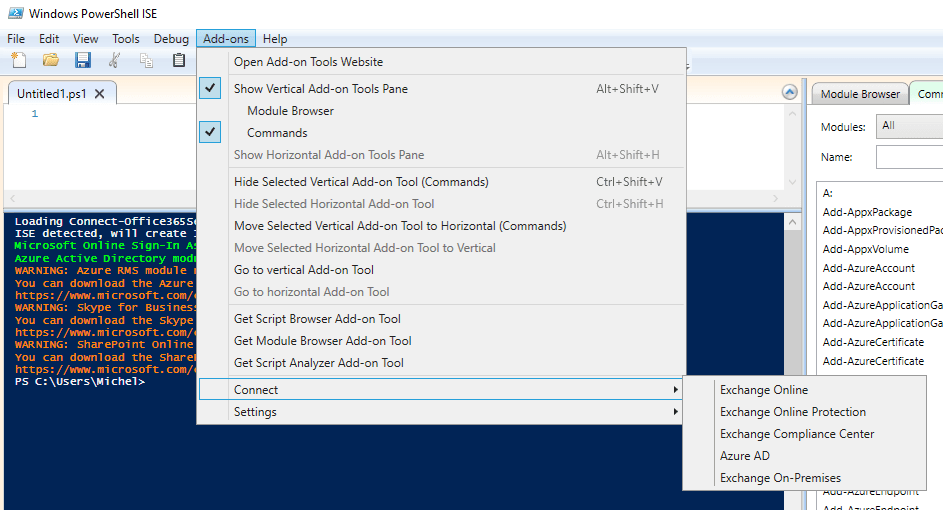
When you load the script from ISE, it will show something similar. However, it will also detect ISE and make connect functions available through the Add-On menu:
Notes Customize this script to your liking. Note that for updating modules, you need to have administrator permissions on the local system.
Revision History Revision information is embedded in the source.
Feedback Feedback is welcomed through the comments. If you got scripting suggestions, questions or want to report bugs, you can do this through GitHub or by using the contact form.
Multifactor Authentication is a must-have for services based in the cloud, especially for accounts with administrative purposes. We have already covered what Office 365 Multifactor Authentication is and how to configure it in Office 365 tenants with the Office 365 admin center, and we briefly showed the end user experience. Now we will look at how we can use the Azure Active Directory Module for Windows PowerShell to configure Office 365 authentication with MFA.
Azure Active Directory Module for Windows PowerShell (AADMPS) enables organizations to not only configure MFA for existing end users who use PowerShell, but also enhance their current provisioning process with MFA options. By pre-configuring MFA, administrators can prevent end users from having to go through the initial MFA setup process and use their currently configured mobile phone or office number for verification.
Multi-Factor Authentication identifies an end user with more than one factor. Authentication is based on something you know, such as your password; something you have, such as a security token or smart card; or something that’s a physical characteristic of who you are, such as biometrics. By creating an additional factor on top of the password, identity is better protected. Multi-Factor Authentication is seen as a must-have for cloud-based services, especially for administrative types of accounts.
In this first tip on SearchExchange, I explain how you can configure Multi-Factor Authentication in Office 365, discuss the so-called contact methods, explain app passwords for non-MFA applications as well as show the MFA end user experience.

 Note: Due to Microsoft putting Ignite 2016 contents on YouTube and a new portal, I had to rewrite the download script. Mattias Fors was also working on this, and after integrating his contents pointers, I present you Ignite2016Download.ps1. Check the description on Technet Gallery page for usage options.