 A customer who recently migrated to Exchange 2010 and was still in the co-existence setup with Exchange 2003, reported lots of users experiencing issues with regards to Free/Busy information. Symptoms were inaccurate or missing Free/Busy information, which especially gets annoying when scheduling appointments.
It turned out these users were using Outlook 2003; users on Outlook 2007 or later experienced no issues. As you probably know, Outlook 2003 still utilizes public folders to publish users’ Free/Busy information. This information is consulted by Outlook 2003 when scheduling appointments; Outlook 2007 or later uses Exchange Web Services for this purpose.
A quick look in the Eventlog revealed lots of 14031 errors were generated by the FreeBusy Assistant:

This told us Exchange was unable to store Free/Busy information in a public folder, in this case /o=EUROPE/ou=First Administrative Group. A quick look at the Public Folder Management Console in Exchange 2010 showed that the folder didn’t exist. Since the Free/Busy public folder to be used by an Outlook 2003 user is determined by the legacyExchangeDN attribute, this was the cause of the issue.
The reason for the folder’s absence was unknown so one can only speculate. My best guess is improper decommissioning of the organization and administrative group originally hosting those users, identified by that “orphaned” legacyExchangeDN.
With the Free/Busy public folder missing and the original Exchange infrastructure gone, there are two alternatives to resolving this issue, apart from upgrading clients to a recent version of Outlook of course:
- Edit the legacyExchangeDN attribute of the users affected;
- Recreate the Free/Busy public folder.
The 1st option has consequences for the users, like being able to reply to earlier e-mail by co-workers. This can be resolved by adding the current legacyExchangeDN as an X500 address to the current set of e-mail addresses, but that also makes things a bit messy.
The 2nd option is to recreate the Free/Busy public folder; Here’s how to proceed:
- First, using the Exchange System Manager (luckily, Exchange 2003 was still present), create an Administrative Group, e.g. First Administrative Group
- Then, using ADSIedit.msc, navigate to CN=<Administrative Group>,CN=Administrative Groups,CN=<Organization>,CN=Microsoft Exchange,CN=Services,CN=Configuration,DC=<domain>
- Right-click the Administrative Group, e.g. First Administrative Group, and click Properties. There, edit the legacyExhangeDN attribute. Set it to match the missing Free/Busy public folder, e.g. /o=EUROPE/ou=First Administrative Group
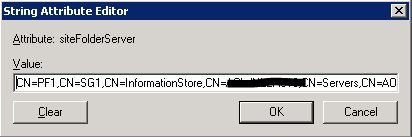
- Next, edit the siteFolderServer attribute. Set it to match the distinguishedName of a a public folder database. Note that you can pick the Exchange 2003 as well as Exchange 2010 Public Folder database here. In this example, I picked the Exhange 2003 public folder database, hence the storage group (SG1):

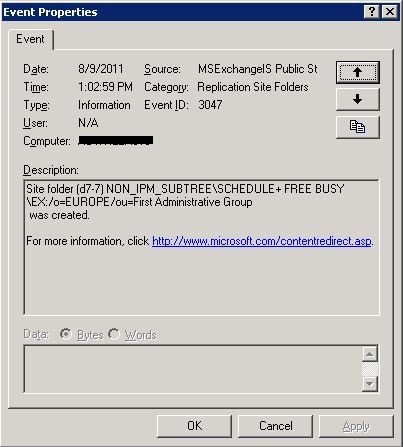
Now we need to wait for the store to recreate the Free/Busy public folder during its maintenance cycle, which may take up to 24h. If you’re in a hurry, and the situation allows you because of the service interruption, you can also restart the Information Store. When the Information Store has created the Free/Busy public folder, event 3047 is logged by the MSExchangeIS Public Store:
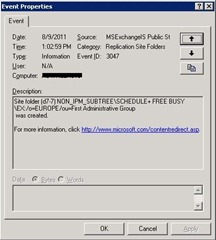
To verify this, startup the Public Folder Management Console or any other Public Folder management tool, and you’ll see the newly created folder:

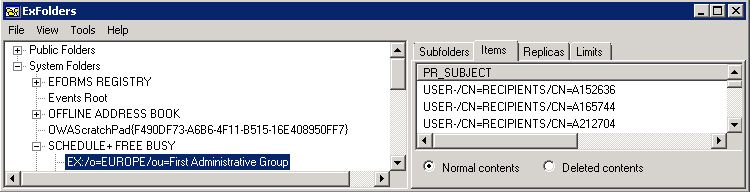
After a while you’ll notice Outlook 2003 users are now storing their Free/Busy information in this public folder and Free/Busy will work again for these users. You can verify clients are storing Free/Busy information using EMS, ExFolders or MFCMAPI, e.g.:
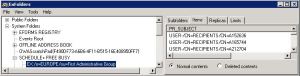
Finally, don’t forget to create replicas of this new Free/Busy public folder when appropriate.

 By popular demand and since many of you requested this: I’ve put the Visio file of the Exchange 2010 SP1 Network Ports Diagram online. The original post in PDF format is of April 5th.


 EighTwOne (821)
