Exchange 2010 RTM EOL’s on October 11th


After returning from holiday, between all the Build Windows (Windows 8 ) news, a quick heads-up for those with lagging upgrade schemes or any other valid reason to be still running Exchange 2010 RTM. On October 11th, 2011, support for Exchange 2010 RTM will end.

This should be of no surprise when you practice proper lifecycle management or track Microsoft’s KB bulletins as this information was published on the lifecycle page as well as knowledge base article KB2615653.

For those doing fresh installs and still wondering if this affects their process of installing SP1 versions starting by using the RTM files; since Exchange 2007, Service Packs for Exchange contain all binaries enabling you to perform a fresh installation as well as an upgrade using the same set of files.

You can download Exchange 2010 Service Pack 1 here.

Exchange ActiveSync and Inheritable Permissions issue


The issue and solution described here is by design, but not known by every customer so here’s my short write-up on this subject.

Recently, I was at a customer reporting issues with several users not being able to synchronize their mobile devices using ActiveSync. The customer was running Exchange 2010 SP1 and used various mobile devices, e.g. iPhones as well as Android phones and tablets. A quick look in the IIS logs revealed that devices were connecting properly, but they received HTTP return code 403 (forbidden):

2011-08-30 10:09:31 172.16.10.12 OPTIONS /Microsoft-Server-ActiveSync/default.eas User=XXXXX&DeviceId=d849cec9be024c828b9af73da93bb59b&DeviceType=htcbravo&Log=LdapC2_Error:UserPrincipalCouldNotBeFound_Dc:dc.domain.com_Budget:(D)Conn%3a1%2cHangingConn%3a0%2cAD%3a%24null%2f%24null%2f0%25%2cCAS%3a%24null%2f%24null%2f0%25%2cAB%3a%24null%2f%24null%2f0%25%2cRPC%3a%24null%2f%24null%2f0%25%2cFC%3a1000%2f0%2cPolicy%3aDefaultThrottlingPolicy%5Fe205201e-d418-409a-a15b-4b51baef9bf4%2cNorm%5bResources%3a(DC)dc.domain.com(Health%3a-1%25%2cHistLoad%3a0)%2c%5d_ 443 domain\XXXXX 62.140.137.149 Android-EAS/0.1 403 0 0 124

Another clue was provided by the eventlog, which revealed MSExchange ActiveSync was reporting error 1053:

ss

The remainder of the message reads: “Make sure the user has inherited permission granted to domain\Exchange Servers to allow List, Create child, Delete child of object type “msExchangeActiveSyncDevices” and doesn’t have any deny permissions blocking such operations”. What happens when setting up ActiveSync is that Exchange tries to create a container named ExchangeActiveSyncDevices below the user object in Active Directory and will store in that container an MsExchActiveSync object for each ActiveSync device. Apparently Exchange doesn’t have sufficient permissions to create these objects.

To fix this, open up Active Directory Users and Computers. Now, to be able to inspect the security settings, we first need to activate Advanced Features if not already set. To do this, from the View menu option, select Advanced Features.

Next, navigate to the user object experiencing the issue. Open up Properties, select the Security tab and click Advanced.

image

Notice the Include inheritable permissions from this object’s parent is not set, the reason for Exchange not having any permissions on the object.

To fix the issue, simply check Include inheritable permissions from this object’s parent and click OK. You’ll return to the previous window where you’ll notice the Exchange Server account is now granted permissions on the object:

image

At this point, ActiveSync will work and Exchange will be able to create MsExchActiveSync objects in the ExchangeActiveSyncDevices container:

image

Note that Include inheritable permissions from this object’s parent by default is not enabled for members of the protected groups, e.g. Domain Admins. In fact, every hour the DACL on members of protected groups will be reset and inheritable permissions will be removed. This process is called AdminSDHolder which is to prevent inappropriate changes from being made to protected groups, accidently or otherwise.  Michael B. Smith did a nice write-up on this subject here. This is also the reason why bypassing the AdminSDHolder limitation by manually granting Exchange permissions would be inappropriate.

To prevent this issue, it is recommend to follow an old, yet far from rusty administrator best practice, which is to use one account for day-to-day operations, e.g. work and e-mail, and another account for administrative purposes.

Exchange 2010 SP1 Update Rollup 5


Today the Exchange Team released RU5 for Exchange Server 2010 Service Pack 1 (KB2582113). This update raises Exchange 2010 version number to 14.1.339.1.

I’d recommend to thoroughly test this rollup in a test and acceptance environment prior to implementing it in production. After the RU3 and RU4 debacles, I can’t emphasize this enough: test, test. test.

Here’s the list of changes included in this rollup:

  • 2275156  The inline contents disposition is removed when you send a “Content-Disposition: inline” email message by using EWS in an Exchange Server 2010 environment
  • 2499044  You cannot save attachments in an email message by using OWA if the subject line contains special characters in an Exchange Server 2010 environment
  • 2509306  Journal reports are expired or lost when the Microsoft Exchange Transport service is restarted in an Exchange Server 2010 environment
  • 2514766   A RBAC role assignee can unexpectedly run the Add-ADPermission command on an Exchange Server 2010 server that is outside the role assignment scope
  • 2529715  Slow network or replication issues after you change the number of virus scanning API threads in Microsoft Exchange Server 2010
  • 2536704  Mailbox users who are migrated by using ILM 2007 cannot use the Options menu in OWA in an Exchange Server 2010 environment
  • 2537094  French translation errors occur when you edit a response to a meeting request by using OWA in an Exchange Server 2010 SP1 environment
  • 2554604  A RBAC role assignee can unexpectedly manage certificates that are outside the role assignment scope in an Exchange Server 2010 environment
  • 2555800   You cannot use the GetItem operation in EWS to retrieve properties of an email message in an Exchange Server 2010 environment
  • 2555850   You cannot delete a mailbox folder that starts with a special character in its name by using Outlook in an Exchange Server 2010 environment
  • 2556096  The columns in the .csv logging file are not lined up correctly when you perform a discovery search on a mailbox in an Exchange Server 2010 environment
  • 2556107  The columns in the .csv logging file are not lined up correctly when you perform a discovery search on a mailbox in an Exchange Server 2010 environment
  • 2556133   A device that uses Exchange ActiveSync cannot access mailboxes in an Exchange Server 2010 environment
  • 2556156  Extra.exe crashes when it performs RPC activity checks against an Exchange Server 2010 server
  • 2556352  “ChangeKey is required for this operation” error message in Outlook for Mac 2011 in an Exchange Server 2010 environment
  • 2556407  Certain client-only message rules do not take effect on email messages that are saved as drafts in an Exchange Server 2010 environment
  • 2559926   “There are no items to show in this view.” error message when you try to view a folder by using Outlook in an Exchange Server 2010 environment
  • 2572958  The “Test-OutlookConnectivity -Protocol HTTP” command fails with an HTTP 401 error in an Exchange Server 2010 environment

When running ForeFront Protection for Exchange, make sure you disable ForeFront before installing the rollup and re-enable it afterwards, otherwise the Information Store and Transport services may not start. You can disable ForeFront using fscutility /disable and enable it using the fscutility /enable command.

For the correct procedure on how to update a DAG and its members, check here.

Note that update rollups are cumulative, i.e. they contain fixes released in earlier update rollups for the same product level (RTM, SPx). This means you don’t need to install previous update rollups during a fresh installation but can start with the latest rollup available right away.

You can download Exchange 2010 SP1 Rollup 5 here.

Cmdlet Extension Agents Part 1: Automatic archive creation


Cmdlet Extension Agents Part 2: Postconfiguring Mailboxes

An Exchange fellow inquired about the possibility to automatically enable personal archives when creating mailboxes with the added requirement to create those personal archives in a specific mailbox database, depending on the location of the mailbox. Dedicated mailbox databases were used for personal archives. Simply said, the idea was that mailboxes located in database MDB1 should get a personal archive in mailbox database ADB1, MDB2 in ADB2, etc.

Your first thought could be creating a script to automatically provision those personal archives in the proper database depending on the mailbox database. But alas, when using Exchange 2010’s automatic mailbox provisioning system you never know upfront what mailbox database will be appointed.

That leads us to Exchange 2010’s Cmdlet Extension Agents, more specific the Scripting Agent. I won’t go into much detail now on those Agents, but look at them as a way to extend cmdlets by adding pre- and post-jobs, additional constraints, reporting or override parameters.

Now, when you haven’t already done so, first exclude the mailbox databases containing personal archives from automatic provisioning. If you have a dedicated server for hosting personal archives, use the IsExcludedFromProvisioning with the Set-MailboxServer cmdlet; to exclude a mailbox database use IsExcludedFromProvisioning with the Set-MailboxDatabase, e.g.

Set-MailboxDatabase <Archive Database ID> –IsExcludedFromProvisioning $true

image

I’ll first show you how the scripted version could work. We’ll start by creating some mailboxes. We don’t require anything fancy, so this will do:

$pwd= ConvertTo-SecureString -AsPlainText “Welcome1 -Force
1..10 | ForEach { New-Mailbox “User$_ -Password $pwd -UserPrincipalName user$_@<domain> }

A quick overview of the result shows the mailboxes are created in a round robin fashion:

image

What you could do now is enabling the archive on ADB1 for MDB1 and ADB2 for MDB2 mailboxes, e.g.

Get-Mailbox –Database MDB1 | Enable-Mailbox –Archive -ArchiveDatabase ADB1
Get-Mailbox –Database MDB2 | Enable-Mailbox –Archive -ArchiveDatabase ADB2

image

This is what we wanted. As you probably understand, the main disadvantage now is that this only works for the current mailbox population. Administrators should appoint the proper mailbox database for personal archives when creating new mailboxes. Can the Scripting Agent overcome this problem?

Let’s have a look on how to configure the Scripting Agent. Open up Notepad and create a file \bin\CmdletExtensionAgents\ScriptingAgentConfig.xml located in Env:ExchangeInstallPath, e.g. C:\Program Files\Microsoft\Exchange Server\V14\Bin\CmdletExtensionAgents, using the following contents:

<?xml version="1.0" encoding="utf-8" ?>
  <Configuration version="1.0">
  <Feature Name="MailboxProvisioning" Cmdlets="New-Mailbox">
  <ApiCall Name="OnComplete">
  If($succeeded) {
    $Name= $provisioningHandler.UserSpecifiedParameters["Name"]
    If ((Get-Mailbox $Name).ArchiveDatabase -eq $null) {
      $MailboxDatabase= (Get-Mailbox $Name).Database
      $ArchiveDatabase= "A"+ ( $MailboxDatabase.Name).Substring( 1)
      Enable-Mailbox $Name -Archive -ArchiveDatabase $ArchiveDatabase
    }
  }
  </ApiCall>
  </Feature>
  </Configuration>

A small explanation might be appropriate:

  • The Cmdlets specified in this feature extension dictates which cmdlets will be extended;
  • OnComplete dictates that our script will fire when the cmdlet has finished;
  • We check for OnComplete parameter $succeeded, only enabling archives when the preceding cmdlet was successful;
  • $provisioningHandler.UserSpecifiedParameters contains user provided parameters passed to the cmdlet. So, $provisioningHandler.UserSpecifiedParameters[“Name”] will return the value of -Name;
  • We’ll check if the mailbox already has a personal archive configured; if not, we can proceed;
  • Next, we’ll get the current MailboxDatabase. Then we’ll map that to our personal archive naming scheme by stripping the first character and prefix it with “A”;
  • Finally, we can execute the cmdlet to enable the personal archive of the mailbox on the database specified.

Now, before we test our scripting agent, we need to distribute the XML file on all of our Exchange servers. The reason for this is that you don’t know which Exchange server an administrator will connect to or which server will execute the cmdlet. The location to copy the XML file to is the local CmdletExtensionAgents folder.

Now there’s one more thing we need to do, which is enabling the Scripting Agent. The Scripting Agent is disabled by default. Use the Enable-CmdletExtensionAgent cmdlet to enable it, e.g.:

Enable-CmdletExtensionAgent “Scripting Agent”

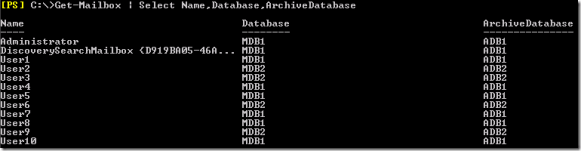
Now, when we use the same cmdlet we used before to create those mailboxes, we get the following result:
image

As you can see, archive databases are now nicely aligned with the automatically assigned mailbox databases.

A small note for those wishing to experiment with the Scripting Agent. Alternatively to OnComplete, you can also try defining the personal archive parameters using the ApiCall ProvisionDefaultProperties. This ApiCall can be used to define default attributes when creating a mailbox. However, this leads to a catch 22 situation and has to do with the Mailbox Resources Management Agent.

By default the Mailbox Resources Management Agent has higher priority (2) than the Scripting Agent (6). This means it will override any settings made in our Scripting Agent.

image

The Mailbox Resources Management Agent is responsible for the automatic mailbox distribution when you don’t specify a mailbox database when creating a mailbox. But it is also responsible for assigning a mailbox database for the personal archive when you don’t specify the ArchiveDatabase parameter.

So, unless we want to add all the automatic mailbox distribution logic to our script, we can’t use the ProvisionDefaultProperties ApiCall properly, because if we want to use that, we need to assign the Scripting Agent a higher priority than the Mailbox Resources Management Agent, but at that point we have no database value so we can’t determine the proper archive database.

If you’re interested in playing with this, check out the ScriptingAgentConfig.xml.sample file which is located in the CmdletExtensionAgents as well. If you’re looking for more information on Cmdlet Extension Agents, check here; information on the Scripting Agent can be found here. More information on the automatic mailbox distribution process here.

Setting up Disclaimers in Exchange 2010 SP1


Disclaimers are a controversial subject when added to e-mail messages; some lawyers think they should be mandatory for business communications, some think they’re just jibber-jabber. Fact of the matter is that your e-mail message may end up anywhere and in some countries you can’t legally bind recipients after receiving something he or she may not even wished to receive in the first place. If you’re interested, Exchange fellow Tony Redmond blogged shortly on some legal aspects of disclaimers in June here.

Despite the disputed legal status of these disclaimers, I am however consulted on how to configure them once in a while, so here’s how to implement them properly in Exchange 2010 SP1.

Disclaimers are set up using transport rules. You can inspect the current set of transport rules in the Exchange Management Console (EMC) under Organization Configuration > Hub Transport > Transport Rules or by using the Get-TransportRule cmdlet using the Exchange Management Shell (EMS). By default there will be no transport rules defined.

Before we begin you need to be aware of the following:

  • Transport rules will be processed in the order of priority. If a message meets the conditions configured in a transport rule, the actions defined in that rule will be processed. When done, the Exchange will continue evaluating transport rules with a higher priority number (so rule with priority will be evaluated first);
  • Adding disclaimers will invalidate signed and may corrupt encrypted messages.

This introduces the following complications:

  • When using multiple disclaimers, you need to mark the message after processing to prevent processing by one of the other transport rules. If you don’t, disclaimers will pile up at the end of your message.
  • Strangely enough, you can only make an exception for signed or encrypted messages, not both. This means that when you create a rule it is either for unsigned or unencrypted messages; what we want here is rules for unsigned, unencrypted messages.

To work around these limitations, we’ll use message classification for tagging encrypted or signed messages, so we can use that tag in the exception clause. In additional we’ll use custom message headers for flagging processed messages. Note that we could use custom headers for signed, encrypted messages as well but we don’t want to add yet another unnecessary named property.

We’ll start off by create the rules which are going to tag encrypted or signed e-mail messages. We choose to use message classifications for this purpose, so we need to add a new message classification first. This can only be performed using the EMS using the New-MessageClassification cmdlet:

New-MessageClassification “SignedOrEncrypted” –DisplayName “Signed or Encrypted Message” –SenderDescription “Signed or Encrypted Message” –PermissionMenuVisible:$false

image

The DisplayName and SenderDescription parameters are mandatory and their purpose is to state the purpose of the classification when displaying the message in Outlook. By setting PermissionMenuVisible to $false, users won’t be able to assign this classification to messages Outlook themselves.

Next, we’ll set up the transport rules to tag messages using this classification. Since these will be the first transport rules we’re going to create we don’t need to worry about the priority numbers yet. Since there isn’t much editing required with these rules, we can use EMS to define these rules:

New-TransportRule “Tag Encrypted Messages” –Enabled $true –MessageTypeMatches “Encrypted” –ApplyClassification “SignedOrEncrypted”

New-TransportRule “Tag Signed Messages” –Enabled $true –MessageTypeMatches “Signed” –ApplyClassification “SignedOrEncrypted”

image

Now we can start setting up the default (English) disclaimer using transport rules. This default disclaimer will be the default disclaimer attached to all outgoing e-mail messages. Using EMC, open up the Transport Rules tab and select New Transport Rule. Fill in a proper description and click Next.

Now we can select the conditions to meet in order for the rule to be processed. In this example, select From users that are inside or outside the organization and Sent to users that are inside or outside the organization or partners. In the bottom pane you can now fine tune these conditions by clicking on the underlined elements. Click Inside the organization, part of sent to users condition. Set this parameter to Outside the organization. When finished, click Next.

image

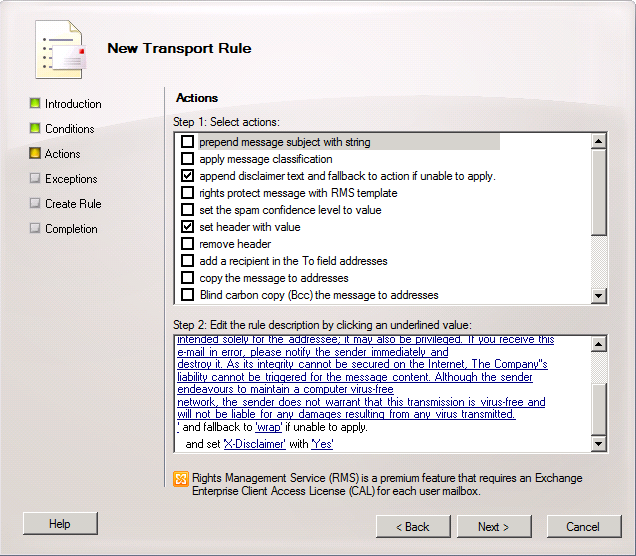
Next we’ll define the actions for this rule. First, select Append disclaimer text and fallback to action if unable to apply. In the bottom pane, leave append unchanged so the disclaimer will be added to the bottom of the message. Note that Exchange can’t insert the disclaimer below replies, only at the end of the complete message. Click disclaimer text and insert your disclaimer text in the editing window. Note that you can use HTML here as well as certain Active Directory attributes to make the disclaimer dynamic. For information on which Active Directory attributes are available, consult this TechNet article. When make use of HTML options, I suggest editing it in an HTML editor or something similar, so you can preview the result. Also, when using styles include those as well. Finally, leave wrap unchanged so Exchange will create a new message using the disclaimer text attach the original message attached if the disclaimer can’t be inserted in the original message.

Second, check Set header with value. Set header to X-Disclaimer and value to Yes. Note that this value is case-sensitive when we’re matching it later on. When finished, click Next.

image

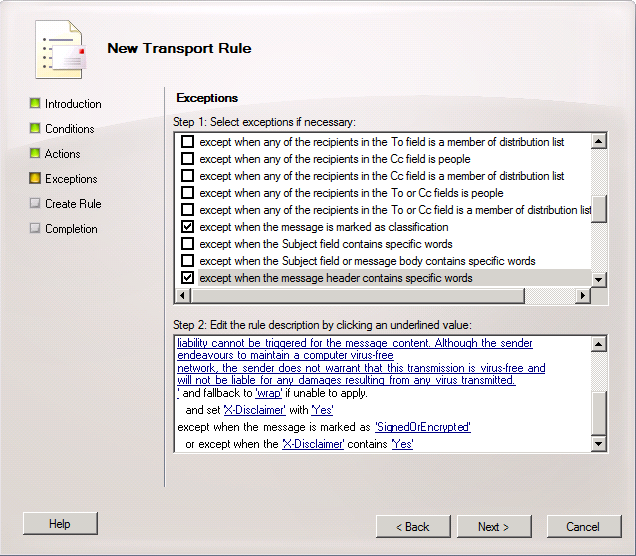
Now we can enter exceptions for this rule. Select Except when the message is marked as classification and set classification to Signed or Encrypted Message. This will make sure that signed or encrypted messages tagged earlier will be skipped. Also check Except when the message header contains specific words; set Message header to X-Disclaimer and specific words to Yes. This will make sure the message is skipped when we’ve already added a disclaimer. When done, click Next.

image

Check the generated cmdlet on the configuration summary screen and click New to create the transport rule. Click Finish when done. Note that this rule will be added with Priority 0, so you need to alter the order setting Priority of this rule to the highest value possible, e.g. 2. As stated before, rules will be evaluated in ascending priority order.

Now we’re set up for a default disclaimer in English, but suppose you want to add a different disclaimer in a different language for users working in a different country. In order to establish this repeat the above steps for creating a disclaimer using transport rule, but at the conditions page add an additional condition by selecting When the sender’s properties contain specific words, setting the Property CountryOrRegion to the country code required, e.g. NL. To see which country code you need to use, consult the ISO 3166 table or check the C attribute in Active Directory (CountryOrRegion in OPATH maps to the C attribute in LDAP).  Needless to say, this filtering requires that the sender’s Country has been configured properly in Active Directory.

image

Then on the actions page, configure the alternative disclaimer text. After saving, don’t forget to put this rule before the default disclaimer rule by changing it’s Priority to n-1 , i.e. when the default disclaimer has priority 3 set the priority for this country specific disclaimer to 2.

image

The way this works is as follows:

  1. The first two rules will set the classification to SignedOrEncrypted for signed or encrypted messages;
  2. The Disclaimer NL rule checks the sender’s CountryOrRegion attribute; when it’s NL and the message isn’t classified as SignedOrEncrypted and the message doesn’t contain an “X-Disclaimer” header field with a value of “Yes”, it will add the configured disclaimer and set the header field “X-Disclaimer” to “Yes”;
  3. The Disclaimer (Default) rule checks if the message isn’t classified as SignedOrEncrypted and the message doesn’t contain an “X-Disclaimer” header field with a value of “Yes”. When both are not true, it will add the configured disclaimer and set the header field “X-Disclaimer” to “Yes”. This rule will be skipped for messages by sender with CountryOrRegion NL because the Disclaimer NL rule will be processed earlier and will add X-Disclaimer=Yes to the header.