Exchange 2010 SP1 Network Ports Diagram v0.31


It took a while, but I’ve updated the Exchange 2010 SP1 Network Ports diagram I first published in December. Note that the updated version is based on SP1, which you can find in the way to change the address book service for example.

For this version, I’ve included clients, 3rd party SMTP elements, UM and OCS/Lync components and a small list of how to change ports or fix dynamic port settings.

You can download the diagram here. When you got feedback, use the comments or send me an e-mail. Otherwise, feel free the use it; crediting or a reference is appreciated.

Update: Small correction, 135/TPC RPC endpoint mapper from Outlook to Client Access Server was missing (Thanks Maarten).

Update (13Aug11): The Visio can be downloaded through here.

MsExchQueryBaseDN and Exchange 2010 SP1


Note: At TechEd NA 2011 session EXL326, announcing Exchange 2010 SP2 features (e.g. GAL segmentation), Greg Taylor stated that SP1 breaks MsExchQueryBaseDN in Exchange 2010. This might explain the behaviour as described in this article.

As you may know, the msExchQueryBaseDN attribute can be used to limit a user’s scope of the global address book and address searches (also see kb817218). This is helpful for restricting access in environments consisting of multiple organizations or organizations with a substantial  number of mail-enabled objects. The attribute is part of the user object and you configure it by pointing it to a DN of the OU or address list of choice, e.g. OU=sales,DC=company,DC=com. Note that by default msExchQueryBaseDN is empty, so that user will search the whole domain the user’s part of.

With Exchange 2010 SP1, the following unexpected behavior is encountered in Outlook when you’ve set the msExchQueryBaseDN attribute:

msExchQueryBaseDN Set
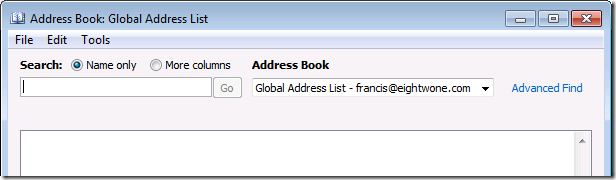
When msExchQueryBaseDN is set to a valid DN, Outlook WebApp (OWA) will show the default global address with elements from the configured msExchQueryBaseDN downwards. Outlook 2007/2010 will show an empty global address list; other global address lists are invisible. Searching the address book in OWA works, in Outlook it doesn’t because Outlook thinks the address list is empty:
image

Note that if the structure contains many elements, opening the global address list in OWA may result in the following exception:

Url: https://…/owa/forms/premium/SubPageContainer.aspx?ae=AddressList&t=Recipients&subpage=DirectoryView.ascx
User host address: …
User: Blake, Francis
EX Address: /o=…
SMTP Address: francis@eightwone.com
OWA version: 14.1.270.1
Mailbox server: ex2010a.domain.local
Exception
Exception type: Microsoft.Exchange.Data.Directory.ADVlvSizeLimitExceededException
Exception message: Active Directory operation failed on ex2010a.domain.local. There are too many entries which exceed limit of Virtual List View. Additional information: The directory service encountered an unknown failure. Active directory response: 000020EF: SvcErr: DSID-03140350, problem 5010 (UNAVAIL_EXTENSION), data 0

The message indicates it tries to fit too many elements in the list.

MsExchQueryBaseDN cleared
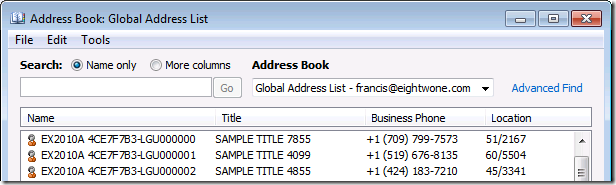
When msExchQueryBaseDN is cleared, Outlook and OWA will show the default global address list as well as other address lists. Also, even though the number of elements is equal or larger than when msExchQueryBaseDN is set, the global address list will show in OWA. So, apparently the number of elements isn’t an issue, which makes the exception you get in OWA when msExchQueryBaseDN is set confusing.
image

After some digging, I think this behavior is related to dropping address list segregation support for on-premises Exchange 2010 and moving several functions and support for it to Exchange 2010 hosting mode. A possible clue can be found in the Exchange 2010 mailbox attribute QueryBaseDNRestrictionEnabled, which description reads:

The QueryBaseDNRestrictionEnabled parameter specifies whether to restrict a user’s ability to view or search for other mailboxes in their organization. If this parameter is set to $true, the global address list (GAL) of the specified mailbox user isn’t populated. Specifically, if the user views the GAL, it will appear empty. If this parameter is set to $false, users can use the GAL to view all mailboxes in their organization, including mailboxes for which this parameter is set to $true. The default value is $false.

This empty GAL behavior when QueryBaseDNRestrictionEnabled is set to $true matches the behavior encountered when setting the msExchQueryBaseDN attribute.

So be advised that while we wait for Service Pack 2, of which the Exchange Team said it will contain some form of (still undisclosed) address list segregation (announcement here),you will run into the issues described above when using msExchQueryBaseDN in an Exchange 2010 SP1 environment.

To bulk clear the msExchQueryBaseDN attribute for a whole domain, execute the following command from the Exchange Management Shell:

Get-Mailbox –ResultSize Unlimited | ForEach {$o=[ADSI](“LDAP://”+$_.distinguishedName);$o.PutEx(1,”msExchQueryBaseDN”,0);$o.SetInfo()}

Updated: Added SP2 announcement mentioning to broken MsExchQueryBaseDN (May 18th).

Disabling editing account information in OWA


In Exchange 2010, by default users have permission to edit their contact information from the Exchange Control Panel. In organizations where this is unwanted, like when account information is provisioned, you need to remove these permissions.

image

These permissions flow from the Default Role Assignment Policy.

Note: You could have changed the default role assignment. To view the default assignment policy, check the IsDefault attribute, e.g.

Get-RoleAssignmentPolicy | Where { $_.IsDefault -eq $True }

Now, each mailbox-enabled user is assigned the default policy when created. You can verify this by inspecting the RoleAssignmentPolicy using Get-Mailbox, e.g.

image

The assigned roles of this policy can be viewed using Get-ManagementRoleAssignment:

image

The ability to edit contact information lies in the MyContactInformation. You can view a description of this role using:

Get-ManagementRole MyContactInformation | select Description

The output reads, “This role enables individual users to modify their contact information, including address and phone numbers.”

To remove this ability you have the option of removing the assignment or you can simply disable the assignment using Set-ManagementRoleAssignment, e.g.

Set-ManagementRoleAssignment -Identity "MyContactInformation-Default Role Assignment Policy" -Enabled $false 

Now after logging into OWA the contact information is view-only (despite the Edit button) and the Save option is gone.

Note that after performing this step, if you want to enable contact information for some users, you need to create a new RoleAssignmentPolicy, similar to the default one but with the MyContactInformation and assign that policy to those users. For example:

New-RoleAssignmentPolicy "Default Role Assignment Policy with Info"
Get-ManagementRoleAssignment -RoleAssignee "Default Role Assignment Policy" | New-ManagementRoleAssignment -Policy "Default Role Assignment Policy with Info"

You can use the same exercise to remove other unwanted functions, like the ability to create distribution groups (MyDistributionGroups) or to manage distribution group memberships (MyDistributionGroupMembership).

Exchange 2007 SP3 RU3 potential database corruption (update)


Update: Exchange 2007 SP3 Rollup 3 has been re-released. Version 2 of the Rollup can be downloaded here. Rollup 3 version 2 raises Exchange 2007’s version number to 8.3.159.2 (initial release was 8.3.159.0). The related knowledgebase article is kb2530488.

Update: The related knowledgebase article kb2531163 can be found here.

A quick notice on a potential issue with Exchange 2007 SP3 and database corruption after installing Rollup 3. The issue may occurs in the following situations:

  • When transaction log replay is performed by the Replication Service as part of ensuring the passive database copy is up-to-date;
  • When a database is not cleanly shut down and recovery occurs.

Because of this, Rollup 3 for Exchange 2007 was pulled and you’re advised to uninstall Rollup 3 on Exchange 2007 Mailbox and Transport servers. For more information, consult the post on the Exchange Team’s blog here.

Note that the issue may affect all Mailbox servers, clustered or standalone, so you’re also advised to uninstall RU3 on standalone Mailbox servers. For those with the issue on CCR or SCC setups, it requires reseeding or restoring from backup so plan accordingly.

Looking at the issues with latest Rollups for Exchange 2010 and 2007, it gives to think about the quality control process or if the Exchange team’s priorities perhaps lay somewhere else (Office 365?).

Potential for database corruption as a result of installing Exchange 2007 SP3 RU3

Exchange 2010 SP1 RU3 pulled: Blackberry issue


For those looking for Exchange 2010 SP1 Rollup 3, you’re in for an unpleasant surprise. Today, Microsoft pulled the Rollup because of issues with Blackberry devices sending duplicate messages.

While Microsoft is working with RIM to identify and solve the issue, the advice is to wait for updates regarding this issue and meanwhile put RU3 implementations on hold. If you’ve already implemented RU3 and are seeing no issues, you can leave it installed.

More information regarding this issue on the (revised) EHLO page here.