Decommisioning a DAG member


While I was at it, I thought I might as well blog about it. In the situation you need to dismantle an Exchange 2010 DAG member, proceed as follows:

  1. Start up Exchange Management Console (ofcourse you can do this from the Exchange Management Shell as well,  but in this example I’ll use EMC);
  2. Go to Organization Configuration > Mailbox > Database Management;
  3. Select the database where ” Mounted on Server” reads the server you’re decommissioning;
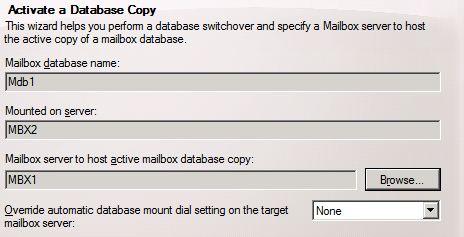
  4. Select Move Active Mailbox Database;
  5. Select the Mailbox server to host the  mailbox database copy and select Move;
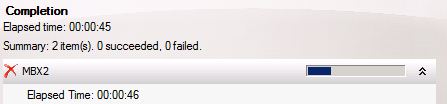
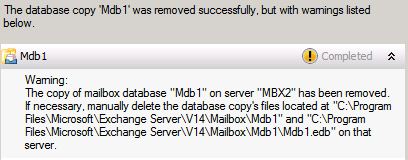
  6. When the move has finished, select the database copy hosted on the server you want to decommission in the lower pane. There, select Remove.
  7. When finished you’re greeted with a warning message. That is because the copy has been removed, but the files are still present. Remove them manually when required;
  8. Next, we need to remove the server from the DAG. Select tab Database Availability Groups;
  9. Select the DAG the server is a member of and select Manage Database Availability Group Membership;
  10. Select the server and click the red cross to remove it from the list. Click Manage to proceed with the actual removal;
  11. When finished the mailbox server is no longer member of the DAG.

You can then proceed with uninstalling Exchange. Note that you can only remove DAG members of a healthy DAG.

DAC: Changes in Exchange 2010 SP1 (Part 3)


Part 1: Active Manager, Activate!
Part 2: Datacenter Activation Coordination Mode

In the first two articles I discussed on Exchange 2010 Active Manager and Datacenter Activation Coordination (DAC) mode in Exchange 2010 RTM. But Exchange 2010 Service Pack 1 (SP1) introduces changes related to DAC, which I’ll discuss in this post.

Supported Configurations
To start with, DAC mode support has been extended in Exchange 2010 SP1 to support all 2 DAG configurations with 2 or more members.  This is great, since you can now enable DAC mode for 2-member DAGs. Like I explained in the 2nd part, split brain syndrome isn’t unlikely, all the more with 2 nodes given the 50/50 situation. Implementing SP1 enables you to leverage DAC mode for the simplest form of mailbox database resilience, using DAGs with 2 members over 2 sites configurations. When required, DAC in SP1 will use the Witness Server to provide the necessary arbitration.

Another thing is that SP1 doesn’t have the requirement of being enabled for DAGs in at least 2 Active Directory sites. This is good news for customers who have their Active Directory organized in a single site located over multiple locations, e.g. stretched VLANs.

Planning
When implementing SP1 on DAG members, you must implement SP1 on all DAG members as soon as possible. Reason is that DAG members running Exchange 2010 RTM can move their databases to a DAG member running Exchange 2010 SP1, but not vice versa. So, do not postpone implementation of SP1 on additional DAG members after implementing it on the first, as it impacts your failover and switchover options. Worst case when not doing so, is ending up in the situation where you cannot activate databases on a server because it doesn’t contain SP1.

Alternate Witness Server
In SP1 you can configure the Alternate Witness Server and Directory using the Exchange Management Console. This location can be used to preconfigure the Alternate Witness Server used during switchover or failover to the secondary datacenter.  The configured value will be picked up automatically using the Restore-DatabaseAvailabilityGroup cmdlet during a datacenter switchover, when not explicitly specifying AlternateWitnessServer and AlternateWitnessDirectory there.

Note that this location could already be configured in Exchange 2010 RTM using the Set-DatabaseAvailabilityGroup using the AlternateWitnessDirectory and AlternateWitnessServer options.

Conclusion
DAC is a useful option that each administrator running DAGs on Exchange should consider enabling. But be aware of the caveats, like the requirement of all nodes to be able to communicate with each other during start up. All in all, DAC is a helpful option as it not only prevents issues like split brain syndrome, but it also makes the process of switching datacenters easier and less prone to error. Exchange 2010 SP1 extends the number of possible configuration in which to implement DAC, making DAC an option for the masses.

I hope you found this 3-part post useful, if you still got questions do not hesitate asking me.

Part 1: Active Manager, Activate!
Part 2: Datacenter Activation Coordination

In the first two articles I discussed on Exchange 2010 Active Manager and Datacenter Activation Coordination (DAC) mode in Exchange 2010 RTM. But Exchange 2010 Service Pack 1 (SP1) adds some nice features to DAC mode, which I’ll discuss in this 3rd article.

Supported Configurations
To start with, DAC mode support has been extended in Exchange 2010 SP1 to support all 2 DAG configurations with 2 or more members.  This is great, since you can now enable DAC mode for 2-member DAGs. Like I explained in the 2nd part, split brain syndrome isn’t unlikely, all the more with 2 nodes given the 50/50 situation. Implementing SP1 enables you to leverage DAC mode for the simplest form of mailbox database resilience, using DAGs with 2 members over 2 sites configurations. When required, DAC in SP1 will use the Witness Server to provide the necessary arbitration.

Another thing is that SP1 doesn’t have the requirement of being enabled for DAGs in at least 2 Active Directory sites. This is good news for customers who have their Active Directory organized in a single site located over multiple locations, e.g. stretched VLANs.

Planning
When implementing SP1 on DAG members, you must implement SP1 on all DAG members as soon as possible. Reason is that DAG members running Exchange 2010 RTM can move their databases to a DAG member running Exchange 2010 SP1, but not vice versa. So, do not postpone implementation of SP1 on additional DAG members after implementing it on the first, as it impacts your failover and switchover options. Worst case when not doing so, is ending up in the situation where you cannot activate databases on a server because it doesn’t contain SP1.

Alternate Witness Server
In SP1 you can configure the Alternate Witness Server and Directory using the Exchange Management Console. This location can be used to preconfigure the Alternate Witness Server used during switchover or failover to the secondary datacenter.  The configured value will be picked up automatically using the Restore-DatabaseAvailabilityGroup cmdlet during a datacenter switchover, when not explicitly specifying AlternateWitnessServer and AlternateWitnessDirectory there.

Note that this location could already be configured in Exchange 2010 RTM using the Set-DatabaseAvailabilityGroup using the AlternateWitnessDirectory and AlternateWitnessServer options.

RBAC Overview Sheet 1.2


I’ve updated the Role Based Access Control (RBAC) Overview sheet with information of Exchange 2010 SP1. You can download version 1.2 of the RBAC Overview sheet from here.

The sheet contains information on the default RBAC configuration of Exchange 2010 RTM and Exchange 2010 SP1 and a list of differences found between the two setups.

For information on how to use the sheet, consult the post on the initial release here.

For those interested, there were 39 changes introduced in Exchange SP1 Final compared to SP1 Beta. Below are the differences. A “-” means an RBAC entry is removed in SP1 Final, a “+” means it was added:

- Discovery Management,Legal Hold,Enable-Mailbox
+ Discovery Management,Mailbox Search,Get-MailboxExportRequest
+ Discovery Management,Mailbox Search,Get-MailboxExportRequestStatistics
+ Discovery Management,Mailbox Search,New-MailboxExportRequest
+ Discovery Management,Mailbox Search,Remove-MailboxExportRequest
+ Discovery Management,Mailbox Search,Set-MailboxExportRequest
+ Discovery Management,Mailbox Search,Suspend-MailboxExportRequest
- Organization Management,Exchange Virtual Directories,New-PowerShellVirtualDirectory
- Organization Management,Exchange Virtual Directories,Remove-PowerShellVirtualDirectory
- Organization Management,Exchange Virtual Directories,New-PowerShellVirtualDirectory
- Organization Management,Exchange Virtual Directories,Remove-PowerShellVirtualDirectory
- Organization Management,Legal Hold,Enable-Mailbox
- Organization Management,Mailbox Import Export,Export-Mailbox
- Organization Management,Mailbox Import Export,Import-Mailbox
+ Organization Management,Mailbox Search,Get-MailboxExportRequest
+ Organization Management,Mailbox Search,Get-MailboxExportRequestStatistics
+ Organization Management,Mailbox Search,New-MailboxExportRequest
+ Organization Management,Mailbox Search,Remove-MailboxExportRequest
+ Organization Management,Mailbox Search,Set-MailboxExportRequest
+ Organization Management,Mailbox Search,Suspend-MailboxExportRequest
+ Organization Management,Message Tracking,Resume-MailboxExportRequest
+ Organization Management,Monitoring,Test-AssistantHealth
+ Organization Management,Monitoring,Test-SmtpConnectivity
+ Organization Management,Monitoring,Test-AssistantHealth
+ Organization Management,Monitoring,Test-SmtpConnectivity
+ Organization Management,View-Only Audit Logs,New-AdminAuditLogSearch
+ Organization Management,View-Only Audit Logs,New-MailboxAuditLogSearch
+ Organization Management,View-Only Audit Logs,New-AdminAuditLogSearch
+ Organization Management,View-Only Audit Logs,New-MailboxAuditLogSearch
+ Recipient Management,Message Tracking,Resume-MailboxExportRequest
+ Records Management,Message Tracking,Resume-MailboxExportRequest
- Server Management,Exchange Virtual Directories,New-PowerShellVirtualDirectory
- Server Management,Exchange Virtual Directories,Remove-PowerShellVirtualDirectory
+ Server Management,Monitoring,Test-AssistantHealth
+ Server Management,Monitoring,Test-SmtpConnectivity
+ View-Only Organization Management,Monitoring,Test-AssistantHealth
+ View-Only Organization Management,Monitoring,Test-SmtpConnectivity

Besides RBAC information, you may also find this list and the Overview Sheet useful for spotting new cmdlets and changes in functionality.

DAC: Datacenter Activation Coordination Mode (Part 2)


Part 1: Active Manager, Activate!
Part 3: DAC and Exchange 2010 SP1

In an earlier article I elaborated on Exchange 2010’s Active Manager, what role it plays in the Database Availability Groups concept and how this role is played. In this article I want to discuss the Datacenter Activation Coordination (DAC) mode, what it is, when to use it and when not.

Note that the following information is based on Exchange 2010 RTM behavior. A separate Exchange 2010 SP1 follow-up will be posted describing changes found in Exchange 2010 SP1.

To understand the requirement for Datacenter Activation Coordination, imagine an organization running Exchange 2010. For the purpose of high availability and resilience they have implemented a DAG running on four Mailbox Servers, stretched over 2 sites running in separate data centers, as depicted in the following diagram:

Types of Failure
Before digging into Datacenter Coordination Mode, I first want to name certain types of failures. This is important, because DAC’s goal is to address situations caused by a certain type of failure. You should distinguish between the following types of failure:

  • Singe Server Failure – A single server fails. The server needs recovery (availability, fail over automatic);
  • Multiple Server Failure – Multiple servers fail. Each server needs recovery (availability, automatic);
  • Site Failure – All components in a site (datacenter) fail. Site recovery needs to be initiated (resilience, manual).

What you need to remember of this list is that each type of failure is different, from the level of impact to the actions required for recovery.

Quorum
With an odd number of DAG members, the Node Majority Set (NMS) model is used, which means a number of (n/2)+1 voters (DAG members) is required to obtain quorum, rounded downward when it’s not a whole number. Obtaining quorum is important because that determines which Active Manager gets promoted to PAM and the PAM can give the green light to activate databases.

With an even number of DAG members, the Node and File Share Majority Set (NMS+FSW) model is used. This means an additional voter is introduced in the form of a File Share Witness (FSW) located on a so called Witness Server. This File Share Witness is used for quorum arbitration. Regarding the location of this File Share Witness, best practice is to put it on a Hub Transport server in the same site as the primary mailbox servers. When combining roles, e.g. Mailbox + Hub Transport, put the FSW on another (preferably e-mail related) server.

So, given this information and knowing how quorum is obtained, we can construct the following table regarding quorum voting. As we can see, when using 4 nodes as in our example scenario, we require a File Share Witness and a minimum of 3 voters to obtain quorum.

DAG members Model Voters Required

2

NMS+FSW

2

3

NMS

2

4

NMS+FSW

3

5

NMS

3

10

NMS+FSW

6

15

NMS

8

Site Resilience
Consider our example with the primary datacenter failing. Damage is substantial and recovery takes a significant amount of time and you decide to fall back on the secondary datacenter (site resilience). That would at least require reconfiguring the DAG, because the remaining DAG members can’t obtain quorum on their own since they form a minority.

So you remove the failed primary datacenter components from the DAG, force quorum for the secondary datacenter and reconfigure cluster mode or Witness Server (depending on the number of remaining DAG members). After reconfiguring, the remaining DAG members can obtain quorum because they can now form a majority. And, because the DAG members in de secondary datacenter can obtain quorum, the Active Manager on the quorum owner becomes Primary Active Manager and the process of best copy selection, attempt copy last logs and activation starts.

Split Brain Syndrome
Consider your secondary datacenter is up and running and you start recovering the primary datacenter. You recover the server hosting the File Share Witness and both servers; network connection is still down. A problem may arise, because the two recovered servers together with the File Share Witness form a majority according to their knowledge. So, because they have quorum they are free to mount databases resulting in divergence from the secondary datacenter, the current state.

This situation is called split brain syndrome, because both DAG members in each datacenter can’t communicate with DAG members in the other datacenter. Both groups of DAG members may determine they have a majority. Split brain syndrome can also occur because of network or power outages, depending on the configuration and how the failure manifests.

Datacenter Activation Coordination
To prevent these situations, Exchange has a special DAG mode called Datacenter Activation Coordination mode. DAC adds an additional requirement for DAG members during startup, being the ability to communicate with all known DAG members or contact a DAG member which states it’s OK to mount databases.

In order to achieve this, a protocol was devised called Datacenter Activation Coordination Protocol (DACP). The way this protocol works is shown in the following diagram:

  1. During startup of a DAG member, the local Active Manager determines if the DAG is running in DAC mode or not;
  2. If running in DAC mode, an in-memory DACP flag is set to 0. This tells Active Manager not to mount its databases;
  3. If the DACP flag is set to 0, Active Manager queries the DACP flags of all other DAG members it has knowledge of. If one of those DAG members responds with 1, the local Active Manager sets the local DACP flag to 1 as well;
  4. If the Active Manager determines it can communicate with all DAG members it has knowledge of it sets the local DACP flag to 1;
  5. If the DACP flag is set to 1, Active Manager may mount its databases.

Note:

So, assume we enabled DAC for our example configuration and we recover the servers in the primary datacenter with the network connection still down. Those servers are still under the assumption that the FSW is located in the primary datacenter so – according to knowledge of the original configuration – they have majority. When starting up, their DACP flag is set to 0. However, they can’t reach a DAG member with a DACP flag set to 1 nor can they contact all DAG members they know about. Therefore, the DAG members in the primary site will not mount any databases, not causing split brain syndrome nor divergence.

If the recovered servers in the primary datacenter come online and the network is already up, the nodes will also not mount their databases because part of the procedure for switching datacenters is removing the primary datacenter DAG members from the DAG configuration. So, the DAG members in the primary datacenter contain invalid information and will be denied by the DAG members in the secondary datacenter.

Implementing DAC
Datacenter Activation Mode is disabled by default. To enable DAC, use the Set-DatabaseAvailabilityGroup cmdlet using the DataCenterActivationMode parameter, e.g.

Set-DatabaseAvailabilityGroup –Identity <DAGID> –DatacenterActivationMode DagOnly

Note that DagOnly and Off are the only options for the DatacenterActivationMode parameter.

Monitoring

If you’ve configured the DAG for DAC mode, and LogLevel is sufficient, you can monitor the DAG startup process using the EventLog. The Active Manager holding quorum check status every 10 seconds. It is responsible for keeping track of the status of the other DAG members. When sufficient DAC members are registered online, it will promote itself to PAM (like in non-DAC mode), which functions as the “green light” for the other Active Managers.

The Active Manager on the other DAG members will periodically check if consensus has been reached:

If the Active Manager holding quorum has promoted itself to PAM, the Active Manager on the other nodes will become SAM. After this the activation and mounting procedure will start.

Limitations
Unfortunately, it’s not an all good news show. DAC mode in Exchange 2010 RTM can only be enabled when using a DAG with 3 or more DAG members distributed over at least 2 Active Directory sites. This means DAC can’t be used in situations where you have 2 DAG members or when all DAG members are located in the same site. This makes sense for the following reasons:

  • In Exchange 2010 RTM, DAC only looks at the DACP flag querying DAG members. The FSW plays no part in it;
  • DAC is meant to prevent split brain syndrome which normally only can occur between multiple sites.

When you try to enable DAC using a 2 DAG member configuration, you’ll encounter the following message:

Database Availability Group <DAGID> cannot be set into datacenter activation mode, since it contains fewer than three mailbox servers.

When you try to enable DAC using a single site, the following error message will show up:

Database availability group <DAGID> cannot be set into datacenter activation mode, since datacenter activation mode requires servers to be in two or more sites.

Note that this message will also show up if you didn’t define sites in Active Directory Sites and Services at all, so make sure you define them properly.

But there is also good news: Exchange 2010 SP1 supports all DAG configurations. I’ll discuss this and other changes in Exchange 2010 SP1 DAC mode in a follow up article.

Additional reading
More information on Datacenter switchovers and the procedure to activate a second datacenter using DAGs in non-DAC as well as DAC mode can be read in this TechNet article. Make sure you compare the actions to perform for DAC and non-DAC setups and see that DAC makes life of the administrator much easier and the procedure less prone to error.

Exchange 2010 Endpoint Mapper Issue & Firewall


While upgrading one of my existing Exchange 2010 lab machines from RTM to SP1, I encountered the following error message during the upgrade:

Error:
The following error was generated when "$error.Clear();
          if (!(get-service MSExchangeADTopology* | where {$_.name -eq "MSExchangeADTopology"}))
          {
            install-ADTopologyService
          }
        " was run: "There are no more endpoints available from the endpoint mapper. (Exception from HRESULT: 0x800706D9)".
There are no more endpoints available from the endpoint mapper. (Exception from HRESULT: 0x800706D9)

The message appeared at the stage of upgrading the Unified Messaging components. I had a look at the ExchangeSetup.log file and it contained the the following information:

[08/27/2010 10:08:13.0948] [2] Beginning processing install-UMService
[08/27/2010 10:08:14.0011] [2] [WARNING] An unexpected error has occurred and a Watson dump is being generated: There are no more endpoints available from the endpoint mapper. (Exception from HRESULT: 0x800706D9)
[08/27/2010 10:08:14.0027] [2] [ERROR] There are no more endpoints available from the endpoint mapper. (Exception from HRESULT: 0x800706D9)
[08/27/2010 10:08:15.0823] [1] The following 1 error(s) occurred during task execution:
[08/27/2010 10:08:15.0823] [1] 0.  ErrorRecord: There are no more endpoints available from the endpoint mapper. (Exception from HRESULT: 0x800706D9)
[08/27/2010 10:08:15.0823] [1] 0.  ErrorRecord: System.Runtime.InteropServices.COMException (0x800706D9): There are no more endpoints available from the endpoint mapper. (Exception from HRESULT: 0x800706D9)
at Interop.NetFw.INetFwRules.Add(NetFwRule rule)
at Microsoft.Exchange.Security.WindowsFirewall.ExchangeFirewallRule.Add()
at Microsoft.Exchange.Configuration.Tasks.ManageService.Install()
at Microsoft.Exchange.Management.Tasks.UM.InstallUMService.InternalProcessRecord()
at Microsoft.Exchange.Configuration.Tasks.Task.ProcessRecord()
at System.Management.Automation.CommandProcessor.ProcessRecord()

It seems the error is caused while trying to add a firewall rule, indicated by Interop.NetFw.INetFwRules.Add (INetFwRules is the rules collection of the built-in Windows Firewall).

I had a quick check with the firewall settings on the machine and it turned out the Windows Firewall was disabled. I figured that perhaps adding the rules failed because setup couldn’t communicate with the firewall service.

I enabled the Windows Firewall and this time the upgrade process went fine:

[08/27/2010 10:23:10.0988] [2] Beginning processing install-UMService
[08/27/2010 10:23:11.0145] [2] Ending processing install-UMService