 Many articles discuss recovering single or multiple mailboxes from backup, but little on how to recover those personal archives (and no, recovering the mailbox doesn’t recover the personal archive, depending on your backup solution of course). I’d like to show you how to restore a personal archive using standard Exchange 2010 SP1 functionality and a backup, meaning we won’t use the dumpster and we won’t be using a lagged copy.
For our example we’ll need an archive-enabled mailbox:

Disaster strikes and you need to perform a full recovery of the personal archive. For completeness I’ll describe shortly how to restore a backup and create and mount the recovery database.
First, restore the database and logs from backup (you do have a backup, right?) and use an alternative location to restore the files. In this example, the effective restoration path for the DB will be called <RestoreDBPath>, the path for the logs will be <RestoreLogsPath>.
Second, create a recovery database using the following cmdlet:
New-MailboxDatabase –Recovery –Name RecoveryDB –Server <ServerID> –EdbFilePath <RecoveryDBPath> –LogFolder <RecoveryLogsPath>
Before you can mount the recovery database it might be required to bring it in a clean state. This means all logs need to be replayed, for which we use ESEUTIL in recovery mode (/r). The command to use is something as follows, where <PREFIX> is the prefix used by the database, e.g. ‘”E00”:
ESEUTIL /r <PREFIX> /l “<RecoveryLogsPath>” /d “<RecoveryDBPath>”
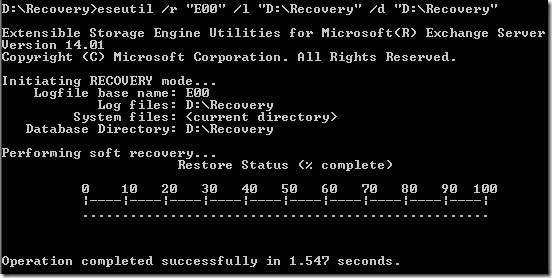
Next, mount the database using the Exchange Management Shell as follows:
Mount-MailboxDatabase RecoveryDB
Now it’s time to restore the personal archive, for which we’ll use the New-MailboxRestoreRequest cmdlet. We’ll use the TargetIsArchive parameter to specify that the restored content should be stored in the specified mailbox’s associated personal archive. Now the trick is to specify the ArchiveGuid as SourceStoreMailbox instead of the ID (yes, having a SourceIsArchive option in the future would be nice, so we don’t need to fetch the mailbox’ ArchiveGuid first). Given this information, use the following New-MailboxRestoreRequest cmdlet to restore UserID’s personal archive:
Get-Mailbox <UserID> | % { New-MailboxRestoreRequest -SourceDatabase RecoveryDB -SourceStoreMailbox $_.ArchiveGuid -TargetMailbox $_.Identity -TargetIsArchive }

This will fetch UserID’s mailbox first and pass it to the New-MailboxRestoreRequest cmdlet using the required parameters. Note that, unlike Restore-Mailbox, you can’t filter on subject, timeframe, etc. You can however optionally specify a TargetFolder to restore content in a separate folder (otherwise content will be merged, like you may expect).
The restore request is queued and you can monitor progress using Get-MailboxRestoreRequest. When the restore has finished successfully, the status will be set to Completed.

Now let’s take a look at the mailbox’ personal archive again:

When you verified everything is restored, you can remove the completed restore request using Get-MailboxRestoreRequest. For example, to remove all completed restore requests in conjunction with Remove-RestoreRequest cmdlet use the following:
Get-MailboxRestoreRequest | where { $_.Status -eq “Completed”} | Remove-MailboxRestoreRequest –Confirm:$false
The above procedure is great for restoring a single personal archive, but you can also use it to recover multiple mailboxes by passing a collection of mailboxes to New-MailboxRestoreRequest like shown above, e.g.
Get-Mailbox –Database <DatabaseID> | where {$_.Name –like “p*”} | % { New-MailboxRestoreRequest -SourceDatabase RecoveryDB -SourceStoreMailbox $_.ArchiveGuid -TargetMailbox $_.Identity -TargetIsArchive }
This will select all mailboxes on a single database (which makes sense since the recovery database will only contain the backup of a single database) and filter the selection on users with a Displayname starting with a “p”. Those users’ personal archive will be restored using RecoveryDB.








 EighTwOne (821)