If you are looking for a way to automate and simplify your Microsoft 365 administration tasks, PowerShell is a great option. However, PowerShell scripting is not without its challenges. Not proactively maintaining code can quickly become an issue because of the changes made to dependencies such as modules, as well as the cmdlets you use.
In an article I wrote for Practical 365, related to the presentation of the same name held at the The Experts Conference 2023 in Atlanta this year, I discuss some of the challenges administrators might encounter with PowerShell scripts. Also, I provide some guidance and point out a few tools that can assist with rewriting or refactoring code, i.e., updating code while keeping its external functionality.
The MTA-STS policy (MTA Strict Transport Security) is to prevent Man-In-The-Middle attacks by publishing authorized mail servers and prevent TLS downgrade attacks (Opportunistic TLS), when both parties support MTA-STS. MTA-STS is easier to implement over DANE with DNSSEC, which is expected to get inbound support in Exchange Online next year. Since I am using WordPress to host this blog, I was looking for ways to host the policy file for MTA-STS at the required location, as hosted WordPress does not offer this possibility.
There is documentation describing how to accomplish this using, for example, Azure Static Web Sites, but this requires an Azure subscription. There are also 3rd parties offering hosted MTA-STS, which are usually not free.
Then I stumbled upon the possibility of using a custom domain with GitHub pages, which can be used for this. So, here is a quick write-up on how to host your MTA-STS policy file on GitHub using GitHub Pages. This process could also be used when needed for hosting other files on GitHub.
Hosting MTA-STS Policy using GitHub Pages
Start by creating a new repository in GitHub. You can name it anything you want, but for the sake of the example, I called it mta-sts. Make sure it is public.
Next, we must create an empty file called .nojekyll in the repository. This file will instruct GitHub not to build pages, and just serve your files. So, Add file > Create new file, enter .nojekyll as Name your file and Commit changes.
Now, create the policy file that needs to be named mta-sts.txt in the .well-known folder file, select Add file > Create new file and enter .well-known/mta-sts.txt as the name of your file. This will also create the required folder. In the contents field, paste your policy. For example, the MTA-STS policy file when using only Exchange Online for receiving e-mail could look something like this:
When done, commit your changes to store the policy file on GitHub. For more information on the MTA-STS policy file definition, click here.
Next, we need to enable GitHub Pages for this repository. Go to Settings, and select the Pages tab. Under Branch, select the branch you want to publish, eg. main, and press Save. Note that GitHub Pages are served using a valid 3rd party certificate, which satisfies one of the requirements for MTA-STS.
New options should now appear on the GitHub Pages settings, one of which is Custom domain. If you decided to use a custom domain in the previous step, enter it here, eg. mta-sts.contoso.com, and click Save.
GitHub will start to check DNS for the presence of this domain. Time to head over to your ISP portal, and create the required records in DNS.
First, if you used a custom domain for hosting the MTA-STS policy, create a CNAME mta-sts record for your domain pointing to <user>.github.io or <org>.github.io, e.g.
mta-sts.contoso.com CNAME 3600 user.github.io
Next, create the DNS TXT _mta-sts record to indicate MTA-STS support, e.g.
Note that you need to update ‘id,’ usually with timestamp yyyymmddhhmm, whenever you make changes to the policy. This indicates to MTA-STS supporting hosts there has been a change on your end.
You are now set. After DNS some time for DNS to propagate changes, you can start verifying your configuration by browsing https://mta-sts.contoso.com/.well-known/mta-sts.txt, which should return your policy file without any certificate prompts. You can verify DNS and policy access using websites like MxToolbox or PowerDMARC. The example below was generated using EasyDMARC:
TLS Reporting
In addition to setting up MTA-STS, you can configure TLS Reporting (TLS-RPT). This will instruct supporting servers to report on TLS usage and mention certificate issues, for example. Note that these are reports on inbound messages, whereas Exchange Online offers information on outbound TLS usage. To set up TLS-RPT, configure a DNS TXT record _smtp._tls and specify a recipient for these reports, e.g.
The rua field contains the e-mail address where reports should be sent. You can process these reports in JSON format yourself or have one of the 3rd parties offering this service do this for you. The example below is generated by Dmarcian.
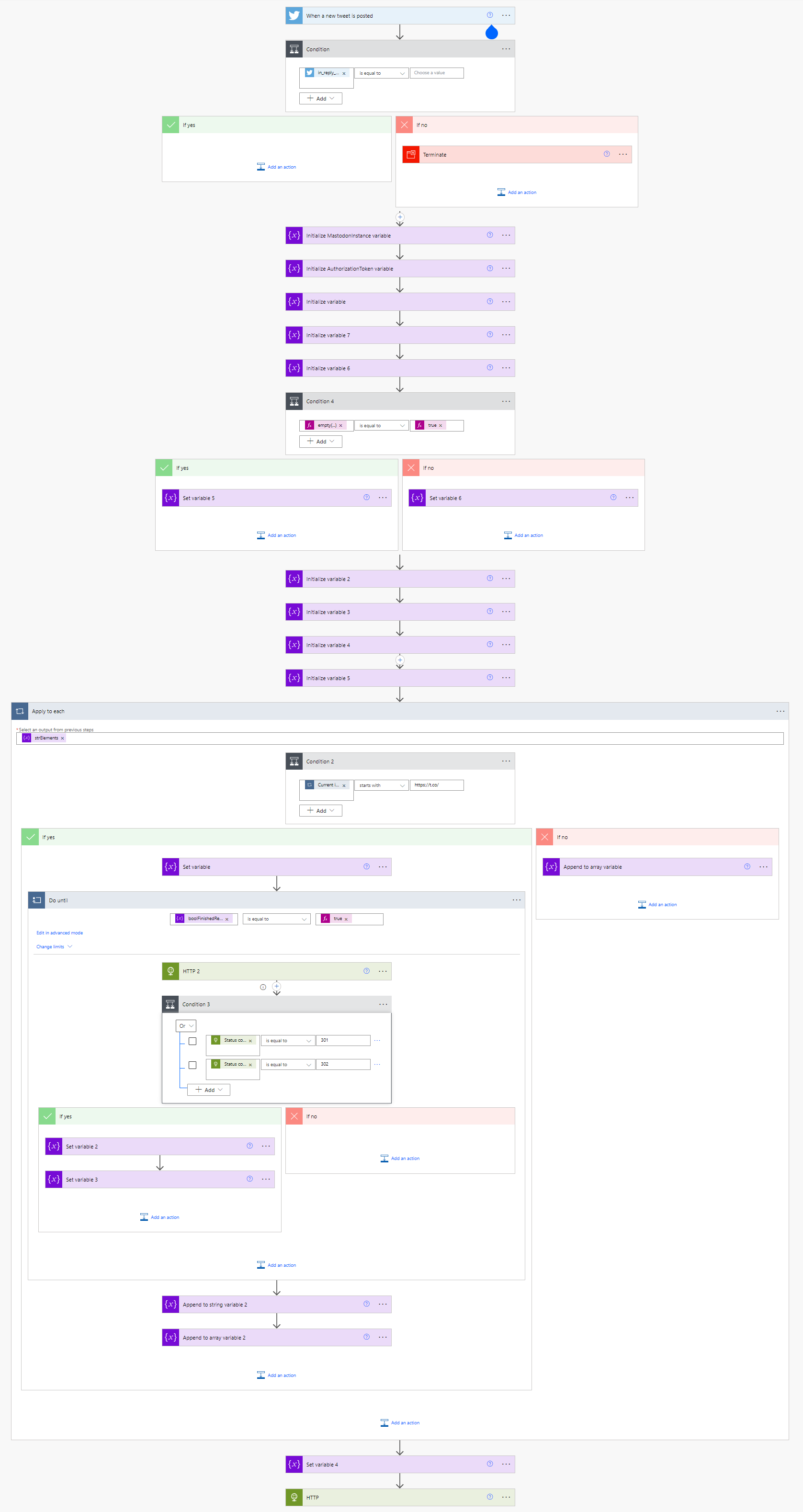
November 22nd, 2022: Updated Flow diagram and updated blog to mention usage of vars for Mastodon host and bearer token.
And now for something completely different: With the recent news around Twitter, many people are having a look at alternatives. One of these is Mastodon, which is an open source platform, using federated identities on a distributed network. In essence, this means there is not a single phone directory but multiple, yet people living in different phone books can interact with each other as if they were residing in one (federation). Only thing is that, apart from your handle, you also need to know your (Mastodon) host where your account lives.
Now, this isn’t a blog on this social media platform, but it is a quick introduction on how to enable API access to your Mastodon account, and how you can leverage that in PowerAutomate. You can then, for example, toot your tweets (on Mastodon, one toots). There is no built-in action for Mastodon in PowerAutomate, so we need to create it leveraging Mastodon’s API, which is fairly simple for this action.
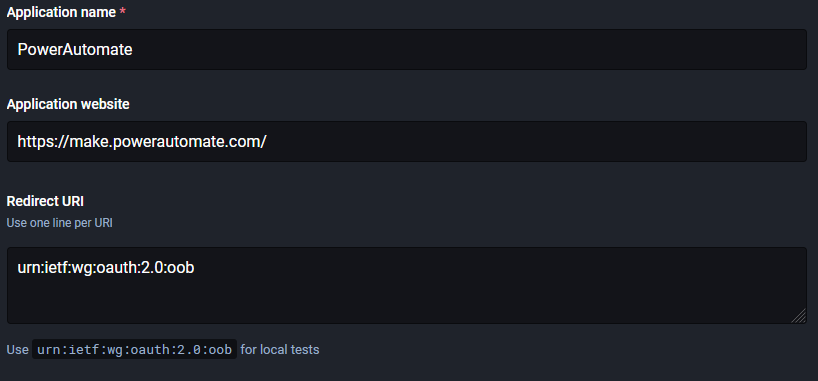
To start, you need a registered Mastodon account as well as PowerAutomate. First, we are going to configure your account in Mastodon for API access by an app. Navigate to Preferences, select </> Development and Click New Application. You now need to enter some details about your application, such as name and site where the calls originate from, e.g.
The Redirect URI field can be left at its default.
At the bottom of the dialog , you need to specify which calls your application is allowed to make by means of Scopes. For this example, we will only post status updates, so we deselect anything checked, and check write:statuses, which will allow us to post status updates. Click Submit.
After submitting, return to your App details page, and you will notice at the top there is now a client key and secret assigned to the app, as well as an access token. This access token is something we need later on, so make note of it or keep the screen open.
Disclaimer: The Premium connector HTTP is used, which might require a covering Per Flow or Per User service plan. When you don’t, you will get a message during import stating that you “do not have a service plan adequate for the non-standard connection”.
In PowerAutomate, import the Flow package TootMyTweet that I published on GitHub here. During import, pick your Twitter connection to use. After importing, You need to edit the flow by choosing Edit, and make the customizations indicated below the overview diagram:
In the When a new tweet is posted trigger, change <Your Twitter Handle> in the query to your Twitter handle (or replace with any other query you desire).
In the step Initialize MastodonInstance variable, change the value to your Mastodon host, e.g. mastodon.social.
In the step Initialize AuthorizationToken variable, change the value to the Access Token you wrote down earlier from the Mastodon app configuration.
The body sets the status field to the tweet, after escaping quotes and expanding any URLs shortened by Twitter. For status (and other) API call information, see the Mastodon documentation here.
Note that replies are ignored, as context is lost when tooting replies to Tweets.
Save these changes, and do not forget to enable the Flow. Then wait for the first tweet to be automatically echoed on Mastodon.
Note that this of course is far from perfect: We will skip tooting replies (that is what the condition is for), and will do some escaping to prevent formatting issues, but shortened Twitter URLs and embedded images for example, are still shown as (short) t.co links instead of their intrinsic content or location. Improvements or suggestions are always welcomed.
In the announcement of the most recent set of Cumulative Updates for Exchange Server 2019 and 2016, Microsoft introduced some changes – features if you will – as well, which were received with enthusiasm. An overview of these Cumulative Updates and the features introduced was given in an earlier article. In this article however, I would like to zoom in on one of those features, which also happens to be a popular topic among customers running Exchange Hybrid deployments, “The Last Exchange Server”.
Up to Exchange 2019 CU12 (2022 H1), customers that migrated to Exchange Online were still required to leave Exchange-related components running on-premises. Even today, with all the information published around this topic, I am surprised this still surprised customers. This Exchange server running on-premises is to be used for managing recipients which have their source of authority in Active Directory, leveraging Active Directory Connect to propagate objects to Azure Active Directory and thus Exchange Online. Also, when there is a need to relay messages from applications or multi-functional devices, customers often need to have an Exchange server on-premises to accept these messages, as Exchange is the only supported mail relay product for hybrid deployments.
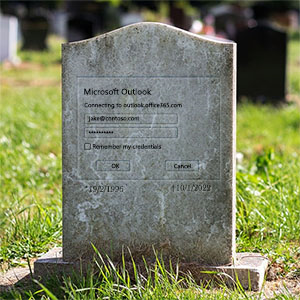
Back in September 2019, Microsoft announced it would start to turn off Basic Authentication for non-SMTP protocols in Exchange Online on tenants where the authentication protocol was detected as inactive. This is part of an overall movement to deprecate the less secure Basic Authentication, which is unfit to face the security challenges of the modern world, being subject to things like password spray attacks. It’s modern successor, modern authentication or OAuth2, uses a token and claim based mechanism contrary to sending accounts and passwords, and is the preferred authentication method. When combined with Azure AD for authentication, Modern Authentication also supports features such as Multi-Factor Authentication or Conditional Access.
The original date for disabling of Basic Authentication was October 13th, 2020. Then the world had other matters to deal with, and Microsoft extended the timelines. After initially postponing turning Basic Authentication off to second half of 2021, the ‘start date’ for permanently turning the lights off for Basic Authentication was set to October 1st, 2022, as per this article on Docs and MC286990 in the Message Center. Mind the ‘start’ in start date, as flicking the switch for millions of tenants takes time before it becomes effective on your tenant. Organizations do need to anticipate on this change for the first of October.
On September 1st, Microsoft published an update to these timelines as there were still some cases were organizations could not make the deadline of October 1st. To meet these customers “one last time”, organizations can now use the self-service diagnostics to extend disabling of Basic Authentication to January 2023. This needs to be done per protocol, also if organizations requested opt-out or re-enabled Basic Authentication earlier. Details as well as instructions and revised timelines on Basic Authentication switching off are laid out in a new article.
Until then, organizations can (re-)enable Basic Authentication for the protocols they need, using the self-help system in the Microsoft 365 admin center. After entering “Diag: Enable Basic Auth in EXO” in the problem search query, the request will be checked, and Basic Authentication will get enabled. But with the end of support for Basic Authentication, so will this temporary workaround. On a side note, per end of 2020, newly created tenants already have basic authentication disabled by means of security defaults – if those organizations require Basic Authentication for some reason, they will also need to reconfigure security defaults which by default is an all or nothing option for all protocols.
So, with the doomsday counter ticking away for Basic Authentication, what are the consequences for Exchange related workloads organizations might wonder. In this article, I will address some of these concerns.
Update: Microsoft meanwhile has disclosed much awaited details on changes in the native Mail app on iOS. This update is effective per iOS 15.6, and adds support for migrating configured accounts from using Basic Authentication to using Modern Authentication (OAuth). For this work work seamlessly and without user interruption, some configuration is needed on the back-end. Details can be found in a separate article here on this specific topic.






 EighTwOne (821)