
Exchange Message Size Limits


While traveling trough your Exchange organization or beyond, e-mail messages may be imposed to all sorts of limitations. One of these limits is the message size limit, which can be set on the following levels:

  • Organizational Level
  • Send Connector
  • Receive Connector
  • AD Site Links
  • Routing Group Connectors
  • Individual

The path evaluated is as follows: User Send Limit > Receive Connector > Organization Checks > Send Connector > User Receive Limit

In general, the lowest size limit on an e-mail route determines if a message can be successfully transported from sender to the recipient. Exception is the individual setting which can override the other settings for internal messages. Strategy is to define limits where appropriate and as soon as possible. It’s a waste of resources to accept a message, send it throughout the organization via several hops, to finally reject the message because the recipient has a maximum receive size limit.

Organizational Level
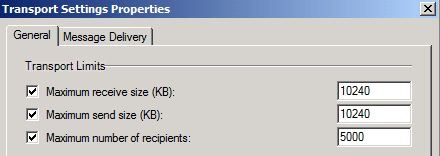
The message size limits on the organization level can be set through the Exchange Management Console via Organization Configuration > Hub Transport > Global Settings by opening the Properties of Transport Settings:
TransportSettings

Of course, you can also view the settings using the Exchange Management Shell using Get-TransportConfig, e.g.

TransportSettings-EMS

As you can see, the default value in Exchange 2010 is 10240 (10 MB) for both receive as well as send message sizes. If you require a higher value, for example to enable people to send and receive larger attachments, you can use the EMC or Set-TransportConfig:

Set-TransportConfig –MaxReceiveSize 25MB –MaxSendSize 25MB

As you might expect, MaxReceiveSize applies to receive connectors, MaxSendSize applies to send connectors. Valid range for this setting is anywhere in the range between 64KB and 2GB or Unlimited. When set to Unlimited (which once was the default values in Exchange 2007 RTM), no limit will be imposed. I don’t recommend using Unlimited since it can lead to service disruption caused by processing large messages.

Send Connector
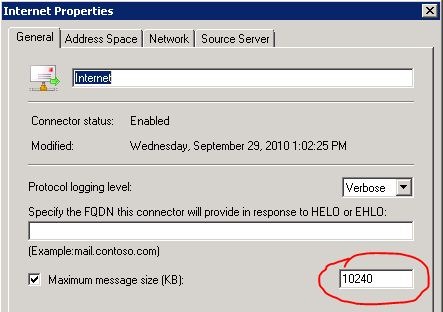
The message size limits on a send connector can be set through the Exchange Management Console via Organization Configuration > Hub Transport > Send Connectors by opening the Properties of the Send Connector:
SendConnector-EMC

You can also use Get-SendConnector to view the setting:

SendConnector

The default maximum sending message size for Exchange 2007/2010 send connectors is 10 MB. If you want to be able to send larger messages over this send connector, you can use the EMC or Set-SendConnector:

Set-SendConnector –Identity Internet –MaxMessageSize 25MB

Valid range for this setting is anywhere in the range between 64KB and 2GB or Unlimited.

Receive Connector
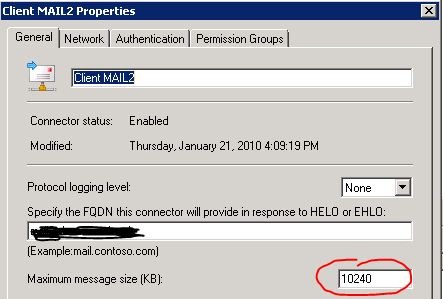
The message size limits on a send connector can be set through the Exchange Management Console via Server Configuration > Hub Transport by opening the Properties of the Receive Connector in the Receive Connectors pane:
ReceiveConnector-EMC

You can also use Get-ReceiveConnector:

ReceiveConnector

The default maximum receiving message size for receiving messages for Exchange 2007/2010 receive connectors is 10 MB. If you want to be able to receive larger messages over this receive connector, you can use the EMC or Set-ReceiveConnector:

Set-ReceiveConnector –Identity “MAIL1\Default MAIL1” –MaxMessageSize 25MB

Valid range for this setting is anywhere in the range between 64KB and 2GB or Unlimited.

AD Site Link
Messages travelling between Hub Transport servers are subject to AD site link limits. By default site links have no message size limit. You can view AD site link settings using Get-AdSiteLink or use Set-AdSiteLink to configure MaximumMessageSize when required.

ADSiteLink

Note that Hub Transport servers use least cost routing to route messages. When a message exceeds a site link limit, the message will not be delivered. Hub Transport servers will not try to deliver the message using a different route.

Routing Group Connectors
In a co-existence scenario you might have routing group connectors connecting Exchange 2007/2010 to an Exchange 2003 environment. Routing group connectors have no maximum message size limit by default.

To inspect a routing group connector maximum message size settings, use Get-RoutingGroupConnector:

Get-RoutingGroupConnector <ConnectorID> | FL Name, *Max*

To configure a maximum message size limit on a RGC use Set-RoutingGroupConnector:

Set-RoutingGroupConnector <ConnectorID> -MaxMessageSize 25Mb

Individual
You can create exceptions for the MaxReceiveSize and MaxSendSize values for mailbox users, mail-enabled contacts and distribution groups. By default no limits are imposed (i.e. Unlimited). To inspect the settings for a mailbox user, navigate to Recipient Configuration > Mailbox and open the Properties of the User. Activate tab Mail Flow Settings and open the Properties of the Message Size Restrictions settings:

UserMessageSizeSettings

or use the related cmdlet, e.g. Set-Mailbox UserID –MaxSendSize 1GB –MaxReceiveSize 1GB:

UserMessageSizeSettings-EMS

If you set an individual maximum send or receive size setting higher than the organization or connector limits, the individual setting will override those limits when the message is send internally, e.g the recipient resides in the same organization. This way you can create exceptions for certain individuals which require a higher message size limit.


Connecting the Disconnected in Exchange 2010


My article for Simple-Talk on mailbox and personal archive deletion, recovery and purging in Exchange 2010 has been published on Simple Talk.

The article is about:

  • The relationships between Active Directory and Mailboxes and Archives in the store;
  • Mailbox Retention;
  • Deleting and Recovering a Mailbox
  • Deleting and Recovering a Personal Archive
  • Linked Mailboxes
  • Cleanup

You can check out the article, titled Connecting the Disconnected in Exchange 2010, at:
http://www.simple-talk.com/sysadmin/exchange/connecting-the-disconnected-in-exchange-2010/

Note: I submitted the following additional SP1 info to the publisher so this information might be included in the article at some point.

Since writing the article SP1 was released which contains a new cmdlet to purge mailboxes, Remove-StoreMailbox. This is also great for situations when you’ve moved a lot of mailboxes and you need to make that space available in the source database (when moved, mailboxes are soft-deleted). Usage is as follows:

Remove-StoreMailbox -Database <DatabaseID> -Identity <MailboxID> -MailboxState [Disabled|SoftDeleted]

For example, to remove pmortimer’s mailbox from database DB1 after moving it elsewhere, use:

Remove-StoreMailbox –database DB1 –identity pmortimer –MailboxState SoftDeleted

The command to remove all SoftDeleted mailboxes from database DB1 would be:

Get-MailboxStatistics -Database DB1 | where {$_.DisconnectReason -eq “SoftDeleted”} | foreach {Remove-StoreMailbox -Database $_.database -Identity $_.mailboxguid -MailboxState SoftDeleted}

The new Remove-StoreMailbox cmdlet also enables us to use single command for removing all disconnected mailboxes:

Get-MailboxStatistics –Database DB1 | Where-Object {$_.DisconnectReason –eq “Disabled”} | ForEach {Remove-StoreMailbox –Database $_.database –identity $_.mailboxguid –MailboxState Disabled

Exchange 2010 Mailbox Role Calculator 12.8


The Microsoft Exchange Team released an important update of the Exchange Mailbox Role Calculator, bringing it to version 12.8.

This version includes the following fixes since 12.3:

  • Fixed total number of databases/server calculation to deal with Active/Active (Single DAG) scenario correctly with respect to dedicated DR servers
  • Fixed storage design disk calculations formulas for Active/Active (Single DAG) scenario, i.e., don’t recommend JBOD in scenario where only single copy is deployed (e.g., lagged copy deployed in secondary datacenter without dedicated hardware)
  • Fixed Number of Active Mailbox Servers in DC2 calculation to not double count lagged copies when deploying Active/Active (Single DAG) scenario and deploying lagged copy in both Primary and Secondary Datacenters
  • Fixed # of Target Lagged Copy Log Stream calculations to not double count lagged copies when deploying Active/Active (Single DAG) scenario and deploying lagged copy in both Primary and Secondary Datacenters
  • Fixed second DAG Member Layout Table to show number of servers for both Active/Active scenarios

Consult the changeblog here.You can download the calculator here. Usage instructions can be found here.

ForeFront TMG SP1 Update 1 for Exchange 2010 SP1


The ForeFront team released Update 1 for Microsoft Forefront Threat Management Gateway (TMG) 2010 Service Pack 1.

Besides bug fixes and some added functionality, Update 1 also adds support for Exchange 2010 SP1. Because Exchange 2010 SP1 doesn’t support the get-antispamupdates cmdlet (see this post), implementing Exchange 2010 SP1 on servers in the Mail protection role (with Exchange – Edge server role – as well as ForeFront Protection for Exchange) leads to issues.

Update 1 fixes this issue. To make things confusing, the ForeFront team calls these cumulative updates Software Update or Update; what’s wrong Rollup? Be advised that the ForeFront Update page doesn’t mention the Update (yet), nor is the related knowledge base article published (kb2288910).

You can download ForeFront TMG SP1 Update 1 here. Note that currently only English is available, other languages are said to be made available soon.

The revised CPU sizing formula


A week ago, the Exchange team updated guidance on calculating the megacycles required for sizing or validating your Exchange configuration. They blogged about the change, which is also incorporated in Exchange 2010 Mailbox Role Calculator 12.3, here.

In summary, the formula has changed to include the megacycles value of the baseline system for dimensioning the CPU requirement, thus from:

((New platform per core value) * (Hertz per core of new platform)) / (Baseline per core value) = Adjusted Megacycles per Core

to:

((New platform per core value) * (Hertz per core of baseline platform)) / (Baseline per core value) = Adjusted Megacycles per Core

The baseline system is an HP DL380 G5 with 2 quad core x5470 3.33GHz (3,333 megacycles) with a Specint_rate2006 rating of 150 meaning 18.75/core. This change was needed to make a better estimate of the requirements and to accommodate for faster clocked CPU’s. The old formula could lead to over or under dimensioning, depending on the megacycles of the new system compared to the baseline system. The EHLO blog mentioned not to “panic” when you used the old formula since your systems simply will have some extra megacycle capacity. And while the trend nowadays is to have slower clocked CPU’s with more cores, you could run into some megacycle shortage when you used the old formula with a (perhaps re-used) 3,33 GHz+ CPU configuration and little margin. Unfortunately, the EHLO blog doesn’t mention that.

For example, let’s assume we’re going to use a Dell PowerEdge T610 with 2 hexa core Intel Xeon L5640 clocked at 2.26 GHz (2,260 megacycles) with a Specint_rate2006 of 283 (22 per core). In the old formula, the adjusted megacycles per core value would be 22 * 2,260 / 18.75 = 2,652. Using the revised formula the result is 22 * 3,333 / 18.75 = 3,911. The difference of 1,259 not only means a 50% increase in the adjusted megacycles per core value, but the total of 12 * 1,259 = 15,108 also means room for hosting roughly 3,777 additional active mailboxes (200 message profile meaning 4 megacycles/mailbox). Having over dimensioned like this isn’t problematic, it might get when using CPU’s clocked over 3,33 GHz. Suppose you used the T610 with a 2 quad core 3.46 GHz Xeon x5677 configuration with a Specint_rate2006 of 299 (37.375/core). The old formula would say 37.375 * 3,460 / 18.75 = 6,896.93; the revised formula results in 37.375 * 3,333 / 18.75 = 6,643.78. For 8 cores this means you’re a total of 2,025.2 megacycles “short” or about 500 mailboxes with a 200 message profile.

Now, using the Specint_rate2006 is not only nice for comparing different CPU configurations, e.g. what are the implications of using more processors with less cores versus less processors with more cores, but also to compare the hardware configurations of different vendors. For example, while an HP ProLiant BL480c with a single quad core 3.33 GHz Intel Xeon X5470’s gives you a  baseline per core value of 20.28, adding an additional CPU to the same configuration drops the value to 18.75. In addition, while this dual quad core 3.33 GHz X5470 configuration in an HP ProLiant BL480c gives you 18.75 per core, the same CPU configuration in an Fujitsu Siemens Celcius R650 gives a baseline per core value of 17.5. That difference of almost 7% might not seem much, but it might mean having sufficient room for overhead or not having to add a bigger or second CPU.

Of course, all the information above is from a CPU perspective and doesn’t take into account other dimensioning elements like memory or storage. Note that since in the revised formula contains two fixed numbers, you could also multiply the Specint_rate2006 by 177.76 to get the adjusted megacycles per core value.