

Exchange Announcements @ Ignite 2020


Last Update: Added points from Exchange Online Transport – Manage Email, Optics, End User Experiences.

It shouldn’t come as a surprise that this year’s Ignite event is very different than previous years. However what is also different is that at this year’s digital experience, product groups lined up articles and pre-recorded sessions with deep-dive level 300-400 contents as well as articles to accompany those. The sessions, which are available through the Virtual Hub, were all launched right after the start of the event, including the prepared articles. Speaking of a flood flood of contents to digest.

To ease digesting all this information related to Exchange without going through all the videos and blogs, I prepared a summary of all the announcements made at and during Ignite for your reference. For reference, links to the original articles and sessions are at the bottom of this article. The list might not be conclusive; if you find something missing, let me know.

Exchange vNext

  • Exchange Server vNext is scheduled for H2/2021, and will be subscription-based.
  • Will support in-place upgrades from Exchange Server 2019, just like installing another Cumulative Update. Which makes you think, maybe it is just a CU with a high version offset to avoid clashing with its predecessor.
  • Support for this in-place upgrade process is limited to 2 years after release of vNext. If everything goes to plan, this means upgrades will be supported from Exchange 2019 CU11/12-CU19/20 to Exchange vNext RTM-CU8/9.
  • Will support co-existence with Exchange Server 2013, 2016 and 2019, which is 1 down-level more than previous editions (n-3 support instead of n-2).
  • Customers staying on-premises are recommended to upgrade to Exchange Server 2019 today, so they can benefit from an in-place upgrade to vNext when it gets released.
Image Source: Exchange – Here, There and Everywhere

Exchange Online

  • Exchange Online Management PowerShell module is now GA (v2.0.3). This module contains cmdlets leveraging Graph which can show significant performance enhancements in larger tenants, supports certificate-based authentication a.o.
  • Exchange Online Management PowerShell preview module (v2.0.4) supports Linux and PowerShell Core.
  • Cross-tenant migration of mailboxes is now in Public Preview. Separate programs for cross-tenant SharePoint Online and OneDrive for Business will also launched (register for private preview at aka.ms/SPOMnAPreview). An Azure Key Vault subscription is required on the target tenant. Management of these moves is done from PowerShell, after setting things up with some MSFT scripts which you can grab from GitHub here.
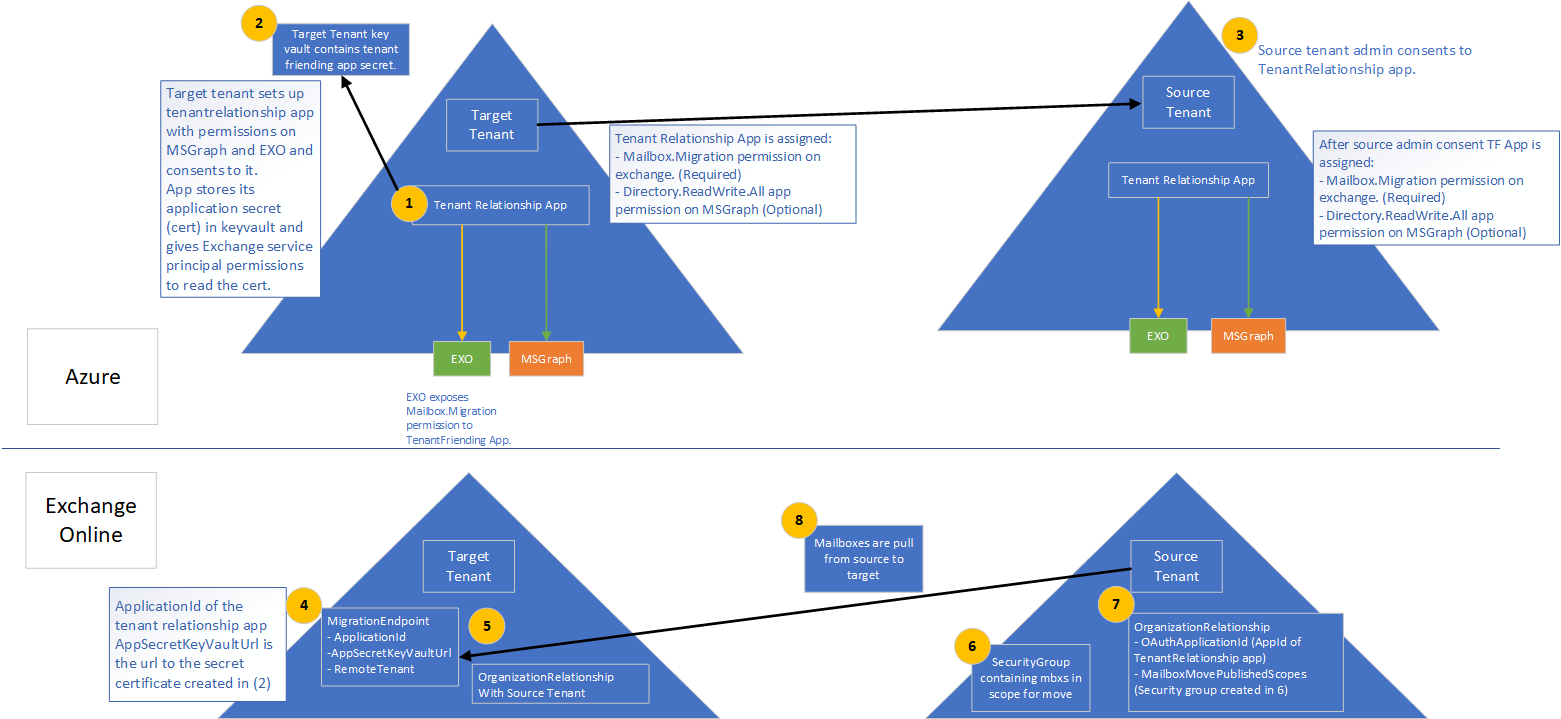
Tenant preparation for mailbox migration.
Image Source: Cross-tenant mailbox migration, process overview
Set-OrganizationConfig -AllowPlusAddressInRecipients $true
  • Message Recall to orchestrate recall of message in Exchange Online as announced at Ignite 2019 is expected later this year (Q4/2020).
  • Admins can toggle the new Exchange Admin Center (was already in preview). It will become the default in Q1/2021.
  • The new Exchange Admin Center is also tailored for use on mobile browsers.
  • Outbound mail flow now supports MTA-STS (MTA Strict Transport Security).
  • The new Exchange Admin Center will host all mail flow related management options, which will be consolidated from the earlier Admin Center as well as the Security & Compliance Center.
  • The new Exchange Admin Center will get new mail flow insights and notifications, such as early certificate expiration notifications or detected reply-to-all storms.
  • Option to reduce message expiration timeout interval from the current default of 24 hours.
  • Administrators get the option to block users from moving groups (distribution groups as well as Microsoft 365 Groups) to the BCC line, which might break receivers’ inbox rules (Q1/2021).
  • Entitled organizations can appoint Priority Users. Priority Users are critical mailboxes that are monitored for mail flow issues. Requires minimum of 10,000 Office 365 E3 or E5 or Microsoft 365 E3 or E5 licenses with at least 50 monthly active Exchange Online users.
  • Microsoft 365 Network Connectivity functionality goes into preview, which is accessible via the admin portal (Health > Network Connectivity).
  • The stand-alone Network Connectivity test tool also goes in preview, and is available from connectivity.office.com.
  • Notifications for expired or soon to expire SSL certificates and Domains (Q4/2020).
  • Customizable message expiration (8-24hours, Q4/2020).
  • Reply-to-All storm protection v2 with customizable thresholds and reports (Q4/2020-H1/2021).
  • Client-agnostic improved Message Recall (Q4/2020).

Exchange 2019

  • Exchange Server 2019 Server Role Requirements Calculator or just Capacity Calculator is now available as separate download (v10.5, link).

Exchange Hybrid

  • New Exchange Hybrid Configuration Wizard, which will become available later month, will support connecting your Exchange on-premises environment to multiple tenants. Note that multiple Exchange organizations connecting to a single tenant was already an option, as mentioned in the supported Azure AD Connect topologies document (link).
Image Source: September 2020 Hybrid Configuration Wizard Update – Microsoft Tech Community
  • Multitenancy Exchange Hybrid will support up to 5 tenants.
  • Setting multitenancy up requires Exchange Server 2019 CU7 or Exchange Server 2016 CU18 or later.
  • Multitenancy does not enable SMTP domain sharing, which is logical as you can only setup domain once in Office 365.
  • Exchange Hybrid Modern Authentication (HMA) can only be configured with one single tenant.

Outlook Desktop/Mac

  • Office will get perpetual release (Windows & Mac) in H2/2021.
  • Attendees who left company get removed from meeting after first NDR.

Outlook Mobile

  • Play My Emails coming to Canada, Australia, India and the United Kingdom (Outlook for iOS and Android).
  • Option to ask Cortana to read out emails from specific people, time frame and topics in (Outlook for iOS, September).
  • Voice commands for email composition, calling and scheduling (October).
  • Sync contact folders with your phone by category (October).
  • Reactions to emails with emojis without filling your inbox (Q4)
  • QR connect to simplify work account setup (October).
  • Outlook for Mac will start using Microsoft Sync technology for enhanced performance and reliability. 
  • Widget support for iOS14 across apps.
  • Option to toggle new Outlook for Mac via in-app switch.

References to official sources

Module Updates: What’s New?


After updating your PowerShell modules which support managing parts of the Microsoft 365, some of us are curious about what changes are introduced with the updated module. In the world of continuous change, it is hard to keep track of these changes. New cmdlets or parameters get added to support new features, and some get removed as they become obsolete. So, how to discover what those changes are after updating to the latest module?

Time to blog on a small script I created for this purpose a long time ago, Compare-Cmdlets.ps1. This script has two operating modes:

  • Export currently available cmdlets and parameters for supported modules.
  • Compare two exports of cmdlets & parameters and report the differences.

Currently, the following command sets are supported:

ModuleTest CmdletExport File
AzureADGet-AzureADUserAzureAD-<version>.xml
ExchangeOnlineGet-MailboxExchangeOnline-<version>.xml
ExchangeOnlineManagementGet-ExoMailboxExchangeOnlineManagent-<version>.xml
MicrosoftOnlineGet-MsolUserMSOnline-<version>.xml
TeamsGet-TeamMicrosoftTeams-<version>.xml

Command sets are exported per module, where a module is assumed to be present by a simple check for cmdlet availability (specified in column Test Cmdlet). That is, if Get-Mailbox is available, the ExchangeOnline module is assumed to be available. It does not distinguish between the Exchange PowerShell module or ‘classic’ Remote PowerShell session, nor will it take into account the repository origin of the module, nor if the Get-AzureADUser is coming from the AzureAD or AzureADPreview module.

That said, here’s how this is works. Load up PowerShell and have your modules installed and ready. Some modules like ExchangeOnlineManagement require connecting to the service first to import the cmdlet functions, so for ExchangeOnlineManagement run Connect-ExchangeOnline first. Same applies to the newer Teams modules, where the Skype Connector functions are only available after running New-CsOnlineSession.

Then run Compare-Cmdlets to export the cmdlets and parameters for those modules. The commands will by default be exported to an XML in a subfolder named ‘data’. The name of the file is mentioned in the table above. If you want to use a different folder to store the XML files, use DataFolder parameter.

Note that with Exchange, the cmdlets available to you depend on which role you have been assigned in Exchange’s Role-Based Access Control model. For example, if you haven’t explicitly assigned Mailbox-ImportRequest to your account, you will not see it in the exports. Therefor, when exporting module changes, it is required using an account with the same roles assigned to have proper exports. But when needed, you can also use it to report on command set differences between two Exchange Online accounts.

After updating some of the modules, or downloading one of the command set reference XMLs I stored with the script on GitHub, you can use Compare-Cmdlets to compare different versions of module exports. For example, to compare the cmdlets of Microsoft Teams module 1.1.4 with those after updating to 1.1.5, use

.\Compare-Cmdlets.ps1 -ReferenceCmds data\MicrosoftTeams-1.1.4.xml -DifferenceCmds data\MicrosoftTeams-1.1.5.xml

From the output, we see for example that:

  • The cmdlet Get-TeamChannel has a new GroupId parameter.
  • The cmdlet New-CsGroupPolicyAssignment parameter PolicyType has been removed.
  • The cmdlet Add-TeamChannelUser is new.

Note that common parameters (e.g. Verbose and ErrorAction) and optional common parameters (e.g. WhatIf) are left out of the equation. Also, parameters are not compared in depth and only presence is checked. If for example a parameter changes type (e.g. string to multivalue), Compare-Cmdlets does not pick that up.

As-is, the script is made to run on demand from an interactive PowerShell session. Ideally, this would run scheduled and serverless from within the service, reporting changes by e-mail.

The script Compare-Cmdlets.ps1 can be downloaded from GitHub here. If you find this useful, would like to comment or have suggestions, use the comments below or leave them on GitHub.

Exchange Updates – September 2020


The Exchange Team released the quarterly Cumulative Updates for Exchange Server 2019 as well as Exchange 2016. Like recent Cumulative Updates for these products, they require .NET Framework 4.8. Apart from fixes as well as security updates included from the previous CU, the Exchange 2019 CU7 also comes with an update for the Exchange Sizing Calculator.

Links to the updates as well as a description of changes and fixes are described below.

VersionBuildKBDownloadUMLPSchemaPrepareAD
Exchange 2019 CU715.2.721.2KB4571787VLSC NY
Exchange 2016 CU1815.1.2106.2KB4571788DownloadUMLPNY

Exchange 2019 CU7 fixes:

  • 4570248 Get-CASMailbox uses wrong LDAP filter for ECPEnabled in Exchange Server 2019
  • 4576652 Updates for Exchange Server 2019 Sizing Calculator version 10.5
  • 4570252 Intermittent poison messages due to NotInBagPropertyErrorException in Exchange Server 2019
  • 4576649 System.InvalidCastException when you change passwords in Outlook on the web in Exchange Server 2019
  • 4570251 Inbox rule applying a personal tag doesn’t stamp RetentionDate in Exchange Server 2019
  • 4570245 ESEUtil /p fails if any long value (LV) is corrupted in Exchange Server 2019
  • 4570255 NullReferenceException occurs when running TestFederationTrust in Exchange Server 2019
  • 4576650 Can’t add remote mailbox when setting email forwarding in Exchange Server 2019 Hybrid environment
  • 4570253 CompletedWithErrors without details for mailbox migration batches in Exchange Server 2019
  • 4570247 CSV log of Discovery export fails to properly escape target path field in Exchange Server 2019
  • 4570246 EdgeTransport crashes with Event ID 1000 (exception code 0xc00000fd) in Exchange Server 2019
  • 4570254 MSExchangeMapiMailboxAppPool causes prolonged 100% CPU in Exchange Server 2019
  • 4563416 Can’t view Online user free/busy status in Exchange Server 2019
  • 4576651 Can’t join Teams meetings from Surface Hub devices after installing Exchange Server 2019 CU5
  • 4577352 Description of the security update for Microsoft Exchange Server 2019 and 2016: September 8, 2020

Exchange 2016 CU18 fixes:

  • 4570248 Get-CASMailbox uses wrong LDAP filter for ECPEnabled in Exchange Server 2016
  • 4570252 Intermittent poison messages due to NotInBagPropertyErrorException in Exchange Server 2016
  • 4576649 System.InvalidCastException when you change passwords in Outlook on the web in Exchange Server 2016
  • 4570251 Inbox rule applying a personal tag doesn’t stamp RetentionDate in Exchange Server 2016
  • 4570245 ESEUtil /p fails if any long value (LV) is corrupted in Exchange Server 2016
  • 4570255 NullReferenceException occurs when you run TestFederationTrust in Exchange Server 2016
  • 4576650 Can’t add remote mailbox when setting email forwarding in Exchange Server 2016 Hybrid environment
  • 4570253 CompletedWithErrors without details for mailbox migration batches in Exchange Server 2016
  • 4570247 CSV log of Discovery export fails to properly escape target path field in Exchange Server 2016
  • 4570246 EdgeTransport crashes with Event ID 1000 (exception code 0xc00000fd) in Exchange Server 2016
  • 4570254 MSExchangeMapiMailboxAppPool causes prolonged 100% CPU in Exchange Server 2016
  • 4563416 Can’t view Online user free/busy status in Exchange Server 2016
  • 4576651 Can’t join Teams meetings from Surface Hub devices after installing Exchange Server 2016 CU16
  • 4577352 Description of the security update for Microsoft Exchange Server 2019 and 2016: September 8, 2020

Notes:

  • These Cumulative Updates do not contain schema changes compared to their previous Cumulative Update.
  • There are Active Directory changes requiring you to run PrepareAD. Consult the Exchange schema versions page for object version numbers.
  • When upgrading from an n-2 or earlier version of Exchange, or an early version of the .NET Framework, consult Upgrade Paths for CU’s & .NET.
  • Don’t forget to put the Exchange server in maintenance mode prior to updating. Regardless, setup will put the server in server-wide offline mode post-analysis, before making actual changes.
  • When using Exchange hybrid deployments or Exchange Online Archiving (EOA), you are allowed to trail at most one version (n-1).
  • If you want to speed up the update process for systems without internet access, you can follow the procedure described here to disable publisher’s certificate revocation checking.
  • Cumulative Updates can be installed directly; no need to install RTM prior to installing Cumulative Updates.
  • Once installed, you can’t uninstall a Cumulative Update nor any of the installed Exchange server roles.
  • The order of installation shouldn’t matter with the “every server is an island” concept, yet recommended is to upgrade internet-facing, non-internet-facing servers first, followed by Edge Transports.

Caution:

As for any update, I recommend to thoroughly test updates in a test environment prior to implementing them in production. When you lack such facilities, hold out a few days and monitor the comments on the original publication or forums for any issues.

Security Updates Exchange 2016-2019 (Sep2020)


A quick blog on security updates for Exchange Server 2016 and Exchange Server 2019 released September 8th. These fixes address the following vulnerability:

  • CVE-2020-16875: Exchange Memory Corruption Vulnerability
    A remote code execution vulnerability exists in Microsoft Exchange server due to improper validation of cmdlet arguments. An attacker who successfully exploited the vulnerability could run arbitrary code in the context of the System user. Exploitation of the vulnerability requires an authenticated user in a certain Exchange role to be compromised. The security update addresses the vulnerability by correcting how Microsoft Exchange handles cmdlet arguments.

The exploits can be fixed by single security update, which you can find in the table below per current Exchange version.

ExchangeDownloadBuildKBSupersedes
Exchange 2019 CU6Download15.2.659.6KB4577352KB4540123
Exchange 2019 CU5Download15.2.595.6KB4577352KB4540123
Exchange 2016 CU17Download15.1.2044.6KB4577352KB4540123
Exchange 2016 CU16Download15.1.1979.6KB4577352KB4540123

Be advised that these security updates are Cumulative Update level specific. You cannot apply the update for Exchange 2016 CU17 to Exchange 2016 CU16. Also, the security update download has the same name for different Cumulative Updates, and I would suggest tagging the file name with the CU level, e.g. Exchange2016-CU17-KB4577352-x64-en.msp.

Also, run the Security Update from an elevated command prompt, to prevent issues during installation. And on a final note, as with any patch or update, I’d recommend to apply this in a acceptance environment first, prior to implementing it in production.

Self-Service Purchasing II


November 3rd, 2023: Updated SKU table with Clipchamp. Be advised, the MSCommerce module does not work with PowerShell 7 and requires compatibility mode (use Import-Module with -UseWindowsPowerShell).

It was in October 2019, that by means of Message Center bulletin MC163609 Microsoft announced that end users would receive the self-service purchasing option for Power Platform licenses (PowerBI, PowerApps and Flow). The announcement received quite some negative feedback, mostly because of the absence of administrative controls, with the risk of bypassing corporate purchasing as well as potential legal implications. Microsoft delayed the introduction, to launch it few months later in January this year, including the much requested controls.

Now MC220282 has appeared in the Office 365 Message Center, which announces the same self-service purchasing options for Microsoft Visio Plan 1 & 2 and Microsoft Project Plan 1 & 3. These purchasing options becomes available per September 15th.

The Message Center bulletin reads, “This change will not impact any existing settings you may have in place to manage self-service purchasing”. While true, administrators still might be faced with unexpected self-service capabilities for these new licenses. In this blog, I’ll talk you quickly through how to start managing these self-service capabilities, and how to modify these new ones.

Connecting and Managing

To start managing self-service capibilities, you need to install the MSCommerce PowerShell module, which Microsoft published at the PowerShell Gallery:

Install-Module MSCommerce

If you previously installed MSCommerce, update your module using:

Update-Module MSCommerce -Force

The current version of the module at the time of writing is 1.6. Now, to starting using the cmdlets provided in the module, you need to first connect to your Office 365 tenant:

Connect-MSCommerce

After completing login and succesfully completing any multi-factor authentication challenge, you can inspect the current self-service capabilities policy. First, there is a global policy named AllowSelfServicePurchase, which can be inspected using:

Get-MSCommercePolicies | Select PolicyId
Get-MSCommercePolicy -PolicyId AllowSelfServicePurchase | fl

As you can see, the default option for purchasing options is set to Enabled. This value can’t be modified, which means every new product added to self-service purchasing will be enabled by default. This also means admins may need to monitor the message center for self-service purchasing changes, and when required proactively monitor and disable this capability for new products. To inspect the current setting for every current product, use:

Get-MSCommerceProductPolicies -PolicyId AllowSelfServicePurchase

As you can see, the self-service purchasing for the Power Platform products have been disabled. However, because the DefaultValue is Enabled, the purchase capabilities for these new products have been set to Enabled. If we want to disable this capability for these products, use the following cmdlet:

Get-MSCommerceProductPolicies -PolicyId AllowSelfServicePurchase | % { Update-MSCommerceProductPolicy -PolicyId $_.PolicyId -ProductId $_.ProductId -Enabled $false }

Note that self-service purchase capabilities are not available for Office 365 Government, Nonprofit, and Education tenants.

Approval Flow

In another bulletin (MC213897), Microsoft announced the roll-out of an feature for end users to request licenses trough a customizable message or workflow. This option should become available when self-service purchasing has been disabled. It allows admins assign requested licenses from the pool or make required purchases, and also report on these requests to track interest. The bulletin has been updated recently to mark completion of roll-out of the message part of this feature; the request part is scheduled for completion in September. Unfortunately, I haven’t been able to locate settings related to these features yet, but these might appear any time soon. The screenshot from the bulletin gives an indication of what to expect:

To read more information on Self-Service Purchasing capabilities in the Self-Service Purchase FAQ.

Windows 365
Per MC271483, Microsoft informed Office 365 customers in July 2021 end users are going to be able to buy Windows 365 (announcement) licenses through the self-purchase license mechanism as well. Windows 365 will come in 2 flavors: Windows 365 Enterprise and Windows 365 Business; the latter is aimed at smaller organizations, while the Enterprise edition will offer Cloud PCs with Endpoint Manager and Defender integration a.o. A third Hybrid Benefit license option is available if you already have Windows 11 Pro or Windows 10 Pro on a device.

The Windows 365 SKUs are mentioned in the table at the end of this article.

If you did not configure the self-service puchasing option as disabled by default, you can disable new Enabled options using the code example above, or if you need to block these individual Windows 365 options upfront, use the following processing the Windows 365 SKU’s:

$W365Options= 'CFQ7TTC0HHS9', 'CFQ7TTC0HX99', 'CFQ7TTC0J203'
$W365Options | % { Update-MSCommerceProductPolicy -PolicyId AllowSelfServicePurchase -ProductId $_ -Enabled $False }

Trials
On December 17th, 2021, it was announced through the Message Center (MC306669) that per January 26th, 2022, self-service purchasing would also allow sign-up for Visio (Plan 1 or Plan 2) or Project (Plan 1 or Plan 3) trials. There are no separate SKUs for this, as it is managed by disabling the existing Visio or Project options.

SKU Overview
The available self-service purchasing options per July 2022 are contained in the table below. However, these entries are subject to change and may vary depending on your region or type of tenant, i.e. commercial or government.

SKUDescription
CFQ7TTC0KP0NPower Automate per user
CFQ7TTC0KP0PPower Apps per user
CFQ7TTC0L3PBPower BI Pro
CFQ7TTC0HDB1Project Plan 1
CFQ7TTC0HDB0Project Plan 3
CFQ7TTC0HD33Visio Plan 1
CFQ7TTC0HD32Visio Plan 2
CFQ7TTC0KXG6Power Automate RPA
CFQ7TTC0KXG7Power BI Premium (standalone)
CFQ7TTC0HHS9Windows 365 Enterprise
CFQ7TTC0J203Windows 365 Business
CFQ7TTC0HX99Windows 365 Business with Windows Hybrid Benefit
CFQ7TTC0HVZGViva Learning
CFQ7TTC0LH3NDynamics 365 Marketing
CFQ7TTC0LHWPDynamics 365 Marketing Attach
CFQ7TTC0LH05Microsoft 365 F3
CFQ7TTC0LHVKDynamics 365 Marketing Additional Application
CFQ7TTC0LHWMDynamics 365 Marketing Additional Non-Prod Application
CFQ7TTC0N8SSClipchamp
CFQ7TTC0PW0VViva Goals
CFQ7TTC0LSGZPower Automate Per User with Attended RPA Plan
CFQ7TTC0S3X1Python On Excel
CFQ7TTC0J1FVTeams Exploratory
CFQ7TTC0RM8KTeams Premium
CFQ7TTC0N8SLMicrosoft Purview Discovery