

End Users & External Messages


Ex2013 Logo

Update 5May2021: Relocated information regarding External Tagging feature to new blog.

In the ongoing battle against spam and phishing, technical measures have much effect as they are able to triage spam or phishing messages based on configuration or programmed rules. By now, many of these measures have been widely adopted to limit messages of those categories to reach the inbox of the end user. Measures like SPF (Sender Policy Framework), DKIM (DomainKeys Identified Mail) and DMARC (Domain-based Message Authentication, Reporting and Conformance) can be used to validate origination or contents of the message, or authenticate senders.

This post isn’t about those measures or how to implement them. I suggest reading this excellent DMARC implementation guide by MSFT’s Martijn van Geffen for more information on how to implement SPF and DMARC successfully. Note that his website also contains lots of tools and scripts to troubleshoot and report on SPF/DMARC. If you’re unfamiliair with his site, I suggest you have a look.

One of the “weaker links” in the whole chain of messaging remains the end end user. One can still devise technical measures up to a point, there are still end users out there who blindly click links or follow instructions in that message from ‘Microsoft’ requesting them to change their Office 365 password. One can not always blame the end user; phishers became very crafty in making their deceptions look genuine; even IT professionals often need to look twice to determine legitimacy of a message. For those interested, few months ago Google put a phishing quiz online where you can assess your phishing detection skills.

To assist end users processing inbound messages, many companies have resorted to providing visual clues so end users can more quickly determine the origin of a message or the message being potentially non-legit. One measure often is marking messages originating from outside the organization, by inserting a notice before the contents, or prefixing the subject with something like “[External]”.

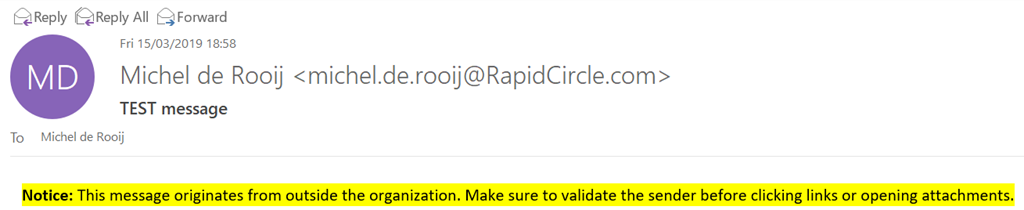
Recently, MVP fellow Tony Redmond wrote an article on how to accomplish marking external messages using transport rules in Exchange. For example, to create a transport rule you can use the following cmdlet:

New-TransportRule -Name 'Tag External Mail' -SetHeaderName 'X-ExternalMail-Tagged' -SetHeaderValue 'True' -ApplyHtmlDisclaimerLocation Prepend -ApplyHtmlDisclaimerText '<span style="background-color:yellow;color:black;"><b>Notice</b>: This message originates from outside the organization. Make sure to validate the sender before clicking links or opening attachments.</span>' -ExceptIfHeaderContainsMessageHeader 'X-ExternalMail-Tagged' -ExceptIfHeaderContainsWords 'True' -ExceptIfSenderInRecipientList Allow -FromScope NotInOrganization

The above will create a transport rule that prepends the message with a colored (HTML) notice, inserting a message header to prevent insertion of multiple notices and allowing end users to add senders to their Safe Sender Allow List to bypass tagging messages.
image

However, the problem with these notices is that over time it might make end users insensitive, as messages from external sources are usually large in numbers and become part of the other visual noise like disclaimers and marketing messages. Therefor a better option might be to mark messages which fail DMARC or SPF checks, provided you are not rejecting those messages at some level.

For example, to mark messages failing DMARC or SPF checks, you could create the following transport rule:

New-TransportRule -Name 'Tag DMARCSPFFail Mail' -SetHeaderName 'X-DMARCSPFFail-Tagged' -SetHeaderValue 'True' -ApplyHtmlDisclaimerLocation Prepend -ApplyHtmlDisclaimerText '<span style="background-color:white;color:red;"><b>Warning:</b> The sender of this message could not be validated, and may not be the actual sender.</span>' -ExceptIfHeaderContain
sMessageHeader 'X-DMARCSPFFail-Tagged' -ExceptIfHeaderContainsWords 'True' -ExceptIfSenderInRecipientList Allow -FromScope NotInOrganization -HeaderMatchesMessageHeader 'Authentication-Results' -HeaderMatchesPattern 'dkim=fail','spf=TempError','spf=PermError', 'spf=SoftFail', 'spf=Fail', 'spf=None'

Of course, you could also prepend the subject with a tag to help identifying messages in this category.

More recently, Microsoft added the MailTip feature to Outlook Mobile which also helps in making end users more aware of their outbound communications. After enabling the MailTips for external recipients using:

Set-OrganizationConfig -MailTipsExternalRecipientsTipsEnabled $true

end users will receive a notification when replying to or sending messages outside their organization from Outlook Mobile; Outlook Desktop already had this feature.

Outlook Desktop:

recext

Outlook Mobile:
image

MailTips are in my opinion the preferred visual clue when compared to inserting content, as it not only can notify users upfront, it also doesn’t clutter message bodies with notifications and warnings. In the end, these notifications are however a small price to pay, compared to the cost of phishing or end users clicking malicious links. It would be nice if Microsoft could already show the MailTip when displaying the message, so it would prevent accidental clicking of malicious links or attachments.

May 5th 2021: A new feature has been introduced to Exchange Online (MC243047), which allows organizations to tag external inbound messages. Information on this new feature has been published in a new blog: Tagging External Messages.

On a final note, Advanced Threat Protection (ATP) could also help companies with the protection against malicious links and attachments, however not every company has ATP licenses. In both cases, these notices might complement the overall set of measures.
Exchange and VMWare Guest Introspection


Ex2013 LogoIn this long overdue article, I would like to share an experience, where a customer was upgrading from Exchange 2010 to Exchange 2013. Note that this could also apply to customers migrating from Exchange 2007 or migrating to Exchange 2016 as well. The Exchange 2013 servers were hosted on VMWare vSphere 5.5U2; the Exchange 2010 servers on a previous product level.

The customer saw a negative impact on the end user experience of Outlook 2010 users, especially those working in Online Mode. Other web-based services like Exchange Web Services (EWS) were affected as well. The OWA experience was good.

Symptoms
After migrating end user mailboxes from Exchange 2010 to Exchange 2013 (but as indicated, this applies to Exchange 2016 as well), end users reported delays in their Outlook client responses, where sometimes Outlook seemed to ‘hang’ when performing certain actions like accessing a Shared Mailbox. Also, when opening up the meeting planner in order to schedule a room using Scheduling Assistant, it could take a significant amount of time, (i.e. minutes) before the schedule of all the rooms was being displayed.

The end users’ primary mailbox was configured to use Cached Mode, except for VDI users who used their primary mailbox in Online Mode. Shared Mailboxes were used in Online Mode due to the size (Outlook 2010, so no slider).

Analysis
First, the overall health of the Exchange environment was checked to exclude it as a potential cause. Exchange performance metrics were monitored, as well as Managed Availability status and events, logs like the RCA logs, and VMWare CPU Ready % to check for potential vCPU allocation issues (read: oversubscription). None of these metrics caused any reason for concern.

After reconfiguring the HOSTS file, in order to bypass the load balancer and direct traffic to a single Exchange server to simplify troubleshooting, the symptoms remained. Then, we checked:

  • TCP/IP optimization settings, e.g. RSS, Chimney, etc.
  • VMWare VMXNet3 offloading, e.g. Large Send Offload, TCP Checksum Offloading
  • VMWare VMXNet3 buffer settings

All those settings were also found to be on their recommended values.

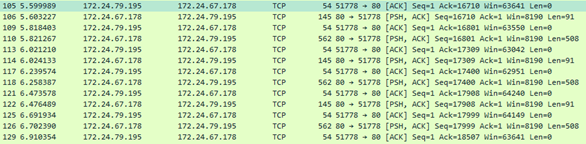
We started digging in from the client’s perspective, and used WireShark to see what was going on on the wire. After filtering on the Exchange host, we saw the following pattern:

image

Note that this customer used SSL Offloading, so mailbox access took place on port 80 instead of 443 (RPC/http).

As you might notice, there is a consistent 200ms delay after the client receives its response (e.g. packets 106 and 110). When searching around for ‘200ms’ and ‘delay’, you may end up with articles describing the effect of the Nagle algorithm (Delayed ACK). Nagle is meant to reduce chatter on the wire, but can have a negative effect on near real-time communications, especially with small packets. Also, while 200ms might seem small, looking at the number of packets exchanged between Outlook and Exchange, this can add up quite quickly. Most of these articles will also describe a fix, recommending to configure a registry key TcpAckFrequency, and set it to 1 (default is 2). For testing purposes, we configured this key and after the mandatory reboot, the end user Outlook experience was snappy. However, setting this key would impact all client communications (real as well as VDI clients); not a recommended long-term solution due to side effects on the network.

After removing the registry key, investigating was continued. Since there was no issue with the Exchange 2010, we started to suspect there was perhaps an issue with VMWare, or there was some form of network optimization or packet inspection going on. This, due to the fact there was no problem with the old Exchange environment, and the elements that changed when migrating were VMWare vSphere version, physical vSphere hosts, and last but not least, the protocol switched. This client didn’t use Outlook Anywhere, so RPC/http was not enabled for Exchange 2010 prior to migration, and clients connected using MAPI. After some more investigating, some potentially related articles on the VMWare knowledgebase were found, talking about latency issues in certain VMWare Tools versions, the VMWare guest driver set, and downgrading these to 5.1 would have the same effect as configuring TcpAckFrequency. Unfortunately, this wasn’t an option as the hardware level of the VMWare guests already was on a certain level.

introRemediation
When installing VMWare Tools, the package comes with some system-level drivers which handle communications between the guest and the host or other guests. One of these drivers is the VMWare Guest Introspection driver (or VMCI Drivers, and formerly VShield Drivers). This component can be identified in the guest in the presence of the system drivers vnetflt and vsepflt, and accommodates agentless antivirus solutions like McAfee MOVE. However, it seems to also interfere with certain workloads in their driver ecosystem, thus negatively impacting real-time communications. I wasn’t able to test if the change from MAPI to RPC/http (or later MAPIhttp) also contributed to this effect, as the Introspection driver may not scan MAPI RPC packets at all, in which case there is no overhead introduced.

Needless to say disabling the Guest Introspection component might be less desirable for some organizations, and in those cases, when you experience this issue, I suggest contacting your VMWare representative, after verifying your VMWare Tools are part of the list of recommended versions.

In the end, in this situation Guest Introspection was disabled and a file-level scanner was introduced (with the required exclusions, of course). Performance for Online Mode was optimal when accessing Online Mode mailboxes, and using Exchange web services like Scheduling Assistant showed room planning in seconds rather than minutes.

image.pngNote that unfortunately, recent versions of VSphere running Exchange virtualized workloads also have this issue. On the plus side, they allow for separate (de)installation of the file system driver (NSX File Introspection Driver) and the network driver (NSX Network Introspection Driver). I am pretty sure removing the network driver would suffice, which might be a viable solution for some folks as well.

If you have any insights to share, please leave them in the comments.

HTTP Proxy TargetBackEnd limits


powershellLast Update: February 4th, 2016

When deploying Exchange 2013 or Exchange 2016 in co-existence with a legacy version of Exchange, there comes a point where all traffic is routed through Exchange 2013/2016. Traffic for mailboxes hosted on legacy Exchange versions will be proxied by Exchange 2013/2016 to the back end.

This proxy process has some built-in limits for certain protocols, which you could encounter. Symptoms of these limits are Event 2022’s being logged in the Application log by the MSExchange Front End HTTP Proxy service:

image

Per Exchange 2013 CU7, this message should be considered a notice, despite the confusing event description. No connections are being blocked. However, the events create noise in your logs, which can be prevented by raising these limits. To accomplish this, you need to dive in to the web.config of the applicable HTTP Proxy protocols:

  • $ExInstall\FrontEnd\HttpProxy\sync\web.config (for ActiveSync, EAS)
  • $ExInstall\FrontEnd\HttpProxy\rpc\web.config (for OA, RPC/http)

In those files, create or adjust the entry in the <appsettings> configuration node, where <value> is the limit you want to configure (default is 150):

<add key=”HttpProxy.ConcurrencyGuards.TargetBackendLimit” value=”<value>” />

After adjusting these values, recycle the relevant application pools, e.g. MSExchangeSyncAppPool and MSExchangeRPCProxyAppPool.

The above steps need to be performed on all Exchange 2013/2016 Client Access Servers.

To automate this process of tedious editing in web.config files, I have created a small script which lets you alter these values for EAS and RPC against the local server or remotely. The script, Configure-HTTPProxyTargetBackEnd.ps1, has the following parameters:

  • Server to specify server to configure. When omitted, will configure local server.
  • AllServers to process all discoverable Exchange Client Access servers
  • TargetBackEnd specifies Target Backend limit (default 150).
  • NoRecycle to prevent recycling the MSExchangeSyncAppPool and MSExchangeRPCProxyAppPool

For example, to configure the local server with a limit of 2000 for Exchange Active-Sync and RPC access, use:

.\Configure-HTTPProxyTargetBackEnd.ps1 -TargetBackEnd 2000

image

Note that the script will create a backup copy of the web.config files before editing, using the current timestamp.

Download
You can download the script from the TechNet Gallery here.

Feedback
Feedback is welcomed through the comments. If you got scripting suggestions or questions, do not hesitate using the contact form.

Revision
See TechNet Gallery page.

Blocking Mixed Exchange 2013/2016 DAG


Ex2013 LogoIn the RTM version of Exchange 2016, there’s an issue in that it is allows you to add Exchange 2016 Mailbox servers to Exchange 2013 Database Availability Groups, and vice-versa. As stated in the Release Notes (you do read those?), creating such a mixed version DAG is not supported. In theory, you could even jeopardize your Exchange data, as database structures from both versions are different. This action is also not prevented from the Exchange Admin Center, requiring organizations to have very strict procedures and knowledgeable Exchange administrators.

If you are worried about this situation and you want to prevent accidently adding Mailbox servers to an existing DAG consisting of members of a different Exchange version, there is a way (until this is blocked by the product itself, of course). Cmdlet Extension Agents to the rescue!

The Scripting Agent not only allows you to add additional instructions to existing Exchange cmdlets, but also to provide additional validation before cmdlets are executed. I did two short articles on Cmdlet Extension Agents’ Scripting Agent here and here, so I will skip introductions.

First you need to download a file named ScriptingAgentConfig.xml from the location below. If you already have Scripting Agents, you need to integrate the code in your existing ScriptingAgentConfig.xml files. The code checks if the server you want to add using the Add-DatabaseAvailabilityGroup cmdlet is of a different major version than one of the current DAG members.

Next, you need to copy this ScriptingAgentConfig.xml file to $ENV:ExInstallPath on every Exchange 2013 and Exchange 2016 server in your organization, e.g. C:\Program Files\Microsoft\Exchange Server\V15\Bin\CmdletExtensionAgents\ScriptingAgentConfig.xml.  To help your with this process, Exchange fellow Paul Cunningham made a small script to push this XML from the current folder to every Exchange server in your organization, PushScriptingAgentConfig.ps1.

Last step is to enable the Scripting Agent using:

Enable-CmdletExtensionAgent ‘Scripting Agent’

After distributing the scripting agent file and enabling the scripting agent, when you try to add an Exchange 2016 (version 15.1) server to an Database Availability Group consisting of Exchange 2013 Mailbox servers, using Add-DatabaseAvailabilityGroupServer, you will receive an error message:

DAGCheck

This also works vice-versa, thus when you inadvertently try to add Exchange 2013 servers to an Exchange 2016 Database Availability Group, provided you distributed the XML on the Exchange 2013 servers as well. The error is also thrown when you try to perform this action using the Exchange Admin Console.

You can download the ScriptingAgentConfig.XML for blocking Mixed Exchange 2013/2016 DAGs from the TechNet here.

Exchange 2010-2013 Migration and OAB


Ex2013 LogoLast year, Exchange fellows Andrew Higginbotham, Paul Cunningham as well as the Exchange Team reported on checking, and when necessary configuring, your Offline Address Book (OAB) in your current Exchange Server 2010 environment, prior to installing Exchange Server 2013. Not doing so could result in a complete download of the Offline Address Book created by Exchange Server 2013, titled ‘Default Offline Address List (Ex2013)’.

Today I received a report that there is a different symptom of configuration absence. In this case, the customer reported on the inability to download the offline address book, and upon further inspection the Autodiscover server did not report back on the offline address book URL to use. In other words, OAB information was absent from the Autodiscover response, and Outlook gets confused. Note that this issue was reported in Outlook 2010 after installing Exchange Server 2013 Cumulative Update 10. I’m not sure if this change in behavior was introduced in these later builds of Exchange 2013 or Outlook, but it’s still a good thing to know.

The remedy here of course is to configure any (Exchange 2010) mailbox database with unconfigured Offline Address Book setting, and point them to the default offline address book using:

Get-MailboxDatabase | Where-Object {$_.OfflineAddressBook -eq $Null} | Set-MailboxDatabase -OfflineAddressBook (Get-OfflineAddressBook | Where-Object {$_.IsDefault -eq $True})
