Exchange 2010 SP1 Rollup 2 & RTM RU5


Today the Exchange Team released Rollup 2 for Exchange Server 2010 Service Pack 1 (KB2425179). This update raises Exchange 2010 version number to 14.1.270.1.

Here’s the list of changes included in this rollup:

  • 983186 The mailbox alias of a user contains the “?” character unexpectedly after you run the “Enable-Mailbox” cmdlet to create a mailbox for the user in an Exchange Server 2010 environment
  • 2295902 An excepted occurrence is not excluded from a recurring iCalendar message for an Exchange Server 2010 mailbox user
  • 2385017 You cannot edit public folder items even though you are the owner of the items in an Exchange Server 2010 environment
  • 2385194 You cannot connect to an Exchange Server 2010 mailbox by using a MAPI application when a Mailbox server and a Client Access server are installed on different computers
  • 2397171 You cannot reply or forward a large email message on an Exchange Server 2010 mailbox
  • 2403783 An incorrect label is displayed in the date field in a public folder item when you open the item by using OWA in an Exchange Server 2010 environment
  • 2408924 The subject of an item is deleted when you use the “UploadItems” operation together with the “Update” action or the “UpdateOrCreate” action in an Exchange Server 2010 environment
  • 2409597 You cannot open a public folder item when the default public folder database for the mailbox database is unavailable in an Exchange Server 2010 environment
  • 2423776 The Exchange Information Store service crashes frequently during a public folder replication process on an Exchange Server 2010 public folder
  • 2431500 You cannot connect to an Exchange Server 2010 mailbox simultaneously by using Outlook Anywhere from several Windows XP-based computers
  • 2433642 The “FETCH (BODYSTRUCTURE)” command returns a corrupted file name of an email message attachment on an Exchange Server 2010 computer
  • 2452075 You cannot connect to mailboxes in a recovery database on a server after you install Exchange Server 2010 SP1
  • 2458005 The Exchange Mailbox Replication service crashes when you use the “New-MailboxImportRequest” command to import a PST file to an Exchange Server 2010 mailbox
  • 2458419 “A temporary change has occurred that requires you to connect to a different server” error message when Exchange Server 2007 mailbox users try to access their mailboxes by using an Exchange Server 2010 Client Access server
  • 2322161 The replay queue length on passive copies of mailbox databases in Database Availability Group continues to increase in an Exchange Server 2010 environment
  • 982004 Exchange Server 2010 users cannot access the public folder
  • 983492 You cannot view updated content of an Exchange Server 2010 public folder
  • 983549 Exchange Server 2010 removes the sender’s email address from the recipient list in a redirected email message
  • 2467001 The MSExchangeTransport.exe process crashes or stops responding on a Hub Transport server that has Exchange Server 2010 SP1 installed

The team also released Exchange 2010 Rollup 5; that is, Rollup 5 for the RTM version of Exchange 2010 (KB2407113). Note that this KB article hasn’t been published yet so no details on the changes. The Exchange 2010 RTM RU5 update raises Exchange 2010 version number to 14.0.726.0.

When running ForeFront Protection for Exchange, make sure you disable ForeFront before installing the rollup and re-enabling it afterwards, otherwise the Information Store and Transport services may not start. You can disable ForeFront using fscutility /disable and enable it by using fscutility /enable afterwards.

For those still unaware, update rollups are cumulative, i.e. they contain fixes released in earlier update rollups for the same product level (RTM, SPx). This means you don’t need to install previous update rollups during a fresh installation but can start with the latest rollup published right away.

You can download Exchange 2010 SP1 Rollup 2 here; Exchange 2010 (RTM) Rollup 5 can be downloaded here.

Exchange 2007 SP3 Rollup 2 & SP2 RU5


Today the Exchange Team released Rollup 2 for Exchange Server 2007 Service Pack 3 (KB2407025). This update raises Exchange 2007 version number to 8.3.137.3.

Here’s the impressive list of changes included in this rollup:

  • 972186 Some functions do not work if you install Security Configuration Wizard on a Windows Server 2008 SP2-based Exchange Server 2007
  • 979046 Attachments are empty when you save them by using OWA after you have applied the update of KB 958881 on an Exchange Server 2007
  • 980038 The Microsoft Exchange System Attendant service crashes intermittently in the Oabgen.dll module on an Exchange Server 2007 server
  • 981602 Event ID: 4999 is frequently generated in a mixed Exchange Server 2007 and Exchange Server 2003 environment
  • 982476 The Imap4.exe process crashes intermittently on an Exchange Server 2007 server
  • 982478 Notes URL links in a plain text message are not clickable when you open this message by using OWA in an Exchange Server 2007 environment
  • 2028675 The MSExchangeFDS.exe process occupies lots of memory if there are thousands of OABs created on an Exchange Server 2007 server
  • 2029086 Some characters of an email message are displayed in an incorrect text size when you access your mailbox by using OWA in Exchange Server 2007
  • 2032216 The Microsoft Exchange Information Store service crashes on an Exchange Server 2007 server when you start it or try to mount certain databases
  • 2121536 Exchange Server 2007 cannot index a message
    2201236 The “All Day” field is marked with “No” when you access a meeting request that has a duration time that is more than 24 hours by using a mobile client through ActiveSync in an Exchange Server 2007 environment
  • 2203212 Certain mailboxes cannot be moved from an Exchange Server 2007 server to an Exchange Server 2010 server
  • 2210042 A sub contact folder is still visible after you set the “PR_ATTR_HIDDEN” attribute to “True” in an Exchange Server 2007 environment
  • 2230824 The Microsoft.Exchange.POP3.exe process or the Microsoft.Exchange.Imap4.exe process may crash after you enable protocol logging for POP3 or IMAP4 on an Exchange Server 2007 server
  • 2249814 You receive misleading information when you run the “New-TestCasConnectivityUser.ps1” script on an Exchange Server 2007 server
  • 2263342 “The operation failed” error message in Outlook client when a user sends a recurring meeting request with an email message attachment in an Exchange Server 2007 SP2 environment
  • 2276439 The Microsoft.Exchange.IMAP4.exe process crashes when an IMAP4 client retrieves a meeting request that includes exception attachments in an Exchange Server 2007 environment
  • 2280234 “Your POP3 server has not responded in 60 seconds.” error message when a POP3 client connects to an Exchange Server 2007 Client Access server to access an Exchange Server 2003 mailbox
  • 2282570 “550 5.1.3” NDR message when an Exchange Server 2007 user sends an email message to a recipient
  • 2265306 The Exchange Information Store service stops responding when you perform a search operation on an Exchange Server 2007 mailbox in Outlook
  • 2282746 The “Private” sensitivity status of an occurrence of a recurring meeting request is lost when you edit the occurrence in OWA in an Exchange Server 2007 environment
  • 2286782 The response details are still included in the response email message when you set the “EnableResponseDetails” property to “False” in an Exchange Server 2007 environment
  • 2290105 A shared document cannot be open by using OWA after you install Exchange Server 2007 SP3 on an Exchange Server 2007 server
  • 2290159 The POP3 service crashes on an Exchange Server 2007 server
  • 2344372 You cannot move mailboxes to an Exchange Server 2007 server
  • 2362371 You receive a “Success” response when using the Test-Mailflow command on an invalid or nonexistent external email address in an Exchange Server 2007 environment
  • 2384754 “Unable to identify local server row in Replication state table for this FID” error message when you run the Information Store Integrity Checker tool on an Exchange Server 2007 server
  • 2387915 The ESEBack component does not support ETL tracing on an Exchange Server 2007 server
  • 2388057 The Exchange Transport service crashes on Exchange Server 2007 servers in a mixed Exchange Server 2007 and Exchange Server 2010 environment
  • 2394731 An HTML attachment of a shared mailbox cannot be saved when you set the “BypassOwaHTMLAttachmentFiltering” setting to “True” in an Exchange Server 2007 environment
  • 2424499 Exchange Server 2007 does not support to assign a mailbox with the “Send on behalf” permission of a security group in the EMC or in the EMS
  • 2427297 The created time and the modified time of an attachment are incorrect when you save an email message on an Exchange Server 2007 mailbox
  • 2430674 The “Leave message intact” method in a Folder Assistant rule does not work when you post an item by using OWA in an Exchange Server 2007 environment

In addition, the team also released Exchange 2007 SP2 Rollup 5 (KB2407132), which is a security fix only. The Exchange 2010 RTM RU5 update raises Exchange 2010 version number to 8.2.305.3.

When running ForeFront Protection for Exchange, make sure you disable ForeFront before installing the rollup and re-enabling it afterwards, otherwise the Information Store and Transport services may not start. You can disable ForeFront using fscutility /disable and enable it by using fscutility /enable afterwards.

For those still unaware, update rollups are cumulative, i.e. they contain fixes released in earlier update rollups for the same product level (RTM, SPx). This means you don’t need to install previous update rollups during a fresh installation but can start with the latest rollup published right away.

You can download Exchange 2007 SP3 Rollup 2 here; Exchange 2007 SP2 Rollup 5 can be downloaded here.

Outlook Web App Web Parts in Exchange 2010 SP1


After the introduction of Exchange 2010 RTM, many developers –especially on Sharepoint – complained that Microsoft had dropped Web Parts support. Web Parts are small pieces of (Exchange) content which you can incorporate in your own (Sharepoint) application or personalized web page using customized URLs. The source of this content can the mailbox of the authenticated user or other mailboxes to which that user has sufficient permissions.

For example, in Exchange 2007 you can access a web part showing your weekly Exchange calendar using the following URL:

https://ex2007/owa/?cmd=contents&module=calendar&view=weekly

Now in Exchange 2010 RTM this didn’t work anymore. Luckily, with SP1 Web Parts were reinstated. Calling a Web Part through an URL always starts with https://<FQDN>/owa, followed by one or more of the following parameters:

  • SMTP address – This overrides the mailbox to open by specifying the SMTP address associated with the mailbox you want to access, e.g. fblake@lab.local. This parameter always needs to be specified first as part of the location, i.e. it’s not a parameter;
  • cmd – Must be used present when not specifying a specific mailbox and it’s assigned value should be “contents”. This parameter makes sure the Web Part is shown and not the full OWA interface;
  • id (optional) – opens a specific folder by specifying its PR_ENTRY_ID value;
  • fpath (optional) – specifies mailbox folder to display starting from the root folder, e.g. projects/2010. Note that when you specify Inbox you might encounter issues because of user’s localization settings, i.e. “Postvak IN” (Dutch) instead of Inbox;
  • module (optional) – specifies one of the standard folders to open, preventing localization issues. Possible values are Inbox, Calendar, Contacts, Tasks or Publicfolders;
  • view (optional) – Configure the view depending on the folder. For example, for calendar you can specify monthly, weekly or daily; for Inbox view you can specify a few sort options.
  • d, m, y (optional) – Allows you to specify a date for the calendar view;
  • part (optional) – When specifying part=1, the Web Part will be shown using reduced UI to make it more compact.

Note that when constructing the URL you need to comply with URL encoding rules, so replace a space with %20 and a slash with %2f for example. More information on this subject here. Also, use “?” before the first parameter and “&” between any additional parameters.

Some examples:

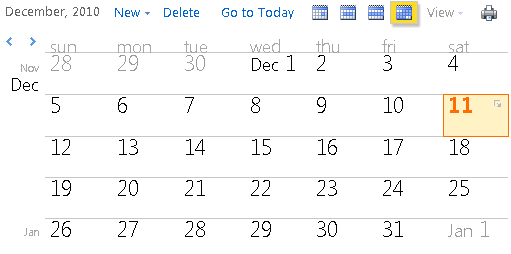
Open a monthly view of our calendar:
https://<FQDN>/owa/?cmd=contents&module=calendar&view=monthly

image

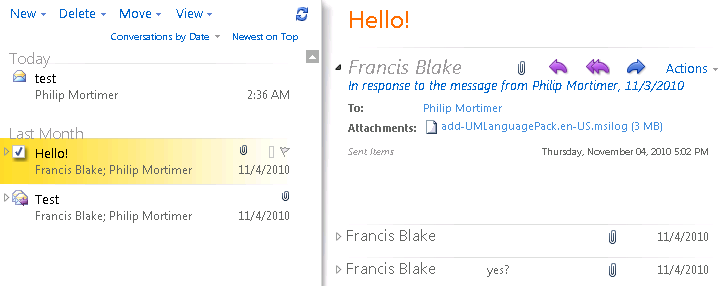
Open our Inbox:
https://<FQDN>/owa/?cmd=contents&module=inbox

image

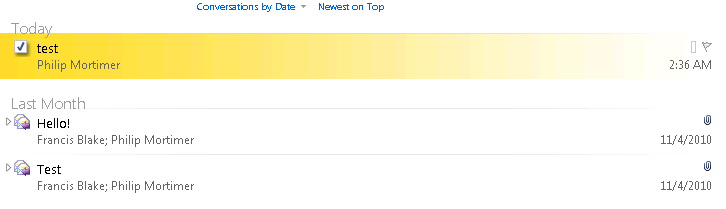
Open our inbox with a reduced UI (to fit it in smaller spaces):
https://<FQDN>/owa/?cmd=contents&module=inbox&part=1

image

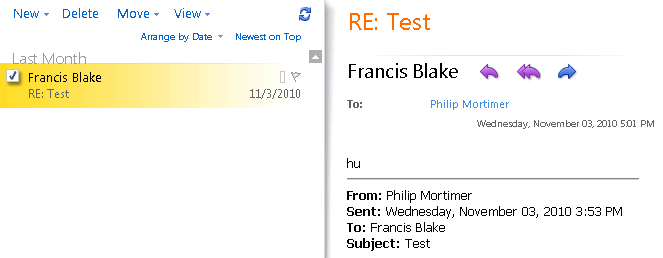
Access the Projects folder located in the root of another mailbox:
https://<FQDN>/owa/pmortimer@lab.local/?cmd=contents&fpath=projects

image

For those unfamiliar with this Web Part functionality, be sure to check it out as it allows you to easily integrate Exchange information in your application or website. More detailed information on using Outlook Web App Web Parts check here. For those running Exchange 2007, this information is located here (there are some minor differences).

LUN design and Hardware VSS


I had a question why you need to design seperate LUNs for Exchange database and log files when using a hardware based Volume Shadow Copy Service (VSS) backup solution, as mentioned in this TechNet article:

To deploy a LUN architecture that only uses a single LUN per database, you must have a database availability group (DAG) that has two or more copies, and not be using a hardware-based Volume Shadow Copy Service (VSS) solution.

The reason for this requirement is that hardware VSS solutions operate at the hardware level, i.e. the complete LUN. Therefor, if you put the Exchange database and log files on a single LUN, it will always create a snapshot of the whole LUN. This restricts your recovery options, since you can by definition only restore that complete LUN, overwriting log files created after taking the snapshot. So, changes (log files) made after the snapshot are lost and you have no point-in-time recovery options.

For example, with the database and log files on a single LUN, suppose you create a full backup on Saturday 6:00. Then, disaster strikes on Monday. By definition, you can now only restore the database and log files as they were on Saturday 6:00; log files which were created after Saturday 6:00 are lost.

With the database and log files on separate LUNs, you can restore the database LUN, which leaves the LUN with the log files intact. Then, after restoring the database, you can start replaying log files.

So, keep this in mind when planning your Exchange LUNs in conjunction with the backup solution to be used. Note that the Mailbox Role Calculator supports this decision by letting you specify Hardware or Software VSS Backup/Restore as the Backup Methodology to be used.

If you’re interested in more background information on how VSS works, I suggest you check out this TechNet article.

Note: This blog has also been published on Exchange fellow Jaap Wesselius’ ExchangeLabs blog here.

Exchange & Windows Phone 7


This TechNet article on Windows Phone 7 got my attention. It appears you cannot fully utilize Exchange ActiveSync mailbox policies, unless you set AllowNonProvisionableDevices to True. If you don’t do that, you can only use the following properties, otherwise synchronization issues might be experienced:

  • PasswordRequired
  • MinPasswordLength
  • IdleTimeoutFrequencyValue
  • DeviceWipeThreshold
  • AllowSimplePassword
  • PasswordExpiration
  • PasswordHistory
  • DisableRemovableStorage
  • DisableIrDA
  • DisableDesktopSync
  • BlockRemoteDesktop
  • BlockInternetSharing

Another option is to create a seperate policy for Windows Phone 7 users.

Another thing worth mentioning is that when using multiple Exchange accounts on your Windows Phone 7, policies will be merged into a most restrictive set (credit to Dave Stork who got the information at TEE10).