

Update (3sep2022) Updated reflect Azure AD app roles.
Early June, Microsoft released a new PowerShell module
for managing Exchange Online. This module got announced at Ignite 2019 already, but it took few months between going into preview end of last year before it finally reached Generally Available status. Usage of this module offers substantial improvements over the existing methods to connect to Exchange Online using Powershell, such as:
- Leveraging the PowerShell module ecosystem to install and update the module. This as opposed to the click-to-run Microsoft Exchange Online Powershell Module or connecting through PowerShell remoting.
- Support for Multi-Factor Authentication. This is something which the click-to-run module also offers but is not available when using PowerShell remoting.
- Robustness. Existing sessions could easily timeout when you took a short break from the console. Or worse, your script could terminate in the middle of execution. This required you to reconnect or forced you to add resilience to your scripts by handling with these disconnects from the back end. The cmdlets of the EXOv2 module should be more robust and resilient.
- Introduction of the Graph API support, which should show improvements in terms of speed. Microsoft indicated an 4-8 times improvement should be achievable, but your mileage may vary depending on the operation.
- Support for PowerShell 6/7, core, and non-Windows operating systems is coming.
Exchange Online Management v2 module
The module has been baptized EXOv2 to indicate a major change compared to the click-to-run module (hereafter referred to as EXOv1), and also because it uses Graph API, just like the AzureAD v2 module. The module is available in the PowerShell Gallery, and installation is straightforward. Open a PowerShell 5.1 or later session in elevated mode and run:
Install-Module ExchangeOnlineManagement
The EXOv2 cmdlets which are REST-based and and leverage Graph API have their nouns prefixed with ‘EXO’, e.g. Get-EXOMailbox. Currently, there are 9 EXO cmdlets in the GA module, as well as few additional ones (more on those later). The regular commands such get Get-Mailbox are available as well after connecting to Exchange Online. This is similar behavior to the EXOV1 module, e.g.
Connect-ExchangeOnline [-UserPrincipalName <UPN>]

When required, satisfy the Multi-Factor Authentication logon process, and you
are done. Be advised that the EXOv2 module also supports Delegated Access
Permissions (DAP), allowing partners to connect to customer tenants by
specifying -DelegatedOrganization <mycustomer.onmicrosoft.com> when connecting.
Also note that apart from the EXO cmdlets, the current module also offers few other interesting commands and helper functions apart from the ones for housekeeping:
- Connect-IPPSSession to connect to Security & Compliance center or Exchange Online Protection, depending on licensing. This command was also available in EXOv1.
- Get-UserBriefingConfig & Set-UserBriefingConfig. These are a bit out of context, as these commands allow you to enable or disable the Cortana Briefing for users.
- IsCloudShellEnvironment indicates if you are running from PowerShell or Azure Cloud Shell, which might be useful in scripts to determine the current context.
The EXOv2 cmdlets and their regular equivalents are shown in the table below:
| EXO v1 or Remote PowerShell | EXO v2 |
| Get-Mailbox | Get-EXOMailbox |
| Get-MailboxFolderPermission | Get-EXOMailboxFolderPermission |
| Get-CASMailbox | Get-EXOCASMailbox |
| Get-MailboxFolderStatistics | Get-EXOMailboxFolderStatistics |
| Get-MailboxPermission | Get-EXOMailboxPermission |
| Get-MobileDeviceStatistics | Get-EXOMobileDeviceStatistics |
| Get-Recipient | Get-EXORecipient |
| Get-RecipientPermission | Get-EXORecipientPermission |
What you might notice is the absence of any Set-EXO* cmdlets. This is true, and there is no word yet on if and when Set cmdlets will be introduced. That said, the biggest speed gain is often in bulk retrieval of data, not so much in altering one or more attributes. Until then, do not
despair though, as you can pipe output of the EXO cmdlets to their regular cmdlet,
e.g.
Get-EXOMailbox michel | Set-Mailbox -EmailAddresses @{Add='michel@myexchangelabs.com'}
This construction will also provide the additional benefit of parallel processing of objects as they pass through the pipeline, but more on that later.
Now comes another thing you should be aware of, and that is that these EXOv2 cmdlets might not use the same parameter sets as their v1 equivalent. Simply said, you cannot perform a simple Find and Replace operation in your script replacing Get-Mailbox with Get-EXOMailbox to start enjoying benefits of the new module.
When running a cmdlet like Get-EXOmailbox, you might notice that it returns only a subset of the attributes you might expect. Similar to what Properties does for Active Directory module, the EXOv2 module requires you to specify the individual Properties to return. Alternatively, you can use PropertySets to select a predefined set of attributes. For example, Get-EXOMailbox supports PropertySets such as All, Minimum (default), Policy, Quota and Retention to name a few. When needed, you can combine PropertySets, so something like the following is possible:
Get-EXOMailbox -Identity michel -PropertySets Quota,Policy
A small note on the PropertySet All: Just like Get-ADUser .. -Properties
* is considered bad practice as you can impact resource usage and usually return more than what you need, using -PropertySets All for every call is also a bad idea. All is convenient, but make sure you only return the data you need. Be a good person.
To see which EXOv2 cmdlets support PropertySets, use:
(Get-Command -Noun EXO* -Module ExchangeOnlineManagement).Where{$_.Parameters.propertySets}

Performance
Now, I suppose we want to get an indication of the performance enhancements by comparing EXOv2 and equivalent operation using v1 cmdlets. In this simple example we are returning quota information for some 50.000 mailboxes:

In this case, it is not the 4-8x improvement, but more than twice as fast is significant nonetheless. Especially if you are running interactively. To see the impact of parallel processing in the pipeline, we run the following:

As shown, there is a substantial increase in performance, but of course your mileage may vary depending on things like the number of objects, the attributes you require, and any filtering
applied. Note that the PropertySet StatisticsSeed used in the example is a very minimal set of attributes which you can use if you only wish the refer to the objects, such as userPrincipalName, primarySmtpAddress and externalDirectoryObjectID.
Speaking of filtering, one would expect that server-side filtering (-Filter) would show an improvement in terms of speed over client-side filtering (Where), as filtering at the source is far more efficient in terms of result set and data to send over. However, it seems that due to the nature of a shared environment, sending superfluous data over the wire is less of a penalty than local filtering. Of course, your mileage may also vary here, so experiment what works best for your situation. Also, not every attribute is supported for filtering with these EXO cmdlets, which lies in how Graph exposes data. More information on that here.
When your session times out or disconnects, you will see that the module tries to reconnect your session; something which you would have to programmatically solve for the v1 module or regular remote PowerShell:

Certificate-based Authentication
Exchange administrators often have a requirement to run unattended scripts against Exchange Online, for example scheduled reports or as part of another process. In the past, this lead to setups where service accounts and stored credentials were used. Later this was improved by the ability to apply Conditional Access to limit these logons to on-premises infrastructure.
The problem with Multi-Factor Authentication is that it requires interaction with end-user to approve the sign-on. Of course, while your token is still valid, you can easily (re)connect to Exchange Online just by providing the Username Principal Name, which will reuse the token if it didn’t expire. But all in all, these solutions are high maintenance, and far from ideal from a security perspective.
Here comes certificate-based authentication, which is supported in version 2.0.3 and up of the EXOv2 module. In short, certificate-based authentication allows you to log on to Exchange Online using:
- PowerShell
- EXOv2 module
- A (self-signed) certificate containing private key
- Enterprise App registration in Azure Active Directory which contains the public key of this certificate, and proper assigned Azure AD role(s).
Note: Enterprise app registration may require Azure AD P1/P2 license.
To install the EXOv2 2.0.3 version of the module (preview at time of writing), use:
Install-Module ExchangeOnlineManagement -AllowPrerelease
Note that it might complain if you have the GA version of the module installed, in which case you need to uninstall the GA module first, or you can install them side-by-side by specifying -Force.
Next, we need to create a self-signed certificate. To accomplish this, we can use the script published here. To create the certificate, simply use:
.\Create-SelfSignedCertificate.ps1 -CommonName 'EXOv2' -StartDate 7/30/2020 -EndDate 7/30/2021
Note that you need to provide a password to protect the PFX file containing the private key. Also do not forget to import the PFX in your local certificate store. When importing, you can mark the certificate as non-exportable, which prevents admins to transfer the certificate to other systems.
Import-PfxCertificate -CertStoreLocation Cert:\CurrentUser\My -FilePath .\EXOv2.pfx -Password (Read-Host -AsSecureString)
After importing, you can check for the certificate’s presence using:
Get-ChildItem Cert:\CurrentUser\My | Where {$_.Subject -eq 'CN=EXOv2'}

The Subject should be the CommonName you used when generating the certificate. The thumbprint of our certificate is 49A4A73B4696718676770834BCD534DE35030D2C. We are going to use this later on to connect.
Now we need to set things up in Azure Active Directory:
- Open up the Azure Active Directory Portal, and navigate to Active Directory.
- Select App registrations, and click New registration.
- Give the App a meaningful Name, and select Accounts in this organizational directory only. Set Redirect URI to Web and leave the URL blank. Then, click Register.
![clip_image013[4]](https://eightwone.com/wp-content/uploads/2020/08/clip_image0134_thumb.jpg "clip_image013[4]")
Note that our App has been assigned an Application (Client) ID. Make note of this value, as we will need it to connect later on. - Next, we need to configure the App permissions. Select API permissions. User.Read should show up as default. Click Add a permission, and locate Office 365 Exchange Online from the APIs my organization uses tab. Select Application permissions, and in the next screen expand Exchange and check Exchange.ManageAsApp. We are done here, so click Add permissions.
- Only thing left now is to Grant admin consent, which can be done by clicking Grant admin consent for <tenant>. When done, the Status column for Exchange.ManageAsApp permission should have changed to Granted for <tenant>.

- Now we need to associate this App with out certificate. Select Certificates & Secrets, and click Upload certificate. Pick the certificate file which we generated earlier, and select Add.
![clip_image017[4]](https://eightwone.com/wp-content/uploads/2020/08/clip_image0174_thumb.jpg "clip_image017[4]")
- Last step is to assign the App one of the built-in Azure AD roles. Go to the Azure Active Directory blade, and select Roles and administrators. To manage Exchange Online using PowerShell, you need to assign the Exchange Administrator role; for Security & Compliance, you can assign the Compliance Administrator role.
Select the desired role(s), and click Add assignments in the assignments overview screen. Note that when picking security principals, the App might not show up initially, and typing its first few letters might help. Click Add to assign the role.![clip_image019[4]](https://eightwone.com/wp-content/uploads/2020/08/clip_image0194_thumb.jpg "clip_image019[4]")
Note that the UserName mentioned in the overview is the Application ID.Now we are done configuring the back end, we can look again at connecting. This should now be as simple as running:
Connect-ExchangeOnline -CertificateThumbprint '49A4A73B4696718676770834BCD534DE35030D2C' -AppId '0d3f8f4c-34fb-4a22-8466-80fd7379593b' -Organization '<tenant>.onmicrosoft.com'
Where:
- CertificateThumbprint is the thumbprint of the self-signed certificate you created earlier.
- AppID is the Application (Client) ID of the registered App.
- <tenant>.onmicrosoft.com the initial domain name of your tenant.

Note that you can also connect specifying the CertificateFile instead of Thumbprint, but then you need to provide the password as well via CertificatePassword. Having the certificate in the certificate store of the administrator account or account running the task and just specifying the thumbprint is more convenient and requires zero interaction.
If all steps above were followed correctly, you should now be connected to Exchange Online, without any MFA interaction.
A final note is that Connect-IPPSSession mentioned earlier does not support certificate-base authentication.
What about other Workloads
You can use the same certificate-based authentication to connect to several other workloads as well. That is, provided you have installed the required PowerShell module and the Azure AD role you assigned to the Application has adequate permissions. You can use the commands below to connect to these workloads. A small note that the commands to connect may use a different parameter names for AppId or Organization, e.g. AppId, ApplicationId or ClientId and Organization and TenantId are same things in the examples below.
AzureAD (2.x or Preview)
Connect-AzureAD -CertificateThumbprint '49A4A73B4696718676770834BCD534DE35030D2C' -ApplicationId '0d3f8f4c-34fb-4a22-8466-80fd7379593b' -TenantId '<tenant>.onmicrosoft.com'
MicrosoftTeams (GA or Test)
Connect-Microsoftteams -CertificateThumbprint '49A4A73B4696718676770834BCD534DE35030D2C' -ApplicationId '0d3f8f4c-34fb-4a22-8466-80fd7379593b' -TenantId '<tenant>.onmicrosoft.com'Microsoft Graph
Connect-Graph -CertificateThumbprint '49A4A73B4696718676770834BCD534DE35030D2C' -ClientId '0d3f8f4c-34fb-4a22-8466-80fd7379593b' -TenantId '<tenant>.onmicrosoft.com'
AuditThe logons which are performed in the context of the Application are viewable in the Azure Sign-Ins at https://aka.ms/iam/rtsp

Note that this view is currently in preview, and there might be a slight delay before logon shows up.
Final Notes
It would be nice if there would be a way to incorporate Exchange granular Role-Based Access Control model into the permissions model. Granting Apps only the built-in Azure AD roles is somewhat limiting, and it would be nice to restrict accounts in only being able to run the cmdlets and parameters they need to use.
When running Exchange cmdlets, you will find these in the audit log but with the <tenant>\AppID as UserName. Therefore, best thing to do is to use a single App registration for each individual administrator or process, instead of using a single App registration and multiple certificates.
And finally, it would be nice if the various teams would align their cmdlet and parameter naming schemes for consistency.
Exchange Certificate Reporting
 A quick tip on retrieving the expiration of certificates configured on your Exchange servers. While some certificate providers like DigiCert will proactively notify you when certificates are expiring in the near future, you may want to run such a report yourself. Or perhaps you want to verify configured certificates on all your Exchange servers are aligned.
To accomplish this, you could use readily available scripts, such as this one published by fellow MVP Paul Cunningham. But with some PowerShell you could easily construct yourself a one-liner which will perform the same task. We will first show the one-liner, after we will dissect and talk you through it. Note that being a lazy typist, I used several aliases to make the whole command a bit shorter, but not a lot.
Command
A command to retrieve basic certificate reporting for Exchange servers in your environment is as follows (wrapped for readability):$D=(Get-Date).AddDays(30); Get-ExchangeServer | %{$S=$_.Identity;$R=$_.ServerRole; Get-ExchangeCertificate -Server $S | Sort NotAfter | Select @{n='Server';e={'{0} ({1})' -f $S,$R}}, @{n='CertSubject';e={($_.Subject -split '( , )*..=')[1]}}, @{n='Expires';e={'{0:MM/dd/yyyy}' -f $_.NotAfter}}, @{n='IssuedBy';e={($_.Issuer -split '(, )*..=')[1]}}, @{n='Domains';e={$_.CertificateDomains -join ','}}, @{n='Alert';e={' !'[(Get-Date $_.NotAfter) -le $D]}},*} | ft -a Alert, CertSubject, Status, Expires, IsSelfsigned, IssuedBy, Services, Thumbprint, Domains -GroupBy Server | Out-String -Width 8192Sample output

Dissection
$D=(Get-Date).AddDays(30) | Get-ExchangeServer
First, we want get a visual indication of certificates expiring in the coming 30 days. The command is followed by a semi-colon, which can be used to separate commands on the same line. The first cmdlet in our pipeline is Get-ExchangeServer, which returns all Exchange server objects.
%{$S=$_.Identity;$R=$_.ServerRole; Get-ExchangeCertificate -Server $S | Sort NotAfter | Select @{n='Server';e={'{0} ({1})' -f $S,$R}}, @{n='CertSubject';e={($_.Subject -split '( , )*..=')[1]}}, @{n='Expires';e={'{0:MM/dd/yyyy}' -f $_.NotAfter}}, @{n='IssuedBy';e={($_.Issuer -split '(, )*..=')[1]}}, @{n='Domains';e={$_.CertificateDomains -join ','}},@{n='Alert';e={' !'[(Get-Date $_.NotAfter) -le $D]}},*}We are passing every Exchange server object to ForEach (%). For each of these objects, we will perform the following tasks:
- First, we store its current Identity ($S) and Serverrole ($R) property in variables for later usage. This, because if we create a calculated properties later on, we have no reference anymore to the Exchange object in the calculated field expression, as $_ will then contain the current object passed to Select (Select-Object).
- Next, we retrieve all certificates from the Exchange server we are looking at using Get-ExchangeCertificate, and we pipe those certificate objects to sort to order them by expiration date.
- We then create several calculated properties in the pipeline stream:
- A property named Server will contain a formatted string consisting of the server Identity ($S) and its server roles ($R).
- A property named CertSubject, containing the name of the subject, without the ‘CN=’ prefix.
- A property expires with a formatted expiration string (NotAfter).
- A property named Issues, containing the name of the issuer of the certificate, without the ‘CN=’ prefix.
- A property Domains containing the SAN names of the certificate, separated by commas.
- A property Alert, showing an exclamation mark when certificate expires (NotAfter) before the date determined earlier ($D).
- All other certificate properties are also retained by finally selecting all properties (*).
ft -a Alert, CertSubject, Status, Expires, IsSelfsigned, IssuedBy, Services, Thumbprint, Domains -GroupBy Server | Out-String -Width 8192
Finally, we format the output by selecting and ordering properties using Format-Table (ft), auto-sizing (-a) columns. In addition to the previously added calculated properties, we also return the SelfSigned, Services and Thumbprint properties. Using the GroupBy parameter, we make Format-Table group the objects on a specific property, in this case Server. Because the output can be very wide we use Out-String, specifying a large width to generate output larger than the host session without wrapping or truncating output.Blocking Outlook App for iOS & Android
 Yesterday, Microsoft announced the immediate availability the Outlook for iOS and Outlook for Android preview. These apps are the former app named Acompli, which was acquired by Microsoft in December, last year. It is unlikely that Microsoft will develop and support two similar apps, so one can assume the new Outlook app will replace the current OWA for iOS and OWA for Android (or just OWA for Devices) apps.
The app isn’t without a little controversy:
- The app stores credentials in a cloud environment from Amazon Web Services for e-mail accounts that don’t support OAuth authorization.
- The app makes use of a service sitting between the app and your mailbox. This service acts as a sort of proxy (hence it requires those credentials), fetching, (pre)processing and sending e-mail. In some way this is smart, as it makes the app less dependent on back-end peculiarities, using a uniform protocol to communicate with the proxy service.
- The app does not distinguish between devices (device identities are assigned to your account, which makes sense since the app uses a service to retrieve and process your e-mail).
- The app does not honor ActiveSync policies, like PIN requirements. While true, this app is not an ordinary Exchange ActiveSync client.
You can read more about this here and here.
In all fairness, when the app was still named Accompli, nobody cried foul. But the app is now rebranded Outlook and property of Microsoft, so it seems this made the app fair game. I hope Microsoft is working behind the scenes to make the new Outlook app enterprise-ready, and I’m sure it won’t be long before we see the app’s services move from AWS to Azure. The whole outrage in the media also seems a bit misplaced, as Connected Accounts in Exchange Online, which will retrieve e-mail from a POP or IMAP mailbox, will also store credentials ‘in the cloud’.
It is recommended to treat the app as a consumer app for now, and you may want to block the app in your organization. I have written on how to accomplish blocking or quarantining faulty iOS updates before. However, in those articles I used the reported OS version to block or quarantine devices. The Outlook app proxy service reports itself as “Outlook for iOS and Android” as device model when querying your mailbox, allowing us to use the DeviceModel parameter for matching.
The cmdlet to block or quarantine the new Outlook app in Exchange 2010, Exchange 2013 or Office 365, is:
New-ActiveSyncDeviceAccessRule –QueryString 'Outlook for iOS and Android' –Characteristic DeviceModel –AccessLevel Block
or, to quarantine:
New-ActiveSyncDeviceAccessRule –QueryString 'Outlook for iOS and Android' –Characteristic DeviceModel –AccessLevel Quarantine
For examples of alternative blocking methods using TMG or F5, check this article. If you need to specify the user agent string, use “Outlook-iOS-Android/1.0” (or partial matching on “Outlook-iOS-Android” to block future updates of the app as well).
As goes for all mobile devices in enterprise environments, as an organization it may be better to test and aprove devices and OS versions rather than to be confronted with mobile apps with possible faulty behavior after an update or which may violate corporate security policies.
Impersonation: To be, or pretend to be
 As frequent readers of this blog may know, I made several Exchange-related scripts available to the community. Some of these scripts make use of what is called Exchange Web Services (EWS). I receive lots of questions via e-mail and through the comments about configuring impersonation or permission-related issues when running those scripts, which support delegated access as well as impersonation, against mailboxes. This blog shows how can configure delegation, why you should use impersonation, and how to configure impersonation on Exchange 2007 up to Exchange 2013 and Exchange Online in Office 365.
Introduction
EWS provides functionality to allow client applications, such as Outlook or OWA apps, tools, or in my case scripts, to communicate with Exchange server. Even Exchange itself makes uses of EWS when performing Free/Busy lookups by the Availability services for example. EWS was introduced in Exchange Server 2007 back in December 2006, which now seems decades ago.
Some of these EWS scripts or tools access or even manipulate mailbox contents. In the MAPI era, in order for you to access a mailbox that’s not yours, you required delegated full access permissions. These permissions could be granted at the mailbox, mailbox database or mailbox server level. The latter would grant you access to all mailboxes hosted in that mailbox database. For example, to grant an account Archibald full access permission on the mailbox of Nestor, you would typically use something like:
Add-MailboxPermission –Identity Nestor –User Archibald –AccessRights FullAccess –InheritanceType All
Note: Specifying InheritanceType is sometimes overlooked. Not specifying it only configures an Access Control Entry (ACE) on the top level folder (InheritanceType None), resulting in symptoms like scripts not processing subfolders for example.
EWS enables you to use another access method besides delegation, which is impersonation. Impersonation, as the many online available dictionaries may tell to you, is ‘an act of pretending to be another person for the purpose of entertainment or fraud’ or something along those lines. In the Exchange world, this means you can have an account which has the permission to pretend to be the owner of the mailbox, including being subject to the same effective permissions. So, if for some reason the owner only has Read permission on a certain folder, so will the impersonator. Typical use cases for impersonation are for example applications for archiving, reporting or migration, but also scheduled scripts that need to process mailboxes could be one.
Before we dive into the configuration itself, first some of the reasons why you should should prefer Impersonation over delegated access:
- No mailbox needed for the account requesting access.
- Throttling benefits, since the operation is subject to the throttling policy settings configured on the mailbox accessed, not the throttling policy configured on the mailbox requesting access. To bypass these delegate limits, one had to configure and assign a separate throttling policy with no limits for the account. Of course, a bad behaving application could then run without boundaries from a resource perspective, something throttling policies try to limit.
- In Exchange 2010 and up, impersonation leverages Role Based Access Control, which is better manageable than a collection of distributed ACEs.
- Actions performed by the impersonator are on behalf of the impersonated. This may complicate auditing, as logging will come up with actions performed by the impersonated user, not the impersonator.
Note that where ‘user’ is specified below with regards to granting permissions, one could also specify a security group as well unless mentioned otherwise.
Impersonation on Exchange 2007
On Exchange 2007, you configure impersonation by granting the following two permissions:
- The ms-Exch-EPI-Impersonation permission grants the impersonator the right to submit impersonation calls. It is configured on Client Access Servers. This does not grant the impersonation right, just the right the make the call through a CAS server.
- The ms-Exch-EPI-May-Impersonate when granted, allows the impersonator to impersonate selected accounts.
To configure these permissions in your Exchange 2007 environment, use:
Get-ClientAccessServer | Add-AdPermission –User svcExchangeScripts –ExtendedRights ms-Exch-EPI-Impersonation
Then, we can configure impersonation permission on the mailbox level:
Get-Mailbox Tintin| Add-ADPermission –User svcExchangeScripts –ExtendedRights ms-Exch-EPI-May-Impersonate
on the database level:
Get-MailboxDatabase MailboxDB1 | Add-ADPermission –User svcExchangeScripts –ExtendedRights ms-Exch-EPI-May-Impersonate
or mailbox server level:
Get-MailboxServer MailboxServer1 | Add-ADPermission –User svcExchangeScripts –ExtendedRights ms-Exch-EPI-May-Impersonate
Be advised that members of the various built-in Admin groups are by default explicitly denied impersonation permissions on the server and database level, and deny overrules allow. You will notice this when querying impersonation configuration settings, for example on the database level (in the screenshot example, olrik was granted impersonation permissions):
Get-MailboxDatabase | Get-AdPermission | Where { $_.ExtendedRights –like ‘ms-Exch-EPI-Impersonation’} | Format-Table Identity, User, Deny, IsInherited, ExtendedRights –AutoSize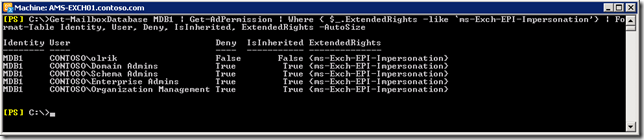
Note that permissions assigned on the mailbox may not immediately be reflected as you are administering them in Active Directory. Changes in Active Directory are subject to AD replication, and the Exchange Information Store caches information for up to 2 hours, so worst case it may take up to 2 hours and 15 minutes for new permission settings to be re-read from Active Directory.
Impersonation on Exchange 2010 and 2013
Exchange 2010 introduced Role Based Access Control, better known by its acronym RBAC. For a quick introduction to RBAC, see one of my earlier blogs here. There is a management role associated with impersonation, which is ApplicationImpersonation.
To enable a user impersonation rights, create a new assignment for ApplicationImpersonation and assign it to the user:
New-ManagementRoleAssignment –Name 'AIsvcExchangeScripts' –Role ApplicationImpersonation –User svcExchangeScripts
Note that if we want to assign these permissions to a security group, we need to use the SecurityGroup parameter instead of User, specifying the group name.
Now be careful, when used like this you will have granted that user or group permission to impersonate all users in your Exchange organization. Here is where RBAC comes into play, or more specific the RBAC feature named management role scopes. With write scopes for example, you can limit the scope of where you can make changes in Active Directory. For more information on management role scopes, see here.
Let us assume we want to limit the scope to a distribution group named ‘All Employees’, using New-ManagementScope in combination with RecipientRestrictionFilter. Note that when specifying MemberOfGroup in the filter, you need to use the distinguishedName of the group:
New-ManagementScope –Name 'Employee Mailboxes' –RecipientRestrictionFilter { MemberOfGroup –eq 'CN=All Employees,OU=Distribution Groups,OU=NL,DC=contoso,DC=com'}We can then apply this scope to the assignment created earlier:
Set-ManagementRoleAssignment –Identity 'AIsvcExchangeScripts' –CustomWriteScope 'Employee Mailboxes'
Be advised that in a multi-forest environment, impersonation doesn’t work when you assign permissions to cross-forest accounts. You either need to assign impersonation permissions to an account residing in the same forest as Exchange, or create a linked role group.
Impersonation on Exchange Online
Impersonation is available in most Office 365 plans, but currently not in the small business plans. To configure Impersonation in Exchange Online we need to connect anyway, so we’ll first open a remote PowerShell session to Exchange Online:
$EXO= New-PsSession -ConfigurationName Microsoft.Exchange -ConnectionUri https://ps.outlook.com/powershell -AllowRedirection -Authentication Basic
Import-PsSession $EXO
Provide tenant administrator credentials when prompted. You can then see if you have the ApplicationImpersonation role at your disposal using:
Get-ManagementRole –Identity ApplicationImpersonation
If nothing is returned, you may need to resort to delegate access permissions.
Configuring impersonation is identical to configuring it in Exchange 2013. Nonetheless, some people may be more comfortable using the Exchange Admin Center. If so:
- Open up Exchange Admin Center.
- Navigate to Permissions > Admin Roles
- Now we can’t directly assign a management role through EAC, so assume we’ll create a role group for our application account by clicking New (+).
- Enter a name for your role group, e.g. ExchangeMaintenanceScripts.
- Add the role ApplicationImpersonation.
- Add the accounts which need Impersonation permissions, e.g. svcExchangeScript.
- Optionally, you can also select a Write Scope, which you need to create upfront through Exchange Management Shell.
- In Exchange on-premises, instead of a Write Scope you will have the option to select a a specific OU instead (scope filter RecipientRoot parameter) .
- When done, Save.

One word of caution: scopes are not automatically updated when objects referenced are relocated or change names. Now, for your own environment you may have this under control through some form of change management process. For Exchange Online however, your tenant might get relocated without notice. Therefor, should impersonation fail, verify any management scopes you may have defined for distinguishedName references, and check if they require updating, e.g.
Set-ManagementScope -Name 'All Employees' -RecipientRestrictionFilter { MemberOfGroup -eq 'CN=All Employees,OU=contoso.onmicrosoft.com,OU=Microsoft Exchange Hosted Organizations,DC=EURPR05A001,DC=prod,DC=outlook,DC=com'}Final words
Note that many EWS-based scripts or tools do not natively support EWS but make use of the Exchange Web Services Managed API. This installable package consists of support files (e.g. DLL’s) which provide EWS functions to your PowerShell environment. You can download the current version of EWS Managed API here (2.2). You can read more on developing with EWS Managed API here, or you can have a peek at the source of code of one of my EWS scripts or the ones published by Exchange MVP-fellow Glen Scales’ here.
Get-MyMailboxStatistics
Last update: Version 1.02, November 21st, 2014.Those leveraging quota settings to manage their Exchange environments, you are probably periodically running some sort of script or set of cmdlets to retrieve information on mailbox sizes, quota settings and if any mailbox is above any of the quota thresholds. For a quick indication of the current size in relation to the quota settings, StorageLimitStatus may contain one of the following indicators depending on the quota settings on the mailbox or mailbox database hosting the mailbox:
- BelowLimit – Speaks for itself
- IssueWarning – Mailbox size above Issue Warning limit
- ProhibitSend – Mailbox size above Prohibit Send limit
- NoChecking – No quota checking
- MailboxDisabled – Mailbox size above Prohibit Send and Receive quota limit
So, to get a list of all mailboxes with any over-quota status, you can use:
Get-MailboxDatabase | Get-MailboxStatistics | Where {$_.StorageLimitStatus -match 'IssueWarning|ProhibitSend|MailboxDisabled'} | Select DisplayName, ItemCount, TotalItemSize, StorageLimitStatus, LastLogonTimeUnfortunately, in Exchange 2013 the StorageLimitStatus gets no longer populated:

As KB2819389 explains, this is by design. In Exchange 2013, mailbox quotas are no longer cached. By not being cached, retrieving quota information may result in poor performance as it queries Active Directory for quota related attributes. The argument is a bit puzzling, considering there is a NoADLookup switch which directs the cmdlet to retrieve information from the mailbox database (cache) instead of Active Directory. Perhaps a better workaround would have been to make NoADLookup a parameter, make it $true by default and leave StorageLimitStatus unpopulated when NoADLookup is $true.
Of course, that does not help customers who want a quick quota report. For this purpose I have created two things in 1 script:
- A helper function Get-StorageLimitStatus() which will take a mailbox statistics object and return a StorageLimitStatus object.
- A script Get-MyMailboxStatistics.ps1, a proxy function for Get-MailboxStatistics which will use the Get-StorageLimitStatus helper function to populate the StorageLimitStatus.
Get-StorageLimitStatus
When you want to use the helper function, extract it and include it in your quota reporting script or PowerShell profile (making it available when firing up a shell). To use the helper function in the cmdlet shown earlier, use:Get-MailboxDatabase | Get-MailboxStatistics | Select -ExcludeProperty StorageLimitStatus DisplayName, ItemCount, TotalItemSize, @{n="StorageLimitStatus"; e={ Get-StorageLimitStatus $_}}, LastLogonTime | Where {$_.StorageLimitStatus -match 'IssueWarning|ProhibitSend|MailboxDisabled'}This will remove StorageLimitStatus from the output and add a calculated field bearing the same the name, calling the Get-StorageLimitStatus helper function with the current mailbox statistics object to set its value.
Get-MyMailboxStatistics.ps1
This is a proxy function for the Exchange Management Shell cmdlet Get-MailboxStatistics. This means that the current, original cmdlet was used to create a wrapper which will call the original cmdlet. Having a wrapper allows you to restrict or enhance the original cmdlet and tailor it to your needs.A quick tip on how to create a proxy script in the clipboard (more information on creating proxy commands here):
$data= New-Object System.Management.Automation.CommandMetaData (Get-Command Get-MailboxStatistics)
[System.Management.Automation.ProxyCommand]::create($data) | clip.exe
Downside is that future changes to the Get-MailboxStatistics cmdlet will not be automatically incorporated in the wrapper. Feeding it objects also doesn’t work, but you can work around that by temporary storing the objects in a variable and passing that to the script (see examples below).
To populate the StorageLimitStatus, we will post-process each object in the output of Get-MailboxStatistics, using Add-Member to overwrite (-Force) its current value and –PassThru to pass it along in the pipeline. Being a proxy command, the parameter options are identical to the original Get-MailboxStatistics. Some examples:
.\Get-MailboxStatistics.ps1 -Database MDB2
$m= Get-Mailbox –Database MDB2
$m | .\Get-MailboxStatistics.ps1 | ft –AutoSize DisplayName,TotalItemSize,StorageLimitStatus

Do be aware that this will incur Active Directory queries and thus performance of the script may not seem fast. However, in previous versions of Exchange you got immediate results as all the quota information was readily available from the cache. On the plus side, the status you see will be non-cached, current information.
On a final note and maybe needless to say that in order to use this you need to run it from the Exchange Management Shell and since it’s an unsigned script you need to set ExecutionPolicy to Unrestricted.
Feedback
Feedback is welcomed through the comments. If you got scripting suggestions or questions, do not hesitate using the contact form.Download
You can download the script from the TechNet Gallery here.Revision History
See Technet Gallery page.




 EighTwOne (821)