Role-based Access Control


security officer RBACIt has been over 5 years (wait, what?) since I wrote an article on Role-based Access Control, or RBAC, in Exchange 2010. At that time, RBAC was a big architectural change in Exchange 2010 over Exchange 2007.

Present day, RBAC is still a much neglected topic in many Exchange organizations. It must be said that most organization can happily live with the default RBAC configuration. They have no need to dive in this versatile model to set up granular permissions in their organization. In bigger organizations, this configuration can also easily become quite complex.

For TechTarget I started writing few articles on the topic of RBAC, starting with the base components. There you can find Part 1, Part 2, and Part 3.

Disabling editing account information in OWA


In Exchange 2010, by default users have permission to edit their contact information from the Exchange Control Panel. In organizations where this is unwanted, like when account information is provisioned, you need to remove these permissions.

image

These permissions flow from the Default Role Assignment Policy.

Note: You could have changed the default role assignment. To view the default assignment policy, check the IsDefault attribute, e.g.

Get-RoleAssignmentPolicy | Where { $_.IsDefault -eq $True }

Now, each mailbox-enabled user is assigned the default policy when created. You can verify this by inspecting the RoleAssignmentPolicy using Get-Mailbox, e.g.

image

The assigned roles of this policy can be viewed using Get-ManagementRoleAssignment:

image

The ability to edit contact information lies in the MyContactInformation. You can view a description of this role using:

Get-ManagementRole MyContactInformation | select Description

The output reads, “This role enables individual users to modify their contact information, including address and phone numbers.”

To remove this ability you have the option of removing the assignment or you can simply disable the assignment using Set-ManagementRoleAssignment, e.g.

Set-ManagementRoleAssignment -Identity "MyContactInformation-Default Role Assignment Policy" -Enabled $false 

Now after logging into OWA the contact information is view-only (despite the Edit button) and the Save option is gone.

Note that after performing this step, if you want to enable contact information for some users, you need to create a new RoleAssignmentPolicy, similar to the default one but with the MyContactInformation and assign that policy to those users. For example:

New-RoleAssignmentPolicy "Default Role Assignment Policy with Info"
Get-ManagementRoleAssignment -RoleAssignee "Default Role Assignment Policy" | New-ManagementRoleAssignment -Policy "Default Role Assignment Policy with Info"

You can use the same exercise to remove other unwanted functions, like the ability to create distribution groups (MyDistributionGroups) or to manage distribution group memberships (MyDistributionGroupMembership).

Geek Out with Perry: RBAC


A new video was posted on Perry Clark’s blog where the general manager Exchange talks about Role Based Access Control (RBAC).

RBAC Overview Sheet 1.2


I’ve updated the Role Based Access Control (RBAC) Overview sheet with information of Exchange 2010 SP1. You can download version 1.2 of the RBAC Overview sheet from here.

The sheet contains information on the default RBAC configuration of Exchange 2010 RTM and Exchange 2010 SP1 and a list of differences found between the two setups.

For information on how to use the sheet, consult the post on the initial release here.

For those interested, there were 39 changes introduced in Exchange SP1 Final compared to SP1 Beta. Below are the differences. A “-” means an RBAC entry is removed in SP1 Final, a “+” means it was added:

- Discovery Management,Legal Hold,Enable-Mailbox
+ Discovery Management,Mailbox Search,Get-MailboxExportRequest
+ Discovery Management,Mailbox Search,Get-MailboxExportRequestStatistics
+ Discovery Management,Mailbox Search,New-MailboxExportRequest
+ Discovery Management,Mailbox Search,Remove-MailboxExportRequest
+ Discovery Management,Mailbox Search,Set-MailboxExportRequest
+ Discovery Management,Mailbox Search,Suspend-MailboxExportRequest
- Organization Management,Exchange Virtual Directories,New-PowerShellVirtualDirectory
- Organization Management,Exchange Virtual Directories,Remove-PowerShellVirtualDirectory
- Organization Management,Exchange Virtual Directories,New-PowerShellVirtualDirectory
- Organization Management,Exchange Virtual Directories,Remove-PowerShellVirtualDirectory
- Organization Management,Legal Hold,Enable-Mailbox
- Organization Management,Mailbox Import Export,Export-Mailbox
- Organization Management,Mailbox Import Export,Import-Mailbox
+ Organization Management,Mailbox Search,Get-MailboxExportRequest
+ Organization Management,Mailbox Search,Get-MailboxExportRequestStatistics
+ Organization Management,Mailbox Search,New-MailboxExportRequest
+ Organization Management,Mailbox Search,Remove-MailboxExportRequest
+ Organization Management,Mailbox Search,Set-MailboxExportRequest
+ Organization Management,Mailbox Search,Suspend-MailboxExportRequest
+ Organization Management,Message Tracking,Resume-MailboxExportRequest
+ Organization Management,Monitoring,Test-AssistantHealth
+ Organization Management,Monitoring,Test-SmtpConnectivity
+ Organization Management,Monitoring,Test-AssistantHealth
+ Organization Management,Monitoring,Test-SmtpConnectivity
+ Organization Management,View-Only Audit Logs,New-AdminAuditLogSearch
+ Organization Management,View-Only Audit Logs,New-MailboxAuditLogSearch
+ Organization Management,View-Only Audit Logs,New-AdminAuditLogSearch
+ Organization Management,View-Only Audit Logs,New-MailboxAuditLogSearch
+ Recipient Management,Message Tracking,Resume-MailboxExportRequest
+ Records Management,Message Tracking,Resume-MailboxExportRequest
- Server Management,Exchange Virtual Directories,New-PowerShellVirtualDirectory
- Server Management,Exchange Virtual Directories,Remove-PowerShellVirtualDirectory
+ Server Management,Monitoring,Test-AssistantHealth
+ Server Management,Monitoring,Test-SmtpConnectivity
+ View-Only Organization Management,Monitoring,Test-AssistantHealth
+ View-Only Organization Management,Monitoring,Test-SmtpConnectivity

Besides RBAC information, you may also find this list and the Overview Sheet useful for spotting new cmdlets and changes in functionality.


RBAC Overview (RTM,SP1 Beta)


NOTE: The sheet has been updated after the release of SP1, a post containing a link to the updated sheet can be found here.

In an attempt to get more grip on and understanding of Exchange 2010’s Role Based Access Control, I created an Excel workbook for RBAC reference. Besides the default RBAC configuration of Exchange 2010 RTM and Exchange 2010 SP1 Beta, it also contains a list of differences found between the two setups.

Now for a quick word on how to use this thing.

The Exchange sheets contains RoleGroup, ManagementRoleAssignment, ManagementRole, ManagementRoleEntry and RoleEntry (cmdlet)  information. The ManagementRoleAssignment and ManagementRoleEntry are hidden columns, because they only contain values linking the two pieces of information next to them together. You can unhide these if you you, by selecting the sheet, right-clicking on it and selecting Unhide .

Now each row is a complete set of permissions, meaning it states a unique RoleEntry + Role + RoleGroup combination, meaning that RBAC by default grants that RoleEntry to that Role to that RoleGroup. The nice thing is that you can use Excel’s data filter to filter results and see what cmdlets are available to a certain RoleGroup or which RoleGroup or Roles can use a certain cmdlet.

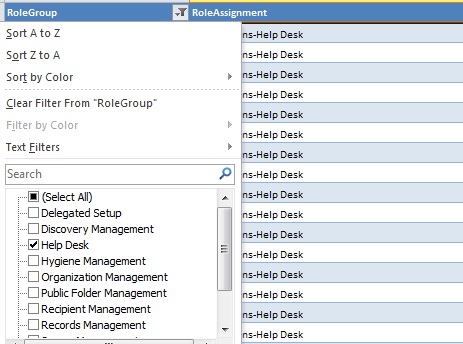
To use this function, select one of the Exchange sheets. On the top row containing the header you’ll notice a drop-down box. When clicking that drop-down box, it’ll show all entries in the table for that colum and various options like sorting. Notice that in front of the unique entries for in that colum is a checkbox. By checking or unchecking this you can apply or remove a filter on that colum. You can also combine filters. Use the “Select (All)” option lets you quickly (un)check all filtering options.

For example, by selecting only the RoleGroup “Help Desk”, you will see all entries for that RoleGroup:

Looking from the RoleEntry perspective, by filtering on a CmdLet, you can see what Roles and RoleGroups may perform a certain operation:

The 3rd sheet contains differences in RBAC configuration between Exchange 2010RTM and Exchange 2010 SP1 Beta. A green row with a “!>” indicates a new RBAC entry for SP1 Beta; a red one row with “<!” means the setting has been removed or became obsolete in 2010 SP1 Beta.

You can download the sheet RBAC_Overview_v11.xlsx from here. That isn’t the permanent location; I’m still looking for a location to host Excel files or ZIP files since WordPress won’t let me upload those. Also note that the file also contains information based on Exchange 2010 SP1 Beta which is subject to change in the final product.

Hope you find the RBAC information in this form useful. Feedback is appreciated (comment or e-mail).

Note: Whilst I was busy creating this workbook I noticed a guy from MS has already developed an Exchange 2010 RBAC Manager. You can use this not only to interactively browse the current RBAC configuration but you can also make changes. This excellent tool can be download here.