Updating Exchange 2010 DAG Members


With all the (re-)releases of rollups, the question might rise on how to perform a proper up or downgrade of all DAG configuration members.

Basically, the procedure is straightforward and should be followed per DAG member:

  1. Appoint (next) DAG member;
  2. Move away all active copies on that DAG member;
  3. Prevent copies from activating on that DAG member;
  4. Perform maintenance, e.g. down or upgrade DAG member;
  5. Enable possible activation on that DAG member again;
  6. Optionally redistribute database copies.

Note that in a DAG configuration with 2 members, you need to be aware that during maintenance you have a temporary situation with no fail-over options. If that’s undesirable, consider implementing a 3rd DAG member.

To make the above procedure  easier and automated regarding moves and activation (un)blocking, additional scripts are available since SP1 for Exchange 2010. These scripts are located in the Scripts folder, below the Exchange installation folder. By default the location of the scripts will be C:\Program Files\Microsoft\Exchange Server\v14\Scripts.

Utilizing them, the procedure is quite easy as you can see below. Note that the example uses a DAG named DAG1 with nodes ex2010a and ex2010b as members. They both host 2 databases, ex2010mdb1 and ex2010mdb2; both host 1 active copy and a passive copy of the other database.

  1. Appoint (next) DAG member, e.g. ex2010a;
  2. Run StartDagServerMaintenance.ps1 targeting that DAG member, e.g.:
    .\StartDagServerMaintenance.ps1 –server ex2010a

    image
  3. Perform maintenance;
  4. Run StopDagServerMaintenance.ps1 targeting that DAG member, e.g.:
    .\StopDagServerMaintenance.ps1 –server ex2010a
  5. Repeat steps 2-3 for the other DAG member(s):image
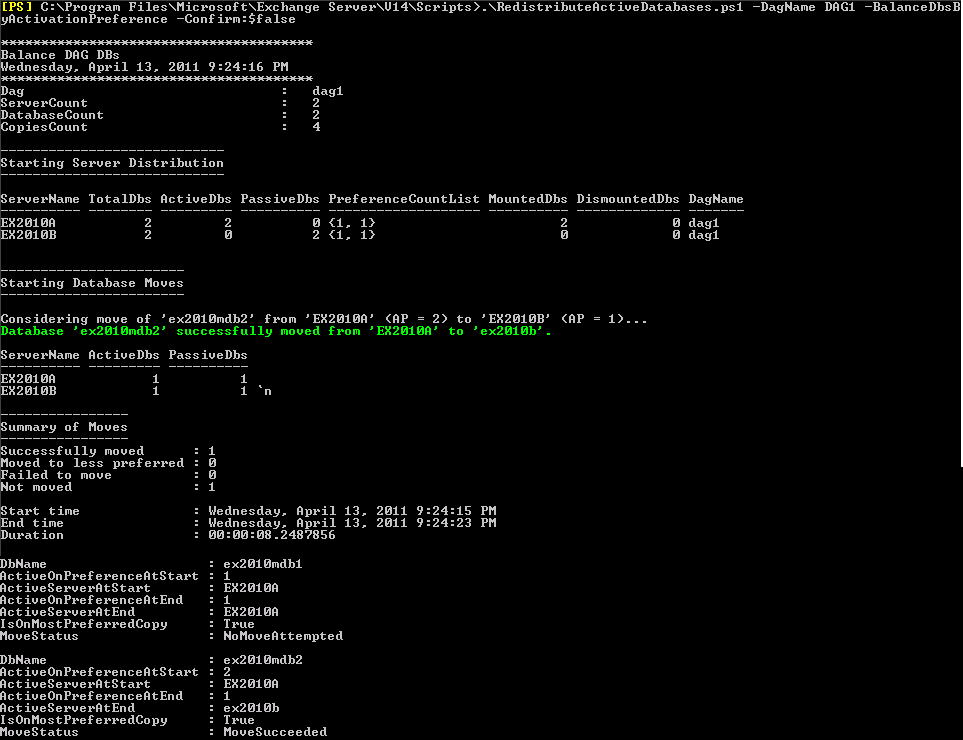
  6. Optionally run RedistributeActiveDatabases.ps1 for the DAG, e.g.:
    .\RedistributeActiveDatabases.ps1 –DagName DAG1 –BalanceDBsByActivationPreference –Confirm:$false

    image

Be advised that when upgrading on major levels (RTM to SP1 or SP1 to SP2), you can’t move a database to a lower level host. This means that when upgrading a node from SP1 to SP2 and moving a database to that SP2 node in the process, you can’t move that database to any SP1 nodes in the DAG. Keep this in mind when planning your upgrade, because it will impact the availability level by limiting your fallback options, albeit temporarily.

Exchange 2010 SP1 RU3 pulled: Blackberry issue


For those looking for Exchange 2010 SP1 Rollup 3, you’re in for an unpleasant surprise. Today, Microsoft pulled the Rollup because of issues with Blackberry devices sending duplicate messages.

While Microsoft is working with RIM to identify and solve the issue, the advice is to wait for updates regarding this issue and meanwhile put RU3 implementations on hold. If you’ve already implemented RU3 and are seeing no issues, you can leave it installed.

More information regarding this issue on the (revised) EHLO page here.

Exchange 2010 SP1 Rollup 3 & Exchange 2007 Rollup 3


Today the Exchange Team released two Rollups, Rollup 3 for Exchange Server 2010 Service Pack 1 and Rollup 3 for Exchange Server 2007 SP3. No new Rollup for Exchange 2010 RTM.

The Exchange 2010 SP1 Rollup 3 (KB2492690) raises Exchange 2010’s version number to 14.1.289.3.

New fixes contained in this Rollup are:

  • 2009942 Folders take a long time to update when an Exchange Server 2010 user uses Outlook 2003 in online mode
  • 2277649 You receive misleading information when you run the “New-TestCasConnectivityUser.ps1” script on an Exchange Server 2010 server
  • 2398431 Using Pipelining in SMTP to check email addresses does not work correctly when you disable tarpitting functionality on a Receive connector in an Exchange Server 2010 environment
  • 2410571 A RBAC role assignee can unexpectedly change permissions of mailboxes that are outside the role assignment scope in an Exchange Server 2010 environment
  • 2417084 A public folder disappears from the Public Folder Favorites list of an Exchange Server 2010 mailbox
  • 2423754 The recipient response status is incorrect after you add another user to an occurrence of a meeting request in an Exchange Server 2010 environment
  • 2424801 The Microsoft Exchange Service Host service on an Exchange Server 2010 server crashes
  • 2426952 You cannot remove a mailbox database copy from a database on an Exchange Server 2010 server
  • 2432494 You cannot view the mailbox database copies that are hosted on certain Mailbox servers by using the Exchange Management Console after you install Exchange Server 2010 SP1
  • 2443688 Event ID 10003 and Event ID 4999 are logged when the EdgeTransport.exe process on an Exchange Server 2010 server crashes
  • 2445121 A memory leak occurs in the Microsoft.Exchange.Monitoring.exe process when you run the “Test-OwaConnectivity” cmdlet or the “Test-ActiveSyncConnectivity” cmdlet in the EMS on an Exchange Server 2010 server
  • 2447629 Event ID 4999 is logged when the Exchange Mail Submission Service crashes intermittently on an Exchange Server 2010 Mailbox server
  • 2451101 7BIT is not in quotation marks when you use the “FETCH (BODYSTRUCTURE)” command to request for a specific message in an Exchange Server 2010 environment
  • 2457304 You receive a synchronization failed email message when you synchronize your mobile device by using ActiveSync on an Exchange Server 2010 mailbox
  • 2457688 Error message when you try to add an external email address to the safe sender list in OWA in an Exchange Server 2010 SP1 environment
  • 2457868 “HTTP Error 400 Bad Request” error message when you use OWA in Exchange Server 2010 SP1 to receive instant messages by using Internet Explorer 9
  • 2458522 Entries disappear from a junk email blocked list or a junk email safe list after you install Exchange Server 2010 SP1
  • 2458543 A memory leak occurs in the Exchange RPC Client Access service on Exchange Server 2010 servers
  • 2463798 Users may experience a decrease in performance in Outlook or in OWA when you use IMAP4 to access the calendar folder in an Exchange Server 2010 SP1 environment
  • 2463858 A request to join a distribution group does not contain the distribution group name in an Exchange Server 2010 SP1 environment
  • 2464564 You cannot change your password if the user name that you type in OWA is in UPN format when you enable Exchange Server 2010 SP1 Password Reset Tool
  • 2467565 You cannot install an update rollup for Exchange Server 2010 with a deployed GPO that defines a PowerShell execution policy for the server to be updated
  • 2468514 OWA 2010 removes Calendar links that you add into multiple calendar groups by using Outlook 2010 calendar
  • 2469341 Various issues occur after you forward a signed email message by using Outlook in online mode in an Exchange Server 2010 environment
  • 2476973 Event ID 2168 is logged when you try to back up Exchange data from a DAG in an Exchange Server 2010 SP1 environment
  • 2479227 A forwarding rule does not function and the EdgeTransport.exe process crashes on an Exchange Server 2010 server
  • 2479875 The Microsoft Exchange Mailbox Replication Service service crashes when you run the “New-MailboxImportRequest” cmdlet to import a .pst file into a mailbox in an Exchange Server 2010 environment
  • 2481283 Various issues occur after you use Outlook to sign and then forward an email message in an Exchange Server 2010 environment
  • 2482100 You cannot create or update an inbox rule that specifies the “NoResponseNecessary” value by using EWS in an Exchange Server 2010 environment
  • 2482103 It takes a long time to expand a distribution list by using EWS in an Exchange Server 2010 environment
  • 2482471 A content search fails in an IMAP client application that connects to an Exchange Server 2010 mailbox
  • 2484862 You cannot read an email message by using an IMAP client in an Exchange Server 2010 environment
  • 2487501 The body of an email message is empty when you try to use an IMAP client application to read it in an Exchange Server 2010 environment
  • 2487852 “You do not have sufficient permissions. This operation can only be performed by a manager of the group.” error message when you try to change the “ManagedBy” attribute in an Exchange Server 2010 SP1 environment
  • 2489602 The “Get-FederationInformation” cmdlet cannot query federation information from an external Exchange organization in an Exchange Server 2010 environment
  • 2489713 Exchange Server 2010 SP1 supports the remote archive feature after an update changes Outlook cookies name
  • 2489822 “The Mailbox you are trying to access isn’t currently available” error when you use OWA Premium to try to delete an item that is in a shared mailbox
  • 2494389 Unnecessary events are logged in the Application log when you run the “Test-EcpConnectivity” cmdlet in an Exchange Server 2010 environment
  • 2494798 Certain email messages cannot be downloaded when you log on to an Exchange Server 2010 mailbox by using an IMAP4 client application
  • 2497669 A meeting request cannot be opened after you disable the “Display sender’s name on messages” option in the EMC on an Exchange Server 2010 server
  • 2497682 The store.exe process crashes when you try to unmount an active copy of a mailbox database that is hosted by a mailbox server in an Exchange Server 2010 SP1 environment
  • 2506998 A call is disconnected when transferring the call from the main auto attendant to an auto attendant that has a different language configured in an Exchange Server 2010 environment

In other words, Outlook 2003 users rejoice – UDP notifications are back!

The team also released Rollup 3 for Exchange 2007 Service Pack 3 (KB2492691), raising the Exchange 2007 version number to 8.3.159.0. For a full list of changes consult the KB article.

You can download Exchange 2010 SP1 Rollup 3 here; Exchange 2007 SP3 Rollup 3 can be downloaded here.

Note that when running ForeFront Protection for Exchange, make sure you disable ForeFront before installing the rollup and re-enabling it afterwards, otherwise the Information Store and Transport services may not start. You can disable ForeFront using fscutility /disable and enable it by using fscutility /enable afterwards.

For those still unaware, update rollups are cumulative, i.e. they contain fixes released in earlier update rollups for the same product level (RTM, SPx). This means you don’t need to install previous update rollups during a fresh installation but implement the latest rollup will suffice.

Exchange 2010 SP1 Prerequisites on 2008 R2 SP1


After Exchange 2010 SP1 became publicly available I wrote, apart from the SP1 changes, also on the prerequisites differences, comparing Windows Server 2008 with Windows Server 2008 R2. Note that these prerequisites are additional to the server roles and features required to install Exchange 2010 server roles.

With the recent release of Windows Server 2008 R2 Service Pack 1 a new operating system level was introduced to the spectrum. It would be interesting to see what impact R2 SP1 has on these prerequisites. When we put that Exchange 2010 SP1 prerequisites in a table, comparing them to Windows Server 2008 R2 prerequisites, we get the following:

Component Windows Server
2008 R2
Windows Server
2008 R2 SP1
AD RMS KB979099
.NET Framework 2.0 KB979744

KB977020 (CAS)

.NET Framework 3.5 KB982867
ASP.NET 2.0 KB983440
UCMA (UM) UCMA Runtime 2.0 UCMA Runtime 2.0
Content Filtering

(Hub, Mbx)

Office 2010 Filter Pack Office 2010 Filter Pack

That’s excellent, no hotfixes to install upfront and the required reboot that goes with it. For the suspicious, here’s a what Setup reported missing on a freshly installed Windows Server 2008 R2 SP1 server:

image

So, we can conclude going straight to Windows Server 2008 R2 SP1 with Exchange 2010 SP1 should make the job of deploying Exchange 2010 SP1 easier and save you some time.

Error 0x00f0818 or 0x800b0100 installing Windows Server 2008 R2 SP1


As the guy behing WorkingHardInIT blog pointed out here, there are people experiencing issues when installing Service Pack 1 on Windows 2008 R2 (or Windows 7) related to missing or corrupted files in the WinSXS\Manifests or Servicing\Packages folders. The related error code is 0x00f0818, but from personal experience I can say may also apply when Windows Update produces error code 0x800b0100.

The missing or corrupted files can be viewed by the System-Update-Readiness-Tool which will generate logfiles at %SystemRoot%\Logs\CBS. For example, a failing SP1 installation might produce the following CheckSUR.log (excerpt):

Checking Package Manifests and Catalogs
(f)    CBS MUM Corrupt    0x800F0900    servicing\Packages\Package_1_for_KB2416471~31bf3856ad364e35~amd64~~6.1.1.0.mum        Line 1:
(f)    CBS Catalog Corrupt    0x800B0100    servicing\Packages\Package_1_for_KB2416471~31bf3856ad364e35~amd64~~6.1.1.0.cat
..
Checking Component Store
(f)    CSI Manifest All Zeros    0x00000000    winsxs\Manifests\amd64_wpf-presentationhostdll_31bf3856ad364e35_6.1.7600.16542_none_cc28a17e399280f3.manifest    amd64_wpf-presentationhostdll_31bf3856ad364e35_6.1.7600.16542_none_cc28a17e399280f3
..

The blog mentioned gives a nice writeup on how to solve this issue by (temporarily) fixing ACLs and then replacing the files mentioned in CheckSUR.log by copying them off a second – identical – installation. But this may get clumsy when the section “Unavailable repair files” mentions a lot of Manifests and Packages, and prone to error with these long filenames.

Fortunately, we can automate this process a bit as I’ll describe below. Before doing this, follow the steps contained in the mentioned blog to set up permissions correctly (don’t forget to reverse changes afterwards). Note that in this procedure I’m going to use a drive letter X: for storing the repair files.

First, copy the CheckSUR.log to a file named files.txt. Edit files.txt and remove the line “Unavailable repair files:” and everything before that. Save the file.

Then, open an command prompt on the system we’re going to copy these files off and enter the following:
for /f %f in (files.txt) do @copy %SystemRoot%\%f X:\%f /y

Next, on the system with issues, open an elevated command prompt and enter the following to make backup copies of the corrupt files:
for /f %f in (files) do @move %SystemRoot%\%f %SystemRoot%\%f.bak /y

Finally, enter the following command to replace the missing or corrupt files:
for /f %f in (files) do @copy X:\%f %SystemRoot%\%f /y

Of course, this procedure can be adjusted to your liking; you could for example copy the repair files directly off another system using the system share.