
Delegated Sent and Deleted Items behavior


Many people using Outlook access multiple mailboxes, either because the mailbox is shared or they are a delegate (e.g. they have send-as permissions). What many users find confusing is that by default, Outlook will put the copies of all sent messages in the Sent Items folder of the default account. For example, when Peter sends a message as John, users expect Outlook to put the message in the Sent Items of John. Also, when Peter deletes a message from John’s mailbox, it will end up in Peter’s Deleted Items folder.
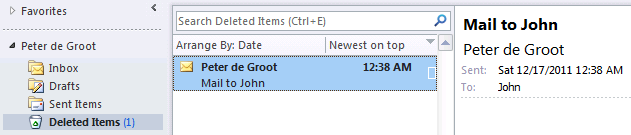
image

Luckily, this behavior can be altered for Outlook 2003, Outlook 2007 and Outlook 2010 using two registry settings. In order for these setting to work, Outlook needs to have a certain hotfix; which hotfix depends on the Outlook version used. Note that a later service pack or hotfix may already contain this setting:

To enable the different Sent Items behavior, you need to create or edit the a value named DelegateSentItemsStyle, type REG_DWORD and set it to 1 (default is 0 or not present). The location of the registry value is HKCU\Software\Microsoft\Office\<version>\Outlook\Preferences, where <version> depends on the Outlook version used; use 11 for Outlook 2003, 12 for Outlook 2007 or 14 for Outlook 2010.

To alter the Deleted Items behavior, create or edit a value named DelegateWasteBasketStyle, type REG_DWORD and set it to 4 (default is 8 or not present). The location of the registry value is HKCU\Software\Microsoft\Office\<version>\Outlook\Options\General; for version number use one of the values mentioned before.

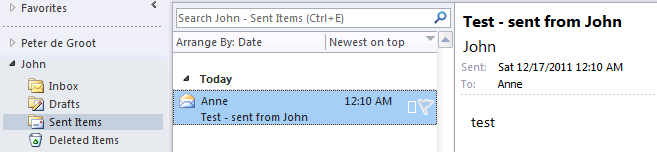
After implementing these registry values, either manually or by publishing them in group policies, sent items and deleted items will be stored with the mailbox:
image

Note: these registry keys only work when using Outlook in Cached Mode; more information in kb2703723.

 

Forefront Protection for Exchange Rollup 4


Microsoft released Hotfix Rollup 4 for Forefront Protection for Exchange Server (KB2619883).

Here’s the list of fixes included in this rollup:

  1. Email is sent to the Forefront Protection for Exchange UNDELIVERABLE folder instead of being delivered
  2. UNC and proxy credentials are stored in clear text in the Forefront Protection for Exchange file system
  3. The Forefront Protection for Exchange FSEMachinePrep.exe fails with a fatal error
  4. The external sender does not receive the expected Forefront Protection for Exchange generated notification
  5. Forefront Protection for Exchange generates a notification with a blank subject line
  6. Forefront Protection for Exchange virus engine updates fail between the passive node and active node in CCR clusters
  7. Forefront Protection for Exchange only accepts 7-digit License Agreement numbers
  8. Forefront Protection for Exchange generates a 2098 event ID every time the MSExchangeTransport service is restarted
  9. Email queues at startup on an Exchange server running Forefront Protection for Exchange

For more details on the fixes consult the knowledge base article. You can request the hotfix rollup directly from the support center here.

Exchange 2010 SP2


Exchange Server 2010 Service Pack 2 (SP2) has been released, raising the Exchange version number to 14.2.247.5.

For those still unaware, the 530Mb+ file (1,4 GB extracted) contains the full set of binaries; you can use it to upgrade existing RTM or SP1 installations or deploy new Exchange 2010 SP2 installations.

Besides the usual set of hotfixes, SP2 introduces the following features:

  • Address Book Policies
    Address Book Policies, also known as GAL segmentation, ABPs are meant to segmentize the address book, giving users a certain view of the address book like Address List Segregation did for Exchange 2003/2007. An Address Book Policy is a combination of global address list, offline address book, room list and address lists and can be assigned to mailbox users. For more information, see Understanding Address Book Policies.
  • OWA mini
    This will be a lightweight browser like OMA in the past, meant for simple browsers. It offers simple features, like:

    • Access to e-mail, calendar, contacts, tasks and the global address list.
    • Access to e-mail subfolders.
    • Compose, reply to, and forward e-mail messages.
    • Create and edit calendar, contact, and task items.
    • Handle meeting requests.
    • Set the time zone and automatic reply messages.

    For more information, see Understanding the Mini Version of Outlook Web App.

  • Hybrid Configuration Wizard
    This wizard is to streamline the process of configuring a hybrid deployment between on-premises and Office 365 Exchange organizations, reducing the steps required from 49 to 6. For more information, see Understanding the Hybrid Configuration Wizard.
  • OWA Cross-Site Redirection
    This allow clients to be silently redirected to the proper site if they log on to a CAS server located in a site different than the site where their mailbox is hosted and externalURL has been specified there, improving the single sign-on experience for those users. For more information, see Understanding Proxying and Redirection.
  • Mailbox Auto-Mapping
    The automatic mapping of mailboxes where end users have Full Access permissions in Outlook 2007 or Outlook 2010, can be turned off using the Automapping parameter in conjunction with the Add-MailboxPermission cmdlet. Unfortunately, there’s no option to set this via the GUI when using the Exchange Management Console to grant Full Access permissions. For more information, see Disable Outlook Auto-Mapping with Full Access Mailboxes.
  • Mailbox Replication Service
    The Mailbox Replication Service (MSProxy), used for moving mailboxes cross-forest (including cross-premise), can now be easily configured using cmdlet parameters instead of through editing a web.config file on each Client Access server. The related cmdlets are New-WebServicesVirtualDirectory and Set-WebServicesVirtualDirectory, the parameters are MRSProxyEnabled and MaxMRSProxyConnections. For more information, see Start the MRSProxy Service on a Remote Client Access Server.
  • Multi-Valued Custom Attributes
    SP2 introduces five new multi-value custom attributes, ExtensionCustomAttribute1 to ExtensionCustomAttribute5, for storing additional information for mail recipient objects.
  • Disabling or Removing Mailboxes on Litigation Hold
    In SP2, you can’t disable or remove a mailbox that has been placed on litigation hold, unless you explicitly specify the new IgnoreLegalHold switch.

After preparing your forest for Exchange 2010 SP2, the schema version number will have changed. Check the Schema Versions page for information on the new ObjectVersion and RangeUpper values for Exchange 2010 SP2.

Note that SP2 introduces an additional requirement, which is the IIS 6 WMI Compatibility feature; you can add this feature using the GUI or by using the Powershell cmdlets Import-Module ServerManager followed by Add-WindowsFeature Web-WMI.

The proper method to upgrade mailbox servers that are a member of a Database Availability Group is described here.

You can download Exchange 2010 SP2 here.

The UM language packs for SP2 can be downloaded here. Note that you need to uninstall previous UM language packs before you can install the SP2 versions.

Update: The Exchange 2010 Help file for offline usage was also updated for SP2. Consult the Toolkit page to download the Exchange 2010 SP2 help (CHM) file.