Michel de Rooij, with over 25 years of mixed consulting and automation experience with Exchange and related technologies, is a consultant for Rapid Circle. He assists organizations in their journey to and using Microsoft 365, primarily focusing on Exchange and associated technologies and automating processes using PowerShell or Graph. Michel's authorship of several Exchange books and role in the Office 365 for IT Pros author team are a testament to his knowledge. Besides writing for Practical365.com, he maintains a blog on eightwone.com with supporting scripts on GitHub. Michel has been a Microsoft MVP since 2013.
A new Microsoft MVP award cycle, a new moment to have a look at the MVP statistics. Below numbers are taken from the public MVP site. While July 1st is the first day of the new award cycle, it usually is recommended to wait few days for the site and data behind it to get updated. and new and renewed awardees turning in their Non-Disclosure Agreement before showing up on the site. Because people get awarded every month, the comparison to July of every year should give an idea of the yearly trend.
Disclaimer: A percentage of MVP awardees are anonymous, and do not disclose information regarding expertise or location. There are currently 133 anonymous MVPs, and they are not taken into account in below statistics.
The following table contains the awardees per award category from July of 2019, 2020 and 2021, and change percentage compared to the year before. I will leave the interpretation up to you.
Expertise
Jul2019
Jul2020
%
Jul2021
%
Cloud and Datacenter Management
232
209
-10%
219
5%
Microsoft Azure
409
463
13%
534
15%
Office Apps & Services
491
512
4%
556
9%
Business Applications
166
240
45%
323
35%
Data Platform
332
358
8%
392
9%
Developer Technologies
644
697
8%
770
10%
Enterprise Mobility
106
113
7%
133
18%
AI
84
122
45%
138
13%
Office Development
47
64
36%
69
8%
Windows Development
119
110
-8%
120
9%
Windows and Devices for IT
57
43
-25%
42
-2%
Total
2687
2931
9%
3296
12%
Count
2634
2849
8%
3223
13%
Note: The total number of MVPs doesn’t equal the total number of awardees, as MVPs can be awarded in more than one category. A total of 77 MVPs are awarded in two or more categories.
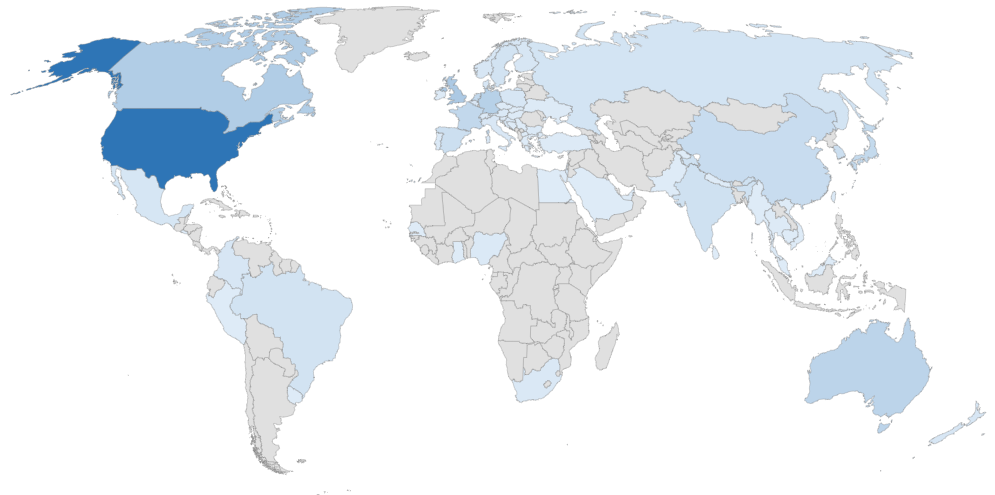
When zooming in on the Office Apps & Services category, the awards per country are shown below, including the % change compared to last year. As you might notice, there are quiet a number of new countries being represented: Ghana, Greece, Peru, Senegal and Vietnam. This supports the current Diversity & Inclusion mindset, and in my opinion is a good thing.
Country
Number
Country
Number
Country
Number
Country
Number
AUS
26 (8%)
FRA
22 (22%)
NZL
6 (0%)
LKA
1 (0%)
AUT
3 (0%)
DEU
30 (25%)
NGA
3 (50%)
SWE
10 (11%)
BEL
5 (0%)
GHA
1 (100%)
NOR
6 (0%)
CHE
3 (0%)
BIH
1 (0%)
GRC
1 (100%)
PAK
1 (0%)
TWN
4 (0%)
BRA
10 (25%)
HUN
2 (0%)
PER
1 (100%)
THA
2 (0%)
BGR
3 (50%)
IND
12 (-8%)
POL
6 (0%)
NLD
22 (0%)
KHM
1 (0%)
IRL
2 (100%)
PRT
3 (0%)
TUR
2 (0%)
CAN
34 (3%)
ISR
3 (200%)
RUS
9 (0%)
UKR
2 (0%)
CHN
17 (0%)
ITA
5 (0%)
SAU
1 (0%)
ARE
2 (100%)
COL
6 (20%)
JPN
20 (0%)
SEN
1 (100%)
GBR
38 (15%)
HRV
5 (0%)
KOR
14 (16%)
SRB
1 (0%)
USA
131 (6%)
CZE
2 (0%)
MKD
2 (0%)
SGP
4 (33%)
URY
1 (0%)
DNK
6 (0%)
MYS
1 (0%)
SVK
1 (0%)
VNM
1 (100%)
EGY
1 (0%)
MEX
7 (40%)
SVN
2 (0%)
SLV
1 (0%)
MMR
1 (0%)
ZAF
4 (0%)
FIN
6 (50%)
NPL
1 (0%)
ESP
14 (16%)
And finally, the number of Office Apps & Services and total number of MVP’s over the last years.
OAS & Total PER CYCLE
Jul2017
Jul2018
Jul2019
Jul2020
Jul2021
Office Apps & Services MVPs
449
383
491
512
535
% Change
-15%
28%
4%
4%
Total MVPs
3490
3030
2634
2849
3223
% Change
-13%
-13%
8%
13%
If you have questions or comments, please leave them in the comments below.
When looking at the MSRC information, you will notice 3 additional CVE issues addressed for July 13th. However, as far as I can see CVE-2021-34473, CVE-2021-34523 and CVE-2021-33766 were addressed in the April 2021 and eventually the May 2021 Security Updates, which also would explain MSRC’s mention of earlier CUs, such as Exchange 2019 CU8.
CVE-2021-33768 does not seem applicable to Exchange 2019 CU9 or Exchange 2016 CU20.
CVE-2021-34470 is only addressed in the security update for Exchange 2013 CU23.
More detailed information can be found at the original blog post here, which mentions some specific post-deployment instructions:
When running n-1 CU of Exchange 2019 (CU9) or Exchange 2016 (CU20), and you do not plan to upgrade to the latest CU yet but do wish to install this Security Update, you must also update the AD Schema using the CU10 or CU21 installation files.
When you are running Exchange 2013 CU23 in your organization, and no later Exchange builds are present, you need to deploy a schema update immediately after deploying the Security Update. After deploying the SU, from an elevated CMD prompt, run Setup.exe /PrepareSchema /IAcceptExchangeServerLicenseTerms from Exchange’s bin folder. You you need to separate the update from deploying the update, see end of article for a tip.
The blog also mentions some issues, which are identical to the ones mentioned with the May 2021 Security Updates:
Accounts ending in ‘$’ cannot use EMS or access the ECP.
Cross-forest Free/Busy might stop working resulting in 400 Bad Request (solution).
Running cmdlets against EMC using invoked runspace might result in no-language mode error (info).
Be advised that these security updates are Cumulative Update level specific. You cannot apply the update for Exchange 2019 CU9 to Exchange 2019 CU8. Also, the security update download has the same name for different Cumulative Updates, and I would suggest tagging the file name with the CU level, e.g. Exchange2019-CU9-KBXXXXXX-x64-en.msp.
On another note, after deploying the security updates Exchange will start reporting its version number in the HTTP response header.
As a reminder, run the Security Update from an elevated command prompt to prevent issues during installation. In other words: Do not just double-click on the .MSP file. And on a final note, as with any patch or update, I’d recommend to apply this in a acceptance environment first, prior to implementing it in production. However, it is not recommended to wait for regular maintenance cycles when it concerns security updates, and follow a more agile approach. The rating implies a form of urgency.
OWA/ECP and HMAC errors There are reports of the Security Update breaking OWA/ECP. Symptoms are browsers displaying an HMAC error:
Server Error in '/owa' Application.

ASSERT: HMACProvider.GetCertificates:protectionCertificates.Length<1
Description: An unhandled exception occurred during the execution of the current web request. Please review the stack trace for more information about the error and where it originated in the code.

Exception Details: Microsoft.Exchange.Diagnostics.ExAssertException: ASSERT: HMACProvider.GetCertificates:protectionCertificates.Length<1
It is likely related to “Microsoft Exchange Server Auth Certificate”, which can be expired, invalid or for other reasons not being picked up. The reported solution is renewing the “Microsoft Exchange Server Auth Certificate”. This procedure can be found here. Do note that it may take an hour for the certificate to become effective. Meanwhile, you can check the comments in the original Exchange Team post, which is lively with feedback and responses.
Exchange 2013 CU23 SU & Schema Updating Because with Exchange 2013 CU23 schema preparation needs to occur immediately after deploying the SU on (the first) Exchange 2013 CU23 server, a tip might be that you could deploy Exchange 2013 CU23 Management Tools on a workstation, install the SU on that workstation, then run the PrepareSchema from there before deploying the SU on any Exchange 2013 CU23 server.
This might also be helpful in multi-domain organizations, or organizations where AD and Exchange are managed by different teams or require separate changes. Note that performing the schema update this way requires Visual C++ 2012 Runtime, otherwise you will run into a “Exchange Server setup didn’t complete the operation” and the ExchangeSetup.log will contain “Could not load file or assembly ‘Microsoft.Exchange.CabUtility.dll”.
The Exchange Team released the quarterly Cumulative Updates for Exchange Server 2019 and Exchange 2016. Biggest change for both editions is support for Anti-Malware Scan Interface (AMSI) integration, available on Windows Server 2016 and Windows Server 2019. It allows real-time scanning of HTTP payloads, blocking known malicious content before it reaches Exchange.
Links to the updates as well as a description of changes and fixes are described below. The column Schema and AD indicate if the CU contains Schema (/PrepareSchema) and Active Directory (PrepareAD) changes compared to the previous CU.
5004612 Message body not displayed in OWA if the message was added in Outlook to a new mailbox
5004613 OutOfMemory exception when moving a public folder that has a large ICS sync state
5004614 Korean text is garbled in calendar invitation to a user with a Chinese display name
5004615 “InvalidOperationException” and Store Worker process crashes during mailbox move
5004616 Changing the email address in EAC doesn’t work in modern browsers
5004617 TLS 1.2 is not set as default after you install Exchange 2019 with Edge Transport role
5004618 MSExchangeMailboxAssistants 4999 Crash in ELCAssistant.InvokeInternalAssistant with System.NullReferenceException
5004619 Mailbox creation through ECP fails after installing Exchange Server 2019 or 2016 April update
5004622 “Cannot Send Mail – Your mailbox is full” error when you use iPhone mail to send very large attachments
5004623 PrepareADSchema required because of Active Directory schema change
Exchange 2016 CU21 fixes:
5004612 Message body not displayed in OWA if the message was added in Outlook to a new mailbox
5004613 OutOfMemory exception when moving a public folder that has a large ICS sync state
5004614 Korean text is garbled in calendar invitation to a user with a Chinese display name
5004615 “InvalidOperationException” and Store Worker process crashes during mailbox move
5004616 Changing the email address in EAC doesn’t work in modern browsers
5004618 MSExchangeMailboxAssistants 4999 Crash in ELCAssistant.InvokeInternalAssistant with System.NullReferenceException
5004619 Mailbox creation through ECP fails after installing Exchange Server 2019 or 2016 April update
5004622 “Cannot Send Mail – Your mailbox is full” error when you use iPhone mail to send very large attachments
5004623 PrepareADSchema required because of Active Directory schema change
5004629 No version updating after you install Exchange Server 2016
Notes:
If these Cumulative Updates contain schema changes compared to the Cumulative Update you have deployed, you need to run Setup with /PrepareSchema. If they contain Active Directory changes, you need to run /PrepareAD. Alternatively, permissions permitting, you can let Setup perform this step. Consult the Exchange schema versions page for version number comparison.
When upgrading from an n-2 or earlier version of Exchange, or an early version of the .NET Framework, consult Upgrade Paths for CU’s & .NET.
Don’t forget to put the Exchange server in maintenance mode prior to updating. Regardless, setup will put the server in server-wide offline mode post-analysis, before making actual changes.
When using Exchange hybrid deployments or Exchange Online Archiving (EOA), support requires you to trail at most one version (n-1).
If you want to speed up the update process for systems without internet access, you can follow the procedure described here to disable publisher’s certificate revocation checking.
Cumulative Updates can be installed directly; no need to install RTM prior to installing Cumulative Updates.
Once upgraded, you can’t uninstall a Cumulative Update nor any of the installed Exchange server roles.
The recommended upgrade order is internet-facing, non-internet-facing servers first, followed by Edge Transports.
Caution:
As for any update, I recommend to thoroughly test updates in a test environment prior to implementing them in production. When you lack such facilities, hold out a few days and monitor the comments on the original publication or forums for any issues.
More detailed information can be found at the original blog post here, which also mentions some known issues and workarounds which you might encounter after deploying these updates.
Be advised that these security updates are Cumulative Update level specific. You cannot apply the update for Exchange 2019 CU9 to Exchange 2019 CU8. Also, the security update download has the same name for different Cumulative Updates, and I would suggest tagging the file name with the CU level, e.g. Exchange2019-CU9-KB5003435-x64-en.msp.
Also, run the Security Update from an elevated command prompt, to prevent issues during installation (other words: Do not just double-click on the .MSP file). And on a final note, as with any patch or update, I’d recommend to apply this in a acceptance environment first, prior to implementing it in production. However, it is not recommended to wait for regular maintenance cycles when it concerns security updates, and follow a more agile approach. The rating implies a form of urgency.
Update 8sep2022: In Outlook v2209 build 15629.20058 C2R Beta, native External tags appeared which might remove the need to have custom forms to display those in Outlook Desktop.
Two years ago, I posted a blog on how to implement Transport Rules in Microsoft Exchange to flag messages originating from outside the organization. Goal is to aid end users in identifying messages originating from outside of the organization, by displaying tags in the subject or body part of received messages. This to make them aware – and hopefully more cautious – when it comes to clicking links or opening attachments. Downside of this method is that every inbound message gets a bit cluttered in their subject or body with tags and notifications, which becomes more evident when replying back and forth to external messages. Back then, I already stated a sort of MailTip would be a more preferable and elegant solution.
Onward to 2021, where tagging of external messages became a generally available feature in March for Exchange Online (MC243047, announcement), when used together with Outlook for Web Access (OWA), Outlook for Mac, Outlook Mobile. Outlook for Desktop will also receive support for the feature (supported per version 2105 build 14026.20000, InsiderFast currently). To start adopting this tagging mechanism for new messages, organizations need to deploy an organization level setting using Set-ExternalInOutlook, e.g.
This will enable the tagging of external messages in your tenant, except for domains or e-mail addresses which have been specified through the AllowList. In the example above, messages from contoso.com senders will bypass tagging. The AllowList is limited to 30 entries or 1 kB, whichever comes first. You can reconfigure the AllowList through the hashtable method, e.g.
After configuring Set-ExternalInOutlook, tagging is not immediate and can take a short while to become active. To inspect current settings, run Get-ExternalInOutlook.
How tagged mail is presented depends on the client. For example, Outlook for Web Access displays an ‘External’ label in the message list, as well as a MailTip at the top of the e-mail contents:
Same goes for Outlook Mobile, where the message list as well as the message view will show an indicator:
Outlook for Desktop However, Outlook for Desktop does not present a label in the message list, nor exposes a field to filter those external messages, only displaying a MailTip after opening the message:
So, people almost started asking right away if it was not possible to expose External information in the message list. Well, with a little help of “Oldskool” Outlook and forms customization, this is possible, and here is how:
First, we need information related to the MAPI attribute. As the field is not by default available in Outlook, we need to know some of its properties to define it later on. As mention in some of the documents, or Glen Scales’ article on how to identify messages using Graph or Exchange Web Services, the MAPI property tag is 41F28F13-83F4-4114-A584-EEDB5A6B0BFF and its name is IsExternalSender.
Next, we need to construct a .CFG file where we will define the property we want to expose. I’ve already done this part for you, and you can download IsExternalSender.cfg from GitHub. Also download the two .ico files and put them in the same folder as the .cfg file. Note that those .ico files only represent the form. Alternatively, you can copy the .cfg file to your Personal Forms Library folder and skip installing, but this way the instruction is a bit simpler, allows you to pick the Folder Forms Library and will skip the elevated access dialog as the Personal Forms Library is a protected folder.
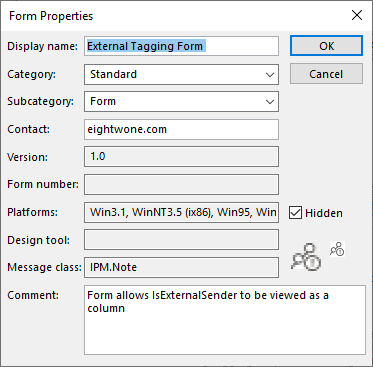
Open Outlook, go to File > Options > Advanced and click the Custom Forms button. There, click Manage Forms. By default, the form is installed in your Personal Folder Library. You can also pick a mailbox to store the form, allowing it to roam together with the view changes we will perform later. Click Install and pick the prepared .cfg file you downloaded from GitHub, and the following dialog should be shown:
Click OK to confirm you want to load the information in the form file in your personal forms library and close the Forms Manager. Going back to the Outlook navigation view, you can now add an IsExternalSender field to the message list. Right-click the field header and select Field Chooser. In the drop-down list, select Forms.., and add External Tagging Form to the Selected Forms. Field Chooser should now display an available field named IsExternalSender, which you can add to your current view using drag & drop.
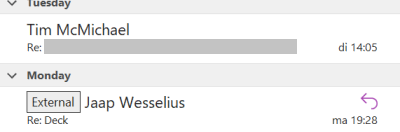
Note that the .cfg defines the IsExternalSender as Boolean and showing it as an Icon. This means that for External messages, the column IsExternalSender will contain a checkbox:
When you want, you can create custom fields to adjust how the information is presented. For example, you can create a custom field using a formula to display [EXTERNAL] for IsExternalSender messages, which might be more usable in certain views instead of the checkbox. To accomplish this, select New in Field Chooser,and create a field named ExternalTag, type Formula and enter the following formula:
iif([IsExternalSender]=-1,"[EXTERNAL]","")
You can then add the ExternalTag field to Compact View. Do note the text takes up a row in Compact view, thus might replace sender or the subject depending on layout and field order. On a final note, when desired you can filter, sort or create Search Folders using the new IsExternalSender field.
8sep2022: In Outlook C2R Beta Channel, native tags for external messages are showing, but not (immediately) on every client, so might be part of an A/B test. The look is similar to that of Outlook Mobile:
If this feature goes GA, there’s no more need to create custom forms to have External tags showing up in Outlook for Desktop. However, there is no way to sort or filter on them, so you still might prefer that over visible-only clues.
Exchange On-Premises Organizations running Exchange Hybrid, routing inbound messages through Exchange Online, are not able to benefit from external e-mail tagging. IsSenderExternal is only stamped on messages destined for mailboxes in Exchange Online. These organizations have therefor no way to identify these messages landing in their Exchange on-premises environment, and may require them to deploy the less elegant Transport Rules solution regardless.










 EighTwOne (821)