Unknown's avatar

About Michel de Rooij

Michel de Rooij, with over 25 years of mixed consulting and automation experience with Exchange and related technologies, is a consultant for Rapid Circle. He assists organizations in their journey to and using Microsoft 365, primarily focusing on Exchange and associated technologies and automating processes using PowerShell or Graph. Michel's authorship of several Exchange books and role in the Office 365 for IT Pros author team are a testament to his knowledge. Besides writing for Practical365.com, he maintains a blog on eightwone.com with supporting scripts on GitHub. Michel has been a Microsoft MVP since 2013.

Outlook Connection Status Details


Outlook 2016 New IconA little notice on a potential helpful feature which was introduced to Outlook at some point, but I wasn’t aware of before (or it’s just new). At least the option is available in Outlook v1905 build 11629.20008 C2R; it might also be available in standalone.


Many people are familiar with the Outlook Connection Status window, which you can summon by right-clicking the Outlook icon in the system tray while holding CTRL. This will show a dialog containing the connections Outlook is managing for every configured account, together with valuable information like endpoint, response times, etc.

image

One of the columns, Req/Fail, is showing the number of Requests and Failed requests. To check the headers of the last failing response for a particular connection, double-click the Req/Fail number. This will open up a popup window similar to this one:

image

Apart from essentials like the http result code, it will show which front-end and back-end servers processed the request. This might help to quickly determine if clients are connecting to unfavorable public endpoints, or when failed requests are coming from specific in case of Exchange on-premises. Of course, this information can also be retrieved using additional tools like Fiddler, but with this shortcut you don’t need to install additional software, as well as that you can ask end users to open up this window and send you the information.

Again, another little gem which might come in handy when troubleshooting.

Security Updates for Spoofing Vulnerability


Ex2013 LogoUpdated April 12th: Notice on KB4487563
Today, as part of patch Tuesday, supported Exchange versions received security updates to remediate the following issues:

Security updates are available for the following product levels, and fix the vulnerability mentioned:

Build KB Download CVE-2019-0817 CVE-2019-0858
Exchange 2019 CU1 15.2.330.7 KB4487563 Download Yes Yes
Exchange 2019 15.2.221.16 KB4487563 Download Yes Yes
Exchange 2016 CU12 15.1.1713.6 KB4487563 Download Yes Yes
Exchange 2016 CU11 15.1.1591.16 KB487563 Download Yes Yes
Exchange 2013 CU22 15.0.1473.4 KB487563 Download Yes Yes
Exchange 2010 SP3 RU27 14.3.452.0 KB4491413 Download Yes No

Notes:

  • CVS-2019-0858 does not apply to Exchange 2010.
  • Exchange 2010 is currently in Extended Support. Extended support for Exchange 2010 ends January 14, 2020.
  • Don’t forget to put the Exchange server in maintenance mode prior to updating.
  • If you want to speed up the update process for systems without internet access, you can follow the procedure described here to disable publisher’s certificate revocation checking.
  • The order of installation shouldn’t matter with the “every server is an island” concept, yet recommended is to upgrade internet-facing first, followed by non-internet-facing servers, and finally Edge Transports.

Notice on KB4487563:
Apart from the known issues mentioned in KB4487563, there are reports the fix terminates while stopping services, and the following error is being logged:
[Error] System.Management.Automation.CommandNotFoundException: The term ‘Stop-SetupService’ is not recognized as the name of a cmdlet, function, script file, or operable program.

This Stop-SetupService isn’t a regular cmdlet, and I assume is an alias created by the update. However, there are reports this operation fails. In those circumstances, next to retrying installation of the update, a workaround might be opening up a PowerShell session and adding the alias yourself using New-Alias Stop-SetupService Stop-Service, followed by running the update. The alias isn’t persistent, so will be gone after you close your session.

Caution:
As for any update, I recommend to thoroughly test updates in a test environment prior to implementing them in production. When you lack such facilities, hold out a few days and monitor the comments on the original publication or forums for any issues.

End Users & External Messages


Ex2013 Logo

Update 5May2021: Relocated information regarding External Tagging feature to new blog.

In the ongoing battle against spam and phishing, technical measures have much effect as they are able to triage spam or phishing messages based on configuration or programmed rules. By now, many of these measures have been widely adopted to limit messages of those categories to reach the inbox of the end user. Measures like SPF (Sender Policy Framework), DKIM (DomainKeys Identified Mail) and DMARC (Domain-based Message Authentication, Reporting and Conformance) can be used to validate origination or contents of the message, or authenticate senders.

This post isn’t about those measures or how to implement them. I suggest reading this excellent DMARC implementation guide by MSFT’s Martijn van Geffen for more information on how to implement SPF and DMARC successfully. Note that his website also contains lots of tools and scripts to troubleshoot and report on SPF/DMARC. If you’re unfamiliair with his site, I suggest you have a look.

One of the “weaker links” in the whole chain of messaging remains the end end user. One can still devise technical measures up to a point, there are still end users out there who blindly click links or follow instructions in that message from ‘Microsoft’ requesting them to change their Office 365 password. One can not always blame the end user; phishers became very crafty in making their deceptions look genuine; even IT professionals often need to look twice to determine legitimacy of a message. For those interested, few months ago Google put a phishing quiz online where you can assess your phishing detection skills.

To assist end users processing inbound messages, many companies have resorted to providing visual clues so end users can more quickly determine the origin of a message or the message being potentially non-legit. One measure often is marking messages originating from outside the organization, by inserting a notice before the contents, or prefixing the subject with something like “[External]”.

Recently, MVP fellow Tony Redmond wrote an article on how to accomplish marking external messages using transport rules in Exchange. For example, to create a transport rule you can use the following cmdlet:

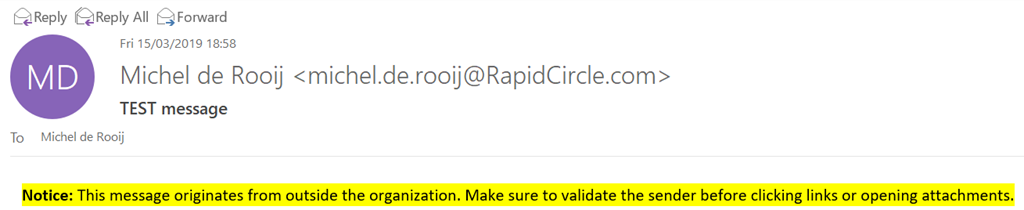
New-TransportRule -Name 'Tag External Mail' -SetHeaderName 'X-ExternalMail-Tagged' -SetHeaderValue 'True' -ApplyHtmlDisclaimerLocation Prepend -ApplyHtmlDisclaimerText '<span style="background-color:yellow;color:black;"><b>Notice</b>: This message originates from outside the organization. Make sure to validate the sender before clicking links or opening attachments.</span>' -ExceptIfHeaderContainsMessageHeader 'X-ExternalMail-Tagged' -ExceptIfHeaderContainsWords 'True' -ExceptIfSenderInRecipientList Allow -FromScope NotInOrganization

The above will create a transport rule that prepends the message with a colored (HTML) notice, inserting a message header to prevent insertion of multiple notices and allowing end users to add senders to their Safe Sender Allow List to bypass tagging messages.

image

However, the problem with these notices is that over time it might make end users insensitive, as messages from external sources are usually large in numbers and become part of the other visual noise like disclaimers and marketing messages. Therefor a better option might be to mark messages which fail DMARC or SPF checks, provided you are not rejecting those messages at some level.

For example, to mark messages failing DMARC or SPF checks, you could create the following transport rule:

New-TransportRule -Name 'Tag DMARCSPFFail Mail' -SetHeaderName 'X-DMARCSPFFail-Tagged' -SetHeaderValue 'True' -ApplyHtmlDisclaimerLocation Prepend -ApplyHtmlDisclaimerText '<span style="background-color:white;color:red;"><b>Warning:</b> The sender of this message could not be validated, and may not be the actual sender.</span>' -ExceptIfHeaderContain
sMessageHeader 'X-DMARCSPFFail-Tagged' -ExceptIfHeaderContainsWords 'True' -ExceptIfSenderInRecipientList Allow -FromScope NotInOrganization -HeaderMatchesMessageHeader 'Authentication-Results' -HeaderMatchesPattern 'dkim=fail','spf=TempError','spf=PermError', 'spf=SoftFail', 'spf=Fail', 'spf=None'

Of course, you could also prepend the subject with a tag to help identifying messages in this category.

More recently, Microsoft added the MailTip feature to Outlook Mobile which also helps in making end users more aware of their outbound communications. After enabling the MailTips for external recipients using:

Set-OrganizationConfig -MailTipsExternalRecipientsTipsEnabled $true

end users will receive a notification when replying to or sending messages outside their organization from Outlook Mobile; Outlook Desktop already had this feature.

Outlook Desktop:
recext

Outlook Mobile:
image

MailTips are in my opinion the preferred visual clue when compared to inserting content, as it not only can notify users upfront, it also doesn’t clutter message bodies with notifications and warnings. In the end, these notifications are however a small price to pay, compared to the cost of phishing or end users clicking malicious links. It would be nice if Microsoft could already show the MailTip when displaying the message, so it would prevent accidental clicking of malicious links or attachments.

May 5th 2021: A new feature has been introduced to Exchange Online (MC243047), which allows organizations to tag external inbound messages. Information on this new feature has been published in a new blog: Tagging External Messages.

On a final note, Advanced Threat Protection (ATP) could also help companies with the protection against malicious links and attachments, however not every company has ATP licenses. In both cases, these notices might complement the overall set of measures.

Exchange Updates – February 2019


Update: Added note that Exchange 2010 SP3 RU26 adds support for Windows Server 2012 R2.

Today, the Exchange Team released the overdue quarterly Cumulative Updates for Exchange Server 2013, Exchange 2016 and Exchange 2019, as well as a Rollup for Exchange Server 2010.

The KB articles that describe the fixes in each release and product downloads are available as follows:

Version Build KB Download UMLP Schema
Exchange 2019 CU1 15.2.330.5 KB4471391 VLSC N
Exchange 2016 CU12 15.1.1713.5 KB4471392 Download UMLP N
Exchange 2013 CU22 15.0.1473.3 KB4345836 Download UMLP N
Exchange 2010 SP3 RU26 14.3.442.0 KB4487052 Download N

This update contain the following important changes and notes:

  • Due to issue CVE-2018-8581, the EWS architecture was changed, in particular push notifications. Details on the change are described in KB4490060; while the change has been tested against EWS clients such as Outlook for Mac and Skype for Business, organizations may need to test any applications leveraging EWS to estimate potential impact of installing these Cumulative Updates or Rollup. In addition, organizations are advised to password reset Exchange computer accounts.
  • These Exchange builds introduces a change in the shared permissions model (this does not apply to Split Permissions Model). Result is that Exchange no longer requires fargoing permissions in Active Directory (e.g. WriteDACL on root of domain). To makes these changes become effective:
    • For Exchange 2013-2019 Cumulative Updates, run setup using /PrepareAD. In multi-forest environments, this needs to be done in every domain of the forest.
    • For Exchange 2010, go through the instructions mentioned in KB4490059.
  • Organizations considering moving to the Split Permissions because of CVE-2018-8581 should know Microsoft fully supports both models. Switching can have serious consequences and therefor should be fully evaluated.
  • This build of Exchange 2019 introduces cmdlets to block usage of legacy authentication protocols for users through policies, e.g. Basic Authentication.
  • Prior to deploying Exchange 2016 CU12 or Exchange 2013 CU22 on Edge Transport servers, install Visual C++ 2012 Runtime.
  • These Cumulative Updates will remove the DisableLoopbackCheck key when present; removing this key was a mitigation for CVE-2018-8581.
  • Exchange 2010 SP3 RU26 adds support for Windows Server 2012 R2, to accommodate for the Hybrid Agent.

Exchange 2019 CU1 fixes:

  • 4487596 Emails are blocked in moderator mailbox Outbox folder when you send large volumes of emails in Exchange Server 2019
  • 4487591 The recipient scope setting doesn’t work for sibling domains when including OUs in the scope in Exchange Server 2019
  • 4487602 Outlook for Mac users can still expand a distribution group when hideDLMembership is set to true in Exchange Server 2019
  • 4488076 Outlook on the Web can’t be loaded when users use an invalid Windows language in operating system in Exchange Server 2019
  • 4488079 Exchange Server 2016 allows adding Exchange Server 2019 mailbox server into a same DAG and vice versa
  • 4488263 X-MS-Exchange-Organization-BCC header isn’t encoded correctly in Exchange Server 2019
  • 4488080 New-MigrationBatch doesn’t honor RBAC management scope in Exchange Server 2019
  • 4488262 Delivery Reports exception when tracking a meeting request that’s sent with a room resource in Exchange Server 2019
  • 4488268 Disable the irrelevant Query logs that’re created in Exchange Server 2019
  • 4488267 Test-OAuthConnectivity always fails when Exchange Server uses proxy to connect to Internet in Exchange Server 2019
  • 4488266 Client application doesn’t honor EwsAllowList in Exchange Server 2019
  • 4488265 “There are problems with the signature” error occurs for digital signature message if attachment filtering is enabled in Exchange Server 2019
  • 4488398 “The Microsoft Exchange Replication service may not be running on server” error when you add a mailbox database copy in Exchange Server 2019
  • 4488264 Mailbox that has a bad move request can’t be cleaned up from destination mailbox database in Exchange Server 2019
  • 4488261 Event ID 1002 when the store worker process crashes in Exchange Server 2019
  • 4488260 New-MailboxExportRequest and New-MailboxImportRequest don’t honor RBAC management scope in Exchange Server 2019
  • 4488259 MailTip shows wrong number of users for a distribution group if the users are in different domains in Exchange Server 2019
  • 4488258 OAuth authentication is removed when saving MAPI virtual directory settings in EAC in Exchange Server 2019
  • 4490060 Exchange Web Services Push Notifications can be used to gain unauthorized access
  • 4490059 Reducing permissions required to run Exchange Server using Shared Permissions Model

Exchange 2016 CU12 fixes:

  • 4487596 Emails are blocked in moderator mailbox Outbox folder when you send large volumes of emails in Exchange Server 2016
  • 4456241 You receive a meeting request that has a “not supported calendar message.ics” attachment in Exchange Server 2016
  • 4456239 New-MailboxRepairRequest doesn’t honor RBAC RecipientWriteScope restrictions in Exchange Server 2016
  • 4487591 The recipient scope setting doesn’t work for sibling domains when including OUs in the scope in Exchange Server 2016
  • 4468363 MRM does not work for mailboxes that have an online archive mailbox in Exchange Server
  • 4487603 “The action cannot be completed” error when you select many recipients in the Address Book of Outlook in Exchange Server 2016
  • 4487602 Outlook for Mac users can still expand a distribution group when hideDLMembership is set to true in Exchange Server 2016
  • 4488076 Outlook on the Web can’t be loaded when users use an invalid Windows language in operating system in Exchange Server 2016
  • 4488079 Exchange Server 2016 allows adding Exchange Server 2019 mailbox server into a same DAG and vice versa
  • 4488077 Can’t configure voice mail options when user is in different domain in Exchange Server 2016
  • 4488263 X-MS-Exchange-Organization-BCC header isn’t encoded correctly in Exchange Server 2016
  • 4488080 New-MigrationBatch doesn’t honor RBAC management scope in Exchange Server 2016
  • 4488262 Delivery Reports exception when tracking a meeting request that’s sent with a room resource in Exchange Server 2016
  • 4488268 Disable the irrelevant Query logs that’re created in Exchange Server 2016
  • 4488267 Test-OAuthConnectivity always fails when Exchange Server uses proxy to connect to Internet in Exchange Server 2016
  • 4488266 Client application doesn’t honor EwsAllowList in Exchange Server 2016
  • 4488265 “There are problems with the signature” error occurs for digital signature message if attachment filtering is enabled in Exchange Server 2016
  • 4488264 Mailbox that has a bad move request can’t be cleaned up from destination mailbox database in Exchange Server 2016
  • 4488261 Event ID 1002 when the store worker process crashes in Exchange Server 2016
  • 4488260 New-MailboxExportRequest and New-MailboxImportRequest don’t honor RBAC management scope in Exchange Server 2016
  • 4488259 MailTip shows wrong number of users for a distribution group if the users are in different domains in Exchange Server 2016
  • 4488258 OAuth authentication is removed when saving MAPI virtual directory settings in EAC in Exchange Server 2016
  • 4490060 Exchange Web Services Push Notifications can be used to gain unauthorized access
  • 4490059 Reducing permissions required to run Exchange Server using Shared Permissions Model

Exchange 2013 CU22 fixes:

  • 4487603 “The action cannot be completed” error when you select many recipients in the Address Book of Outlook in Exchange Server 2013
  • 4490060 Exchange Web Services Push Notifications can be used to gain unauthorized access
  • 4490059 Reducing permissions required to run Exchange Server using Shared Permissions Model

Exchange 2010 SP3 RU26 fixes:

  • 4490060 Exchange Web Services Push Notifications can be used to gain unauthorized access

Notes:

  • These Cumulative Updates do not contain schema changes compared to their previous Cumulative Update. However, due to changes in the permissions architecture, you need to run setup /PrepareAD to implement these changes as well as apply any RBAC changes, before deploying or updating Exchange servers.
  • When upgrading from an n-2 or earlier version of Exchange, or an early version of the .NET Framework, consult Upgrade Paths for CU’s & .NET.
  • Don’t forget to put the Exchange server in maintenance mode prior to updating. Regardless, setup will put the server in server-wide offline mode post-analysis, before making actual changes.
  • When using Exchange hybrid deployments or Exchange Online Archiving (EOA), you are required to delay installing at most one version (n-1).
  • If you want to speed up the update process for systems without internet access, you can follow the procedure described here to disable publisher’s certificate revocation checking.
  • Cumulative Updates can be installed directly; no need to install RTM prior to installing Cumulative Updates.
  • Once installed, you can’t uninstall a Cumulative Update nor any of the installed Exchange server roles.
  • The order of installation shouldn’t matter with the “every server is an island” concept, yet recommended is to upgrade internet-facing, non-internet-facing servers first, followed by Edge Transports.

Caution:

As for any update, I recommend to thoroughly test updates in a test environment prior to implementing them in production. When you lack such facilities, hold out a few days and monitor the comments on the original publication or forums for any issues.

CVE-2018-8581: Exchange Vulnerability


Ex2013 LogoUpdate Feb6: Added MSRC security advisory ADV190007 .
Update Feb13: February updates comment.

A short notice on the zero-day vulnerability in the Exchange ecosystem as reported by researcher Mollema last week. Through a man-in-the-middle setup, one can exploit the permissions Exchange has with regards to Active Directory in conjunction with NTLM as well as Exchange Web Services (EWS). This 3-stage missile allows one to elevate their privileges in Active Directory, and thus to grant themselves administrative access.

The issue was already logged at 13 november in the Microsoft Security Response Center (MSRC) as CVE-2018-8581, Microsoft Exchange Server Elevation of Privilege Vulnerability. An uptake on the public attention for the issue was generated after the Mollema article, and media like The Register started publishing about it. Meanwhile Exchange fellow Tony Redmond also wrote a short note on the issue as well.

At this moment, Microsoft is fully aware of the issue, and is actively working on resolving the issue as soon as possible. Meanwhile, the mitigation mentioned in CVE-2018-8581 can be considered, which is to remove the  DisableLoopbackCheck key from HKLM:\SYSTEM\CurrentControlSet\Control\Lsa. The effect of removing this key is that it’s no longer possible to make NTLM connections on the loopback adapter (localhost), which should be OK for Kerberos authenticated sessions as they are name-based. Again, test this as for example platforms like SharePoint will break when setting this key, but nobody runs SharePoint on the same box, so for Exchange this is a valid mitigation.

Organizations are advised not to blindly implement mitigations mentioned in Mollema’s article or elsewhere in the field, as they might not be applicable to every deployment out there, or have unforseen side-effects. Then again, organizations might already have things deployed SMB signing, in which case the exploit does not apply.

Update (Feb6): Meanwhile, Microsoft Security Response Center published an advisory (ADV190007) containing guidance on how to deal with the issue at this moment. MSRC takes the EWS Throttling Policy route to block EWS Subscriptions at the original level, which of course breaks Outlook for Mac functionality (e.g. new mail notifications as the client can no longer subscribe to receive updates), or other applications which rely on this mechanism (e.g. meeting room systems). This can be mitigated by explicitly allowing EWS subscriptions for trusted users and applications.

Update (Feb13): Today the quarterly cumulative updates for Exchange 2019/2016/2013 were released, which will remove the DisableLoopbackCheck key (when present).