
Unknown's avatar

About Michel de Rooij

Michel de Rooij, with over 25 years of mixed consulting and automation experience with Exchange and related technologies, is a consultant for Rapid Circle. He assists organizations in their journey to and using Microsoft 365, primarily focusing on Exchange and associated technologies and automating processes using PowerShell or Graph. Michel's authorship of several Exchange books and role in the Office 365 for IT Pros author team are a testament to his knowledge. Besides writing for Practical365.com, he maintains a blog on eightwone.com with supporting scripts on GitHub. Michel has been a Microsoft MVP since 2013.

Exchange and VMWare Guest Introspection


Ex2013 LogoIn this long overdue article, I would like to share an experience, where a customer was upgrading from Exchange 2010 to Exchange 2013. Note that this could also apply to customers migrating from Exchange 2007 or migrating to Exchange 2016 as well. The Exchange 2013 servers were hosted on VMWare vSphere 5.5U2; the Exchange 2010 servers on a previous product level.
The customer saw a negative impact on the end user experience of Outlook 2010 users, especially those working in Online Mode. Other web-based services like Exchange Web Services (EWS) were affected as well. The OWA experience was good.

Symptoms
After migrating end user mailboxes from Exchange 2010 to Exchange 2013 (but as indicated, this applies to Exchange 2016 as well), end users reported delays in their Outlook client responses, where sometimes Outlook seemed to ‘hang’ when performing certain actions like accessing a Shared Mailbox. Also, when opening up the meeting planner in order to schedule a room using Scheduling Assistant, it could take a significant amount of time, (i.e. minutes) before the schedule of all the rooms was being displayed.

The end users’ primary mailbox was configured to use Cached Mode, except for VDI users who used their primary mailbox in Online Mode. Shared Mailboxes were used in Online Mode due to the size (Outlook 2010, so no slider).

Analysis
First, the overall health of the Exchange environment was checked to exclude it as a potential cause. Exchange performance metrics were monitored, as well as Managed Availability status and events, logs like the RCA logs, and VMWare CPU Ready % to check for potential vCPU allocation issues (read: oversubscription). None of these metrics caused any reason for concern.

After reconfiguring the HOSTS file, in order to bypass the load balancer and direct traffic to a single Exchange server to simplify troubleshooting, the symptoms remained. Then, we checked:

  • TCP/IP optimization settings, e.g. RSS, Chimney, etc.
  • VMWare VMXNet3 offloading, e.g. Large Send Offload, TCP Checksum Offloading
  • VMWare VMXNet3 buffer settings

All those settings were also found to be on their recommended values.

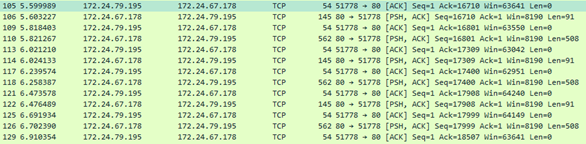
We started digging in from the client’s perspective, and used WireShark to see what was going on on the wire. After filtering on the Exchange host, we saw the following pattern:

image

Note that this customer used SSL Offloading, so mailbox access took place on port 80 instead of 443 (RPC/http).

As you might notice, there is a consistent 200ms delay after the client receives its response (e.g. packets 106 and 110). When searching around for ‘200ms’ and ‘delay’, you may end up with articles describing the effect of the Nagle algorithm (Delayed ACK). Nagle is meant to reduce chatter on the wire, but can have a negative effect on near real-time communications, especially with small packets. Also, while 200ms might seem small, looking at the number of packets exchanged between Outlook and Exchange, this can add up quite quickly. Most of these articles will also describe a fix, recommending to configure a registry key TcpAckFrequency, and set it to 1 (default is 2). For testing purposes, we configured this key and after the mandatory reboot, the end user Outlook experience was snappy. However, setting this key would impact all client communications (real as well as VDI clients); not a recommended long-term solution due to side effects on the network.

After removing the registry key, investigating was continued. Since there was no issue with the Exchange 2010, we started to suspect there was perhaps an issue with VMWare, or there was some form of network optimization or packet inspection going on. This, due to the fact there was no problem with the old Exchange environment, and the elements that changed when migrating were VMWare vSphere version, physical vSphere hosts, and last but not least, the protocol switched. This client didn’t use Outlook Anywhere, so RPC/http was not enabled for Exchange 2010 prior to migration, and clients connected using MAPI. After some more investigating, some potentially related articles on the VMWare knowledgebase were found, talking about latency issues in certain VMWare Tools versions, the VMWare guest driver set, and downgrading these to 5.1 would have the same effect as configuring TcpAckFrequency. Unfortunately, this wasn’t an option as the hardware level of the VMWare guests already was on a certain level.

introRemediation
When installing VMWare Tools, the package comes with some system-level drivers which handle communications between the guest and the host or other guests. One of these drivers is the VMWare Guest Introspection driver (or VMCI Drivers, and formerly VShield Drivers). This component can be identified in the guest in the presence of the system drivers vnetflt and vsepflt, and accommodates agentless antivirus solutions like McAfee MOVE. However, it seems to also interfere with certain workloads in their driver ecosystem, thus negatively impacting real-time communications. I wasn’t able to test if the change from MAPI to RPC/http (or later MAPIhttp) also contributed to this effect, as the Introspection driver may not scan MAPI RPC packets at all, in which case there is no overhead introduced.

Needless to say disabling the Guest Introspection component might be less desirable for some organizations, and in those cases, when you experience this issue, I suggest contacting your VMWare representative, after verifying your VMWare Tools are part of the list of recommended versions.

In the end, in this situation Guest Introspection was disabled and a file-level scanner was introduced (with the required exclusions, of course). Performance for Online Mode was optimal when accessing Online Mode mailboxes, and using Exchange web services like Scheduling Assistant showed room planning in seconds rather than minutes.

image.pngNote that unfortunately, recent versions of VSphere running Exchange virtualized workloads also have this issue. On the plus side, they allow for separate (de)installation of the file system driver (NSX File Introspection Driver) and the network driver (NSX Network Introspection Driver). I am pretty sure removing the network driver would suffice, which might be a viable solution for some folks as well.

If you have any insights to share, please leave them in the comments.

Results Install-Exchange15 survey


stats chartA short blog on a small survey I’ve been running for some time now on the usage of Install-Exchange15, the PowerShell script for fully automated deployment of Exchange 2013 or Exchange 2016.
I started the survey because I was curious on a few things:

  • How the script is used; do folks use it for deploying in lab environments, or also actual production environments.
  • What Exchange versions are deployed; only current ones (n-2 at most, i.e. lagging 2 Cumulative Update generations at most), or also older versions.
  • What operating systems are used to deploy Exchange using this script.

The second and last items are of most interest, as keeping backward compatibility in the script, for example like deploying Exchange Server 2013 SP1 on Windows Servers 2008, requires keeping a lot of ‘legacy code’ in there.

Fortunately, the survey shows many of you use the script to deploy recent Exchange builds on current operating systems. So, in time, you will see support for older builds and operating systems being removed, making the script more lean and mean as well.

Now, on to the results:

In what environments do you use the script to deploy Exchange?

Lab

Production

Yes

86%

72%

No

14%

28%

Do you use Install-Exchange15.ps1 for previous (N-2 or older) Exchange 2013/2016 builds?

Yes 28%
No 72%

On which Operating Systems do you deploy Exchange 2013/2016? (multiple options possible)

Windows Server 2008 0%
Windows Server 2008 R2 18%
Windows Server 2012 18%
Windows Server 2012 R2 100%
Windows Server 2016 8%

Finally, a summary of the feedback and requests send in by respondents through the open comments section:

  • Installation on Windows Server 2016. The survey was created before Windows Server 2016 was supported, so we used the feedback given on people deploying on WS2016 in the above results.
  • In general, positive feedback on having this script for automated deployment, as well as the SCP feature.
  • Request for having a GUI to create the answer file.
  • Request to having the option to configure the virtual directories after installation. However, the script allows for inserting custom (Exchange) cmdlets in its post-configure phase.
  • Request to output cause of failed Exchange setup to the screen. That however, is something I wouldn’t recommend; the Exchange setup log files contain the details.
  • Request to have some sort of visible clue if the installation was successful or not.

A short 2016 retrospective


oscarFirst of all, happy new year to all dear readers and followers. With January well underway, and taking some (largely offline) time off for the holiday period, it’s time to see what 2016 brought.

But first a new year resolution: step up the blogging game. While there isn’t much development happening in the Exchange space, with Microsoft’s cloud-first strategy, there is still a lot to talk about or script for. My list list of ‘scripting ideas’ is substantial, now let’s find some time to realize some of these ideas. Knowing that when you publish scripts, you automatically become its support channel, so that may put some additional stress on my mailbox, but it’s a small price for helping lots of people out.

Some Highlights:

  • Re-awarded as Office 365 Servers and Services MVP
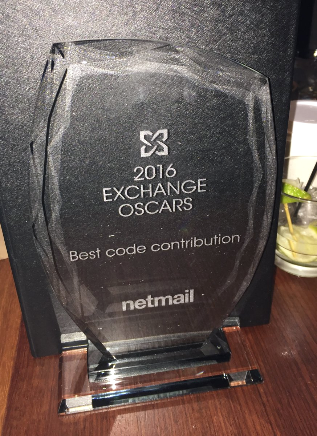
  • Awarded 2016 Exchange Oscar for Best Code Contribution
  • Workshop: Advanced PowerShell Management of Office 365
    IT/Dev Connections
  • Webinar: How to Benefit from MS Office 365 and Maintain Control of Your Data
  • Session: Exchange 2016 & OOS, Office Online Server

Global Stats of 2016:

  • Number of views: 309,767 (total: 1,888,669)
  • Visitors: 220,900 (total 894,316)
  • Number of posts: 22 (total 547)

Popular Posts of 2016:

Note: Not considering the Archives, Versions, Builds and Dates, Schema Versions and Toolkit pages.

  • Exchange ActiveSync and Inheritable Permissions issue
  • TargetAddress, ExternalEmailAddress and Set As External
  • The Attribute, the Myth, the legacyExchangeDN
  • Limiting Exchange 2010 Database Cache
  • Outlook for iOS adds Contacts support

Top 5 Visitor Countries of 2016:

  • United States (96,286)
  • United Kingdom (29,606)
  • Germany (19,968)
  • India (14,355)
  • Netherlands (13,056)

image

Top 5 Referrers of 2016:

  • exchangeserverpro.com (Paul Cunningham’s)
  • blogs.technet.com (MSFT blogs)
  • meridian.ws (blog)
  • experts-exchange (community)
  • veritas.com (support forum)

Top 5 Search Terms of 2016:

  • kb2506143
  • targetaddress
  • federation information could not be retrieved from the external organization
  • exchange 15.1
  • exchange version numbers

Top 5 Scripts of 2016:

  • Ignite 2016 Slidedeck and Video downloader (4,941, total 4,941)
  • Exchange v15 (2013/2016) Unattended Installation Script (2,601, total 8,577)
  • Removing Duplicate Items from a Mailbox (2,079, total 6,843)
  • Clearing AutoComplete and other Recipient Caches (1,932, total 3,920)
  • Removing Messages by Message Class from Mailbox (915, total 2,942)

Exchange Server Role Requirements Calculator 8.4


Exchange 2010 Mailbox Role Sizing Calculator 16.4Last week, the Exchange team published an update for the Exchange Server Role Requirements Calculator, the tool to aid you in properly sizing your Exchange Server 2013 or Exchange Server 2016 deployments.

The new version number is 8.4, and it contains the following changes since version 8.3:

New Functionality

  • Added support for ReplayLagMaxDelay
  • Added support for SafetyNetHoldTime in CreateDAG.ps1

Bug Fixes

  • Improved the DAG auto-calculation results display to highlight deployment configuration in both datacenters
  • Fixed an issue that prevented DAG auto-calculation in single site DAG deployments
  • Fixed a SPECInt2006 validation issue with DAG auto-calculation
  • Fixed a bug with the DAG auto-calculation with Active/Passive deployments
  • Fixed conditional formatting issues with the transaction log table
  • Removed data validation from certain unused cells on the Input tab
  • Fixed bug in calcNumActiveDBsSF formula

You can download the calculator here. For more information, please consult the list of changes here or Read Me here.

Exchange Updates – December 2016


Ex2013 LogoToday, the Exchange Team released the December updates for Exchange Server 2013 and 2016, as well as Exchange Server 2010 and 2007.

Changes introduced in Exchange Server 2016 CU4 are an updated OWA composition window, and on Windows Server 2016, KB3206632 needs to be present before CU4 can be deployed. This KB fixes – among other things – the problem with DAG members experiencing crashing IIS application pools. Be advised that the KB3206632 update for Windows Server 2016 is a whopping 1 GB. You can download this update here.

The biggest change for Exchange Server 2013 is support for .NET 4.6.2. Be advised organizations running Exchange 2016 or 2013 on .NET 4.6.1 should start testing with and planning to deploy .NET 4.6.2, as the March updates will require .NET 4.6.2, which is currently still optional.

Both Cumulative Updates introduce an important fix for indexing of Public Folder when they were in the process of being migrated. To ensure proper indexing, it is recommended to move public folder mailboxes to a different database so they will get indexed properly.

The Cumulative Updates also include DST changes, which is also contained in the latest Rollups published for Exchange 2010 and 2007.

For a list of fixes in these updates, see below.

Exchange 2016 CU4 15.1.669.32 KB3177106 Download UMLP
Exchange 2013 CU15 15.0.1263.5 KB3197044 Download UMLP
Exchange 2010 SP3 Rollup 16 14.3.339.0 KB3184730 Download
Exchange 2007 SP3 Rollup 22 8.3.502.0 KB3184712 Download
  • KB 3202691 Public folders indexing doesn’t work correctly after you apply latest cumulative updates for Exchange Server
  • KB 3201358 Set-Mailbox and New-Mailbox cmdlets prevent the use of the -Office parameter in Exchange Server 2016
  • KB 3202998 FIX: MSExchangeOWAAppPool application pool consumes memory when it recycles and is marked as unresponsive by Health Manager
  • KB 3208840 Messages for the health mailboxes are stuck in queue on Exchange Server 2016
  • KB 3186620 Mailbox search from Exchange Management Shell fails with invalid sort value in Exchange Server 2016
  • KB 3199270 You can’t restore items to original folders from Recoverable Items folder in Exchange Server 2016
  • KB 3199353 You can’t select the receive connector role when you create a new receive connector in Exchange Server 2016
  • KB 3193138 Update to apply MessageCopyForSentAsEnabled to any type of mailbox in Exchange Server 2016
  • KB 3201350 IMAP “unread” read notifications aren’t suppressed in Exchange Server 2016
  • KB 3209036 FIX: “Logs will not be generated until the problem is corrected” is logged in an Exchange Server 2016 environment
  • KB 3212580 Editing virtual directory URLs by using EAC clears all forms of authentication in Exchange Server 2016

Exchange 2013 CU15 fixes:

  • KB 3198092 Update optimizes how HTML tags in an email message are evaluated in an Exchange Server 2013 environment
  • KB 3189547 FIX: Event ID 4999 for a System.FormatException error is logged in an Exchange Server 2013 environment
  • KB 3198046 FIX: The UM mailbox policy is not honored when UM call answering rules setting is set to False in an Exchange Server 2013 environment
  • KB 3195995 FIX: Event ID 4999 with MSExchangerepl.exe crash in Exchange Server 2013
  • KB 3208886 Send As permission of a linked mailbox is granted to a user in the wrong forest in Exchange Server 2013
  • KB 3188315 Messages are stuck in outbox when additional mailboxes are configured in Outlook on Exchange Server 2013
  • KB 3202691 Public folders indexing doesn’t work correctly after you apply latest cumulative updates for Exchange Server
  • KB 3203039 PostalAddressIndex property isn’t returning the correct value in Exchange Server 2013
  • KB 3198043 Shadow OAB downloads don’t complete in Exchange Server 2013
  • KB 3208885 Microsoft.Exchange.Store.Worker.exe process crashes after mailbox is disabled in Exchange Server 2013
  • KB 3201966 MSExchangeOWAAppPool application pool consumes excessive memory on restart in Exchange Server 2013
  • KB 3209041 FIX: An ActiveSync device becomes unresponsive until the sync process is complete in an Exchange Server environment
  • KB 3209013 FIX: The LegacyDN of a user is displayed incorrectly in the From field in the Sent Items folder on an ActiveSync device
  • KB 3209018 FIX: Results exported through the eDiscovery PST Export Tool never finishes in an Exchange Server environment
  • KB 3199519 Inconsistent search results when email body contains both English and non-English characters in Exchange Server 2013
  • KB 3211326 “ConversionFailedException” error when emails are sent on the hour in Exchange Server 2013

Notes:

  • Exchange 2016 CU4 doesn’t incldue schema changes compared to CU4, however, Exchange 2016 CU4 as well as Exchange 2013 CU15 may introduce RBAC changes in your environment. Where applicable, use setup /PrepareSchema to update the schema or /PrepareAD to apply RBAC changes, before deploying or updating Exchange servers. To verify this step has been performed, consult the Exchange schema overview.
  • When upgrading your Exchange 2013 or 2016 installation, don’t forget to put the server in maintenance mode when required. Do note that upgrading, before installing the Exchange binaries, setup will put the server in server-wide offline-mode.
  • Using Windows Management Framework (WMF)/PowerShell version 5 on anything earlier than Windows Server 2016 is not supported. Don’t install WMF5 on your Exchange servers running on Windows Server 2012 R2 or earlier.
  • When using Exchange hybrid deployments or Exchange Online Archiving (EOA), you are allowed to stay at least one version behind (n-1).
  • If you want to speed up the update process for systems without internet access, you can follow the procedure described here to disable publisher’s certificate revocation checking.
  • Cumulative Updates can be installed directly, i.e. no need to install RTM prior to installing Cumulative Updates.
  • Once installed, you can’t uninstall a Cumulative Update nor any of the installed Exchange server roles.
  • The order of upgrading servers with Cumulative Updates is irrelevant.

Caution: As for any update, I recommend to thoroughly test updates in a test environment prior to implementing them in production. When you lack such facilities, hold out a few days and monitor the comments on the original publication or TechNet forum for any issues.