Michel de Rooij, with over 25 years of mixed consulting and automation experience with Exchange and related technologies, is a consultant for Rapid Circle. He assists organizations in their journey to and using Microsoft 365, primarily focusing on Exchange and associated technologies and automating processes using PowerShell or Graph. Michel's authorship of several Exchange books and role in the Office 365 for IT Pros author team are a testament to his knowledge. Besides writing for Practical365.com, he maintains a blog on eightwone.com with supporting scripts on GitHub. Michel has been a Microsoft MVP since 2013.
Security updates are Cumulative Update level specific. You cannot apply the update for Exchange 2019 CU12 to Exchange 2019 CU11. When downloading, the security update will carry the same name for different Cumulative Updates, and I would suggest tagging the file name with the CU level when archiving it, e.g. Exchange2019-CU13-KBXXXXXX-x64-en.msp.
Similar to Cumulative Updates, Security Updates are cumulative and you only need to install the latest SU for your CU.
Exchange servers running as part of hybrid deployment are managed through PowerShell, and thus need to be receive this patch and eventually be enabled for payload signing.
If you have installed the Exchange Management Tools separately for managing your on-premises Exchange Servers, or installed it after removal of the Last Exchange Server for recipient management, it is recommended to apply the Security Update.
On a final note, as with any patch or update, I’d recommend to apply this in a test environment first, prior to implementing it in production. However, it is not recommended to wait for regular maintenance cycles when it concerns security updates, and follow a more agile approach; the ratings are an indication of the urgency.
The Exchange Team released Exchange Server 2019 Cumulative Update H1 2023, or CU13. This is Exchange 2019 only; no Exchange 2016 CU.
Apart from the fixes, this Cumulative Update for Exchange 2019 contains the following functionality enhancements:
Modern Authentication On-Premises Support After dropping support for Basic Authentication in Exchange Online, organizations that remained on-premises for various reasons, and could not deploy Exchange Hybrid, were left out in doubt how to proceed. Last year, Microsoft gave them some perspective, following a roadmap announcement.
This CU is a first step, allowing organizations running AD FS 2019 to deploy Exchange 2019 CU13, and configure AD FS as their authentication provider. Be advised that this also requires clients to support this change in authentication logic. First, Outlook for Windows will contain support for this in build 16327.20200 and later. Support for other Outlook clients has an ETA of end of year. Outlook on the Web already supports claims-based authentication using AD FS, which is a form of Modern Authentication.
Finally, organization running Exchange 2016 can deploy Exchange 2019 CU13 in front of those Exchange 2016 servers, allowing then to handle clients request, and thus authenticate them using AD FS. After deployment, organizations can enable Modern Authentication on the organization or at the mailbox level, using Exchange’s Authentication Policies.
For more information about deploying Modern Authentication with Exchange on-premises, see Enabling Modern Auth in Exchange On-Premises. The page also includes an insightful diagram on the authentication flow.
Configuration Backup/Restore Administrators might tweak configuration files belonging to their Exchange deployment, e.g. web.config. Deploying CUs meant that those files were overwritten, and administrators had to re-apply changes. With CU13, setup will now preserve a fixed set of elements in those configuration files. For more information, see Exchange Server custom configuration preservation.
TLS 1.3 Unfortunately, nothing yet about TLS 1.3 support.
Earlier Exchange Versions Exchange 2013 reached end of life early April. No Cumulative Update for Exchange 2016 CU23, which is in extended support, and will only receive security updates until October, 2025. Exchange 2016 is supported when you run CU23 with the March 2023 Security Update applied.
Download Link to the update as well as a description of changes and fixes are below. The column Schema and AD indicate if the CU contains Schema (/PrepareSchema) and Active Directory (PrepareAD) changes compared to the previous CU. Refer to the Exchange Schema page for schema and related versioning information. Also, in order to be able to manage Modern Authentication, administrators need to explicitly run /PrepareAD.
5026273 Outlook configuration fails in Android or iOS
5026274 Hybrid Agent Validation fails after Extended Protection is enabled
5026277 Mail configuration fails on iOS device after Extended Protection is enabled
5026278 Mailbox migration fails after Extended Protection is enabled
Notes
If Cumulative Updates contain schema changes compared to the Cumulative Update you currently have deployed, you need to run Setup with /PrepareSchema. If they contain Active Directory changes, you need to run /PrepareAD. Alternatively, permissions permitting, you can let Setup perform this step. Consult the Exchange schema versions page for schema and related versioning information.
When upgrading from an n-2 or earlier version of Exchange, or an early version of the .NET Framework, consult Upgrade Paths for CU’s & .NET.
Don’t forget to put the Exchange server in maintenance mode prior to updating. Regardless, setup will put the server in server-wide offline mode post-analysis, before making actual changes.
When using Exchange hybrid deployments or Exchange Online Archiving (EOA), support requires you to trail at most one version (n-1).
Ensure the Windows PowerShell Script Execution Policy is set to Unrestricted during deployment. This to prevent installation failures due to inability to validate script signatures.
If you want to speed up the update process for systems without internet access, you can follow the procedure described here to disable publisher’s certificate revocation checking.
Cumulative Updates can be installed directly; no need to install RTM prior to installing Cumulative Updates.
Once upgraded, you can’t uninstall a Cumulative Update nor any of the installed Exchange server roles.
The recommended upgrade order is internet-facing, non-internet-facing servers first, followed by Edge Transports.
Caution
As for any update, I recommend to thoroughly test updates in a test environment prior to implementing them in production. When you lack such facilities, hold out a few days and monitor the comments on the original publication or forums for any issues.
A small post on something that I only noticed today, which is that one of the recent updates for the Teams app on iOS introduced the much welcome support for Calendar View in Teams on CarPlay. This was published since January as Roadmap ID 114306 and is also published in the Message Center as MC516905. I am currently running Teams for iOS version 5.5.0, so that build definitely contains this functionality.
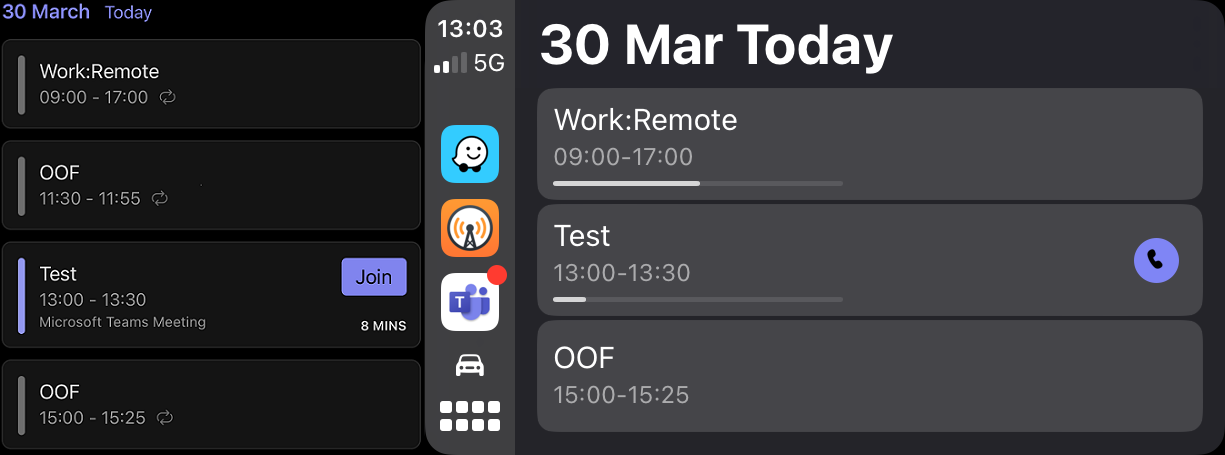
No longer you need to tell Siri you want to join your ‘next meeting’, as you now will be presented with current and upcoming events. You can join any meetings early simply by tapping on them, and joinable meetings will display a phone icon, which you can also tap to join. Of course, you can only join Teams meetings, if you tap a regular appointment you will get a notice that this is not a Teams meeting.
The picture below shows the Calendar View both on Teams Mobile (left) and the corresponding view as displayed on Teams for iOS with CarPlay (right). It shows our Test meeting which is currently in progress, as indicated by a progress bar as well.
Note that the calendar view is showing today’s items, and only from the currently active account in Teams Mobile on your connected mobile device. If you have multiple accounts configured, switching accounts on Teams Mobile is required to show their respective calendars. Doing so will update the Calendar View immediately and allows you to join those meetings using the display. A holistic view would be nice, but compared to where Teams on CarPlay is coming from, this is already a big step in usability.
A small request to the Teams development group: Please use meaningful descriptions to the version history, as this added functionality is nowhere to be found between the “Bug fixes and performance improvements” and occasional mention of functionality changes.
The Exchange product group released March updates for Exchange Server 2013, 2016 and 2019. Be advised that the Exchange team also put out a notice for fixed vulnerability in Outlook (CVE-2023-23397), together with a supporting script to analyze mailboxes for this possible exploit (link), which is rather uncommon.
The vulnerability addressed in these Security Updates for Exchange Server is:
Note: As mentioned last month, be advised that Exchange Server 2013 support will end in April, 2023. This means: Exchange 2013 will stop to receive security updates. Recommendation is to upgrade to a more recent version, or move to Exchange Online.
Other Issues Apart from security fixes, these SUs also fix the following:
Security updates are Cumulative Update level specific. You cannot apply the update for Exchange 2019 CU12 to Exchange 2019 CU11. When downloading, the security update will carry the same name for different Cumulative Updates, and I would suggest tagging the file name with the CU level when archiving it, e.g. Exchange2019-CU12-KBXXXXXX-x64-en.msp.
Similar to Cumulative Updates, Security Updates are cumulative and you only need to install the latest SU for your CU.
Exchange servers running as part of hybrid deployment are managed through PowerShell, and thus need to be receive this patch and eventually be enabled for payload signing.
If you have installed the Exchange Management Tools separately for managing your on-premises Exchange Servers, or installed it after removal of the Last Exchange Server for recipient management, it is recommended to apply the Security Update.
On a final note, as with any patch or update, I’d recommend to apply this in a test environment first, prior to implementing it in production. However, it is not recommended to wait for regular maintenance cycles when it concerns security updates, and follow a more agile approach; the ratings are an indication of the urgency.
Note: As mentioned last month, be advised that Exchange Server 2013 support will end in April, 2023. This means: Exchange 2013 will stop to receive security updates. Recommendation is to upgrade to a more recent version, or move to Exchange Online.
Other Issues Apart from security fixes, these SUs also fix the following:
Security updates are Cumulative Update level specific. You cannot apply the update for Exchange 2019 CU12 to Exchange 2019 CU11. When downloading, the security update will carry the same name for different Cumulative Updates, and I would suggest tagging the file name with the CU level when archiving it, e.g. Exchange2019-CU12-KBXXXXXX-x64-en.msp.
Similar to Cumulative Updates, Security Updates are cumulative and you only need to install the latest SU for your CU.
Exchange servers running as part of hybrid deployment are managed through PowerShell, and thus need to be receive this patch and eventually be enabled for payload signing.
If you have installed the Exchange Management Tools separately for managing your on-premises Exchange Servers, or installed it after removal of the Last Exchange Server for recipient management, it is recommended to apply the Security Update.
On a final note, as with any patch or update, I’d recommend to apply this in a test environment first, prior to implementing it in production. However, it is not recommended to wait for regular maintenance cycles when it concerns security updates, and follow a more agile approach; the ratings are an indication of the urgency.
[20Feb] Shortly after release, people reported through the comments that EWS started having issues after deploying the security update. Symptoms reported were problems with (server side) searches, add-ins not loading, and calendar operations such as scheduling or sharing taking a long time to load. Since it’s EWS having problems, applications depending on this protocol also may stop to work, such as Teams.
Meanwhile, Microsoft acknowledged an issue with the initial publication, and published workaround. If experience issues and see the event 4999 in your Eventlog:
Restart IIS and the Windows Activation Proces on each server Restart-Service -Name W3SVC, WAS -Force
Be advised that event 4999 might still show up in your Eventlog, and it has been reported that this might not completely does away with the issues reported. Keep an eye on the original post and EHLO blog for any future updates.





 EighTwOne (821)