 Recently, after installing and configuring Lync in an Exchange environment, a customer had issues like not being notified of voice-mail messages (also known as MWI or Message Waiting Indicator) and things like play-on-phone wasn’t working properly. To configure Exchange UM and Lync integration, the customer used the ExchUCUtil.ps1 script on Exchange and OCSUMUtil.exe tool on Lync. They also applied a valid, not-self signed certificate for Exchange UM services, as stated in the official instructions here.
Attendants and Subscriber Access was functioning properly, as well as call diversion to voicemail. Also, people were able to retrieve and replay voicemail messages.
So, apparently communications originating from Lync to Exchange was working, but from Exchange to Lync wasn’t.
I started off by inspecting the eventlog on the Exchange Server. Here I noticed UMCore process generated event 1400 periodically when trying to contact the UM IP gateway (Lync server):
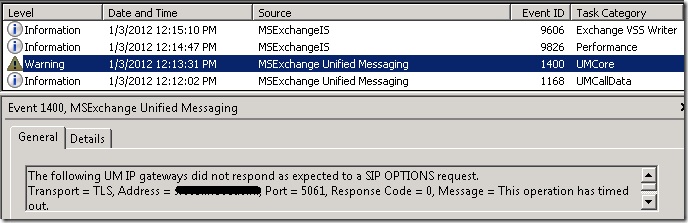
This provided a clue as to what I already expected; the Lync server wasn’t responding to Exchange.
A quick search led me to this blog, which is mainly a checklist. Since Lync and Exchange were able to set up an RPC session and after verifying the ability to communicate from Exchange to Lync by doing a telnet on port 5061, I concluded networking wasn’t the issue and required services seemed to be running properly.
Next, I increased the logging level for all UM related components using:
Get-EventLogLevel “MSExchange Unified Messaging\*” | Set-EventLogLevel –Level Expert
I created a new voicemail message and after a short while MWI General event 1344 showed up:

Again, an indication signaling from Exchange to Lync didn’t work. Because I was able to open communications on port 5061 earlier on, I suspected Lync might be rejecting or refusing communications for whatever reason. Therefor, I connected to the Lync server. Since no clues were found in the event log, I fired up the Lync Server Logging Tool. I turned on logging for SIPStack, checked All Levels and All Flags and started logging. Since I didn’t want to wait for the UM contacting Lync cycle and because it was a live system so a lot of SIP traffic was expected, I quickly created another voicemail waited a while (for accommodate for Voicemail Preview generation) and stopped logging. Next, I selected Analyze Log Files to inspect the results.
Note: Analyze Log Files requires installing the Lync Resource Kit as utilizes the Snooper tool; hardcore SIP fanatics may prefer the Notepad view and click on View Log Files instead.
When going through the events I noticed the following dialog between the Exchange server (srv12) and Lync (srv03):

After establishing a TLS session (so SIP secured was configured properly on both sides), the Lync Server received a SIP OPTIONS request after which it actively terminated the connection returning “The peer is not a configured server on this network interface” . The details section of this message displayed the following:

Now I have obfuscated the remainder of the FQDN, but as you probably still can see is that it states a wildcard as FQDN, e.g. *.contoso.com. Since “*.<something” isn’t a valid FQDN, Lync server wasn’t too blame for rejecting communications. I went back to the Exchange server because I suspected it might be a certificate issue and because I learned that the FQDN shown was the subject (CN) of the wildcard certificate used (and wildcard certificates aren’t supported by Lync).
I opened up the Exchange Management Console, went to Server Configuration to view the certificates. Indeed the public wildcard certificate was used for UM services. Luckily there was already another internal certificate in-place for Exchange,with the host FQDN as subject. I selected it, opened up Assign Services and activated it for UM (which automatically disables UM for the other certificate).
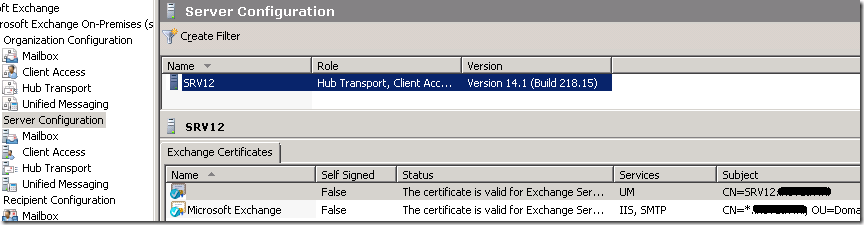
After switching certificates for UM, UM services like MWI and play-on-phone started working properly.
Apparently, the instructions “If you didn’t choose to create a wildcard certificate .. you must use a public certificate if you are using Unified Messaging with Office Communications Server” isn’t complete, since Lync verifies the certificate’s subject against the FQDN of the host it’s talking to. So that rules out certificates with a wildcard Subject (CN). Unfortunately, the certificate creation instructions don’t rule out (public) wildcard certificates for UM and there’s no mention of limitations regarding the Subject. I assume originally the customer created an improper – yet technically valid – request for an “all in one” certificate for internal usage and applied the result to all Exchange and Lync services, breaking UM – but not IIS nor SMTP, in the process.
Update: Turns out the requirement for non-wildcard subjects in certificates subject names is mentioned in the Supportability section of the Lync documentation on TechNet here. It reads: “There is no support for a wildcard entry as the subject name (also referred to as the common name or CN) for any role”. Using wildcards as one of the Subject Alternate Names (SAN) is supported for most Lync roles. Since a lot of people find certificates challenging and troubleshooting improperly configured certificates isn’t everyone’s favorite pastime, being as clear as possible helps a lot. In my opinion, the certificate generation page should mention limitations or requirements and a link to the supportability page wouldn’t hurt. Luckily, in this case the issue can easily be solved using a trusted certificate generated by an internal CA.


 Today I encountered a strange issue when trying to decommission a DAG member, after properly removing it from the DAG as explained here, and checking services like address book generation server where hosted on one of the other DAG members.






 EighTwOne (821)