Hybrid Configuration Wizard & F12


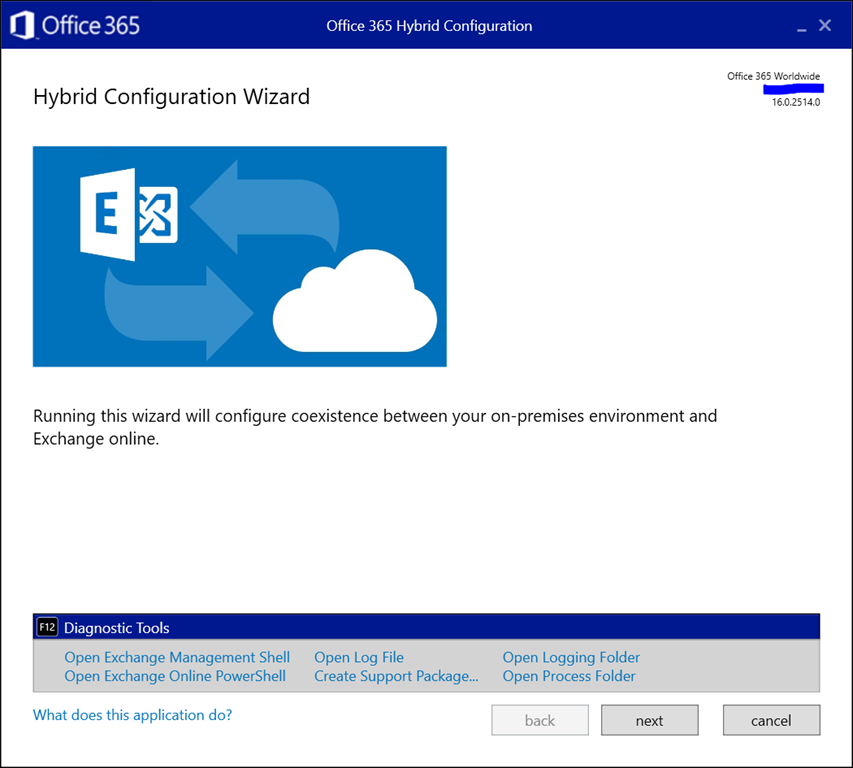
A small tip for those running the Exchange Hybrid Configuration Wizard. As announced at Ignite yesterday, a convenient feature was added to the HCW and is available now. Pressing F12 in the HCW will now open up a panel with shortcuts to the following tools and locations:

  • Exchange Management Shell
  • Exchange Online PowerShell
  • (current) Hybrid Configuration Wizard Log File
  • Create Support Package (to zip HCW logs for support)
  • Open Logging folder (of HCW)
  • Open Process Folder (of the HCW app)

Here is how it looks:

image

This might save you an occasional click or two.

Comparing Sets of Cmdlets


powershellWith the speed of development in Office 365, it is sometimes hard to track which changes have been made to your tenant. Of course, there is the roadmap and message board which you can use to keep up to date, but those are in general high level descriptions. Sometimes you may want to see what are the changes at the cmdlet level in your tenant, between tenants, or Azure Active Directory module. And there is also the occasional gem in the form of a yet undocumented cmdlet or parameter which could hint at upcoming features.

For this purpose I have created a simple script which has two purposes:

  1. Export information on the current cmdlets available through Exchange Online or Azure Active Directory.
  2. Compare two sets of exported information, and display changes in a readable way.

The script is in PowerShell (of course), and is called Compare-Cmdlets.ps1. To export information, you need to be already connected to either Exchange Online or Azure Active Directory (or both).

To export cmdlet information, use:

.\Compare-Cmdlets.ps1 –Export

For Exchange Online and Azure Active Directory, separate export files are created. The files are prefixed with a timestamp and postfixed with the Exchange Online build or Azure Active Directory module version, e.g. 201803121814-ExchangeOnline-15.20.548.21.xml or 201803121815-AzureAD-2.0.0.137.xml.

After a few days/week, or when connected to another tenant or using a new Azure Active Directory PowerShell module, run the export again. You will now have 2 sets of Exchange Online or Azure Active Directory cmdlets, which you can compare using the following sample syntax:

Compare-Cmdlets.ps1 -ReferenceCmds .\201801222108-ExchangeOnline-15.20.428.21.xml -DifferenceCmds .\201803120926-ExchangeOnline-15.20.548.21.xml

image

A progress bar is shown as comparison might take a minute. When the script has finished checking the two sets, you will see output indicating changes in cmdlets, parameters or switches, e.g.

image

Download
You can find the script on the TechNet Gallery or GitHub.

Connecting to Office 365/Exchange


powershell

Last update: Version 3.17, September 8, 2023

Almost 3 years ago, I wrote an article on how to enhance the PowerShell Integrated Scripting Environment, or ISE. That seemed adequate for the Exchange admin back then, who would mostly connect PowerShell sessions to their on-premises environment, and occasionally a bit of Exchange Online.

Fast forward to 2015, most modern Exchange administrators not only require a connection – if any – to their Exchange on-premises environment, but likely to one or more of the Office 365 services as well, including Exchange On-Premises, Azure Active Directory, Exchange Online Protection, Microsoft Teams, Skype for Business Online, SharePoint Online, Azure Information Protection or Compliance Center.

All these services use a different PowerShell session, use a different endpoint FQDN, and in some cases require a locally installed PowerShell module. Likely common denominator is the credential used to access each of these services. So, tired of re-entering my credentials every time when switching from Exchange Online to Exchange Online Protection, I created a script with a set of functions to allow me connect to each individual Office 365 service or Exchange Online:

  • Connect-AzureActiveDirectory: Connects to Azure Active Directory
  • Connect-AIP: Connects to Azure Information Protection
  • Connect-ExchangeOnline: Connects to Exchange Online
  • Connect-SkypeOnline: Connects to Skype for Business Online
  • Connect-EOP: Connects to Exchange Online Protection
  • Connect-ComplianceCenter: Connects to Compliance Center
  • Connect-SharePointOnline: Connects to SharePoint Online
  • Connect-MSTeams: Connects to Microsoft Teams
  • Get-Office365Credentials: Gets Office 365 credentials
  • Connect-ExchangeOnPremises: Connects to Exchange On-Premises
  • Get-OnPremisesCredentials: Gets On-Premises credentials
  • Get-ExchangeOnPremisesFQDN: Gets FQDN for Exchange On-Premises
  • Get-Office365Tenant: Gets Office 365 tenant name (SharePoint)
  • Set-Office365Environment: Configures Uri’s and region to use
  • Get-TenantID: Returns TenantID using previously used credentials
  • Update-Office365Modules: Updates supported Office 365 modules
  • Report-Office365Modules: Report on known vs online module versions

Note that functions and credentials used in the script are global, and in principle only need to be entered once per shell or ISE session. If you need different credentials, call Get-Office365Credentials again. User interaction is a very basic (Read-Host), but it does the job. The script will also detect if  any PowerShell module supporting Multi-Factor Authentication is installed. If so, you will be prompted if for using MFA when authenticating to workloads such as Exchange Online, Azure Active Directory, Microsoft Teams, Skype for Business Online or SharePoint Online.

Requirements
During initialization, the script will detect the modules which are required for certain Office 365 services. When not installed, it will notify you, and provide a link where to obtain the PowerShell module. The related Connect function will not be made available. PowerShell is required to run this script, which is tested against version 5.1 (but should work with lower versions down to version 3).

Usage
The functions are contained in a script called Connect-Office365Services.ps1. You can call this script manually from your PowerShell session to make the functions available. However, more convenient may be to have them always available in every PowerShell or ISE session. To achieve this, you need to edit your $profile, which is a script which always starts when you start a PowerShell or ISE session. By default this file does not exist and you need to create it, including the path. Also note that the files for PowerShell and ISE are different, Microsoft.PowerShell_profile.ps1
and Microsoft.PowerShellISE_profile.ps1 respectively.

Now, of course you can copy and paste the functions from the script file to your own $profile. Better is to call the script from your $profile, as this allows you to overwrite the Connect-Office365Services.ps1 with updates. To achieve this, assume you copied the Connect-Office365Services.ps1 in the same location as your $profile, for example C:\Users\Michel\Documents\WindowsPowerShell. You can then make PowerShell and ISE call this script by adding the following line to the $profile scripts:

& “$PSScriptRoot\Connect-Office365Services.ps1”

Now when you start a PowerShell session, you might see the following:

cos175

This shows the default environment is targeted (AzureCloud), the Exchange Modern Authentication PowerShell module as well as other modules mentioned in the example are installed. When online version checking is enabled (OnlineModuleVersionChecks variable), a check will be performed against the online repository, e.g. PSGallery, and outdated modules will be reported, like the Skype for Business Online module in the example. It’s also possible to automatically update modules setting the variable OnlineModuleAutoUpdate.

When you load the script from ISE, it will show something similar. However, it will also detect ISE and make connect functions available through the Add-On menu:

image

Notes
Customize this script to your liking. Note that for updating modules, you need to have administrator permissions on the local system.

Download
You can download the script from GitHub.

Revision History
Revision information is embedded in the source.

Feedback
Feedback is welcomed through the comments. If you got scripting suggestions, questions or want to report bugs, you can do this through GitHub or by using the contact form.

Ignite 2015, Takeaways


ignite ButtonDespite not being present, the information presented at Microsoft Ignite can be followed by monitoring certain sources on social media. Twitter still seems to be the platform of choice, but you may need to narrow down your stream of tweets using filters or only monitor a selected group of people. For example, the stream of tweets during the keynote using the hashtag #MSIgnite was overwhelming.

This post is an overview of things announced at Microsoft Ignite 2015 related to Exchange. Note that information presented at Ignite regarding Exchange 2016 was all subject to change as Exchange 2016 is still a work in progress.

Rumor on day 1 was that Microsoft Ignite is going to be in Chicago for the next 4 years as well. That is at least true for next year, as Microsoft announced that Ignite 2016 will be held in Chicago from May 9th to May 13th, 2016.

Roadmap

  • Exchange 2016 Public beta announced for Summer 2015. RTM is expected Fall/Winter 2015.
  • Customers can join the Exchange 2016 TAP program at http://aka.ms/joinoffice.
  • Office 2016 is now in Public Review, and is available at here.
  • Office Graph and Delve will be able to digest on-premises information via Hybrid connector and SharePoint 2016.

Architecture

  • Exchange 2016 will only have the Preferred Architecture multi-role setup, so no more CAS or Mailbox server-only deployments. Visible in Setup UI as well as Unattended setup (roles parameter).
  • The Edge role will be available in RTM.
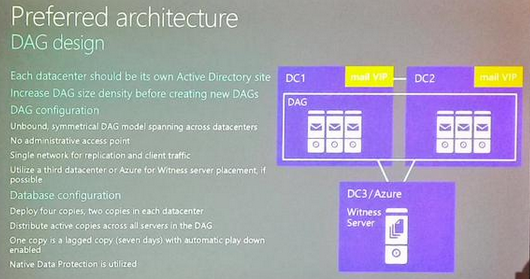
  • More emphasis on Preferred Architecture, which isn’t very different for Exchange 2016 from Exchange 2013:
    • DAG design with unbound symmetrical model.
    • Four database copies (2 in each DC), 3 database copies and one lagged copy (7 days).
    • FSW in Azure or 3rd data center (preferred).
    • Single NIC for client and replication traffic.
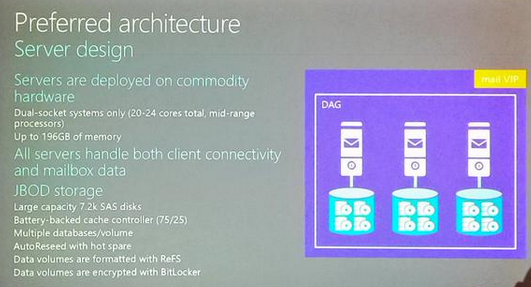
    • Use commodity hardware with 20-24 core/up to 196GB nodes, utilizing JBOD with large disks, multiple databases per volume, Autoreseed with hot spare and using ReFS formatted, BitLocked encrypted data volumes.
    • Office WebApp Server farm in each DC with bound namespace and affinity.
  • Exchange 2016 MAPI/CDO is death – use RestAPI’s or Exchange Web Services (EWS).
  • MAPI/HTTP will be the default client protocol for Outlook with Exchange 2016. MAPI/HTTP will be a per-user setting in Exchange 2016. For Exchange 2013, the per-user setting will be introduced with a future CU.
  • Office WebApp Server required to view or edit Office documents from OWA 2016.
  • When required, scale up by add another node rather than scale up by adding resources like CPU or memory.
  • DAGs spanning more than 2 data centers are not recommended.
  • Use public and private namespace for Exchange 2016 Outlook Anywhere to leverage Kerberos for internal authentication.
  • For Exchange 2016, claims-based authentication will require Windows 2016 ADFS (version 4?).
  • The Exchange team put up a blog post on Exchange 2016 architecture here.

image image

Deployment

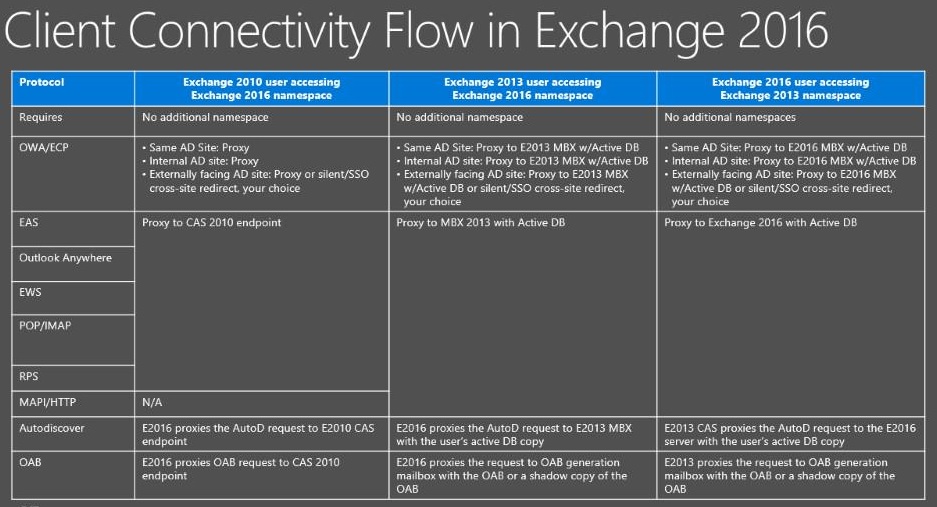
  • Exchange 2016 can proxy traffic from Exchange 2013 (down-level proxy)  and vice-versa (up-level proxy). This means you don’t have to upgrade Exchange servers in your internet-facing site prior to upgrading other locations. Up-level proxy transition is preferred.
  • Exchange 2010 to Exchange 2016 transition path is same experience as Exchange 2010 to Exchange 2013. Regarding Kerberos authentication, check guidance here.
  • Exchange 2016 can co-exist with Exchange 2010 SP3 RU11+ or Exchange 2013 CU10+. Exchange 2013 + 2016 can share one single Alternate Service Account (ASA) for Kerberos authentication.
  • There is no co-existence possible with Exchange 2007, which means you will need to perform a double-hop migration if you want to transition from Exchange 2007 to Exchange 2016.
  • Exchange 2016 will support installation on Windows Server 2012 R2 and Windows Server 10 (2016).
  • Exchange 2016 will require Windows Server 2008 R2 Forest and Domain Functional Levels or up, running at least on Windows Server 2008 R2 domain controllers.
  • Exchange 2016 will support at least Outlook 2010 SP2 with KB2956191 and KB2965295, Outlook 2013 SP1 with KB3020812, and Outlook 2016 desktop clients.
  • Exchange 2016 will require .NET Framework 4.5.2. Scalability improvements coming in .NET Framework 4.6 (release candidate in preview, don’t install yet).
  • Office WebApp Server can’t be installed on Exchange 2016 server, and requires web publishing through bound namespace (and thus possibly certificate implications) anywhere you want to work with attachments from OWA 2016. Don’t expose internal Office WebApp namespace externally. Use Set-OrganizationConfig -WACDiscoveryEndpoint and restart MSExchangeOWAAppPool to configure Office WebApp Server for OWA.
  • Certificate names required:
    • Exchange 2010 + 2016: Bound= 12, Unbound= 7
    • Exchange 2013 + 2016: Bound= 10, Unbound= 7
    • Exchange 2010 + 2013+ 2016: Bound= 10, Unbound= 7
    • Of course, internal MAPI endpoints do not require entry on certificate.
  • Use a dedicated Active Directory site to install and configure Exchange before moving them to a production site.
  • Exchange 2013 and Exchange 2016 introduce new OAB, specify existing OAB on all mailbox databases before installing Exchange 2013/2016.
  • After introducing Exchange 2016 to your environment, move the SystemMailbox{e0dc1c29-89c3-4034-b678-e6c29d823ed9} system mailbox to Exchange 2016, or you won’t be able to export admin audit logs, perform In-Place discovery searches etc.
  • When dimensioning your Exchange deployment, use the calculator.
  • By disabling an Anti-Virus product for troubleshooting, you don’t remove their filter driver. Uninstall if you suspect AV product, or use fltmc to list or unload filter driver.
  • Recommended to set lagged copies to 7 days delay.
  • Exchange 2016 will allow adding mailbox database copies with ConfigurationOnly to postpone automatic seeding. Fast Database Reseeds allows for up to 10 parallel reseeds.
  • On the Exchange server configuration:
    • Use “High Performance” Power Plan.
    • Disable Hyperthreading in physical deployments.
    • Use battery-backed storage controller with 1:3 Read:Write ratio.
    • For RAID, use stripe sets of 1+ factors of 256KB
    • Use GPT partitions
    • Host Exchange binaries on NTFS with 64K cluster size.
    • Host Exchange data on ReFS volumes with Data Integrity Feats disabled.
    • Use BitLocker to secure Exchange volumes.
    • Use JetStress with BitLocker and Virus Scanner if you’re going to use those in production.
    • Do not disable entire IPv6 stack.
    • Do not disable Exchange services post installation.
    • Do not restrict the dynamic TCP port range, e.g. do not use ‘netsh int ipv4 set dynamicport tcp startport=X numberofports=Y‘.
    • Use Exchange Health Checker script to verify configuration, available here.

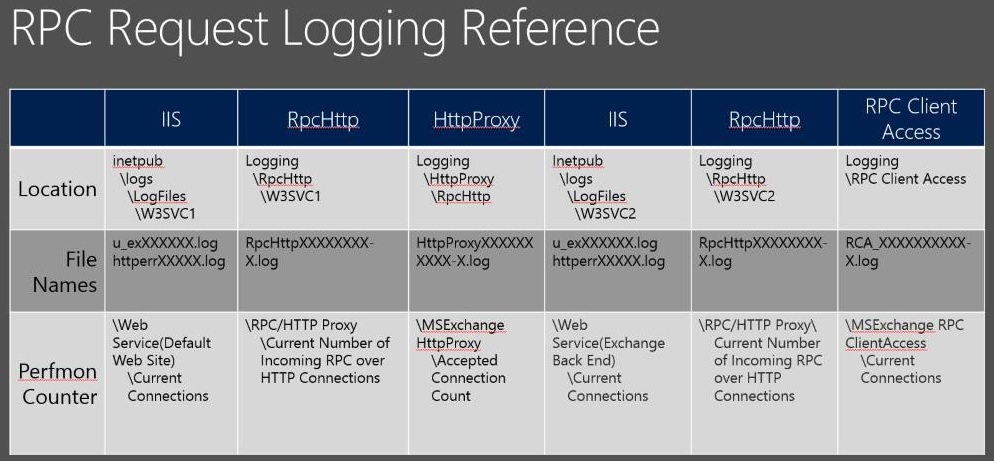
Exchange 2016 Client Connectivity rpcreq

Virtualization

  • Exchange 2013 deployments are now supported on Azure IaaS virtual machine for production environments when using Azure Premium Storage. Amazon AWS is not supported. Most cost-effective remains Exchange On-Premises on physical hardware (or Exchange Online). Official guidance has been updated to reflect this here.
  • When virtualizing Exhange:
    • Do not use memory overcommit.
    • Hyperthreading is OK, but size for physical cores.
    • Do not oversubscribe CPUs, causes queue growth, increased IOPS due to lower indexing throughput, RPC latency issues.
    • Size like physical deployment, but add overhead for CPU (10%).
  • Exchange 2013 now supports Dynamic VHDX (not VHD!) disks for Hyper-V deployments. Will apply to Exchange 2016 as well. JetStress tests showed only 2% additional writes penalty for VHDX (for VHD 20%).

Storage

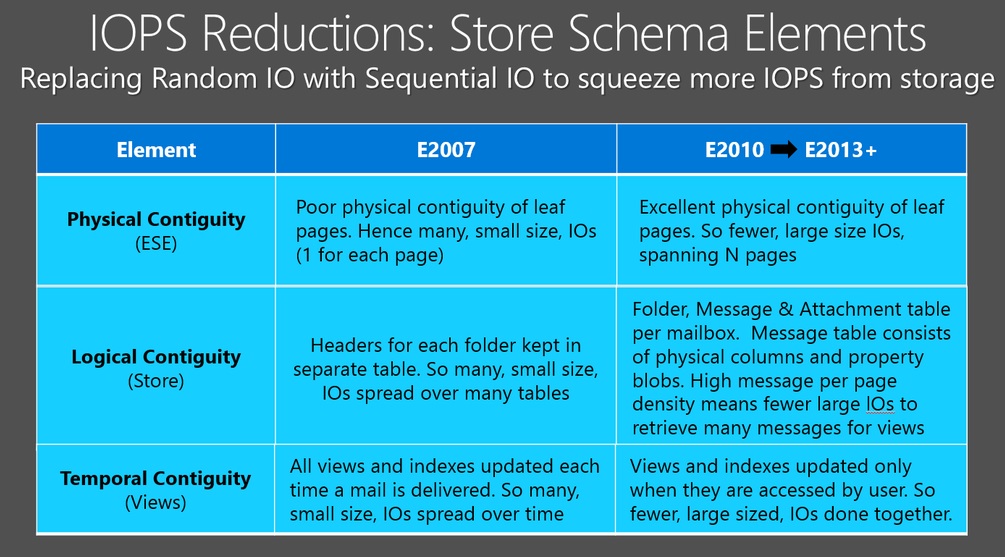
  • Exchange 2016 will require 22% lower IOPS when compared to Exchange 2013 RTM. That means that since Exchange 2003 with 1 IOPS per mailbox, we are down to 0.04875 IOPS per mailbox.
  • Search index will use passive database copies for indexing, instead of copying indexes from the active copy.
  • Delayed LAG play down, depending on disk health (delayed if disk latency more than  20ms). Replay Lag Manager will be enabled by default, for automatic play down of lagged copies when insufficient copies remain available.
  • Usage of ReFS for Exchange data volumes should result in less corruption, thus less reseeds or rebuilds. Exchange 2016 can detect database corruption through DB Divergence Detection. Loose Truncation will make sure Log Files won’t fill up disk space after extended outages.
  • Exchange 2013 and later will report more accurately on mailbox sizes. Accommodate for 30% increase when moving mailboxes from Exchange 2010 or earlier.
  • Autoreseed in Exchange 2016 can fix a single database on a volume.
  • Exchange 2016 Workload Management (WLM) adds Disk Latency Monitor. Can throttle non-critical workloads based on measured disk latencies.
  • Exchange 2016 adds predictive controller or hard disk failure, based on disk read and write latency trends, bad block detection or disk failures.

Exchange IOPS

Availability

  • Database Availability Groups are now by default deployed without an cluster administrative access point or cluster name object (CNO). This reduces complexity and dependencies, but you may need to check with for example your backup vendor as many 3rd party products still access Exchange through this CNO.
  • Exchange 2016 database fail-overs will be 33% faster. Given that Exchange 2013 database fail-overs are about 10 seconds, that should mean they are down to 6-7 seconds.
  • Recommended load-balancing configuration for Exchange 2016 is single namespace, Layer 7 and no affinity. Use load balancer with per-service monitors and features like Slow Ramp (F5) or Least Connections with Slow Start Time (KEMP) to grant servers time to initialize and warm-up.
  • Office WebApp Server requires affinity on the load-balancer.
  • As Exchange 2016 can proxy traffic to Exchange 2013 and vice-versa, both versions can co-exist in the same load balancer server pool.
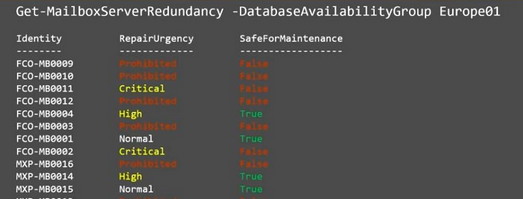
  • Get-MailboxServerRedundancy allows to prioritize repairs and upgrades by inspecting the DAG member servers, database copies and their state.

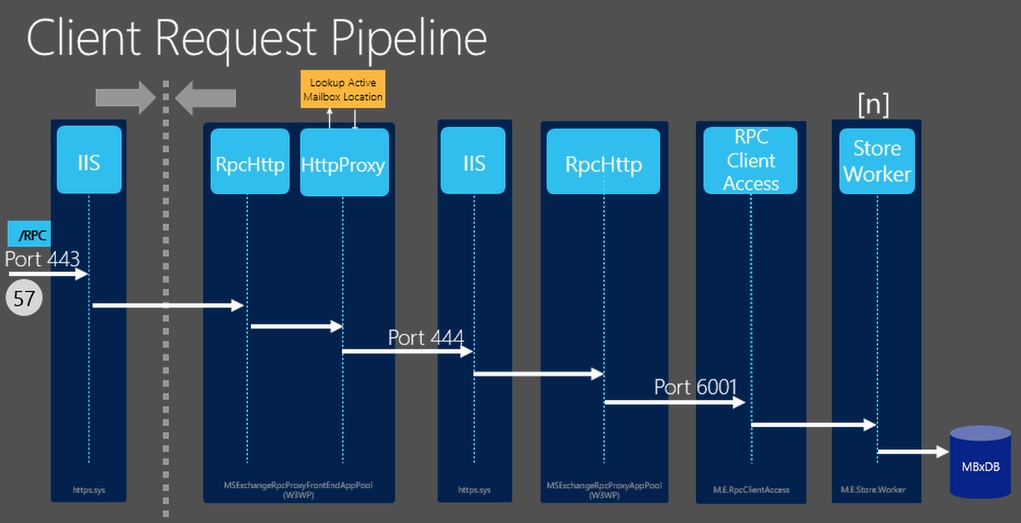
image.pngclientreq

Management

  • You can manage Exchange 2016 objects from Exchange 2013 Management Shell and Administrative Console and vice-versa. Limited for Exchange 2010, recommended to use Exchange 2010 management tools to manage Exchange 2010.
  • An Exchange 2013 Managed Availability tool was released (MATS) to assist in troubleshooting and diving in the Management Availability related events. The tool is available here.
  • ExMon, the Exchange Server User Monitor, will be back.
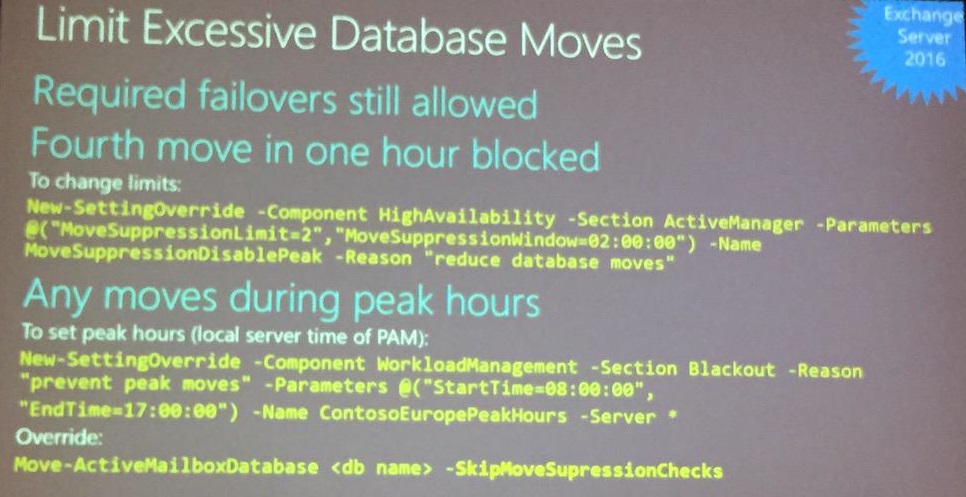
  • Exchange 2016 Workload Management introduces policies to limit or block mailbox moves during peak hours.

Exchange Limit Moves

Public Folders

  • Modern Public Folder migration scripts in $exscripts folder are likely to be outdated. Always use the latest Modern Public Folder migration scripts, which are available here.
  • It’s recommended to host Modern Public Folders in dedicated databases.
  • Modern Public Folders are here to stay, but emphasis will shift to Office 365 Groups. Groups are also expected to replace Distribution Lists. Distribution List naming policies will help enforcing naming policy on Groups. Tool named ‘Hummingbird’ to be made available to move from DL to Groups, or script conversion using new UnifiedGroup cmdlets.

Compliance

  • Exchange 2016 will allow you to put Public Folders on In-Place Hold.

Features

  • Modern attachments in Outlook 2016, Exchange 2016 and SharePoint 2016 allows on-premises customers to offload attachment storage to SharePoint, just sending a link and setting permissions through Outlook. Also, Outlook 2016 contains a convenient MRU list to select recently touched Office documents as attachment. Note that SharePoint is on the roadmap for 2016, which could imply that modern attachments will not be available when Exchange 2016 RTM’s.
  • OWA 2016 will contain a revised ribbon with additional buttons to triage e-mail more quickly, e.g. for archiving or sweep (similar to functionality currently found in outlook.com formerly known as Hotmail). It also contains an Undo button.
  • Outlook 2016 and Exchange 2016 will use always search online. Hopefully this will result in consistent search results between Outlook, OWA and ActiveSync devices.
  • Being able to restore items from the recoverable items with folder preservation is on Microsoft’s radar.

Exchange Hybrid

  • Hybrid Configuration Wizard is now downloadable app, similar to previous OAuth configuration step in HCW. It works with Exchange 2013 and Exchange 2016 deployments, contains AADSync multi-forest support, and OAuth enhancements for MFA configuration. Allows team to introduce changes more quickly.
  • When configuring Hybrid, point your MX records to Exchange Online Protection (EOP) to prevent possible issues with SPF, DMARC or DKIM. This however requires EOP licenses at day 1.
  • 3rd party SMTP gateways sitting between Exchange On-Premises and EOP is not supported.
  • New Hybrid Migration troubleshooter can be found here.
  • Be advised that Exchange Hybrid is not compatible with Alternate Login ID or AlternateID for short. More information here.

Exchange Online / Office 365

  • Exchange Online runs 50.000+ servers hosting 1.2M database copies. Every month, 3.5M database fail-overs occur, 100’s server fail, while adding 1000’s of servers. Still, Exchange Online maintains an availability rate of 99.95%!
  • The Office 365 first release option, which will receive updates and new features first, will have the option to enable this option for the entire organization or per user.
  • Document Tracking now live in Office 365 and clients when using the Azure RMS connector. More information here.
  • Latest Azure Active Directory Sync has password write-back, so passwords changes in Office 365 are synced back to Active Directory on-premises. Get it here.
  • Currently in preview for Azure Active Directory Sync are user write-back (user created in Office 365 is synced back to Active Directory on-premises) and Groups write-back.
  • Office 365 to introduce dynamic Office 365 Groups, which will utilize recipient filters against Azure AD, and auto-expiring and other controls for Office 365 Groups housekeeping.

Note that you can download the Ignite session videos and slides for offline viewing as they become available. A script to accomplish this is available here.

Special thanks to Jeff Guillet, Dave Stork, Andy David, Tony Redmond, Bhargav Shukla John Barsodi, Nathan O’Bryan, John A Cook, Greg Tiber, Ingo Gegenwarth, Richard Hay, Jetze Mellema and Randall Vogsland for keeping us Exchange peeps updated from Ignite!

Impersonation: To be, or pretend to be


imageAs frequent readers of this blog may know, I made several Exchange-related scripts available to the community. Some of these scripts make use of what is called Exchange Web Services (EWS). I receive lots of questions via e-mail and through the comments about configuring impersonation or permission-related issues when running those scripts, which support delegated access as well as impersonation, against mailboxes. This blog shows how can configure delegation, why you should use impersonation, and how to configure impersonation on Exchange 2007 up to Exchange 2013 and Exchange Online in Office 365.

Introduction

EWS provides functionality to allow client applications, such as Outlook or OWA apps, tools, or in my case scripts, to communicate with Exchange server. Even Exchange itself makes uses of EWS when performing Free/Busy lookups by the Availability services for example. EWS was introduced in Exchange Server 2007 back in December 2006, which now seems decades ago.

Some of these EWS scripts or tools access or even manipulate mailbox contents. In the MAPI era, in order for you to access a mailbox that’s not yours, you required delegated full access permissions. These permissions could be granted at the mailbox, mailbox database or mailbox server level. The latter would grant you access to all mailboxes hosted in that mailbox database. For example, to grant an account Archibald full access permission on the mailbox of Nestor, you would typically use something like:

Add-MailboxPermission –Identity Nestor –User Archibald –AccessRights FullAccess –InheritanceType All

Note: Specifying InheritanceType is sometimes overlooked. Not specifying it only configures an Access Control Entry (ACE) on the top level folder (InheritanceType None), resulting in symptoms like scripts not processing subfolders for example.

EWS enables you to use another access method besides delegation, which is impersonation. Impersonation, as the many online available dictionaries may tell to you, is ‘an act of pretending to be another person for the purpose of entertainment or fraud’ or something along those lines. In the Exchange world, this means you can have an account which has the permission to pretend to be the owner of the mailbox, including being subject to the same effective permissions. So, if for some reason the owner only has Read permission on a certain folder, so will the impersonator. Typical use cases for impersonation are for example applications for archiving, reporting or migration, but also scheduled scripts that need to process mailboxes could be one.

Before we dive into the configuration itself, first some of the reasons why you should should prefer Impersonation over delegated access:

  • No mailbox needed for the account requesting access.
  • Throttling benefits, since the operation is subject to the throttling policy settings configured on the mailbox accessed, not the throttling policy configured on the mailbox requesting access. To bypass these delegate limits, one had to configure and assign a separate throttling policy with no limits for the account. Of course, a bad behaving application could then run without boundaries from a resource perspective, something throttling policies try to limit.
  • In Exchange 2010 and up, impersonation leverages Role Based Access Control, which is better manageable than a collection of distributed  ACEs.
  • Actions performed by the impersonator are on behalf of the impersonated. This may complicate auditing, as logging will come up with actions performed by the impersonated user, not the impersonator.

Note that where ‘user’ is specified below with regards to granting permissions, one could also specify a security group as well unless mentioned otherwise.

Impersonation on Exchange 2007

On Exchange 2007, you configure impersonation by granting the following two permissions:

  • The ms-Exch-EPI-Impersonation permission grants the impersonator the right to submit impersonation calls. It is configured on Client Access Servers. This does not grant the impersonation right, just the right the make the call through a CAS server.
  • The ms-Exch-EPI-May-Impersonate when granted, allows the impersonator to impersonate selected accounts.

To configure these permissions in your Exchange 2007 environment, use:

Get-ClientAccessServer | Add-AdPermission –User svcExchangeScripts –ExtendedRights ms-Exch-EPI-Impersonation

Then, we can configure impersonation permission on the mailbox level:

Get-Mailbox Tintin| Add-ADPermission –User svcExchangeScripts –ExtendedRights ms-Exch-EPI-May-Impersonate

on the database level:

Get-MailboxDatabase MailboxDB1 | Add-ADPermission –User svcExchangeScripts –ExtendedRights ms-Exch-EPI-May-Impersonate

or mailbox server level:

Get-MailboxServer MailboxServer1 | Add-ADPermission –User svcExchangeScripts –ExtendedRights ms-Exch-EPI-May-Impersonate

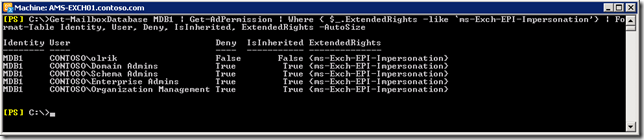
Be advised that members of the various built-in Admin groups are by default explicitly denied impersonation permissions on the server and database level, and deny overrules allow. You will notice this when querying impersonation configuration settings, for example on the database level (in the screenshot example, olrik was granted impersonation permissions):

Get-MailboxDatabase | Get-AdPermission | Where { $_.ExtendedRights –like ‘ms-Exch-EPI-Impersonation’} | Format-Table Identity, User, Deny, IsInherited, ExtendedRights –AutoSize
image

Note that permissions assigned on the mailbox may not immediately be reflected as you are administering them in Active Directory. Changes in Active Directory are subject to AD replication, and the Exchange Information Store caches information for up to 2 hours, so worst case it may take up to 2 hours and 15 minutes for new permission settings to be re-read from Active Directory.

Impersonation on Exchange 2010 and 2013

Exchange 2010 introduced Role Based Access Control, better known by its acronym RBAC. For a quick introduction to RBAC, see one of my earlier blogs here. There is a management role associated with impersonation, which is ApplicationImpersonation.

To enable a user impersonation rights, create a new assignment for ApplicationImpersonation and assign it to the user:

New-ManagementRoleAssignment –Name 'AIsvcExchangeScripts' –Role ApplicationImpersonation –User svcExchangeScripts

Note that if we want to assign these permissions to a security group, we need to use the SecurityGroup parameter instead of User, specifying the group name.

Now be careful, when used like this you will have granted that user or group permission to impersonate all users in your Exchange organization. Here is where RBAC comes into play, or more specific the RBAC feature named management role scopes. With write scopes for example, you can limit the scope of where you can make changes in Active Directory. For more information on management role scopes, see here.

Let  us assume we want to limit the scope to a distribution group named ‘All Employees’, using New-ManagementScope in combination with RecipientRestrictionFilter. Note that when specifying MemberOfGroup in the filter, you need to use the distinguishedName of the group:

New-ManagementScope –Name 'Employee Mailboxes' –RecipientRestrictionFilter { MemberOfGroup –eq 'CN=All Employees,OU=Distribution Groups,OU=NL,DC=contoso,DC=com'} 

We can then apply this scope to the assignment created earlier:

Set-ManagementRoleAssignment –Identity 'AIsvcExchangeScripts' –CustomWriteScope 'Employee Mailboxes'

Be advised that in a multi-forest environment, impersonation doesn’t work when you assign permissions to cross-forest accounts. You either need to assign impersonation permissions to an account residing in the same forest as Exchange, or create a linked role group.

Impersonation on Exchange Online

Impersonation is available in most Office 365 plans, but currently not in the small business plans.  To configure Impersonation in Exchange Online we need to connect anyway, so we’ll first open a remote PowerShell session to Exchange Online:

$EXO= New-PsSession -ConfigurationName Microsoft.Exchange -ConnectionUri https://ps.outlook.com/powershell -AllowRedirection -Authentication Basic
Import-PsSession $EXO

Provide tenant administrator credentials when prompted. You can then see if you have the ApplicationImpersonation role at your disposal using:

Get-ManagementRole –Identity ApplicationImpersonation

If nothing is returned, you may need to resort to delegate access permissions.

Configuring impersonation is identical to configuring it in Exchange 2013. Nonetheless, some people may be more comfortable using the Exchange Admin Center. If so:

  1. Open up Exchange Admin Center.
  2. Navigate to Permissions > Admin Roles
  3. Now we can’t directly assign a management role through EAC, so assume we’ll create a role group for our application account by clicking New (+).
  4. Enter a name for your role group, e.g. ExchangeMaintenanceScripts.
  5. Add the role ApplicationImpersonation.
  6. Add the accounts which need Impersonation permissions, e.g. svcExchangeScript.
  7. Optionally, you can also select a Write Scope, which you need to create upfront through Exchange Management Shell.
  8. In Exchange on-premises, instead of a Write Scope you will have the option to select a a specific OU instead (scope filter RecipientRoot parameter) .
  9. When done, Save.

image

One word of caution: scopes are not automatically updated when objects referenced are relocated or change names. Now, for your own environment you may have this under control through some form of change management process. For Exchange Online however, your tenant might get relocated without notice. Therefor, should impersonation fail, verify any management scopes you may have defined for distinguishedName references, and check if they require updating, e.g.

Set-ManagementScope -Name 'All Employees' -RecipientRestrictionFilter { MemberOfGroup -eq 'CN=All Employees,OU=contoso.onmicrosoft.com,OU=Microsoft Exchange Hosted Organizations,DC=EURPR05A001,DC=prod,DC=outlook,DC=com'}

Final words

Note that many EWS-based scripts or tools do not natively support EWS but make use of the Exchange Web Services Managed API. This installable package consists of support files (e.g. DLL’s) which provide EWS functions to your PowerShell environment. You can download the current version of EWS Managed API here (2.2). You can read more on developing with EWS Managed API here, or you can have a peek at the source of code of one of my EWS scripts or the ones published by Exchange MVP-fellow Glen Scales’ here.