Configuring initial Exchange database


Something which I still see many Administrators do, right after installing Exchange 2010, is renaming the mailbox database or relocating the database or logs files that were created during the setup of Exchange 2010.

To configure the initial mailbox database name, the location of the initial mailbox database (and catalog) files or its log files, you can incorporate the following parameters in your setup command line:

  • MdbName is the name of the initially created mailbox database, e.g. MDB01
  • DbFilePath is the full path of the initially created mailbox database file, e.g. E:\MDB01DB\MDB01.edb
  • LogFolderPath is the folder used to store the database log files, e.g. D:\MDB01LOG
    Note that you must use the complete filename of the edb file, including the .edb extension. Also, you don’t need to create the folders; Exchange will do that for you during setup.

So, to setup Exchange with a custom initial mailbox database name and non-default locations of database and log files, you can use the following command line for example:

setup /mode:install /roles:c,h,m,t /mdbname:MDB01 /DbFilePath:E:\MDB01DB\MDB01.edb /LogFolderPath:D:\MDB01LOG

Of course, these parameters are nice to incorporate in your scripted setup to deploy multiple servers.

ManageScheduledTask.ps1 issue uninstalling Exchange


Today I encountered a strange issue when trying to decommission a DAG member, after properly removing it from the DAG as explained here, and checking services like address book generation server where hosted on one of the other DAG members.

I started the removal process from an elevated command prompt (using the GUI doesn’t work as it complains about the need to use setup.com, which I can’t since I’m using the GUI):

setup /m:uninstall

The output was the following:

Hmm. Without even looking at the Exchange setup log, I noticed there was something strange with the error message:

The term ‘C:\Program Files\Microsoft\Exchange Server\V14\Bin\ManageScheduledTask.ps1’ is not recognized as the name of a cmdlet, function, script file, or operable program.

As you probably know, all Exchange scripts are located in the Scripts folder, not the Bin folder.

I tried a quick and dirty fix, which was to copy the ManageScheduledTask.ps1 and ManageScheduledTask.strings files to the Bin folder, and again started setup /m:uninstall. This time, Exchange uninstalled nicely.

From experience, this isn’t expected behavior, but in case you encounter this problem in the field, you now know how you can easily work around this.

Update: I’ve seen identical issues when retrying an upgrade on Exchange 2010 SP1 to SP2. I think the problem is code-related (i.e. bug), as the uninstall part of the upgrade process should check for those files in “scripts”, not “bin”. Note that with case of the failing SP2 upgrade, the file EnterpriseServiceEndpoints.xml was also MIA (that one should be in bin). I worked around that by copying the file from the installation source.

Exchange UM and Lync issue using wildcard certificate


Recently, after installing and configuring Lync in an Exchange environment, a customer had issues like not being notified of voice-mail messages (also known as MWI or Message Waiting Indicator) and things like play-on-phone wasn’t working properly. To configure Exchange UM and Lync integration, the customer used the ExchUCUtil.ps1 script on Exchange and OCSUMUtil.exe tool on Lync. They also applied a valid, not-self signed certificate for Exchange UM services, as stated in the official instructions here.

Attendants and Subscriber Access was functioning properly, as well as call diversion to voicemail. Also, people were able to retrieve and replay voicemail messages.

So, apparently communications originating from Lync to Exchange was working, but from Exchange to Lync wasn’t.

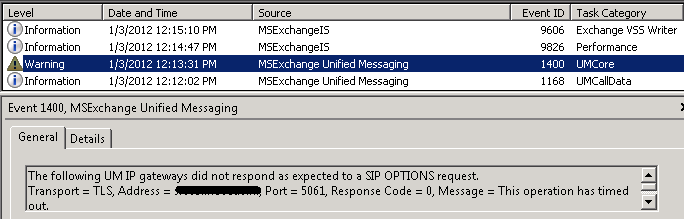
I started off by inspecting the eventlog on the Exchange Server. Here I noticed UMCore process generated event 1400 periodically when trying to contact the UM IP gateway (Lync server):
TimedOut@ExchangeUM

This provided a clue as to what I already expected; the Lync server wasn’t responding to Exchange.

A quick search led me to this blog, which is mainly a checklist. Since Lync and Exchange were able to set up an RPC session and after verifying the ability to communicate from Exchange to Lync by doing a telnet on port 5061, I concluded networking wasn’t the issue and required services seemed to be running properly.

Next, I increased the logging level for all UM related components using:

Get-EventLogLevel “MSExchange Unified Messaging\*” | Set-EventLogLevel –Level Expert

I created a new voicemail message and after a short while MWI General event 1344 showed up:

MWIFail@ExchangeUM

Again, an indication signaling from Exchange to Lync didn’t work. Because I was able to open communications on port 5061 earlier on, I suspected Lync might be rejecting or refusing communications for whatever reason. Therefor, I connected to the Lync server. Since no clues were found in the event  log, I fired up the Lync Server Logging Tool. I turned on logging for SIPStack, checked All Levels and All Flags and started logging. Since I didn’t want to wait for the UM contacting Lync cycle and because it was a live system so a lot of SIP traffic was expected, I quickly created another voicemail waited a while (for accommodate for Voicemail Preview generation) and stopped logging. Next, I selected Analyze Log Files to inspect the results.

Note: Analyze Log Files requires installing the Lync Resource Kit as utilizes the Snooper tool; hardcore SIP fanatics may prefer the Notepad view and click on View Log Files instead.

When going through the events I noticed the following dialog between the Exchange server (srv12) and Lync (srv03):

ErrorMsg@LyncLogger

After establishing a TLS session (so SIP secured was configured properly on both sides), the Lync Server received a SIP OPTIONS request after which it actively terminated the connection returning “The peer is not a configured server on this network interface” . The details section of this message displayed the following:

ErrorMsg@LyncLogger - Details

Now I have obfuscated the remainder of the FQDN, but as you probably still can see is that it states a wildcard as FQDN, e.g. *.contoso.com. Since “*.<something” isn’t a valid FQDN, Lync server wasn’t too blame for rejecting communications. I went back to the Exchange server because I suspected it might be a certificate issue and because I learned that the FQDN shown was the subject (CN) of the wildcard certificate used (and wildcard certificates aren’t supported by Lync).

I opened up the Exchange Management Console, went to Server Configuration to view the certificates. Indeed the public wildcard certificate was used for UM services. Luckily there was already another internal certificate in-place for Exchange,with the host FQDN as subject. I selected it, opened up Assign Services and activated it for UM (which automatically disables UM for the other certificate).
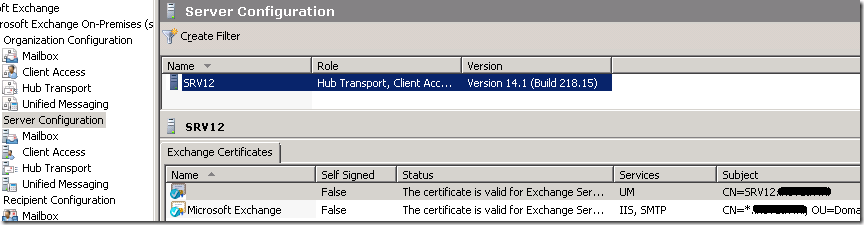
CfgUMCert@ExchangeUM

After switching certificates for UM, UM services like MWI and play-on-phone started working properly.

Apparently, the instructions “If you didn’t choose to create a wildcard certificate .. you must use a public certificate if you are using Unified Messaging with Office Communications Server” isn’t complete, since Lync verifies the certificate’s subject against the FQDN of the host it’s talking to. So that rules out certificates with a wildcard Subject (CN). Unfortunately, the certificate creation instructions don’t rule out (public) wildcard certificates for UM and there’s no mention of limitations regarding the Subject. I assume originally the customer created an improper – yet technically valid – request for an “all in one” certificate for internal usage and applied the result to all Exchange and Lync services, breaking UM – but not IIS nor SMTP, in the process.

Update: Turns out the requirement for non-wildcard subjects in certificates subject names is mentioned in the Supportability section of the Lync documentation on TechNet here. It reads: “There is no support for a wildcard entry as the subject name (also referred to as the common name or CN) for any role”.  Using wildcards as one of the Subject Alternate Names (SAN) is supported for most Lync roles. Since a lot of people find certificates challenging and troubleshooting improperly configured certificates isn’t everyone’s favorite pastime, being as clear as possible helps a lot. In my opinion, the certificate generation page should mention limitations or requirements and a link to the supportability page wouldn’t hurt. Luckily, in this case the issue can easily be solved using a trusted certificate generated by an internal CA.

Exchange 2010 SP2


Exchange Server 2010 Service Pack 2 (SP2) has been released, raising the Exchange version number to 14.2.247.5.

For those still unaware, the 530Mb+ file (1,4 GB extracted) contains the full set of binaries; you can use it to upgrade existing RTM or SP1 installations or deploy new Exchange 2010 SP2 installations.

Besides the usual set of hotfixes, SP2 introduces the following features:

  • Address Book Policies
    Address Book Policies, also known as GAL segmentation, ABPs are meant to segmentize the address book, giving users a certain view of the address book like Address List Segregation did for Exchange 2003/2007. An Address Book Policy is a combination of global address list, offline address book, room list and address lists and can be assigned to mailbox users. For more information, see Understanding Address Book Policies.
  • OWA mini
    This will be a lightweight browser like OMA in the past, meant for simple browsers. It offers simple features, like:

    • Access to e-mail, calendar, contacts, tasks and the global address list.
    • Access to e-mail subfolders.
    • Compose, reply to, and forward e-mail messages.
    • Create and edit calendar, contact, and task items.
    • Handle meeting requests.
    • Set the time zone and automatic reply messages.

    For more information, see Understanding the Mini Version of Outlook Web App.

  • Hybrid Configuration Wizard
    This wizard is to streamline the process of configuring a hybrid deployment between on-premises and Office 365 Exchange organizations, reducing the steps required from 49 to 6. For more information, see Understanding the Hybrid Configuration Wizard.
  • OWA Cross-Site Redirection
    This allow clients to be silently redirected to the proper site if they log on to a CAS server located in a site different than the site where their mailbox is hosted and externalURL has been specified there, improving the single sign-on experience for those users. For more information, see Understanding Proxying and Redirection.
  • Mailbox Auto-Mapping
    The automatic mapping of mailboxes where end users have Full Access permissions in Outlook 2007 or Outlook 2010, can be turned off using the Automapping parameter in conjunction with the Add-MailboxPermission cmdlet. Unfortunately, there’s no option to set this via the GUI when using the Exchange Management Console to grant Full Access permissions. For more information, see Disable Outlook Auto-Mapping with Full Access Mailboxes.
  • Mailbox Replication Service
    The Mailbox Replication Service (MSProxy), used for moving mailboxes cross-forest (including cross-premise), can now be easily configured using cmdlet parameters instead of through editing a web.config file on each Client Access server. The related cmdlets are New-WebServicesVirtualDirectory and Set-WebServicesVirtualDirectory, the parameters are MRSProxyEnabled and MaxMRSProxyConnections. For more information, see Start the MRSProxy Service on a Remote Client Access Server.
  • Multi-Valued Custom Attributes
    SP2 introduces five new multi-value custom attributes, ExtensionCustomAttribute1 to ExtensionCustomAttribute5, for storing additional information for mail recipient objects.
  • Disabling or Removing Mailboxes on Litigation Hold
    In SP2, you can’t disable or remove a mailbox that has been placed on litigation hold, unless you explicitly specify the new IgnoreLegalHold switch.

After preparing your forest for Exchange 2010 SP2, the schema version number will have changed. Check the Schema Versions page for information on the new ObjectVersion and RangeUpper values for Exchange 2010 SP2.

Note that SP2 introduces an additional requirement, which is the IIS 6 WMI Compatibility feature; you can add this feature using the GUI or by using the Powershell cmdlets Import-Module ServerManager followed by Add-WindowsFeature Web-WMI.

The proper method to upgrade mailbox servers that are a member of a Database Availability Group is described here.

You can download Exchange 2010 SP2 here.

The UM language packs for SP2 can be downloaded here. Note that you need to uninstall previous UM language packs before you can install the SP2 versions.

Update: The Exchange 2010 Help file for offline usage was also updated for SP2. Consult the Toolkit page to download the Exchange 2010 SP2 help (CHM) file.

Thoughts on “Automatic E-mail Server Notifications in Exchange 2010”


In an article on MsExchange.org, Markus Klein elaborates on the reasons behind the changed message delivery notification (MDN) behavior in Exchange 2010. Examples of MDNs are read or delivery receipts or out of office messages. Issues may arise with MDNs because Exchange 2010 (and Exchange 2007) will use a blank sender address and not all e-mail systems can cope with that, making Exchange compliant with the related RFC. The article ends with workarounds to mitigate the issue. Here are my thoughts on that article.

The article refers to RFC2298, dated March 1998. However, MDNs are defined by RFC3798 of May 2004, which obsoletes RFC2298. Nevertheless, like Klein indicated, both RFCs dictate the following:

The envelope sender address (i.e., SMTP MAIL FROM) of the MDN MUST be null (<>), specifying that no Delivery Status Notification messages or other messages indicating successful or unsuccessful delivery are to be sent in response to an MDN.

The idea behind using a blank sender address is that e-mail systems will not return DSN messages, e.g. mailbox unavailable or disk quota exceeded, as a reply to an MDN, preventing potential message loops. However, there are some side-effects as not all e-mail systems or messaging hygiene products are RFC compliant. For example, the default setting of ForeFront Protection 2010 for Exchange is to block messages with an empty sender address. These products may simply block those messages, since blank senders could potentially be an indicator for spoofed messages. When you suspect such product to be causing the issue, check and reconfigure when appropriate.

The author continues the article by describing how to configure and troubleshoot routing of MDNs to the internet. The author shows how to enable and inspect the receive connector logs. Instead, I suggest monitoring the send connector logs when troubleshooting MDN delivery. Inspecting the send connector log files, you can get a clue on why MDN delivery fails and will see if Exchange is trying to deliver the MDN at all, and if so, the reason why. To enable send connector logging use the following cmdlet:

Set-SendConnector <ConnectorID> -ProtocolLoggingLevel verbose

The log files are generated in the “V14\TransportRoles\Logs\ProtocolLog\SmtpSend” folder below the location where you installed Exchange.

Finally, the author suggests the following workarounds:

  1. Use Outlook “out of office”
  2. Switch Relay Provider
  3. Implement Exchange Server Edge Roles

The first workaround is a less preferable option, as it’s configured per-user as a rule and rules, stored in the user’s mailbox, can’t easily be managed. When using the OOF option, administrators can, using the Get-MailboxAutoReplyConfiguration and Set-MailboxAutoReplyConfiguration cmdlets. Also, it makes the end user responsible for working around the issue. Meanwhile, despite this instruction, you can still expect lots of users to keep using the OOF function.

The second and third suggestions are non-options, since they don’t eliminate the issue and will only add a product and an extra hop to the e-mail route. Yes, you can switch to using a different SMTP relay or implement an Exchange Edge server which will accept MDN messages with an empty sender address. However, that may not be the final destination of the e-mail message, so the (unpredictable) MDN delivery issue remains. Nobody can guarantee that the e-mail system or message hygiene appliance at the recipient blocks blocks your OOF message with an empty sender address. You can read that between the lines of the PSS statement the author quotes as well:

The Exchange edge server will not reject the OOF message as the edge server will be incorporated into the Exchange organization. The HUB server will transfer the OOF messages in the address of OOF mailbox to the edge server and the edge server will then send the messages with empty return path e.g. blank sender, MAIL FROM: <> “null” to Internet.

Now, when the issue lies outside of your Exchange organization, e.g. the hosted message hygiene service or destination mail system, you might be left with no other option than to violate RFC3798 by adding a sender address. In Exchange this isn’t possible, but other e-mail gateways could help you with that. Note that when using a hosted message hygiene service or appliance for outbound messages, using a non-blank sender might be less of an issue since you’re offloading the delivery, compared to trying to deliver the message to the destination mail system yourself.

However, when opting to resort to these measures, I’d strongly suggest reconsidering sending out of office messages (or MDNs in general) outside of your Exchange organization, regardless of the sender. Spammers love confirmed e-mail addresses, so treasure your business e-mail addresses like you probably treat your own personal address.

Note that this blog isn’t to condemn the author of the discussed article, but to clarify things up since many people moving from Exchange 2003 to Exchange 2007 or Exchange 2010 may run into these behavioral differences. You’re invited to comment or share your opinions in the comments below.